Add MobilityArena as a preferred source on Google
One of the first signs of ageing on an iPhone is the battery not holding a charge as long as it once did. This does not mean that it is the only thing to look out for; there are lots of things that indicate that it is time to get a new phone. However, here are some common iPhone battery problems and how to fix them. These would be quite helpful if you want to use your iPhone a little more before replacing it.
IF YOUR BATTERY DIES TOO QUICKLY
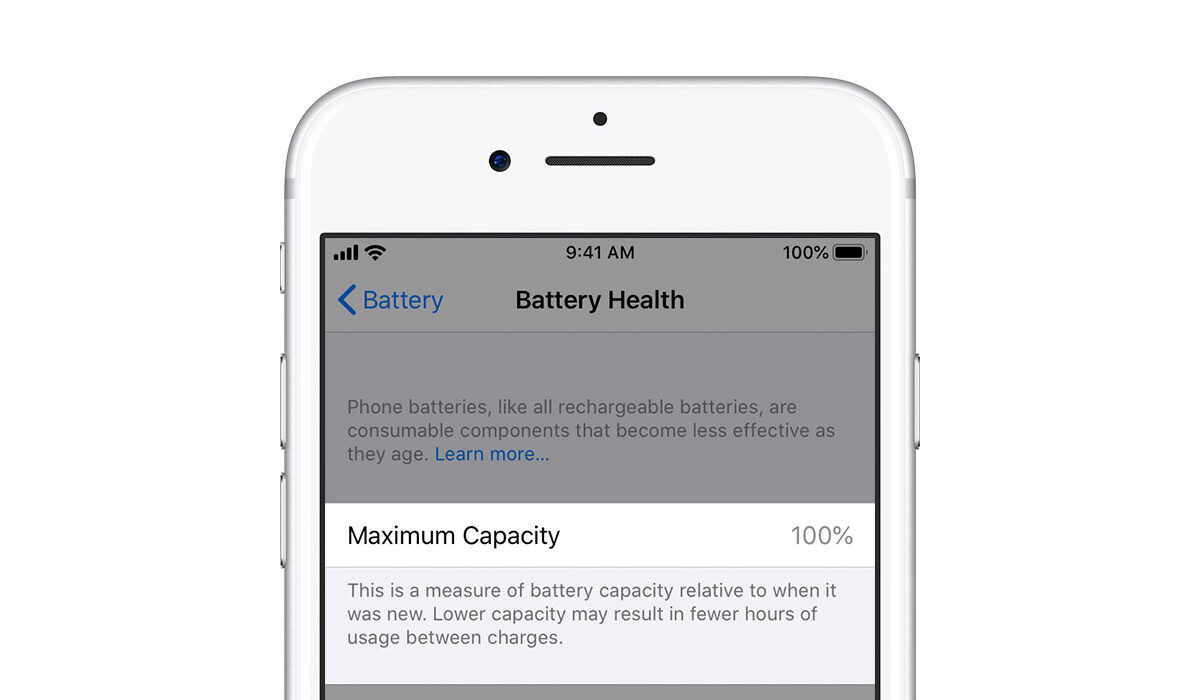
There are lots of reasons why your battery would die quicker than usual. To be sure what exactly is the matter, go to Settings > Battery. Under Battery Usage, check out a list of apps and see how much battery each app has consumed in the last 24 hours or 7 days. If there is any particular app that consumes too much battery you can do without, delete it.
But before you do that, check the fine print. It could be that the app is consuming data simply because it keeps running in the background or requesting your location. You could disable the former by going to Settings > General Background App Refresh and disabling it altogether or for individual apps. For the latter, go to Settings > Privacy > Location Services, then disable it totally or just for apps that overuse the feature.
IF YOUR IPHONE SUDDENLY SHUTS DOWN
This is one of the difficult iPhone battery problems. If your iPhone dies before the battery hits zero, there are certain steps you can follow to correct it. Here they are:
- Check for a software update: Go to Settings > General > Software Update to see if there is an update available. If there is, download and install it.
- Restore from backup or factory reset: if you use the latest version of iOS, you might want to perform a reset on your device. You can restore your iPhone from a recent backup on iTunes, or you can perform a factory reset. To do this, go to Settings > General > Reset > Erase All Content and Settings.
- Take the device to an Apple Store: If your iPhone battery problems continue after your factory reset, you might want to take it in for repairs. Apple will run diagnostics to see if there is a hardware issue with your phone.
IF YOUR iPHONE GETS TOO HOT WHILE CHARGING
This might be because you are using a poor-quality charger. Your charger might be cheaper than the original Apple charger, but it might cause your phone to heat up seriously. Try to find a suitable replacement. Now, you don’t necessarily have to buy an Apple charger, but you can use various third-party accessories that have Made for iPhone/iPad/iPod logo on their packaging.
- Don’t miss our reviews .
- Follow our news on Google News .
- Join our WhatsApp Group , to be notified of the most important articles and deals,
- Follow us on Instagram , Facebook , Twitter , and YouTube .
Author:EmmyCN
Add MobilityArena as a preferred source on Google
There are times when you might want to start from scratch with your PlayStation 4. Perhaps you want to upgrade to the PS4 Pro, or there is an error you are trying to fix. Or maybe you are having trouble testing the latest PlayStation software update. In any of these cases, you will need to know how to properly perform a proper PlayStation 4 factory reset.
A factory reset wipes the console’s hard drive and can remove its system software. Consider it a last resort, for when a software glitch completely freezes the console, or when you need to make sure that it contains absolutely none of your data. There are two ways to perform a PlayStation 4 factory reset. You can either go through the PS 4 dashboard, or you can go through Safe Mode, which you should consider if the console is having boot-up issues. Before you do any of these, however, make sure you back up your data, either to an external hard drive or to the cloud.
HOW TO PERFORM A PLAYSTATION 4 FACTORY RESET FROM THE DASHBOARD

- First of all, sign in to your Settings menu, then deactivate your PlayStation account. First, deactivate the machine as your primary PlayStation 4 by going to PlayStation Network/Account Management. Find the Activate as your primary PS4 option, then select Deactivate.
- Sign back in u=with your user account, which is different from your PS4 account. Then go to Settings > Initialization, and find the Initialize PS4 option. The first option will clear your saved settings data and return your PS4 to the factory state, but will not wipe the hard drive. The second option will clear your hard drive of data, including downloaded games and anything else you might have added to the console. Select this option, labeled Full, and allow the console do its work. At the end, it will be exactly as it was when you first bought it from the store.
HOW TO PERFORM A PLAYSTATION 4 FACTORY RESET IN SAFE MODE
If you have issues with the system software or other errors that prevent you from getting to the settings menu, you can still go through Safe Mode. Here’s what to do:
- Turn your PS4 completely off. Make sure it is not in Rest Mode, but completely off. Then hold down the power button until you hear two beeps. You will recognize Safe Mode by the black background.
- Choose the reset option you need. Here you can choose either Restore Default Settings or Initialize PS4 to wipe the hard drive and restore to factory settings while keeping the system software. You also get the option to Initialize PS4 (Reinstall System Software), which requires you to reinstall the PS4’s operating system.
- If you are not having software problems, simply select Initialize PS4. This will wipe the hard drive and restore the console to factory settings, but it will leave the system software intact. You can choose between Quick and Full initializations.
