Add MobilityArena as a preferred source on Google
The recently introduced Apple Intelligence on iPhone 15 Pro comes with advanced AI capabilities in these devices. However, users in their numbers have reported several challenges about this software. I discuss some of the problems and potential solutions based on search trends.
- Performance Issues
- Software Bug
- Functionality Constraints
- Early Adoption Challenges
- Conclusion
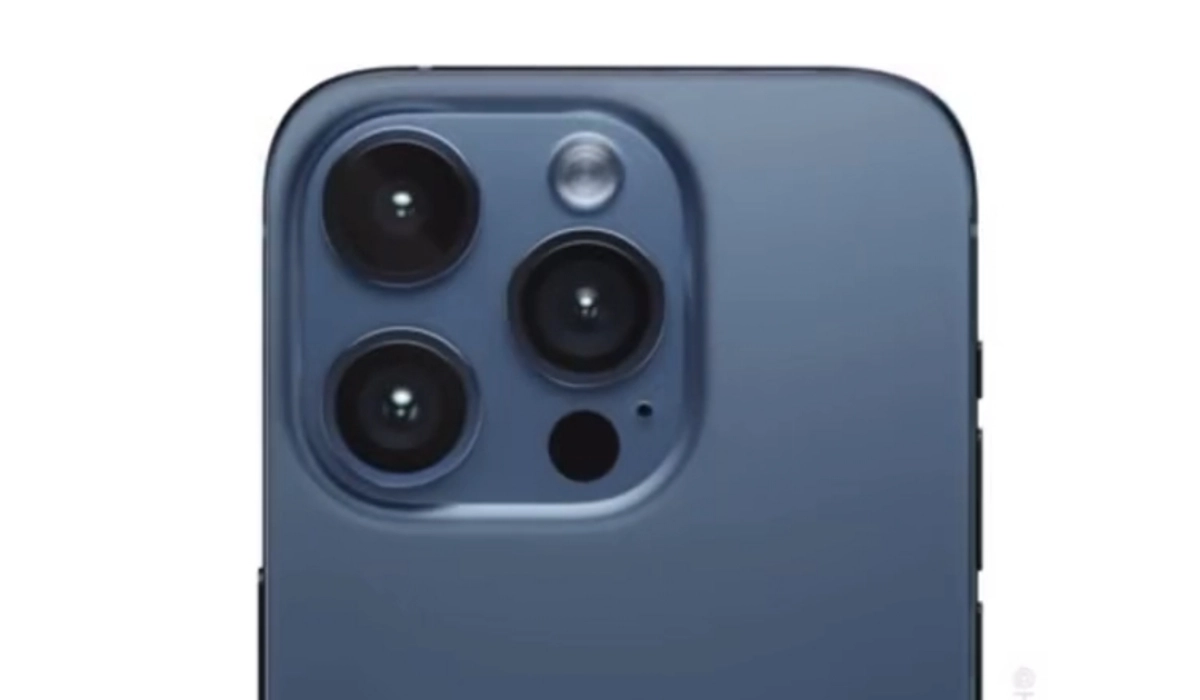
Common Issues with Apple Intelligence on iPhone 15 Pro and Their Solutions
Performance Issues
The iPhone 15 Pro and 15 Pro Max users often complain about the certain glitches such as Unresponsive Keyboard, Unresponsive Screen, Issues with the “tap to wake” function, Overheating, Sound glitches when typing, Dynamic Island display problems, etc. Here are simple steps to resolving these glitches:
- Update to the latest iOS version as Apple frequently releases patches for such issues.
- Regularly restart your phone to clear temporary glitches
- Try resetting all settings (Settings > General > Transfer or Reset iPhone > Reset > Reset All Settings)
- In case of severity, consider a factory reset or contacting Apple Support.
Software Bug

The iPhone 15 Pro users encounter app crashes and system glitches related to Apple Intelligence features and this can be frustrating while using the device. Here are few steps to deploy to solve these problem:
- Ensure to keep your apps updated to ensure compatibility with the latest iOS version.
- Regularly clear app caches or reinstall problematic apps.
- Then there’s the option to report persistent bugs to Apple through the Feedback app or their website, this will help them work on the glitch(es)
Functionality Constraints
Some users still find Siri struggling with certain tasks, even with the Apple Intelligence. Here are a few steps to take to handle this issue:
- Explore Siri’s capabilities thoroughly and use specific commands.
- Provide feedback to Apple about desired features.
- Consider using third-party AI assistants for tasks Siri can’t handle
Early Adoption Challenges
The Apple Intelligence is in beta, hence users are faced with the problem of inconsistent performance and limited functionality. Here are proffered solutions to solve this glitch:
- You definitely have to be patient and regularly update your device as improvement rolls out
- Ensure to participate in the beta program to give feedback directly to Apple.
- Use alternative apps or services for critical tasks until the features stabilizes
Conclusion
In conclusion, these problems can be frustrating, hence, regularly updating the device, restarting it, and clearing caches can resolve many performance issues. For software bugs, keeping apps updated and reporting persistent issues to Apple can help. Users struggling with Siri’s limitations can explore alternative AI assistants or provide feedback to Apple for future improvements. It’s important to remember that Apple Intelligence is still in its early stages, and many of these issues are likely to be addressed in future updates. As Apple continues to refine and expand the capabilities of this technology, users can expect a more seamless and powerful AI experience on their iPhone 15 Pro devices. In the meantime, patience and proactive troubleshooting can help users make the most of their devices while Apple works on enhancing the Apple Intelligence features. As the technology matures, it promises to offer even more advanced AI capabilities, potentially revolutionizing how we interact with our smartphones.
Author:Ifeoluwa Adeleke
Add MobilityArena as a preferred source on Google
There is no doubt that the iPhone 15 Pro is a strong and powerful device, but some users have reported issues with unresponsiveness of the touchscreen. Many iPhone 15 Pro users have experienced moments when their touchscreen becomes unresponsive or glitchy. This can manifest as:
- Delayed touch response
- Completely unresponsive areas of the phone
- Erratic behaviors such as phantom touches
I will be laying out a guide below for several troubleshooting steps to resolve this frustrating problem.
- Potential Causes of Unresponsive Screen
- Few Steps to troubleshooting Clean Your Screen and Hands Remove Screen Protector and Case Force Restart Your iPhone Update iOS Adjust Touch Sensitivity Reset All Settings
- When to Seek Professional Help
- Preventive Measures
- Conclusion
Potential Causes of Unresponsive Screen
iPhone 15 Pro unresponsive screen
There are a number of factors that can contribute to touchscreen unresponsiveness. Here are a list to a few:
- Software glitches
- Dirty or damaged screen
- Faulty Screen protectors or cases
- Hardware problems
Few Steps to troubleshooting
Clean Your Screen and Hands
Ensure both your hands and the iPhone’s screen are clean and dry. Dirt, oil, or moisture can interfere with touch sensitivity. This can help the iPhone 15 Pro unresponsive screen
Remove Screen Protector and Case
Temporarily remove any screen protector or case to rule out interference from these accessories. Sometimes you might have to get a new screen protector and case.
Force Restart Your iPhone
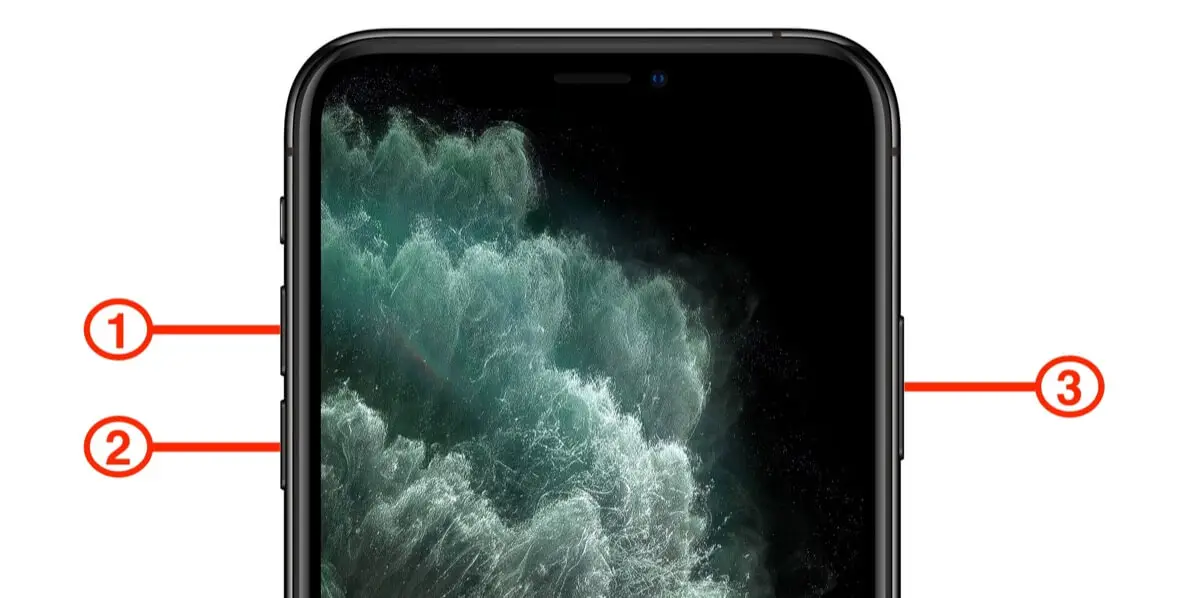
A force restart can often resolve temporary software glitches. Perhaps you do not know how to force restart your iPhone, simply follow this steps:
- Quickly press and release the Volume Up button
- Quickly press and release the Volume Down button
- Press and hold the Side button until you see the Apple logo
Update iOS
Make sure your iPhone is running the latest version of iOS. Incase you are not sure if it’s up to date, follow these two steps:
- Go to Settings > General > Software Update
- If an update is available, download and install it
Adjust Touch Sensitivity
You can try adjusting touch sensitivity settings. Carefully go to your phone settings as described here:
- Go to Settings > Accessibility > Touch
- Experiment with different settings to see if they improve responsiveness
Reset All Settings
If the issue persists, you can try to reset all without erasing all your data:
- Go to Settings > General > Transfer or Reset iPhone
- Choose “Reset All Settings” (this won’t delete your data)
When to Seek Professional Help
If none of these steps resolve the issue, it’s time to contact Apple Support or visit an Apple Store. The problem may be hardware-related and require professional diagnosis or repair. Make sure to visit a verified Apple Store or engineer to get it fixed.
Preventive Measures
To minimize the future risk of touchscreen issues, strictly adhere to the following:
- Use high-quality screen protectors and cases
- Keep your iPhone’s software up to date
- Avoid exposing your device to extreme temperatures or moisture
Conclusion
In conclusion, carefully following these troubleshooting steps, you can often resolve touchscreen responsiveness issues on your iPhone 15 Pro. Remember, if problems persist, don’t hesitate to seek professional assistance to ensure your device functions optimally.
