Add MobilityArena as a preferred source on Google
OnePlus recently added a model to its number series in the form of the OnePlus 10 Pro 5G . To some, it is probably one of the best, if not the best, gaming and performance phones on the market today. It is powered by the latest octa core Qualcomm Snapdragon 8 Gen 1 processor, with a 6.7 inch LTPO2 AMOLED FHD+ display. That is quite big and beautiful if you ask me. It also has a 120hz refresh rate, although one would expect a refresh rate of 144hz on a phone of this class but 120hz is not bad itself.
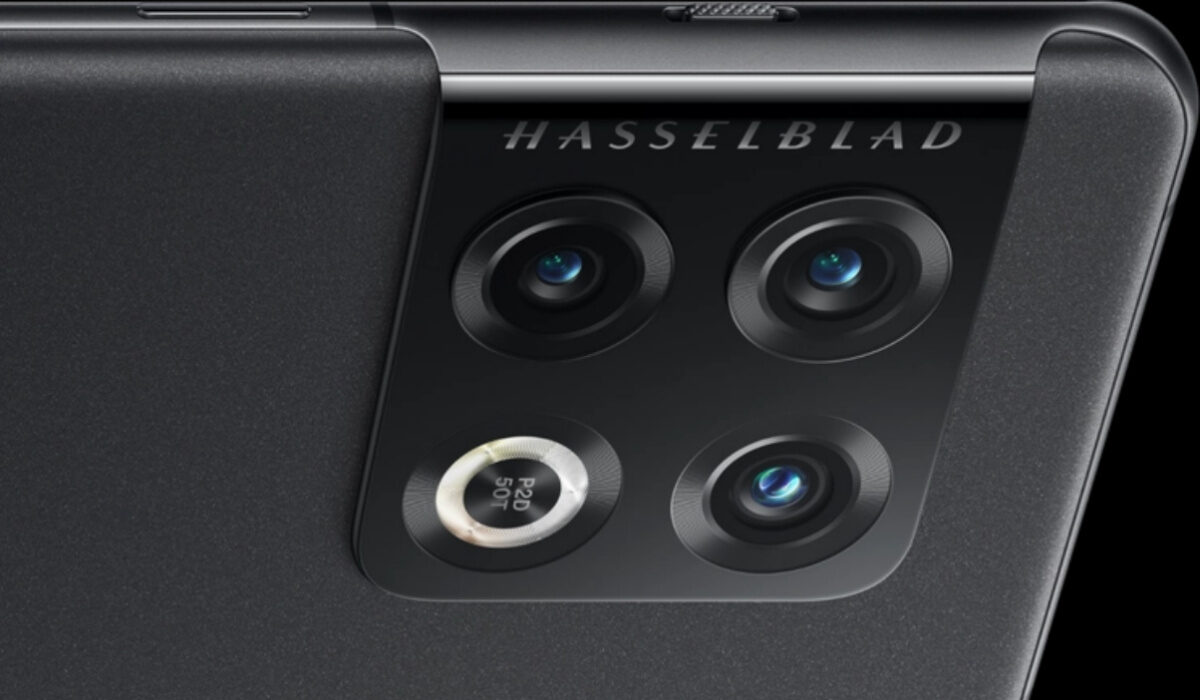
The OnePlus Pro 5G is powered by a large 5000 mAh battery and runs on the latest OxygenOS 12.1, which is based on the Android 12.1. It spots the popular Triple Camera setup, with a 48-megapixel primary camera, an 8-megapixel telephoto camera, and a 50-megapixel ultrawide camera.
OnePlus 10 Pro Problems and solutions
The OnePlus 10 Pro 5G is a brilliant and beautiful phone and is everything a flagship phone should be. But one thing about the smartphone industry is that there is no perfect phone. Today, we will be looking at some of the problems that users have encountered while using this device.
- OnePlus 10 Pro Overheating Problem
- OnePlus 10 Pro Wired and Wireless Charging problems
- Horizon Light Issues
- Notification problems
OnePlus 10 Pro Overheating Problem
I mentioned earlier that the OnePlus 10 Pro 5G is one of the best gaming phones out there right now. And it is through and through but it has a problem that needs no introduction; overheating. The device tends to heat up after a period of time while engaging in activities like gaming among other things.
To reduce the heating or stop it completely, turning off auto-brightness and decreasing screen brightness will go a long way. Close all the apps that are not in use. Turn off GPS, Bluetooth and any other connectivity options that are not in use. I would say turn off your Wi-Fi too but a number of people use Wi-Fi for its speed and consistency, but if you can make use of your personal data network, i advice you turn off your Wi-Fi.
OnePlus 10 Pro Wired and Wireless Charging problems
Some OnePlus 10 Pro 5G users have also complained about the charging speed of the device with both the wired and wireless charging. Just like its Apple competitor, the OnePlus 10 Pro 5G does not come with a charger in the box. Using any USB-PD charger will only charge the device at 18W rather than the 65W a Super VOOC charger would get you. Meaning you have to buy the OnePlus Charger.
As far as the Wireless charging is concerned, you also need to purchase the OnePlus Wireless Charger that provides up to 50W charging. If further problems surface with Wireless Charging, you need to go to Settings > Battery > Advanced settings > Wireless Charger settings and disable Quiet Charging.
Horizon Light Issues
Some OnePlus 10 Pro 5G owners can’t seem to get the Horizon Light to work as it should. Meaning the lighting that pops up on the curved edge of the device’s display has problems. You will have to ensure that all the proper settings are enabled for Horizon light to work correctly. Go to Settings > Personalisations and tap on “ Always-on display”. Ensure it is enabled. Display options in the same section need to be changed to All day or Scheduled from default.
Also go to Settings > Notifications and Status bar > manage notifications and enable Lock screen notifications. Edge lighting will only be light up when you receive a notification.
Notification problems
A hand full of OnePlus 10 Pro 5G owners face delays in receiving notifications and can only see them when they open the app. The two major apps that have been reported with this issue are WhatsApp and Gmail, other apps do face this issue but not on the scale that these two do. The phone’s battery optimisation settings often cause delayed notifications. Go to Settings > Battery > Advanced settings > Optimized battery use. Fish out the app causing the problem and tap on Don’t optimise.
Some users say that notification problems go away when they remove multiple user accounts. Go to Settings > users and accounts > Multiple users and remove any additional users you might have set up. To remove the default guest account, tap on it first to switch to this account. Pull down the notification panel and tap on the user icon and then on Remove guest.
Software Updates by OnePlus
OnePlus has a really good reputation when it comes to feedback and how fast they rollout updates to fix bugs and complaints that users have. It is why they are so reliable. Some of the latest software updates released include system stability updates, enhanced gaming performance, an improved Fingerprint scanner. Audio processing has also been enhanced as well as the battery consumption of the OnePlus 10 Pro 5G being optimised, making the device more durable for whatever activities you want to engage in on your phone. The quality of the rear camera was also improved.
- Don’t miss our mobile phone reviews .
- Follow us on Instagram , Facebook , Twitter , and YouTube .
Author:Flamez
Flamez loves basketball, art, gadgets and cars.
Add MobilityArena as a preferred source on Google
You are likely reading this article because you have experienced the Android App Not Installed error message on your device while you were attempting to install an app you downloaded from somewhere. It is a fairly common error seen on Android smartphones and tablets.
It mostly pops up when a user is attempting to download and install an app using an APK file extension from a source other than the Google Play Store. An APK file is the installation file for Android apps.
- Common causes of “Android App not installed” error 1. Insufficient storage 2. Corrupted or Contaminated App file 3. SD card not mounted in the device 4. Wrong Storage location 5. Corrupt storage 6. Unique Signed or Unsigned App Certificate
- Solutions to fix Android App not installed error Tip 1: Only use the Google Play Store Tip 2: Mount the SD card Tip 3: Choose your app’s location carefully. Tip 4: Format SD Card Tip 5: Check App Preferences and Permissions
Common causes of “Android App not installed” error
The first step in resolving this issue is to understand the reasons why the error pops up on your Android device. Let’s run through them, quickly.
1. Insufficient storage
When data like photographs, movies, music, messages, applications, contacts, and emails are saved in the internal memory of an Android device, there is not enough space left for another program, which results in an Android App Not Installed problem.
2. Corrupted or Contaminated App file
When you download apps from a platform other than the Play Store, the app files are often damaged and cannot be loaded successfully on your smartphone. When downloading an app, you should be extra certain about the source, look at the app’s extension, and try to avoid installing any files it contains.
3. SD card not mounted in the device
Your phone may sometimes be linked to a computer or another electrical device that can access the SD Card in your phone. When installing an app and selecting to save it to your SD card in such circumstances, you will encounter the error message “Android App Not Installed”, because the app cannot locate the SD card since it is not mounted in your device.
4. Wrong Storage location
You should be aware that certain apps perform better when kept on the device’s internal memory, while others need an SD card. If you don’t save the software in the right place, you’ll discover that it won’t install because of an unidentified error code.
5. Corrupt storage
The Android App Not Installed error is also known to be caused by faulty storage, particularly corrupted SD Cards. Unneeded and undesired data, some of which may have a component that disrupts the storage site, might clog even internal storage. Take this problem carefully since a damaged SD Card or even a congested internal memory might endanger your device.
6. Unique Signed or Unsigned App Certificate
The Android App Not Installed problem may also appear if you already have an app installed but download a different version of it with a unique signed or unsigned certificate. Although it may seem technical, you may address all of the aforementioned reasons in addition to this one.
Solutions to fix Android App not installed error
Tip 1: Only use the Google Play Store
The Play Store is a platform created especially for Android applications, and it only has reliable apps. If you only download programs from the Google Play Store, the problem “Android app not installed” is unlikely to happen.
Tip 2: Mount the SD card
It’s possible for your Android phone’s SD card to be correctly inserted yet still sometimes be unavailable. The SD card may be made accessible by mounting it. The guide below shows you how to mount an SD card.
- Select Storage under Settings.
- On the Storage Info screen, choose Mount SD card.
Try installing the app again after restarting your smartphone; it should work.
Tip 3: Choose your app’s location carefully.
Users are advised not to meddle with the app’s location and to let it choose where it should be installed. The internal storage of the phone is always the ideal area to store the applications.
Tip 4: Format SD Card
Formatting the SD card is required if the corrupted SD card causes the Android app installation issue. To prevent data loss, nevertheless, kindly create a backup of the information on your SD card. To format an SD card, go to Settings > Storage. Using Tip 2’s instructions, mount it.
Tip 5: Check App Preferences and Permissions
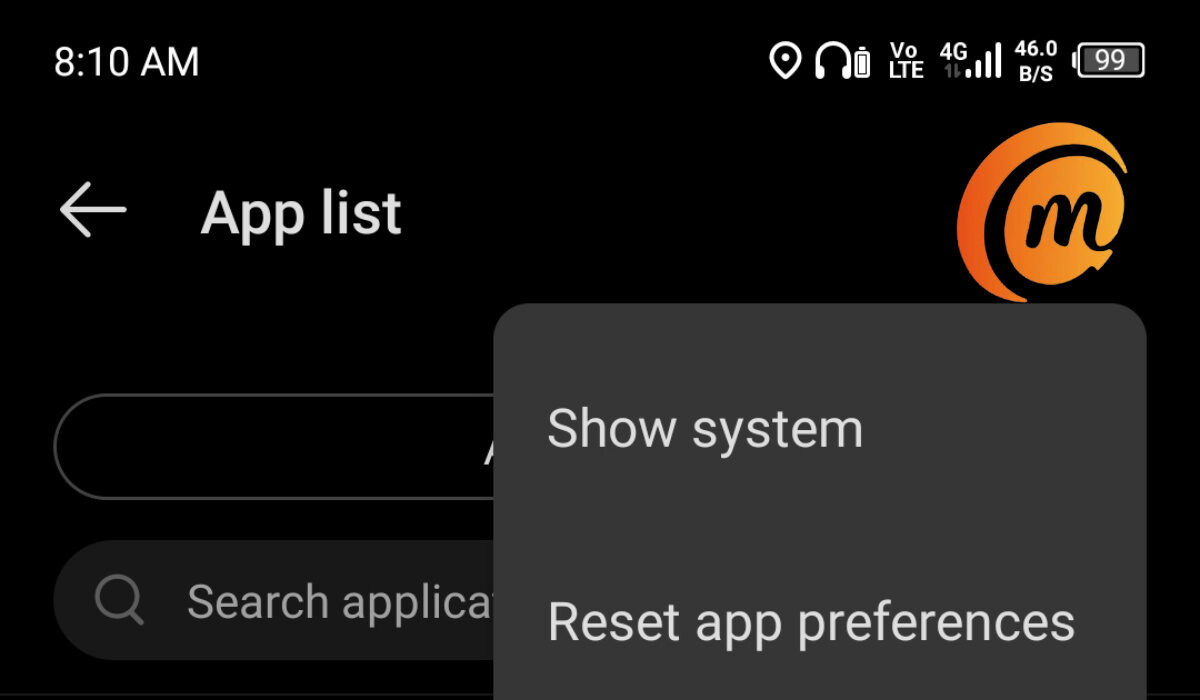
Resetting app permissions might solve the Android app not installed problem. Reset app preferences and application permissions by going to Settings > Apps > App List, and select the menu icon at the top right corner, then tap Reset app preferences .
The above are the available fixes for the Android App Not Installed error. Leave us a comment below to share which of these worked for you.
This article was guest contributed by Nwosu Emmanuel . Check out the Emma Build , his personal website.
