Add MobilityArena as a preferred source on Google
Function keys are popular as shortcut keys that help with simple yet significant tasks like adjusting the volume, screen brightness, and computer backlight. To turn on the backlit keyboard, for example, you can do it just by pressing a key instead of doing it through Windows. These keys can only be used by default when you click on the designated Fn key alongside them.
In this guide, I’ll show you how to change the function key settings in Windows 10 and 11. So, even though these keys are pre-programmed, here are some useful options to change what the function keys do in Windows 10 and 11 PCs.
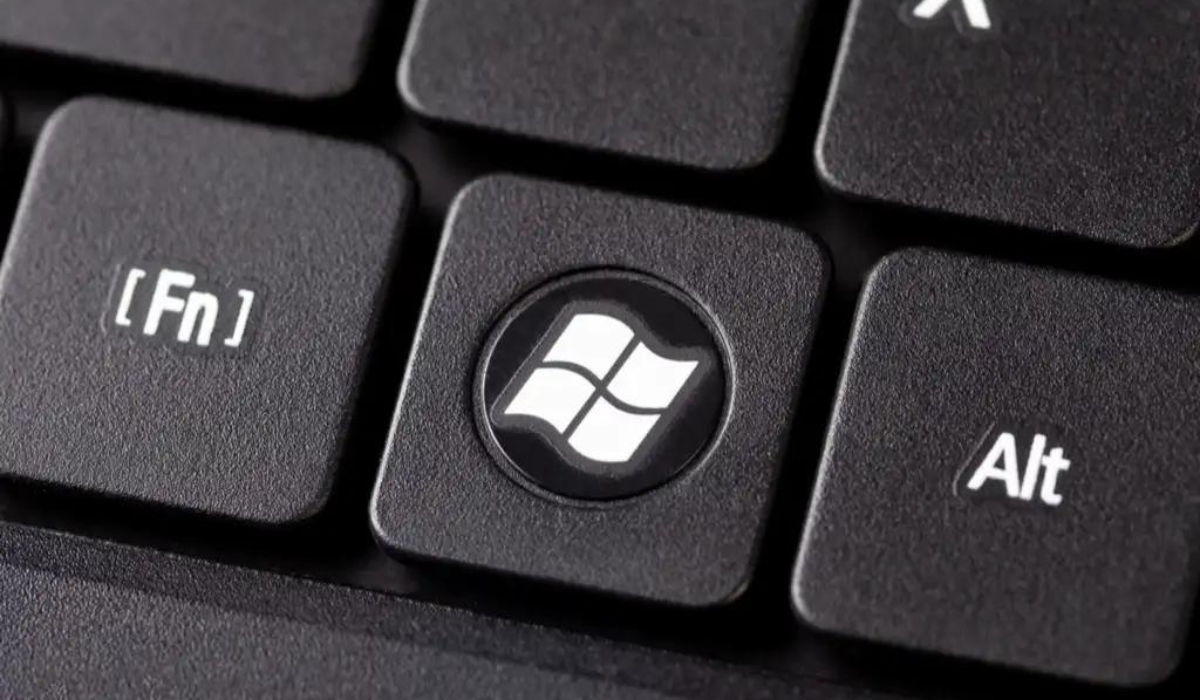
- How Can I Change the Function Key Settings in Windows 10 and 11? Change the Function Key Settings in Windows on Dell Computers Through Mobility Settings How to Change the Function Key Settings in Windows Through the BIOS Change the Function Key Settings in Windows Through the UEFI Settings
How Can I Change the Function Key Settings in Windows 10 and 11?
The function keys are useful for several tasks, and the fact that you can customize them uniquely makes them even better. Below, I’ve described various ways in which you can change the function key settings in Windows 10 and 11. Now, you can customize what the function keys do according to your unique preferences.
Change the Function Key Settings in Windows on Dell Computers Through Mobility Settings
The simplest approach to modify how function keys work is to adjust the settings in the Windows Mobility Center. This solution, however, will only work if you have a Dell device.
Here’s how to change the function key settings in Windows on Dell Computers:
- In Windows search, type Windows Mobility Center and press Open .
- Alternatively, open the Control Panel and go to the Hardware and Sound tab.
- Select Windows Mobility Center .
- Look for the Fn key row area in the next window and expand the drop-down beneath it.
- Choose the Function key if you want to use the F keys for basic functions.
- If you want to use the F keys for functions that should require the Fn key, click on Multimedia .
If you have other devices, check the System or keyboard settings for similar choices. You can also look for information on such customizations on the manufacturer’s official website.
How to Change the Function Key Settings in Windows Through the BIOS
It’s also possible to change the function key settings in Windows directly in the BIOS, which helps the operating system and hardware to load correctly.
The steps for accessing BIOS in different devices may differ. For HP and Acer products, you can use the steps outlined below. If, however, you possess a different device, you should go to the manufacturer’s website and check for the BIOS access methods there.
If you have an HP device, follow these steps to change the function key settings in Windows 10 and 11:
- Turn off your computer first.
- Press the F10 key repeatedly after restarting the device. The BIOS should start up successfully after that.
- Look for System Configuration , then click on Action Keys Mode .
- To enable or disable the functionality, press the Enter key.
- To save the changes, click Exit .
If you’re using an Acer device, follow these instructions:
- Hold down the Power and F2 buttons at the same time.
- When you get to the BIOS screen, select System Configuration from the menu and then click Enter in the Action Keys Mode selection.
- Select the preferred mode, then click Exit .
Change the Function Key Settings in Windows Through the UEFI Settings
You could also try to change the Function key settings in Windows using UEFI settings if, for some reason, you are unable to boot into BIOS.
If you are a Windows 10 user, follow these steps to boot into UEFI Settings:
- To launch Windows Settings, press Win + I .
- Navigate to Update & Security > Recovery .
- Select Restart now.
Use these steps if you’re a Windows 11 user:
- Press the Win + S keys together to open the Windows Search utility.
- Enter Recovery in the search field and select Recovery option from the list of available possibilities.
- Finally, select Restart now from the Advanced Startup menu.
After you’ve booted into the Windows Recovery Environment using the steps outlined above, do the following to change the function key settings in Windows:
- Select Troubleshoot in the next window.
- Select UEFI Firmware Settings > Restart .
- Navigate to the Configuration tab in the window that comes up next.
- Click the Hotkey Mode and then select the Enabled or Disabled option.
- To sign out of BIOS, click Save and then Exit .
How to Enable the Fn Key Lock
Toggle on the Fn lock if you don’t want to click the Fn key every time you want to enable or disable one of the 12 functions. With this feature, the Fn key appears to be held down on the keyboard at all times, and you can use any function key without first pressing the Fn key.
The Fn lock is typically associated with the Esc key on most keyboards, but this may vary depending on your device. These keys usually have a lock icon on them. If you don’t see a key with a lock icon anywhere on your PC model, you can use the manufacturer’s website to locate the lock on your device.
When you’ve located the key, hold down the Fn key and press the lock key. This will activate the function. You can disable it again by following the same instructions.
Function keys are excellent for increasing productivity and efficiency, and you can make the most of them if you use the right approach. I hope the above steps you to successfully change the function key settings in Windows. It’s also worth noting that none of the methods listed above create a permanent change to the system, so you can always undo the changes when you want.
Author:Joan Agie
Add MobilityArena as a preferred source on Google
Google Chrome is an amazing web browser, but it occasionally crashes, freezes, or totally stops functioning. While these types of crashes are common, they can leave you high and dry by placing your vital, unsaved data in danger. In such instances, there are various things you can do to restore Chrome to its former state and achieve a flawless surfing experience.
In this article, I’ll show you how to fix Google Chrome not responding so you can get your browser back to normal. There are numerous causes for these issues; therefore, it’s critical to be thorough when troubleshooting and attempting to resolve the problem.
How Do I Fix Google Chrome Not Responding?
Chrome is frustrating when it crashes constantly, and you wouldn’t be wrong to want to use a different browser if this keeps happening. However before you do that, described below are useful ways to fix Google Chrome not responding. Try them first, and I’m sure you’ll find at least one method that helps restore proper function to your Google Chrome browser.
Restart Chrome
When Chrome crashes or freezes, try restarting it fully first. To do this, click the three dots in the top-right corner of Chrome and choose Exit . Then, after a few moments, reopen Chrome after a few moments to see if it helps to fix Google Chrome not responding.
Close Unused Tabs
Also check how many tabs you have open in Chrome. Websites may crash if your computer’s RAM is low (which is frequently the case due to Chrome’s high memory utilization). Close any tabs that aren’t in use, pause any Chrome downloads, and exit any extra programs that are active on your computer. This usually helps to fix Google Chrome not responding, or when it crashes and freezes.
To access the Task manager in Chrome, press the Shift + Esc . You’ll see a rundown of everything that is running in Chrome, allowing you to close the most active users.
Restart your Computer
If none of the above methods appear to be effective, restart your computer. As you are probably aware, restarting resolves many different issues and may also resolve any problems with Chrome.
Update Chrome
Chances are, Google has already released an update to fix Google Chrome not responding if there are any known bugs that can cause Chrome to crash or freeze, including those that affect memory use.
To check for Chrome updates, go to Menu > Help > About Google Chrome . Continue to other suggestions below if the simpler ones above didn’t work to fix Google Chrome not responding.
Disable Extensions
It’s also worth disabling some extensions when you’re trying to fix Google Chrome not responding or get it to stop crashing or freezing. Go to the Menu > More tools > Extensions page to check your installed extensions. Deactivate or remove whatever you are not actively using. Excessive extension use might cause your browser to slow down, and malicious extensions can interrupt Chrome’s normal operation.
If you have many extensions and don’t want to manually disable all of them, open an incognito window by going to Menu > New incognito window or by using the keyboard shortcut Ctrl + Shift + N . Extensions are by default incompatible with incognito windows. As a result, browsing incognito can let you see if it’s an extension that is causing Chrome to freeze or crash.
Try a Different Browser
If Chrome seems to stop working only when loading a specific site, check if the problem is limited to Chrome or other browsers are affected. Open another browser, such as Firefox or Microsoft Edge, and see if the same error occurs.
If the page does not load in the other browser, the site is most likely having problems. There’s nothing to do but wait for the site owners to resolve the issue; consider contacting the website admin via social media to notify them.
If the website loads properly in other browsers, then you’ll know that the problem is with Chrome. Proceed with the instructions below to fix Google Chrome not responding.
Run a Malware Scan
Even if malware isn’t always to blame for Chrome crashes, it’s something to rule out in an attempt to fix Google Chrome not responding. Malicious software could tamper with your browser’s network or security settings and disrupt connections.
Chrome comes with a basic malware scanner. However, for a more thorough check, scan with your computer’s antivirus suite and Malwarebytes.
Disable Hardware Acceleration
Hardware acceleration is a feature that transfers heavy graphical duties from your CPU to your GPU. It makes Chrome run faster when enabled, but it could also cause the browser to malfunction sometimes.
After attempting all the fixes above and Google Chrome still doesn’t stop malfunctioning, you should switch off hardware acceleration and see if it helps to fix Google Chrome not responding. To do this, select Menu > Settings > Advanced . Locate the Use hardware acceleration when available toggle and click the switch.
Reset or Reinstall Chrome
If you’ve gotten this far and nothing has worked, reset or reinstall the browser to fix Google Chrome not responding. To start, you can use Chrome’s built-in reset feature to return to a brand-new state without having to reinstall.
Go to Menu > Settings > Advanced > Reset and Clean up > Restore settings to their factory defaults . Everything will be reset, with the exception of Bookmarks , History , and Saved passwords , as stated by Chrome.
If Chrome still freezes even after a restart, you should completely uninstall it and then reinstall it. Go to Settings > Apps > Apps & Features and select Google Chrome from the list. Select Uninstall by clicking it. Next, download a brand-new version of Google Chrome. Chrome should function normally once it has been fully reinstalled.
It’s upsetting when a browser doesn’t respond properly since we use browsers for so many different functions. As such, I hope these troubleshooting tips help you fix Google Chrome not responding, no matter its root cause.
