Add MobilityArena as a preferred source on Google
The mid-Atlantic state of Delware in the USA has announced the introduction of a mobile driver licence app . The new mDL will be put to test in a 6-month trial run that will involve about 200 employees of the Delaware Division of Motor Vehicles.
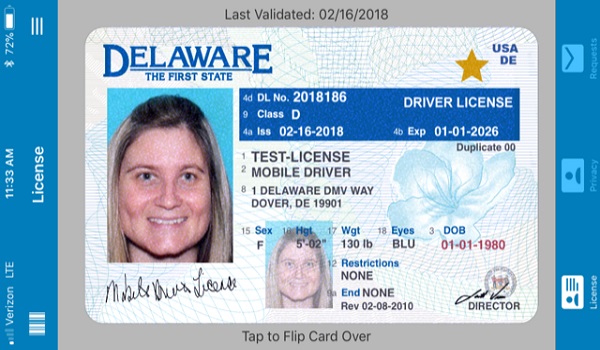
The pilot run of the new mobile driver licence will allow the state to find out the issues that using a smartphone app as a driving licence will bring up. As such, those issues can be ironed out before the app is made available for use by the public. Here is a screenshot of what the driving licence looks like:
Features Of The Mobile Driver Licence App
Features of the mDL app will include:
- Enhanced privacy for age verification – no need to show a person’s address, licence number and birthdate, the mDL will verify if the person is over 18 or 21 and display a photo.
- Law enforcement use during a traffic stop – the mDL will allow law enforcement officers to ping a driver’s smartphone to request their driving licence information prior to walking to the vehicle.
- Business acceptance – understanding how businesses that require identification or age verification interact with the mDL will be advantageous throughout pilot.
- Ease of Use – ensuring the mDL is able to be presented to any organization without difficulty.
- Secure access – the mDL is only unlocked and accessible by the mDL holder. The mDL is accessed through an app on the owner’s smartphone and is opened/unlocked by entering a user-created PIN number or using facial recognition.
Delaware is one of the first US states to test mobile driving licence. The benefits of an electronic driver licence of this sort include: lower costs, easier updates and logistics, as well as better security.
Source
- Don’t miss our reviews .
- Follow our news on Google News .
- Join our WhatsApp Group , to be notified of the most important articles and deals,
- Follow us on Instagram , Facebook , Twitter , and YouTube .
Author:MobileChic
That motivated, gadget-loving geeky chic who tries to stay on top of things. Unapologetic iFan.
Add MobilityArena as a preferred source on Google
Google Lens is a mobile tool that helps you discover more information about objects around you. An example of how it works is this: you see a striking building or book and take a photo of it with Google Lens and the app provides you more detailed information about the building or the book. Google Lens is now available to iOS devices.
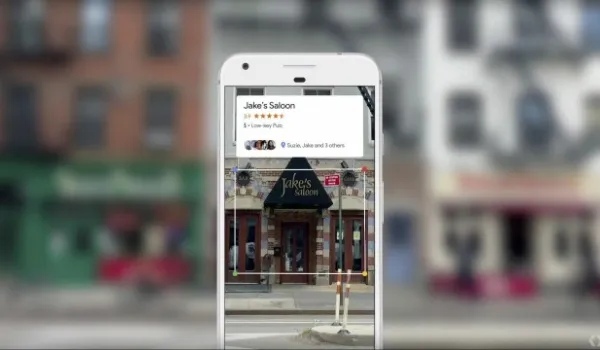
This guide will help you get started with using Lens on your iPhone. But first, here are some of the things you can do with Google Lens:
- You can extract and save info from business cards, follow URLs, call phone numbers and navigate to addresses.
- Google’s Lens can help you go on a personal excursion of a new city by helping you recognize landmark buildings and structures and learn about their history.
- Find out more information about a book, its synopsis, author and publisher; or a movie, from the trailer to reviews, right from the movie poster.
- You can look up a product by scanning its barcode or QR code, so Google Lens gives you more details about the product.
Google’s Lens is an image recognition mobile tool that you will find highly educational and helpful.
How to use Google Lens on your iPhone
Google Lens is built into the Google Photos app (from version 3.15). To access the feature on your iPhone, follow these steps:
- update the Google Photos app from the app store, so you have at least version 3.15
- launch the Google Photos app,
- select a photo or take a new photograph,
- tap on the Google Lens icon; here is what it looks like:
The app will push out more details about the photo. Depending on the information provided, you can carry out a number of actions. For example, if you have snapped a conference poster, you may be able to add the conference schedule to your calendar right from Google Lens. Nifty; right?
If you scanned a product, Lens may provide you a link to an online store where you can place your order right away.
Give it a try today. And if you own an Android smartphone instead, the process for using Google Lens on it is similar. Make sure that you have the latest version of the Google Photos app, launch it and follow the steps spelt out above.
Enjoy!
- Don’t miss our reviews .
- Follow our news on Google News .
- Join our WhatsApp Group , to be notified of the most important articles and deals,
- Follow us on Instagram , Facebook , Twitter , and YouTube .
