Add MobilityArena as a preferred source on Google
No, you do not necessarily need a smartwatch to use Google Fit. Google Fit is a health and fitness tracking platform that can be used on any Android device, including smartphones and tablets, without the need for a smartwatch. However, using a smartwatch can enhance the Fit experience by providing additional data such as heart rate, step count, and distance traveled.
Some smartwatches also have built-in GPS , which can be useful for tracking outdoor activities such as running or cycling. Additionally, some smartwatches can sync data with Google Fit automatically, making it easier to track your fitness goals and progress. However, it is not a requirement to have a smartwatch to use it, and the platform can be used effectively without one.
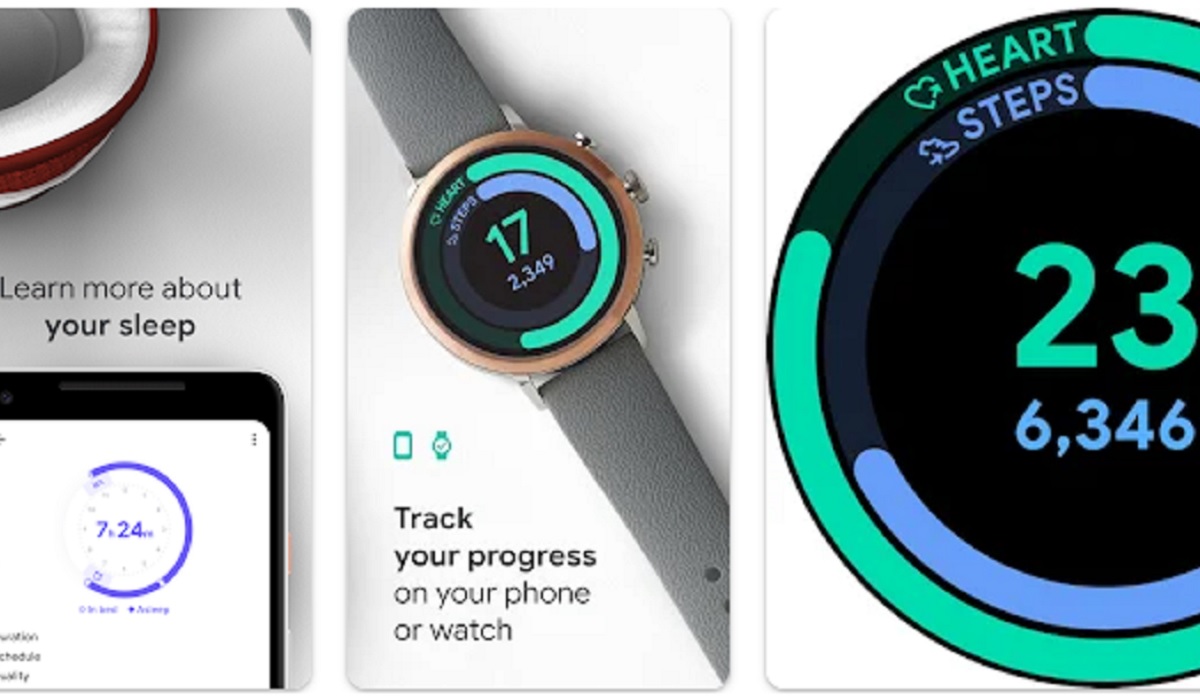
- What is Google Fit?
- How to set it up for use
- Some popular smartwatches and fitness trackers that are compatible with Google Fit
- Affordable smartwatches and fitness trackers that are compatible with Google Fit
What is Google Fit?
Just in case you are new to the subject, Google Fit is a health and fitness tracking platform developed by Google. It is designed to help individuals monitor their physical activity, set fitness goals, and lead a healthier lifestyle. Fit is available as a mobile app for both Android and iOS devices, as well as a web-based interface.
The primary purpose of the service is to collect and organize data related to your physical activities and health metrics. It uses various sensors and sources to track your movements, such as steps taken, distance traveled, and calories burned. Google Fit can integrate with a wide range of devices, including smartphones, smartwatches, fitness trackers, and other connected health devices.
Key features and functionalities include:
- Activity Tracking : Google Fit uses your device’s built-in sensors or connected wearable devices to monitor your activity levels throughout the day. It can track various activities like walking, running, cycling, and more.
- Heart Rate Monitoring : If your device supports it, Google Fit can also track your heart rate during workouts or throughout the day, providing insights into your cardiovascular health and intensity of exercise.
- Goal Setting : You can set personal fitness goals within the app, such as a target number of steps, active minutes, or calories burned. Google Fit provides progress tracking and reminders to help you stay motivated.
- Data Visualization : The app offers visual representations of your fitness data, including graphs and charts, allowing you to monitor your progress over time and understand trends in your activity levels.
- Integration with Third-Party Apps and Devices : Google Fit can sync data with various popular fitness apps and devices, creating a comprehensive overview of your health and fitness activities in one place.
- Insights and Recommendations : Based on your activity data, Google Fit provides insights and recommendations to help you make informed decisions about your health and fitness routines.
- Automatic Tracking : Google Fit can automatically detect certain activities like walking, running, and cycling without requiring manual input, making it convenient to track your workouts.
How to set it up for use
- Download the app to your smartphone from Apple App Store or Google Play Store .
- Sign in to your Google account on the app. If you do not already have a Google account, you will be presented with the option to create one.
- Approve the necessary permissions required by the app.
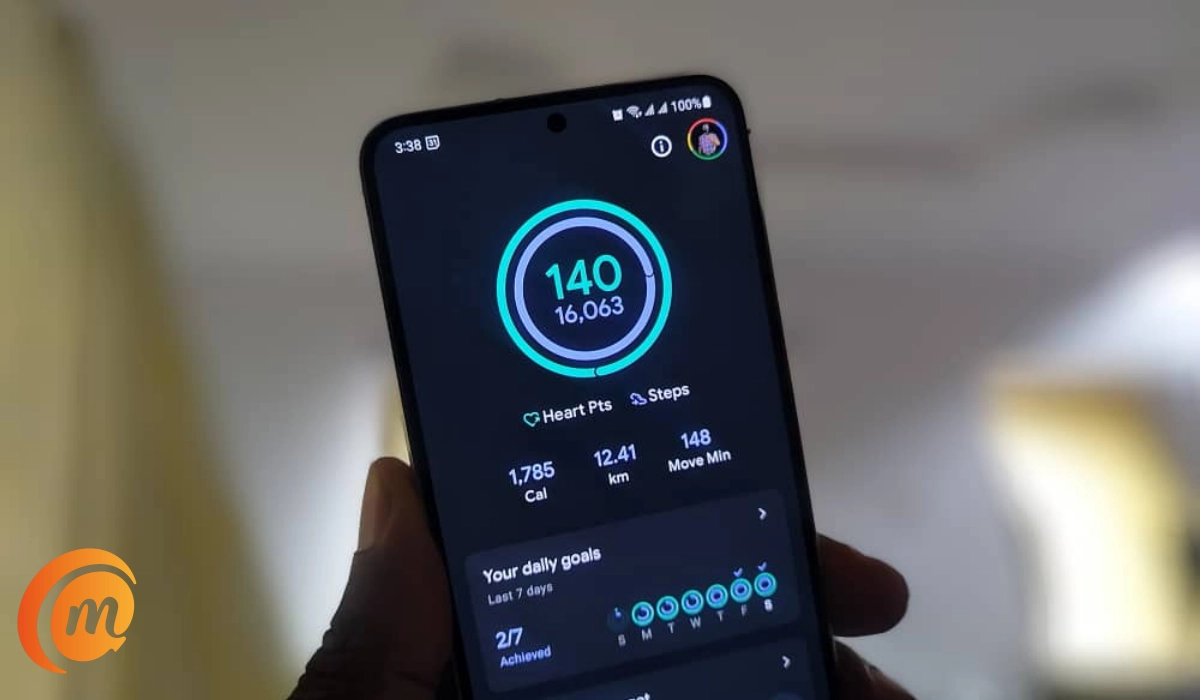
- Select your preferred activity and set up your daily or weekly or monthly target, and you are good to go. The app has many features that can be a little overwhelming to use at first. If you find it so, I recommend that you simply use it as is – the app’s main page displays your heart points, steps, distance covered, and calories burnt for the day.
Some popular smartwatches and fitness trackers that are compatible with Google Fit
There are many popular fitness tracker brands that are compatible with Google Fit. Here are a few examples:
- Fitbit : Fitbit devices are among the most popular fitness trackers on the market. They can be synced with the Google Fit app to track your steps, distance, calories burned, and more.
- Garmin : Garmin makes a variety of fitness trackers and smartwatches that are compatible with Google Fit. These devices can track your workouts, monitor your heart rate, and more.
- Samsung : Samsung’s Galaxy Watch and Galaxy Fit devices are compatible as well. These devices can track your steps, calories burned, and workouts.
- Huawei : Huawei’s Watch GT and Band devices are also compatible with Google Fit. They can track your steps, heart rate, and sleep, among other metrics. The Huawei Band 6 is an affordable fitness tracker that is compatible with Google Fit. It can track your heart rate, sleep, workouts, and more. It also has a long battery life of up to two weeks.
- Xiaomi : Xiaomi’s Mi Band and Amazfit devices are affordable fitness trackers that can be synced with the Fit app to track your activity. For example, the Xiaomi Mi Band 6 is an affordable fitness tracker that offers a lot of features for the price. It can track your steps, heart rate, sleep, and workouts, and it has a battery life of up to two weeks.
Affordable smartwatches and fitness trackers that are compatible with Google Fit
Wearable devices come in a wide range of price tags. Models from Apple and Samsung, for example, are some of the priciest in the market. If you are on a budget and are looking for something much more affordable, there are several affordable fitness trackers that are compatible with Google Fit. Here are three options you might consider:
- Xiaomi Mi Band 6 : The Xiaomi Mi Band 6 is an affordable fitness tracker that offers a lot of features for the price. It can track your steps, heart rate, sleep, and workouts, and it has a battery life of up to two weeks. The Mi Band 6 is also compatible, so you can sync your data to the app.
- Huawei Band 6 : The Huawei Band 6 is another affordable fitness tracker that is compatible with Google Fit. It can track your heart rate, sleep, workouts, and more. It also has a long battery life of up to two weeks.
- Amazfit Bip U Pro : The Amazfit Bip U Pro is a budget-friendly fitness tracker with a built-in GPS, which is a rare feature in this price range. It can track your steps, heart rate, sleep, and workouts, and it has a battery life of up to nine days.
Author:Mister Mobility
Digital Skills and Communication Coach | Mobile Phone Connoisseur since 2001 | Tech Blogging since 2004
Add MobilityArena as a preferred source on Google
Samsung Smart TVs are some of the most advanced televisions on the market, offering a wide range of features and capabilities. One of the many benefits of owning a Samsung Smart TV is the ability to install apps directly onto the TV, allowing you to stream content, play games, and more.
In this article, I’ll show you how to install apps on a Samsung smart TV. Whether you’re looking to install popular streaming apps like Netflix or Hulu, or you want to try out some new games or productivity apps, the process of installing apps on your Samsung Smart TV is easier than you might think. You’ll also learn useful tips to manage apps and their configuration on your TV’s home screen.
- How Can I Install Apps on a Samsung Smart TV? How to Download Apps on Your Samsung Smart TV How to Add Apps to the Samsung Smart TV Home Screen How to Lock Apps on Your Samsung Smart TV
How Can I Install Apps on a Samsung Smart TV?
TVs have been transformed from just being devices for playing movies. You can now cast videos from your gadgets without cables or stream directly from the internet using Wi-Fi routers. It’s also possible to download your favorite apps and use them on a bigger screen. However, unlike Android TVs, Samsung smart TVs generally don’t allow typical phone apps to be installed straight from mobile devices because they use a different operating system called Tizen .
The Tizen OS powers most of Samsung’s latest smart TV lineups, and it has its own app store. You can download third-party apps like movie streaming services or social media apps. You can also customize your viewing experience using the built-in apps. Below is everything you need to know about how to download apps on your Samsung Smart TV, including how to add apps to your TV.
How to Download Apps on Your Samsung Smart TV
Typically, you should already have some apps on your Samsung TV, but a need may arise to visit the app store for more apps. If you have an internet connection, you can create a Samsung account on your TV, smartphone, or PC. To download apps after creating an account, follow the instructions below.
- Turn on your Samsung Smart TV and ensure that it is connected to the internet.
- On the remote control, press the Home button.
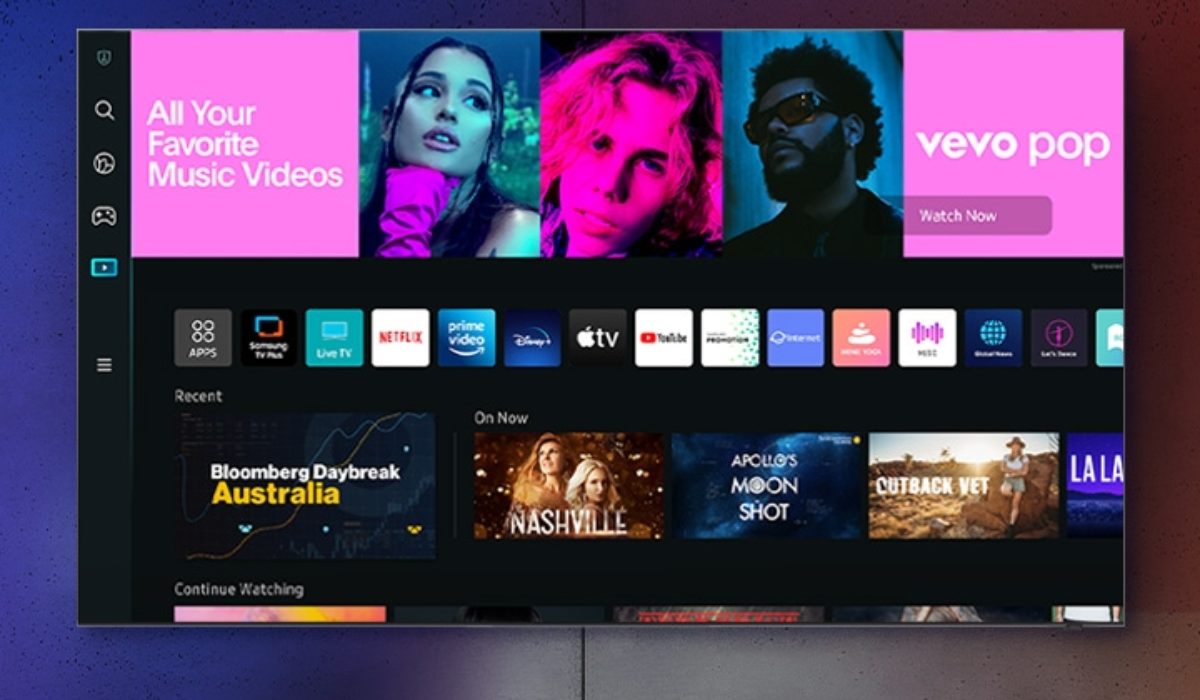
- From the options on the home screen, scroll left and choose Apps . To choose options, tap the big circular button.
- To find an app, click the search icon in the top-right corner. To find ideas, you can also browse the Editor’s Choice menu and other categories.
- If you searched for an app, choose it from the list of results to see more about it, including information, screenshots, and user reviews.
- Finally, click on “ Install ” to add the app to your Samsung TV.
How to Add Apps to the Samsung Smart TV Home Screen

Apps do not appear on your Samsung TV’s home screen by default, so you’ll need to manually add them. Pinning your favorite apps in this manner allows you to access them more quickly and eliminates the need to open the Apps menu. After you’ve pinned them, you can move them around for a better arrangement. To begin, take the following steps:
- On your remote, press the Home button .
- From the home screen options, select the Apps menu.
- Scroll down to the Downloaded Apps section.
- Long-press on an app. Then choose Add to Home . Repeat these steps for any other apps you want to pin to the home screen.
- To see your available apps, return to the home screen.
- Long-press an app to rearrange it. Then choose Move .
- You can now reposition apps using the directional buttons on your TV remote.
How to Lock Apps on Your Samsung Smart TV
It’s also possible to lock your apps on your Samsung TV if you don’t want anybody meddling with them or accessing sensitive content within them. When locking apps on Samsung TVs, you’ll need to provide a PIN as confirmation. It’s usually the TV’s default PIN, which is four zeros (0000). If you changed it, you’ll need to enter the new digits to confirm the lock and re-enter the PIN to unlock the apps. To lock apps on your Samsung TV, follow the steps outlined below:
- On your remote control, click the Home button . Next, choose Apps .
- In the top-right corner, click the Settings gear.
- To switch between apps, use the directional buttons on your remote. Every app that you highlight should display a menu.
- Choose Lock from this menu, then enter your four-digit PIN to lock the app. You should now see a small lock icon next to any apps you’ve restricted.
- Repeat the previous steps to unlock TV apps. Once you’ve selected the Unlock option, enter your PIN.
To conclude, installing apps on your Samsung Smart TV is a straightforward process that can help you customize your viewing experience. It’s pretty easy to download apps directly from the app store on your TV and enjoy a wide range of content. However, if you encounter any issues during installation, you can contact Samsung’s customer support for assistance. If you also need troubleshooting and purchasing tips for other Samsung devices, check out this category .
