Add MobilityArena as a preferred source on Google
“Does the Galaxy S24 Ultra have IR blaster?” is a question I have been asked a few times. Infra-red ports are no longer the rave they used to be years ago on mobile phones, but some manufacturers still use them. And some Samsung fans are bitter about it.
Back in the day, the most advanced mobile phones would have an infra-red port. It was used for data transfer, including internet sharing. Yes; those were the days before Wi-Fi became a thing. To share your phone’s internet, you used an old-school data cable or infra-red.
With the presence of Wi-Fi, the need and demand for infra-red blasters diminished. In recent years, Xiaomi has put an IR blaster in many of its phones. This time, these ports enable the phones to be used as TV controllers. Yes; mobile phones have taken over the roles of everything else; why not add TV controller to it?
It also enables the ability to control the DVD player, air conditioner, and some other household appliances. But a more accurate version of Face ID uses infra-red and, so, we are seeing an upsurge of IR ports in smartphones. So, perhaps, a new IR revolution may yet happen based on this.
I have owned or reviewed a number of phones with an infra-red blaster and enjoyed using the feature. However, I cannot say that I have missed it in all the other phones I have used that did not have it. It has never felt like an essential to me.
- Does Samsung S24 Ultra Have IR Blaster?
- Does Samsung Galaxy S24 and S24+ Have IR Blaster?
- The Last Samsung Phones With IR Blaster
- Your Best Options For Phones With IR Blaster
- Deal-breaker?
Does Samsung S24 Ultra Have IR Blaster?
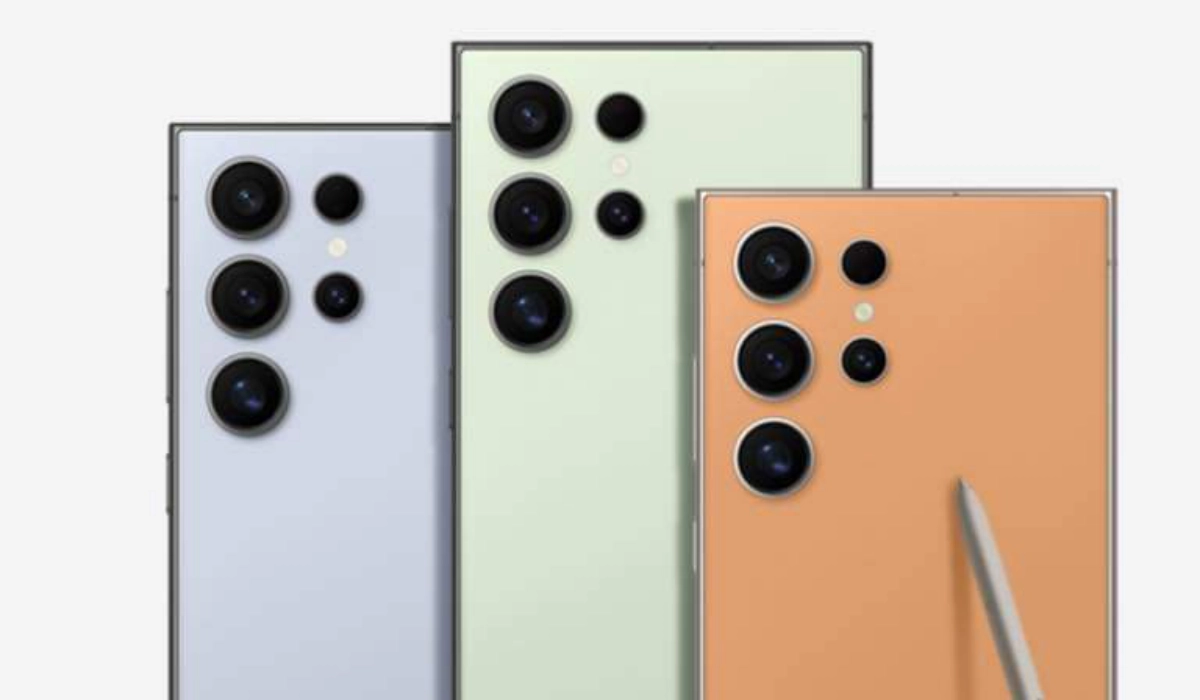
The Samsung Galaxy S24 Ultra was announced in January 2024, and it does not have the feature. Some people think that the phone would be even better if it has one. Unfortunately, it does not. Fans were disappointed that recent Galaxy flagship phones like the S23 Ultra did not have an IR blaster, either. Same thing goes for Galaxy S24 Ultra: it does not have one as well.
Does Samsung Galaxy S24 and S24+ Have IR Blaster?
Samsung S24 and S24+ do not have an IR blaster, as well.
And some Samsung fans are bitter about this omission. Some have based their phone buying decision on this factor and moved on to other smartphone brands. Here is an example of one of such conversations on Samsung’s own community website.
There are scores of other online platforms where fans are griping about the matter. But I doubt that the answer to the simple question, “Does S24 Ultra have IR blaster” will have any impact on Samsung’s sales in any way. Maybe all of 100 people will refuse to buy it for that reason.
The Last Samsung Phones With IR Blaster
The last Samsung models that had an IR blaster were the Galaxy S6 and the Galaxy Note 4. Since then, Samsung has ignored infra-red. And it does not look like the S10 range of phones will have this feature.
Your Best Options For Phones With IR Blaster
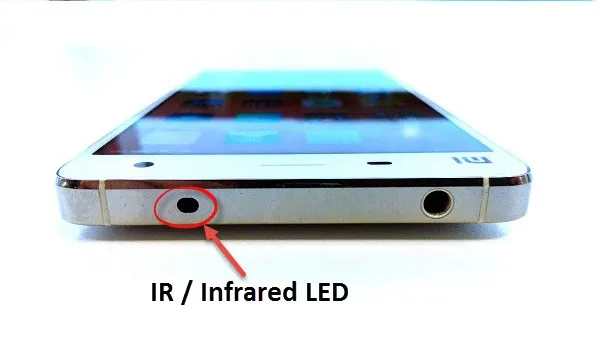
If you want a smartphone with an infra-red blaster, your best options are in the direction of Xiaomi and Huawei. The Xiaomi Redmi Note 13 Pro+ and other models in the Note 13 range are extremely popular with young people and both have IR blaster built in. Others include Xiaomi 14 series. Huawei has a number of models with an IR blaster. These include P20 Pro, Mate 10 Pro, and Honor View 10, among others.
Gionee produced a few smartphone models with infra-red blaster. It is unfortunate that the company has declared bankruptcy. Some of their phones are still available in the market though. I have reviewed a few LG smartphones and enjoyed using their IR blaster to control the TV. But it looks like LG might be dropping the feature too.
Deal-breaker?
There is a vocal enough community of smartphone enthusiasts who are put off by the S24, S24+, and S24 Ultra not having an Infra-red blaster. I am not sure that it is a large enough community to make a big dent in the fortunes of these products. But then, I have not conducted any scientific survey to arrive at that conclusion. Still, including an infra-red port cannot cost much if Xiaomi is putting it in their budget phones.
Who knows, part of why Xiaomi and Huawei devices are selling so well (besides pricing) might be that those brands are now on the heels of Samsung? What are the chances that having an IR blaster in key models could be a factor? After all, so many people around the world watch TV, play videos and play music on infra-red controlled home systems.
- Don’t miss our reviews .
- Follow us on Instagram , Facebook , Twitter , and YouTube .
Author:Mister Mobility
Digital Skills and Communication Coach | Mobile Phone Connoisseur since 2001 | Tech Blogging since 2004
Add MobilityArena as a preferred source on Google
Love it or hate it, the Android OS still scores over iOS in terms of customizability. Over the years, Android phones have gotten a lot smarter. Whether you are using a budget OnePlus Nord N30 SE , or a high-end Samsung S24 Ultra , it is now possible to use your Android for several different purposes.
Whether you have an older Android phone or the recently launched Android 14, these devices have several hidden features that you may never know. These range from simple hacks to more complex tools for developers. So everyone can use them.
Let’s dive into some hidden Android features that can make you get the maximum out of your smartphone.
- Access Google Maps Without an Internet Connection
- Turn On The Developer Options In Your Android Phone
- Use Split Screen on Your Android Phone
- Lock People Out of Specific Apps
- Assign Custom Notification Icons to Your Favorite Contacts
- Generate Real-Time Audio Captions From Any Media in Your Phone
- Discover Lost Notifications
- Wrapping up
1. Access Google Maps Without an Internet Connection
Did you know that you can use Google Maps offline? Here’s how:
- On your phone, open the Google Maps app. At this time, you should have an internet connection.
- Go to the location whose map you want to access offline.
- Choose an option from the three-dots button on the app.
- Now, choose ‘Your Places.’
- Choose ‘Select a new offline map.’
- Give the map a name and save it.
- The map of your selected area will be downloaded.
- To access this saved map offline, open the Google Maps app.
- Swipe the option to the left.
- Tap ‘Your Place,’ scroll down, and tap ‘View All.’
- Now, choose ‘Manage.’ Here, you can see your saved map.
2. Turn On The Developer Options In Your Android Phone
If you are a tech-savvy person who wants to control your phone, enabling the Android Developer Options will be a great idea. Developer options provide access to various types of useful tools and tweaks.
To enable it, just go to the ‘Settings’ of your phone. From there, navigate to ‘About phone’ and tap ‘Build number’ seven times. Now, input your passcode and go to the ‘Settings’ menu. Tap ‘System settings’ followed by ‘Developer options.’
Similarly, enabling Developer options on an Android phone lets you root your phone and install more advanced apps. You can also speed up device animations This, in turn, can significantly speed up your daily tasks. You can also fake the GPS location of your phone and boost the speed of high-end games.
3. Use Split Screen on Your Android Phone
Are you a multitasker? Well, you may not be able to afford two Android phones. But you can carry out your work effortlessly. Use the split screen settings for this purpose.
- Open Recent Apps . You can find it by swiping up from the screen’s bottom.
- Tap the icon of the first app you want to open.
- Now, touch the Split Screen option.
- Now, touch the other app.
- You can now work on both of them via the split screen mode.
4. Lock People Out of Specific Apps
We have all faced this familiar situation. You hand your phone to another person to show them a specific photo, game, or anything else. But you soon find them accessing other things like your gallery or messages. It is an uncomfortable spot to be in. Luckily, there’s a fix for it. Use the app pinning to lock people out of specific apps.
- Go to the Settings app on your phone.
- Touch Security & Privacy.
- Touch More Security Settings.
- Choose App Pinning.
- Now, toggle App Pinning so it turns on.
- Open the app you wish to pin. Touch the icon above it and choose Pin.
5. Assign Custom Notification Icons to Your Favorite Contacts
This is a useful feature for those with a huge contact list. You can assign custom notification icons to specific or important people in your contact list. That way, when they message, you can view their picture at the top of your phone’s screen.
This feature is only available for Android phones running version 11 or higher. To activate it, press your finger on the messaging notification of a contact. Now, hit ‘Priority’ on the panel that appears. Tap ‘Done’ on that panel to save your changes.
That’s all there is to it. Pretty simple, isn’t it?
6. Generate Real-Time Audio Captions From Any Media in Your Phone
This feature is particularly useful for those who need to transcribe conversations. Additionally, it is also useful for those with hearing problems.
- Open the Settings app on your device.
- Touch Accessibility followed by Live Transcribe .
- Now, touch Open Live Transcribe.
- Tap OK to accept permissions.
- Ensure that your phone is linked to the internet.
7. Discover Lost Notifications
Android phones are like the second home for most people. It is a single centralized place for all their online activities. They receive texts, emails, and other notifications on the device. But in the midst of all these notifications, some are bound to disappear. You may accidentally swipe them away without reading.
If the notification happens to be an important one, you can face unpleasant consequences. Thankfully, you can restore all notifications through a hidden feature. Here’s how to access old notifications.
- Long-press an empty space on your phone’s home screen.
- Keep holding it till the screen-adjusting mode appears.
- Now, hit ‘Widgets’ on the screen’s bottom.
- Locate the ‘Settings’ shortcut widget.
- Drag this widget to the phone’s home screen.
- Select the ‘Notification Log’ option in the popup menu.
- Use this shortcut to see your notification log right on the home screen of your phone.
Wrapping up
Your Android phone can do a lot of secret things. It’s only a matter of learning about them. The seven hidden features mentioned in this article will enhance your overall user experience. Different Android phones come with unique features. But the ones mentioned here apply to most of the phones. Start using them if you haven’t already and upgrade your tech experience.
Author:Anna Makama
Gadget lover making my way through life one day at a time.
