Add MobilityArena as a preferred source on Google
What is Display over other apps , also called Draw over other apps ? Sometimes, a situation may arise where you need two apps open at the same time because you’re working simultaneously on both. For instance, imagine being able to explore other applications while listening to a seminar without having to make the app any smaller. Using the Android functionality that lets you display or draw over other apps is helpful in this situation.
If you also need to prioritize using one app over other apps, this feature helps you do so. In case you have no idea how to use it correctly, we’ve created this guide for you. We’ll discuss in this article what the “Draw/Display over other apps” feature is, and how to use it successfully on your Android smartphone.
- What is the “Draw/Display Over Other Apps” Feature?
- Can All Apps Use the “Draw/Display Over Other Apps” Feature?
- How to Enable “Display Over Other Apps” on Android Phones Draw over other apps on Samsung phones Draw over other apps on Huawei phones: Draw over other apps on Redmi phones: Draw over other apps on OPPO smartphones:
What is the “Draw/Display Over Other Apps” Feature?
A unique permission on Android devices called “Draw Over Other Apps” or “Display Over Other Apps” enables one app to be displayed on top of other apps. For instance, certain screen recorders require this permission in order to record any other apps on your phone or tablet.
In another instance, while viewing tutorials on YouTube, you might want to take notes online. With the aid of the “Display over other apps” feature, you can do this easily. With this, you can launch YouTube in full screen mode and launch Notes in a little window, thus letting you perform both tasks at once.
Normally, without making changes to the settings, YouTube cannot be played in the background. However, you can browse other apps and view YouTube at the same time by choosing to use the Display over other apps feature.
Can All Apps Use the “Draw/Display Over Other Apps” Feature?
One of the most helpful multitasking options on Android smartphones is the “display over other apps” feature. Depending on your use cases, you might need to disable or enable the feature.
Certain applications won’t let other applications display over them. This might include apps for transactions, online games, shopping, and other privacy-based activities. These apps might refuse to launch if another app was running on top of them and prompt you to disable the feature for screen overlay, draw over, or display over other apps.
They’ll typically do this by displaying a “Screen Overlay Detected” warning message. The feature must be disabled in such cases for these apps to stop reporting screen overlay issues.
How to Enable “Display Over Other Apps” on Android Phones
The ability to draw over or display over other apps doesn’t require a separate app, and it works with practically all Android smartphones. Below, we spell out how to enable Draw over other apps for the most popular Android smartphone brands.
Draw over other apps on Samsung phones
Follow the instructions below to enable the “draw over other apps” feature on Samsung devices. Note that this function is called “appear on top” in Samsung smartphones.
- Go to Settings on your Samsung smartphone. You can use the navigation bar to reach the Settings or you can use a straight search to find a particular setting.
- As you go to the bottom, look for the Apps setting. Launch it when you find it.
- Three dots can be found in the upper right corner; from the six possibilities that will display on your screen, choose the fourth option that reads “Special access.”
- Now click on the “Appear on top” option. you will be shown all the available apps on the smartphone.
- Enable the applications you want to be displayed on top of other apps.
Draw over other apps on Huawei phones:
- Go to Settings .
- Choose the Apps option by clicking or touching on it
- Navigate to “Special access” in the applications menu, then open it.
- Choose the app you wish to allow or disable the “Draw over other apps” feature for.
- You can then enable or disable this feature for specific apps from this page.
Draw over other apps on Redmi phones:
- Go to Settings and select Password and Security .
- Scroll down to the privacy option.
- Then, in the privacy settings, choose “Special app access”.
- You’ll see a list of the specific permissions you can grant to your applications. the display over other applications
- All available apps will now be listed. For the particular app you want, you can enable or disable the “display over other apps” feature here.
Draw over other apps on OPPO smartphones:
- Go to Settings, scroll down to App management, and then click on it.
- Next, look for features in the App Management, then select Display over other apps.
- Allow it for all necessary apps.
- On your Oppo smartphone, you can now use the display over/draw over other apps feature.
Apple, regrettably, does not support this capability on iPhones. Thus, you are unable to activate Screen overlay on an iPhone. On iPhones, even third-party apps do not function properly. However, the iPhone allows you to employ a split-screen to achieve similar functions.
In summary , this guide has provided all the instructions that should guide you to activate the “Draw/Display Over Other Apps” feature on the most popular Android smartphones. You can then take advantage of this feature to multitask between apps as you please. Make sure to do this with care and not use it for all apps, especially password-sensitive or financial apps.
- Don’t miss our mobile phone reviews .
- Follow our news on Google News .
- Join our WhatsApp Group , to be notified of the most important articles and deals,
- Follow us on Instagram , Facebook , Twitter , and YouTube .
Author:Joan Agie
Add MobilityArena as a preferred source on Google
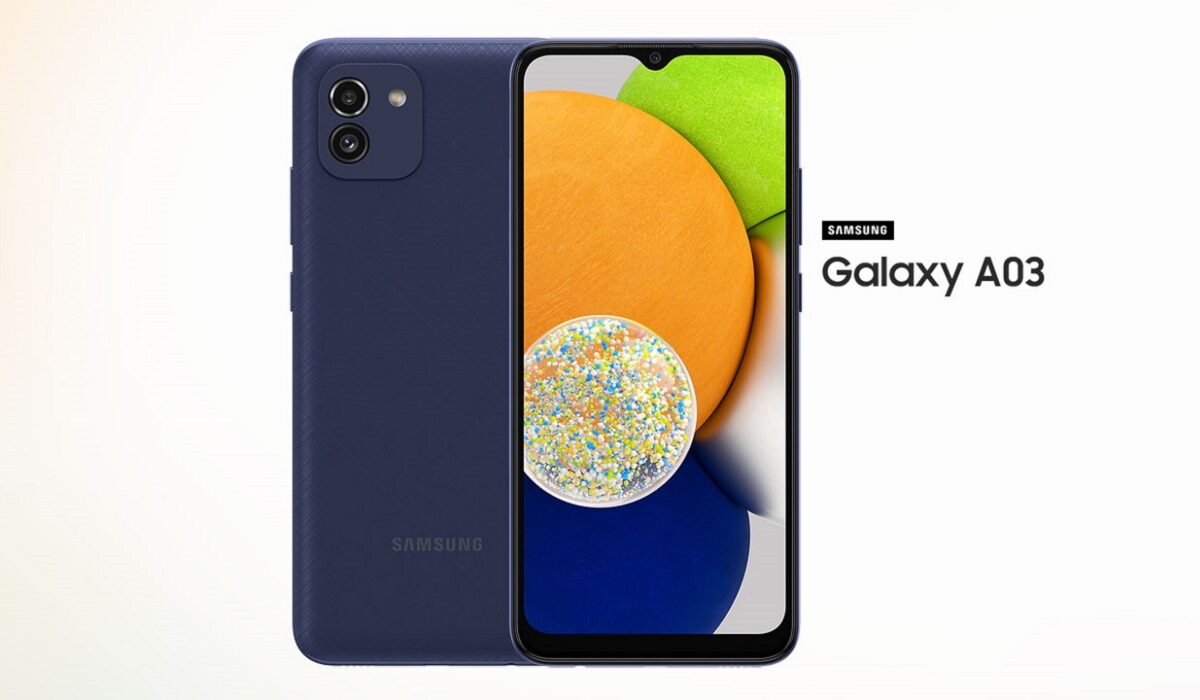
The Samsung Galaxy A03 is an entry-level smartphone that was released on the 21st of January, 2022. It is common knowledge that when one is dealing with entry-level smartphones, one will run into one problem or another. The same applies to the Samsung A03. There have been a few problems that users have encountered while using the device. We are going to take a look at some of them today.
Samsung A03 problem:Slow or Laggy UI
This is one of the most common issues that users have encountered while using the Samsung A03. Issues like these are common with old phones with little space but can also occur in newer phones because of the size of the RAM. Here are the reasons as well as the ways to fix this issue.
•Antivirus app and junk cleaner: if you have an Antivirus or junk cleaner app installed on your Samsung A03, delete them. These apps might clean up your junk and free up space but cause overheating and lag on your device, just by being run.
•Storage space: if you do not have enough space for your device to run, your device will inevitably start to lag. You need to make sure that you have more than enough space on your Samsung A03 to run smoothly. Try freeing up space on your device by deleting pictures, videos, and apps that you do not necessarily need.
• Custom theme: Sometimes using a custom theme on your smartphone can cause this issue. It is better to revert to a normal theme and optimize your device’s performance than use one that will make your user interface laggy.
•Third-Party launcher: using a third-party launcher can also be the cause of lag on your Samsung A03. Uninstall the third-party launcher and make use of the original launcher on your smartphone.
•Software update: Keeping your Samsung A03 updated consistently can fix the lag. Software updates usually fix whatever bugs and problems your smartphone might have. So, constantly check for updates on your smartphone. If there are updates available, install them. To check: Go to Settings » Software update (System updates) » Then Tap on the Download and install, or Check for system updates.
•Update all installed apps: using outdated apps on your smartphone can cause your device to lag. Go to your App store and update the affected app, if they are not updated already.
•Restarting your device: a simple restart could go a long way in reducing or fixing lag. as a minor firmware issue could be causing your phone to slow down, which can be fixed with a restart.
Samsung A03 problem:Fast battery drain
Despite the Samsung A03 having a 5000mAh battery, there have been complaints about how fast the battery drains. Here are a few steps to follow to fix this on your Samsung A03.
•Clearing the cache of apps on your device can help to somewhat restore it to its former life span.
•Repairing apps in the recovery menu is another effective way to solve this problem. It is important to do this after installing new updates.
•If you just installed a new software update, you need to give your device time to adjust and adapt to the update, so your battery’s lifespan might be a little less than it used to be.
•Apps running in the background could also contribute to how fast your battery is draining. Close them or blacklist them in settings and you should be fine.
•If your phone is overheating while charging and you have fast charging enabled, that might be the problem. You can disable its settings.
•Making use of your phone while it is charging will also cause overheating, try as much as possible to wait till it has charged fully.
Samsung A03 problem:Overheating
There have been a few complaints about overheating on the Samsung A03. This is a common problem to be expected from an entry-level device. It can be caused by several different things. Here are some of them and how to fix them.
•Close apps that you have running in the background that you are not using. These open apps added to whatever activity you might be engaged in will work the processor heavily and cause it to heat.
•Now, we see, again, just how important it is to put off connectivity options that are in use. They don’t just contribute to one problem but multiple. Leaving your Wi-Fi, GPS, hotspot, e.t.c. will not just drain your battery but overheat your Samsung A03. And with a phone that heats as quickly as this, you do not need all of these to add to the overheating.
•One of the most common reasons that users gave for the Samsung A03 overheating was gaming. They noticed how hot the phone got after a while of playing games. The device itself is not a good choice to be gaming heavily on. If you want to reduce how much the phone heats, then you might need to take breaks in between gaming hours or cut down the number of hours you spend gaming.
•To help your Samsung A03 dissipate heat, get a phone cover that gives it room to do so and not a bulky, thick one.
These are the most common problems users have been facing, follow these instructions and look out for updates and you enjoy the company of your Samsung A03 just fine. If you have any problem that was not mentioned, comment down below and we will get back to you.
- Don’t miss our mobile phone reviews .
- Follow our news on Google News .
- Join our WhatsApp Group , to be notified of the most important articles and deals,
- Follow us on Instagram , Facebook , Twitter , and YouTube .
Author:Flamez
Flamez loves basketball, art, gadgets and cars.
