Add MobilityArena as a preferred source on Google
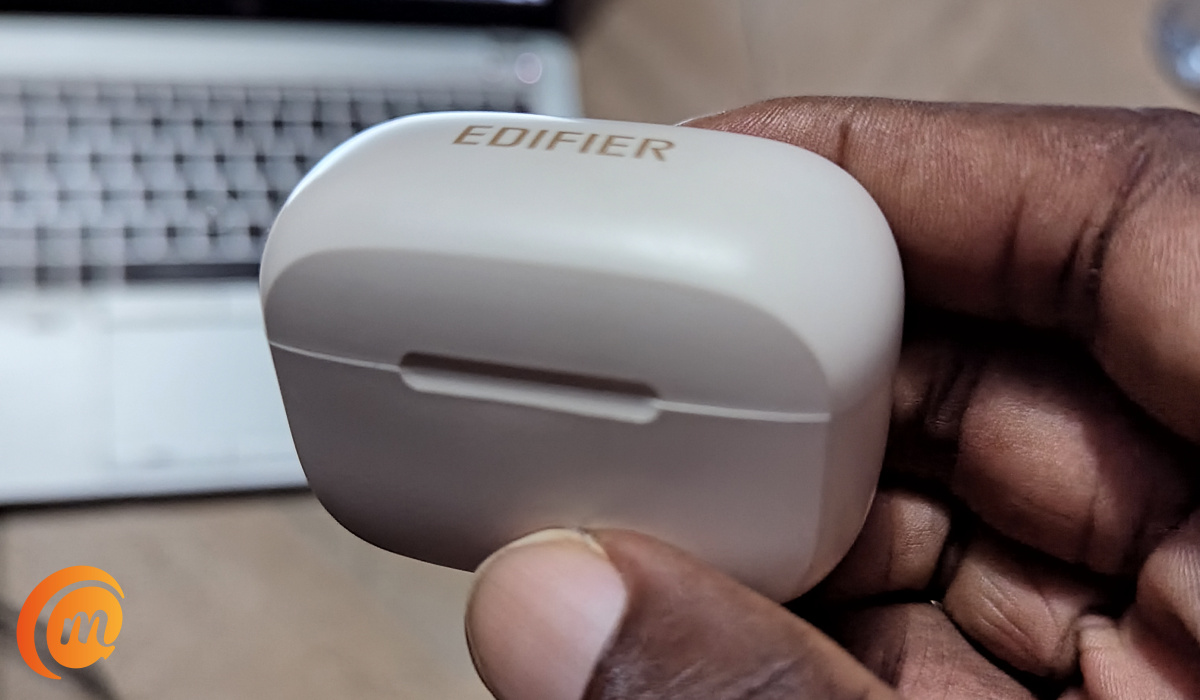
The Edifier TWS1 Pro earbuds come in a simple, lightweight case that do not look particularly special in any way. The case has the form of a tall box. The shape reminds me of an old-time treasure chest from an Indiana Jones , or Pirates of the Caribbean , movie.
How does one describe the product? I would say that they are a simple and decent pair of waterproof earphones that deliver superior audio quality, top-notch noise cancellation, fast charging, and dependable battery life. Let me walk you through the details of my experience using the earphones.
Edifier TWS1 Pro review
- Edifier TWS1 Pro Review: Key Specs
- Edifier TWS 1 Pro Earbuds Review: In the Box
- Edifier TWS1 Pro Review: Using The Stereo Earbuds
- Edifier TWS1 Pro Call Management
- Edifier TWS1 Pro Stereo Audio Quality
- Edifier TWS1 Pro earphones: Battery and Charging
- Edifier TWS1 Pro Earbuds: Pricing
- Edifier TWS1 Pro Earphones Review: Verdict
Edifier TWS1 Pro Review: Key Specs
Here are the specifications of the TWS1 Pro earphones:
- Bluetooth Version: v5.2
- Supported Bluetooth Profiles : HFP, HSP, A2DP, AVRCP
- Qualcomm cVc 8.0 Noise Cancellation
- Titanium diaphragm
- Qualcomm aptX Adaptive
- IP65 Water and Waterproof
- Qualcomm® TrueWireless Mirroring Technology
- Impedance: 24Ω
- Operating Distance: 10m
- 7.5W “Fast” charging via USB Type-C port on the charging case
Edifier TWS 1 Pro Earbuds Review: In the Box
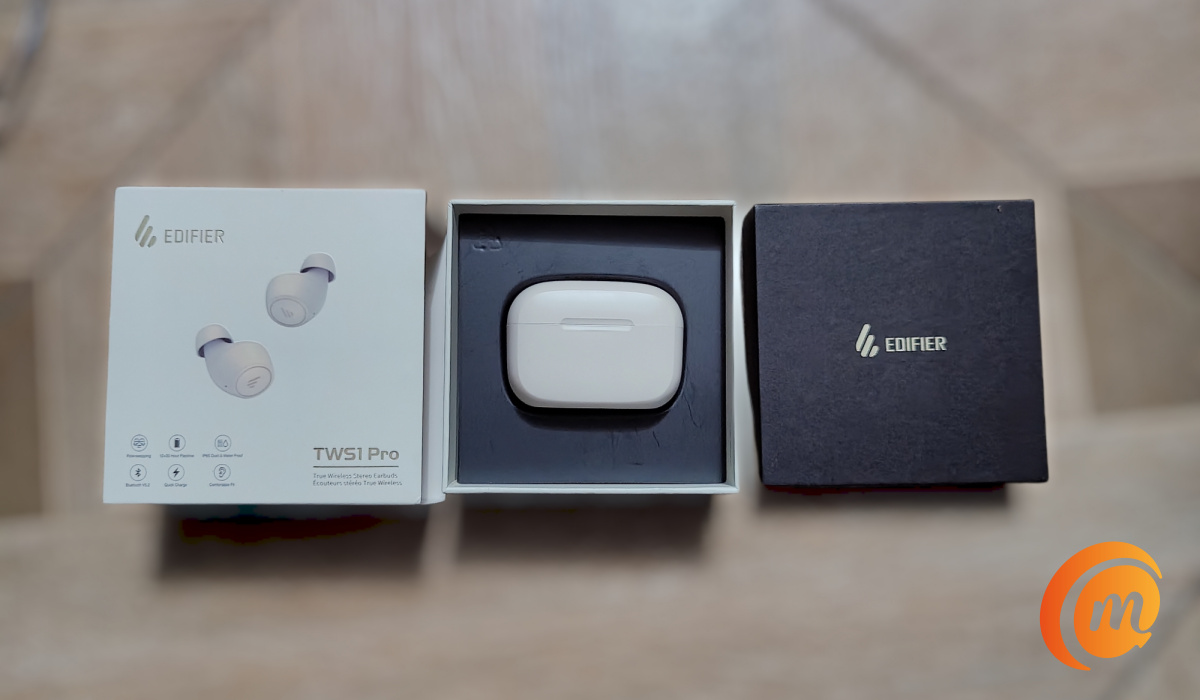
We opened the product packaging and found the following inside:
- A charging case, with the Edifier TWS1 Pro earbuds inside
- USB-C short cable for charging
- 2 pairs of spare ear tips
- Paper documentation that includes: an After Sales card, regulatory compliance leaflet, a safety leaflet, and a user guide.
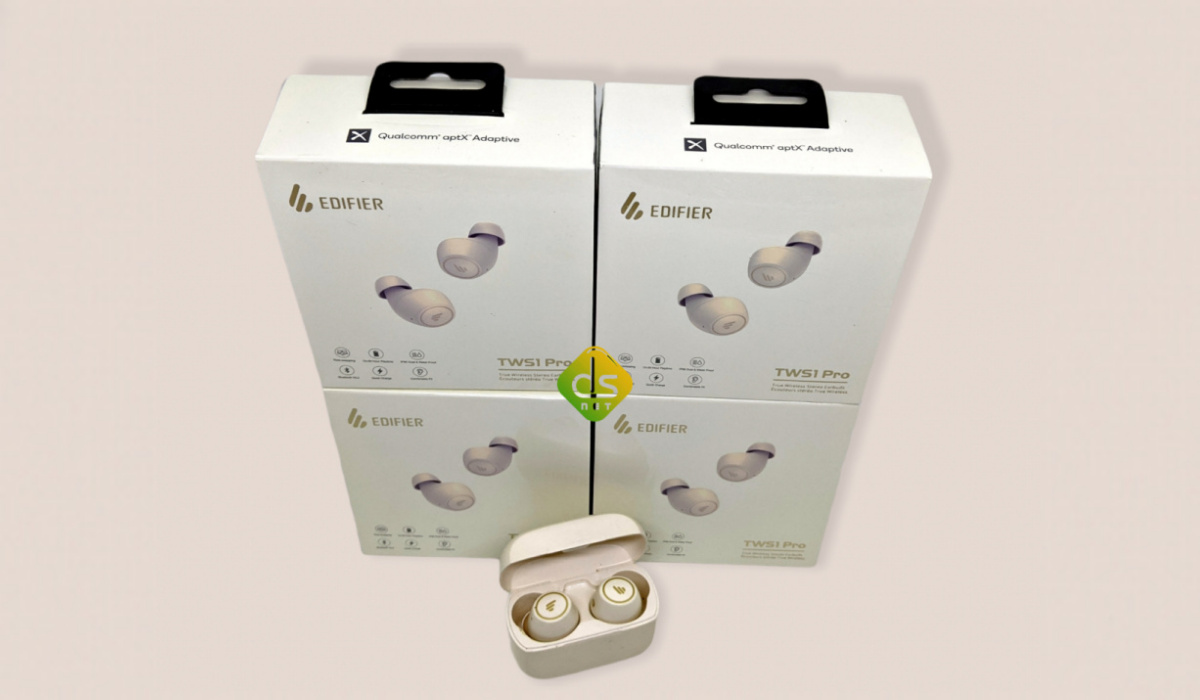
Our review unit is white. Edifier also has the TWS1 Pro available in black. Which colour you prefer is a question of your personal taste.
Edifier TWS1 Pro Review: Using The Stereo Earbuds
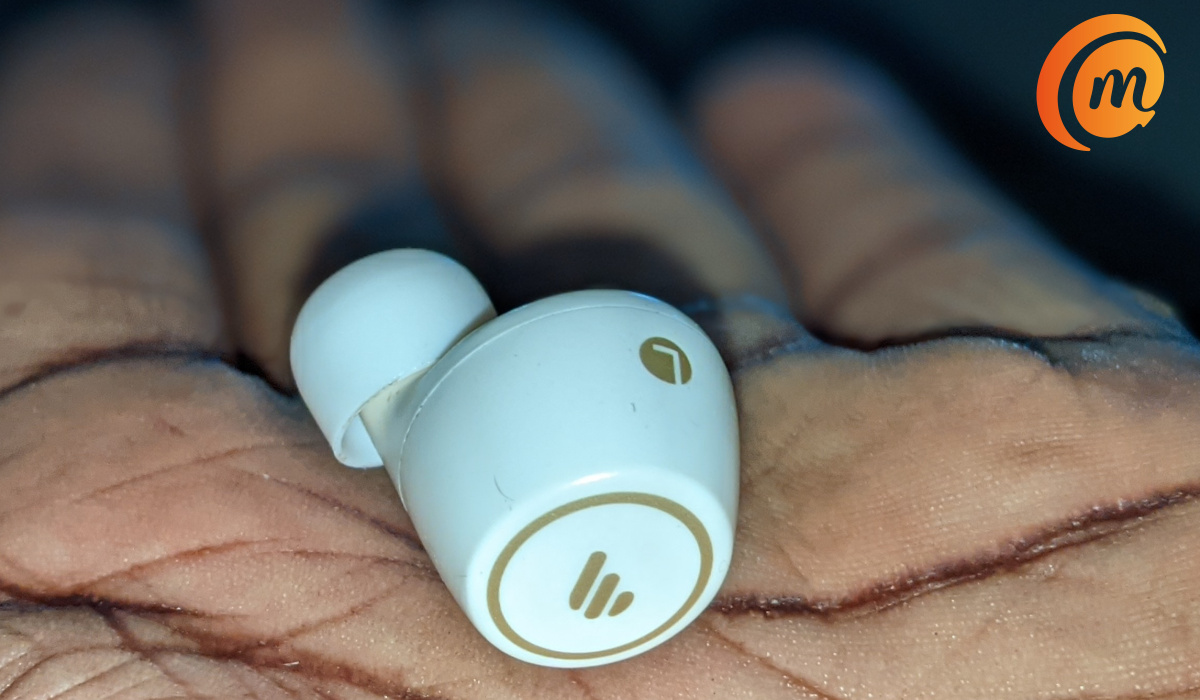
Taking a piece out of the case wakes it up. If this is your first time of using it and need to pair, press and hold either of the buds for 2 to 3 seconds to enter pairing mode. Dive into your phone’s Bluetooth settings and select the option to pair a new device. It will find the TWS1 Pro earbud; tap to pair, and complete the process. Voilà. Pairing is done. Subsequent times, when you take it out of the case, it pairs automatically.
Being in-ear pieces, the earphones fit nicely in the ears and are quite comfortable. Unlike the Edifier TWS NB2 earbuds , it does not have switchable modes.
Also, note that you can use the earbuds together in stereo mode, or use them individually in mono mode. In addition, the IP65 rating means that you can take a shower with the earbuds. It provides protection against low pressure water jets, sprays, and condensation.
Edifier TWS1 Pro Call Management
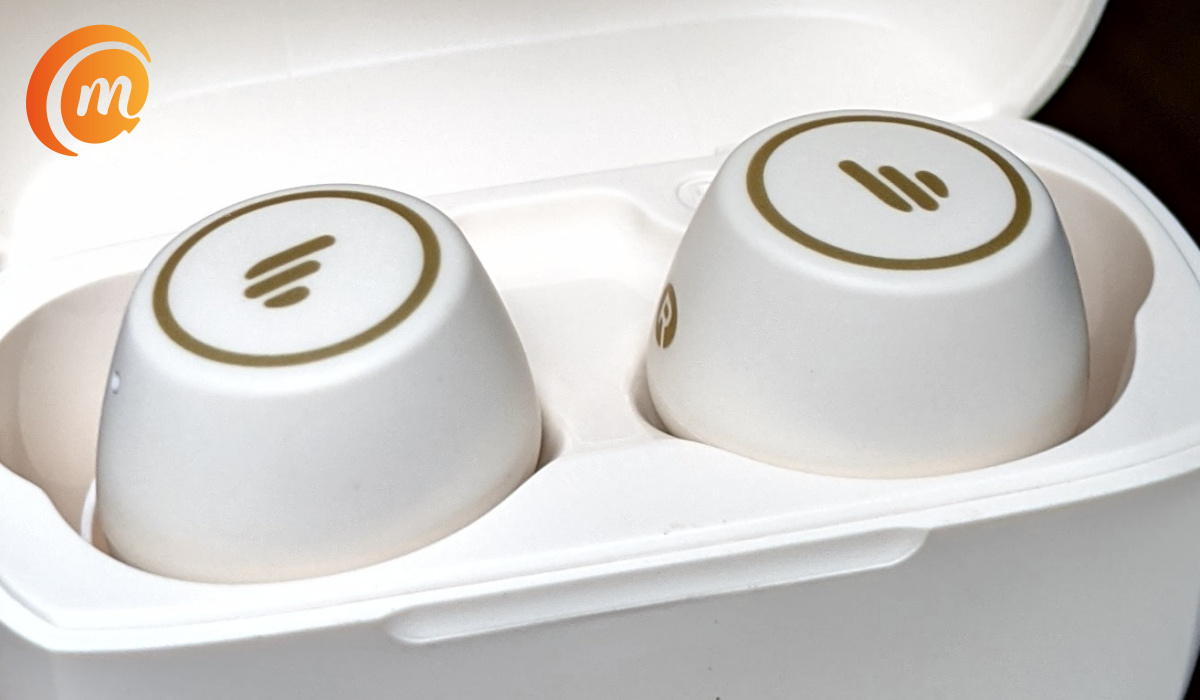
When you have an incoming call, tap on either of the pieces to answer it, or press and hold either to reject it. During a regular phone call, press and hold either piece to end the call.
During music playback, tapping on either of the pieces pauses the music. A tap resumes playback. To play the next song, double tap the right earbud. To play the previous track, double tap the left bud.
The TWS1 Pro has volume controls: press and hold the right bud during music playback to increase volume. Press and hold the left earbud to reduce the volume.
Edifier TWS1 Pro Stereo Audio Quality
Audio quality on the TWS1 Pro is superb, thanks to the titanium diaphragm. Stereo reproduction is quite good, and so is noise cancellation. As a matter of fact, noise cancellation is so good that when using the earbuds, pretty much all surrounding noise is blocked out.
Edifier TWS1 Pro earphones: Battery and Charging
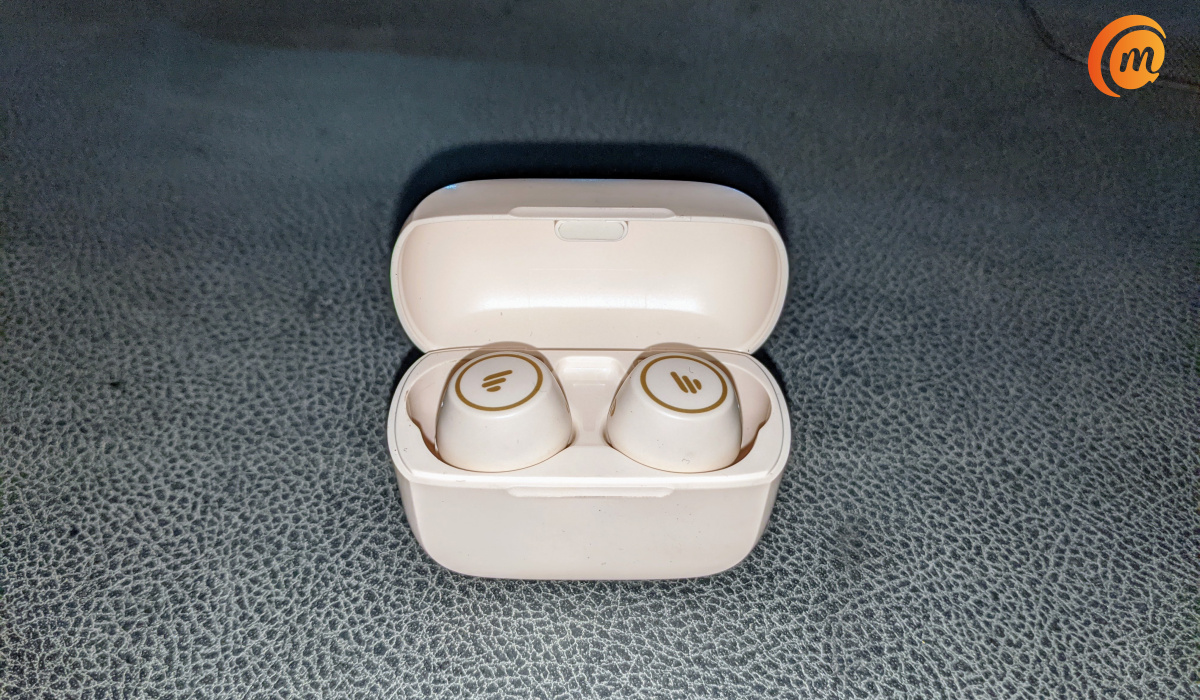
The earbuds have good battery life. I listen to music for brief periods during the day. The only other times I have them on is when I have calls, or I am driving, and I do not do much of those these days. So I am able to use them for 3 to 4 days without having to plug the charging case to the mains. I have used some other earphones that do not deliver battery life this good.
To charge the TWS1 Pro stereo earbuds on the go, simply drop them back in the charging case. This means both earbuds can be charged fully at least 4 times from the case (assuming the case itself is fully charged). One thing is certain: there is no chance of having to worry about running out of battery power suddenly.
Edifier TWS1 Pro Earbuds: Pricing
Edifier TWS1 Pro Earphones Review: Verdict
This is a solid pair of True Wireless Stereo earbuds. They offer superb noise cancellation, as well as IP65 protection from sweat and splashes. The Edifier TWS1 Pro stereo earbuds are highly recommended.
Author:Mister Mobility
Digital Skills and Communication Coach | Mobile Phone Connoisseur since 2001 | Tech Blogging since 2004
Add MobilityArena as a preferred source on Google
About 24 hours ago, an annoying error message that said, “Google keeps stopping”, began to pop up on my Android smartphone. Some hours later, a friend of mine reported the same error popping up on his phone as well. Looking around, I found that many other Android users are experiencing this same problem.
The Google Keeps Stopping error pops up on all kinds of Android phones, including those by Samsung. As someone who has owned and reviewed hundreds of mobile phones over the last two decades, I could deduce a few things from this scenario.
<img loading=“lazy” src=“https://mobilityarena.com/wp-content/uploads/2021/08/fix-Google-keeps-stopping-error-on-mobilityarena-1200x700.jpg" onerror=“this.onerror=null;this.src=‘https://blogger.googleusercontent.com/img/a/AVvXsEhe7F7TRXHtjiKvHb5vS7DmnxvpHiDyoYyYvm1nHB3Qp2_w3BnM6A2eq4v7FYxCC9bfZt3a9vIMtAYEKUiaDQbHMg-ViyGmRIj39MLp0bGFfgfYw1Dc9q_H-T0wiTm3l0Uq42dETrN9eC8aGJ9_IORZsxST1AcLR7np1koOfcc7tnHa4S8Mwz_xD9d0=s16000';" alt=“How to Fix the Android “Google Keeps Stopping” Error - 7”>
One was that the “Google keeps stopping” error was from the Google app for Android. The second was that it was likely from a recent update to the app. This left me with two options to fix the problem – uninstall the app update, or clear the cache of the offending app. There was the possibility of a third option though – restarting the phone. Let me explain these to you, but in reverse order.
- 3 Ways to Fix the “Google Keeps Stopping” Error on Android phones
- Google Keeps Stopping: Which Option Solved The Problem For Me?
3 Ways to Fix the “Google Keeps Stopping” Error on Android phones
Restart your smartphone : Restarting a smartphone that is throwing up random errors is one of the easiest things you can do to try to resolve the problems. Also called a soft reset, what it refreshes your smartphone by closing applications and clearing any data in RAM (random access memory). This makes it great for solving memory-based problems after a software or app update, too. Like I keep saying to mobile users, always try a soft reset first whenever something goes wrong with your phone. To soft reset your phone, press and hold the Power button and select the Restart option.
Clear Cache and Data : Clearing the cache of the offending app can also resolve issues of this sort. To do it, open the Settings menu of your cellphone, find the Apps section in there, and select it. Find the Google app in there. You will see Storage and cache : tap on it, and then tap on the “ Clear cache ” option.
Uninstall Google App Updates . As the error we are addressing here is likely caused by an update to the Google app, it is a good idea to uninstall the update as a means of fixing the problem. In this case, when I opened Google Play Store, searched for the Google app, and opened it, I saw that the app was last updated on the 16th of August 2021., the very day this “Google keeps stopping” error began to show up. So, I was on track. If you look at the options provided for you when looking at the Google app in the Store, you will see a button that reads, “ Uninstall “.
Tap it to uninstall all updates to the app. PS : Be sure to disable automatic updates in the Store though, or else the app will just get updated again in the background, and you are back to where you started. If you disable automatic app updates, make sure you set a schedule to manually update your apps at your convenience. That is it.
Google Keeps Stopping: Which Option Solved The Problem For Me?
Uninstalling the Google app updates and switching to manual app updates solved the “Google keeps stopping” pop-up error for me. It went away. The flip side is that I now have to keep an eye on future updates, so I can update the app after the problem is fixed from Google’s end.
I hope that the same option of uninstalling the Google app works for you too. Also, do not forget the other options I explained to you. If uninstalling the app updates does not work, give them a try. They will come in handy in troubleshooting problems on your Android smartphone. Thank you for reading and sharing.
Author:Mister Mobility
Digital Skills and Communication Coach | Mobile Phone Connoisseur since 2001 | Tech Blogging since 2004

