Add MobilityArena as a preferred source on Google
Nowadays, literally anyone can post a video online and have views on it. However, if you’re looking to share videos that are polished, outstanding and high-quality, you should consider stepping things up a notch by installing some video editing programs or software on your mobile phone.
You may be confused at this point as to which video editing tools will help you achieve the most. The truth is that there are a ton of possibilities available, both paid and unpaid. As such, it’s easy to get confused as to which one to use.
We’ve simplified this choice for you in this guide. So keep reading to find out which software options are likely to work best for your needs.
Apple iMovie
The Apple iMovie video editing tool is one of the best available ones. The learning curve for Apple iMovie is insignificant compared to other free video editing programs. You can access your projects on Mac, iPad, and even your iPhone using it, and it supports 4K video.
If you haven’t gotten into the specifics of editing, Apple iMovie comes with a variety of great effects, such as preset filters. You’ll also be able to share videos directly afterward to websites like YouTube and Vimeo using iMovie, which has a lightning-fast encoding speed.
However, although iMovie is simple to use and straightforward, you can’t edit multicam, 360-degree, or motion tracking videos with it. It’s still a useful tool regardless, and is simple to use for newcomers.
Also, the usual catch with Apple software is that you can only use it if you’re a part of their ecosystem, that is if you’re using an Apple device. If you’re not, then consider the other tools we’ve recommended below.
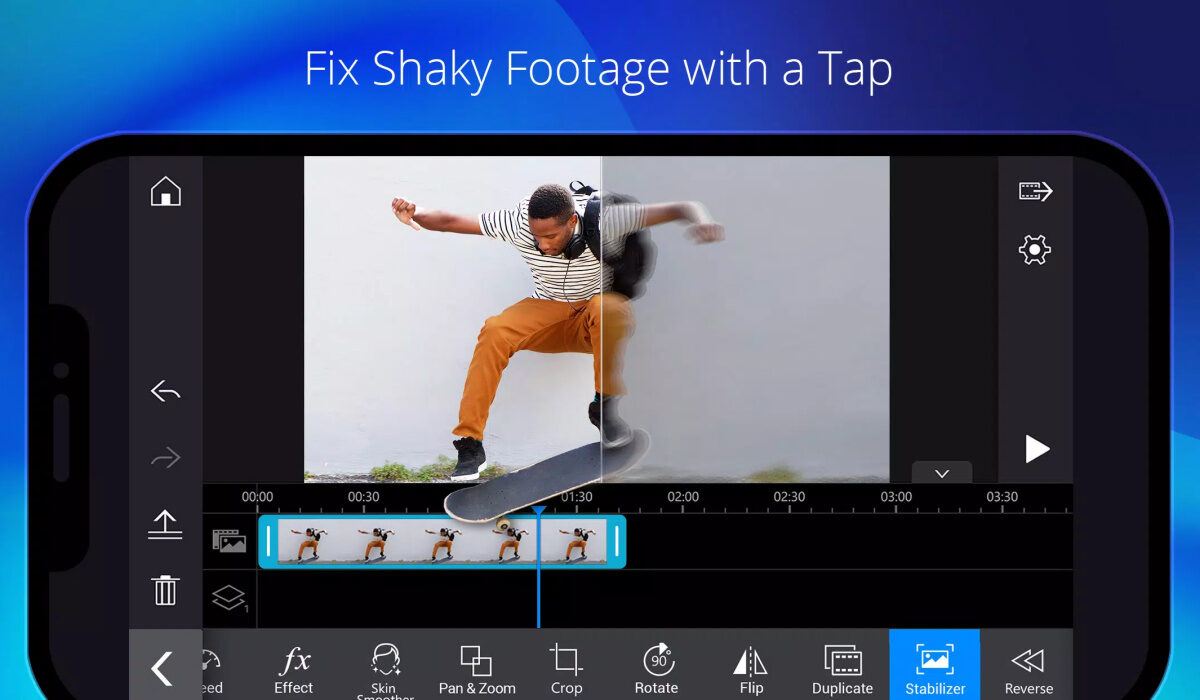
PowerDirector
This iOS and Android-friendly program, which has been adapted from the desktop editing suite of PowerDirector, is only a small portion of the full package.
For those who have never cut a film together, the linear timeline and drag-and-drop functionality make editing simple. The quality of videos is never compromised: you can export in HD 1080p, with HD available with a paid subscription for $5.99 per month, $9.99 every three months, or $35 per year.
Although the free app’s watermarks can be annoying if you want to share content, PowerDirector is still quite fantastic as a learning tool. Check out this tool on Google Play or the App Store, depending on your device.
Filmr
For both Android and iOS-based smartphones, the Filmr app is an incredibly simple-to-use video editing tool. Both inexperienced and seasoned video makers can benefit from its straightforward, rapid, and intuitive design. To make a simple video look super great, you may add transitions, effects, filters, and more. Filmr is the place for you if you want your videos to look fast, agile, and professional.
Based on reviews from 8,126 users, Filmr has received an overall rating of 4.4/5 and has been downloaded 1 million times and counting on the Playstore. You can make videos with an InVideo watermark using its free version. Paid packages start at $15 a month.
Filmr enables for seamless and original transitions between videos, and there are no restrictions on how many images or films you can input. Additionally, Filmr provides a variety of font choices to help your text stand out.
You can also easily choose between the horizontal (16:9 and 4:5), vertical (4:3), tales (9:16), and square video formats (1:1). Feel free to check it out on Apple store or Google Play Store.
Quik
One of the best free Android video editing apps is Quik, which is provided by GoPro. You can make stunning videos using the Quik app in a matter of seconds.
To make attractive and shareable modifications, you can apply beat-synchronized themes, and automatically add transitions and effects. The majority of the editing is done automatically, but Quik also allows you to adjust minute elements.
Based on the opinions of 476,637 individuals, Quik has received an overall rating of 4.4/5.
From your gallery, cloud storage, or GoPro Plus, you can add up to 75 images and video clips using Quik. Additionally, it supports moving pictures and offers endless backup in 100% quality. There are many other great features, so try out this option to find out all it offers.
Filmora Go
Filmora Go is a very capable video editing program and one of the finest free video editing apps for Android phones without adding a watermark or limiting the length of your film. It helps in the production of watchable videos with a wide variety of effects and presets. Right from the site, you can quickly share your films with your friends on YouTube, Instagram, Facebook, and WhatsApp.
4.6/5 are overall ratings given to FilmoraGo based on 626,723 user reviews. Moreso, its in-app purchases for filters and effects range from $0.99 to $34.99 per item.
Aside from having a large selection of licensed tunes, this program also allows you to import content from social media platforms like Facebook and Instagram, among many other great features.
In summary , there’s no need to share videos of mediocre quality to your social media networks when you can use these great video editing options. Download any one of them on your mobile device today and watch how much better your video content gets.
- Don’t miss our mobile phone reviews .
- Follow our news on Google News .
- Join our WhatsApp Group , to be notified of the most important articles and deals,
- Follow us on Instagram , Facebook , Twitter , and YouTube .
Author:Joan Agie
Add MobilityArena as a preferred source on Google
The Samsung Galaxy A12 is a low-budget smartphone that has been filled with its fair share of problems since its release in 2020. Of course, as a low-budget smartphone, you should not expect the performance and build of high-end smartphones but there are problems that users should not have to face at any level. We’re going to be looking at some of them today.
Samsung Galaxy A12 problem:Wifi and mobile data issues
Multiple users have reported one problem or another relating to issues with the Wi-Fi and mobile data connectivity on the Samsung Galaxy A12. The Wi-Fi, when connected, disconnects continuously while staying connected to other devices. The same goes for the mobile data option. This can prove to be frustrating for users. As one can barely do anything in today’s world without access to the internet. Here are some steps that could help with this problem. Although, they might not necessarily solve the problem.
•Restart your router and your phone.
•Update firmware and reset the router to factory settings.
•Turn off mobile data and Bluetooth.
Disconnect some other devices from the network and try connecting your Samsung Galaxy A12 again.
•Forget the network on your device, in settings, and connect to it again.
•Reset Network settings.
Most times problems like these will boil down to Samsung fixing it themselves in future updates. So, look out for them and update them as soon as they are available.
Samsung Galaxy A12 problem: Faster Battery Drain after the Android 11 update
With the release of the Android 11 update, on the Samsung Galaxy A12, came a problem in which the battery started to drain faster than it normally did before the update. The long-lasting battery feature of the Samsung Galaxy A12 was one of, if not, its biggest selling point. So imagine if that singular trait is messed up, there would almost be no point in using this device. Here are some instructions to reduce how fast the battery of your device drains.
•Keep your device up to date, as updates usually fix most problems on Samsung. So, the importance of keeping your device updated can not be stressed enough.
•Turn off Wi-Fi, location, Hotspot, Bluetooth, and mobile data, especially at night. These contribute a lot to how fast your phone’s battery drains.
•Ensure that the network signal is strong. If the device is constantly searching for network coverage, it will deplete the battery quickly.
•Disable Auto-brightness and set the brightness manually.
Samsung Galaxy A12 problem: Slow or laggy User Interface
The Samsung Galaxy A12 was not built with the most powerful processors that would smile at heavy activities and tasks; this means that at some point you are going to have to deal with lag. Tons of users are going through this issue right now. This device is not one you should be doing heavy online gaming with. It just might leave you frustrated with lag. Here are some ways to speed up your Samsung Galaxy A12.
•Lower the Animation scale in the Developer options from 1 to 0.5 or disable it altogether.
•Reduce or limit the number of background apps in developer options.
•Try booting into Safe Mode and look for improvements. if the device performs better, limit the number of background apps. You can do this by force closing the ones you don’t use.
•Restart your device.
•Ensure you have enough space for your device to run smoothly on.
These are some of the most common problems of the Samsung Galaxy A12. Follow these steps and you just might be rid of them. Comment down below on any problem you have that was mentioned and we will give you feedback.
- Don’t miss our mobile phone reviews .
- Follow our news on Google News .
- Join our WhatsApp Group , to be notified of the most important articles and deals,
- Follow us on Instagram , Facebook , Twitter , and YouTube .
Author:Flamez
Flamez loves basketball, art, gadgets and cars.
