Add MobilityArena as a preferred source on Google
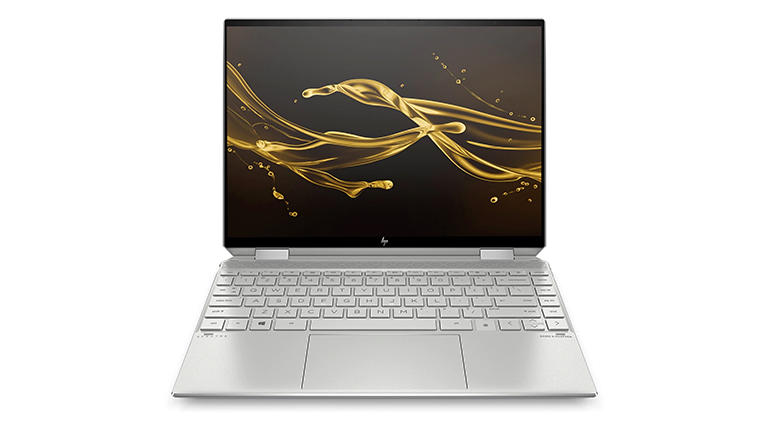
The HP Spectre x360 14 is celebrated for its elegant design and powerful features, making it a popular choice among professionals and students alike. However, many users have reported experiencing performance lag, which can hinder productivity and overall enjoyment of the device. This issue can manifest during everyday tasks, such as web browsing or running applications, leading to frustrating delays. In this article, we’ll explore the common causes of performance lag in the HP Spectre x360 14 and provide effective solutions to help you achieve an enhanced computing experience. By understanding the underlying factors contributing to this lag and implementing practical fixes, you can significantly improve your laptop’s responsiveness. Whether you’re multitasking with demanding software or simply navigating through your favorite applications, addressing these issues will ensure that your HP Spectre x360 14 operates smoothly and efficiently. Read through as I dive into the details and discover how to optimize your device for peak performance !
- Common Causes of Performance Lag & Effective Solutions Background Applications Thermal Throttling Outdated Drivers Insufficient RAM Storage Issues
- Conclusion
Common Causes of Performance Lag & Effective Solutions
Background Applications
One of the most frequent culprits of performance lag is the presence of multiple background applications consuming system resources. This can lead to slowdowns, especially when running demanding software. You should follow these solutions to effectively manage background apps to have a better experience:
- Task Manager: Press Ctrl + Shift + Esc to open Task Manager and identify resource-hogging applications. Close unnecessary programs to free up memory.
- Startup Programs: Disable unnecessary startup programs by navigating to Task Manager > Startup tab and disabling apps that aren’t essential at boot.
Thermal Throttling
The Spectre x360 can become warm during intensive tasks, leading to thermal throttling. This occurs when the CPU reduces its speed to avoid overheating, resulting in noticeable lag. To effectively resolve this, I recommend you monitor and manage the PC’s temperature by doing the following:
- Cooling Pad: Consider using a cooling pad to help maintain optimal temperatures during heavy usage.
- Clean Vents: Regularly clean the laptop’s vents to prevent dust buildup that can impede airflow and cause overheating.
Outdated Drivers
Outdated or incompatible drivers can significantly impact system performance. Graphics drivers, in particular, are crucial for maintaining smooth operation during graphics-intensive tasks. To effectively get this fixed, I recommend that you regularly update the driver of your PC by doing the following:
- HP Support Assistant: Use the HP Support Assistant tool to check for and install the latest driver updates easily.
- Device Manager: Right-click on the Start button, select Device Manager, and manually update graphics and other critical drivers.
Insufficient RAM
While the Spectre x360 comes with decent RAM options, running multiple applications simultaneously can exhaust available memory, leading to sluggish performance. To effectively get this resolved, if your model allows it, consider upgrading your RAM for better multitasking capabilities:
- Check Compatibility: Verify compatibility with your specific model before purchasing additional RAM.
- Consult HP Support: If you’re unsure about upgrading, consult HP support or a professional technician for guidance.
Storage Issues

A nearly full hard drive can slow down your laptop considerably. When storage space is low, the system struggles to manage files efficiently. You can effectively maximize your storage by doing the following:
- Disk Cleanup Tool: Use Windows’ built-in Disk Cleanup tool to remove temporary files and free up space.
- External Storage: Consider using an external hard drive or cloud storage solutions to offload large files that you don’t need immediate access to.
Conclusion
While performance lag can be a frustrating issue for HP Spectre x360 14 users, understanding its common causes and implementing these practical solutions can lead to a significantly improved experience. By managing background applications, monitoring temperature, updating drivers, considering hardware upgrades, freeing up storage space, and performing regular maintenance, you can unlock the full potential of your device. Embrace these strategies as opportunities to enhance your productivity and enjoyment with your HP Spectre x360 14. With a little effort and attention, you’ll find that this remarkable laptop can deliver the seamless performance you expect!
Author:Ifeoluwa Adeleke
Add MobilityArena as a preferred source on Google
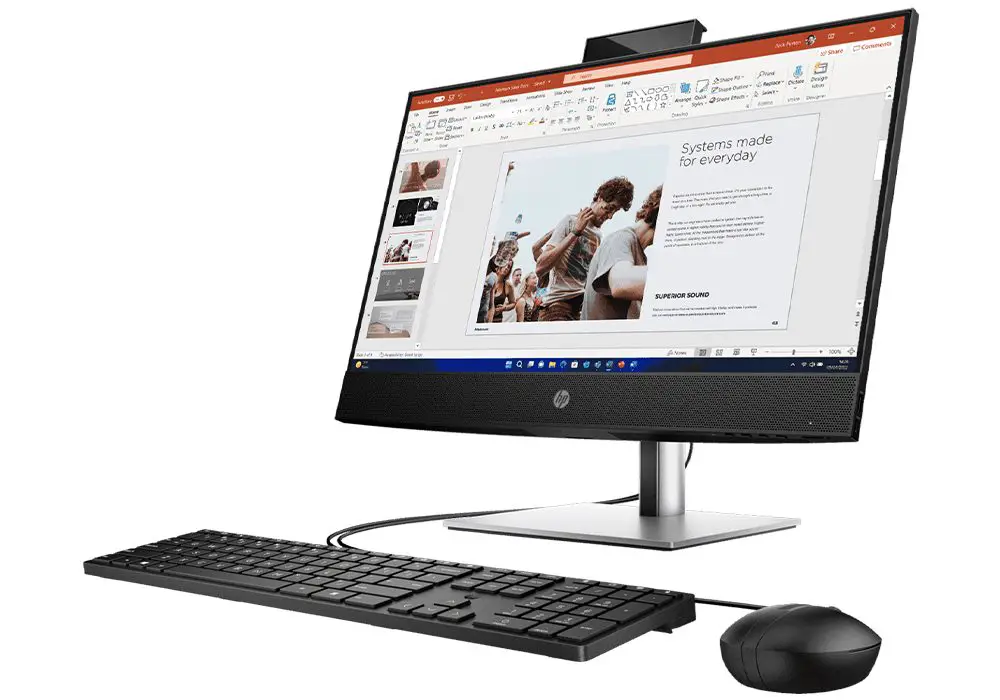
The HP ProOne 440 G9 is a powerful all-in-one PC designed for business and professional environments. While it offers impressive features and performance, some users have reported experiencing frustrating display flickering issues that can disrupt productivity and diminish the overall experience. Display flickering can occur due to various reasons, including outdated drivers, refresh rate mismatches, or even hardware issues. Understanding these causes is crucial for troubleshooting effectively. Additionally, addressing these problems promptly can prevent further disruptions and ensure that your device operates smoothly. By implementing the solutions outlined in this article, you can significantly improve your experience with the HP ProOne 440 G9. Whether you’re working on important projects or enjoying multimedia content, resolving display flickering will enhance your overall satisfaction with this capable all-in-one PC. Read through as I dive into the details and discover how to tackle this issue effectively!
- Common Causes of Display Flickering Outdated Display Drivers Refresh Rate Mismatch Incompatible Applications Loose or Damaged Connections Run Windows Troubleshooter Conclusion
Common Causes of Display Flickering
Outdated Display Drivers
One of the primary reasons for screen flickering on the HP ProOne 440 G9 can be outdated or incompatible display drivers. If your graphics drivers are not up to date, it can lead to performance issues, including flickering. Keeping your display drivers updated is crucial for optimal performance, Here is how to update your drivers:
- Open Device Manager by right-clicking on the Start button.
- Expand the Display adapters section.
- Right-click on your display adapter and select Update driver .
- Choose Search automatically for updated driver software .
Refresh Rate Mismatch
Sometimes, a mismatch in the refresh rate settings can cause flickering on the HP ProOne 440 G9, especially when using external monitors or after software updates. Understand that incorrect refresh rates can lead to flickering. Here is how to Adjust the refresh rate:
- Right-click on your desktop and select Display settings .
- Scroll down and click on Advanced display settings .
- Click on Display adapter properties and navigate to the Monitor tab.
- Change the refresh rate to a supported value (60Hz is standard).
Incompatible Applications

Certain applications may not be compatible with your system configuration, leading to flickering when those apps are in use. If flickering occurs only when certain applications are running, they may be incompatible with your system. Here is how to Identify and get it fixed:
- Open Task Manager by pressing Ctrl + Shift + Esc.
- Observe if the flickering continues while Task Manager is open. If it stops, an incompatible app may be causing the issue.
Loose or Damaged Connections
Physical issues such as loose cables or damaged internal connections can also cause display problems on the HP ProOne 440 G9, including flickering. Simply ensure that all cables are securely connected and that there are no visible damages. Follow these steps to check:
- Power down your device and inspect all cable connections, including power and any external monitor cables.
- If using an external monitor, try connecting it with a different cable or port.
Run Windows Troubleshooter
Windows has built-in troubleshooters that can help identify and fix display issues. You can access the troubleshooter on the HP ProOne 440 G9 by follow these steps:
- Go to Settings > Update & Security > Troubleshoot > Additional troubleshooters .
- Select Display quality and run the troubleshooter.
Conclusion
Display flickering on the HP ProOne 440 G9 can be a frustrating issue, but understanding its common causes and implementing these effective solutions can significantly enhance your computing experience. By keeping your drivers updated, adjusting refresh rates, checking for incompatible applications, inspecting physical connections, managing thermal conditions, and utilizing Windows troubleshooting tools, you can resolve these issues efficiently. Embrace these strategies as opportunities to optimize your HP ProOne 440 G9 for peak performance. With a little effort and attention, you’ll find that this remarkable all-in-one PC can deliver a seamless experience that meets all your professional needs!
