Add MobilityArena as a preferred source on Google
As great as the internet is, and as vital to our everyday communication and interaction as it is, there are just some people (be it a pestering ex, a friend, an annoying co-worker, etc.) whose numbers are good for nothing but the block list on your iPhone. If you have not figured out how to block a number on your device and have been looking to, here is just how to block a number on your iPhone.
- How to block a number on your iPhone, for voice calls, FaceTime, and messages
- How to unblock a number on your iPhone
- To Unblock texts from a particular number
How to block a number on your iPhone, forvoice calls, FaceTime, and messages
If you want to block a number, and therefore block voice calls, Facetime, and iMessages, there are two ways you can go about it. Here are the few steps you need to follow;
•Open up your “Phone” app.
•Select Favorites, Recents, or Voicemail. Tap the “More Info” button next to the number or contact of the person you want to block.
•Scroll down, and then simply tap “Block this Caller”.
OR
•Select Contacts, and tap the contact name or number you want to block.
•Scroll down, and then tap “Block this Caller”.
That is all there is to it on how to block a number on your iPhone. But how about if you want to unblock a certain person or persons? What do you do then?
How to unblock a number on your iPhone
If you want to unblock a specific number(s), the same steps apply;
•From your home screen, select your “Phone” app.
•If the app isn’t available on your Home screen, swipe left to access the App Library.
•In your Recents, tap on the Information Icon next to the contact or number.
•Scroll down to the bottom of the screen then tap “Unblock this caller”
OR
•Head to your Settings, and select “Phone”.
•Tap on “Blocked Contacts” (on older OS versions select “call blocking & identification).
•Swipe to the right on the number you want to unblock and select “unblock”.
To Unblock texts from a particular number
Similarly, if you want to unblock texts sent to you from a number;
•Head to your Settings, and select “Messages”.
•Scroll down till you see ” Blocked contacts” (it is “Blocked” on older OS versions).
•Swipe to the right on the number you want to unblock and select “Unblock”.
And that is everything you need to know on how to block and unblock a number on your iPhone. Be careful not to go crazy with the blocking, it does have a nice feeling to it.
Author:Flamez
Flamez loves basketball, art, gadgets and cars.
Add MobilityArena as a preferred source on Google
If you have ever had problems with your mobile network, maybe a low signal or no signal issue, and you had an important call you needed to make, then you know just how frustrating it can leave you feeling. But what several people aren’t aware of is that you can make and receive regular calls using Wi-Fi instead of your cellular network, on your iPhone.
So, it is not the end of the world if you are having one problem or the other with your cellular network. Let’s take a look at exactly how to make calls using Wi-Fi on your iPhone.
- How to make and receive calls using Wi-Fi on your iPhone
- Make emergency Calls using Wifi on your iPhone
How to make and receive calls using Wi-Fi on your iPhone
To use Wi-Fi to make and receive calls, follow these simple steps;
•Head to settings on your iPhone.
•If your iPhone has Dual SIM, choose a line under “SIMs”.
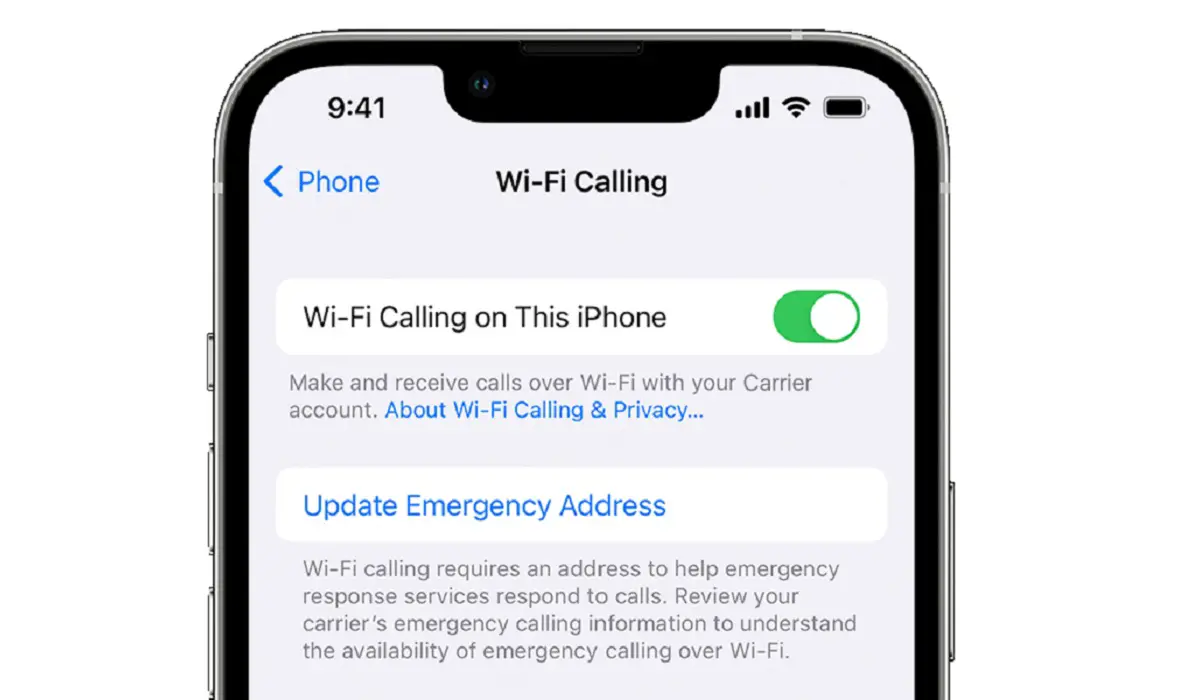
•Select “Wi-Fi Calling” and turn it on.
•Input your address for emergency services.
And with that, you are pretty much set to go on how to make calls with Wi-Fi on your iPhone. When you have Wi-Fi calling enabled, “Wi-Fi” will be displayed beside your carrier name on your status bar, and you know for certain that you can now make and receive calls through Wi-Fi.
If you lose connection to your Wi-Fi while making calls, the call will automatically switch to your carrier’s cellular network using VoLTE (Voice over LTE) if you have it turned on. You can enable this by heading into your cellular data settings on your iPhone. Just as it switches from Wi-Fi to cellular data when there is no Wi-Fi connection is the same way it switches from the cellular network back to your Wi-Fi when a stable connection has been re-established.
Make emergency Calls using Wifi on your iPhone
Emergency calls on your iPhone are done through cellular service when available. If the said cellular service isn’t available, and you have Wi-Fi Calling enabled, emergency calls will be made through Wi-Fi, and your device’s location information may be used for emergency calls to assist response efforts, regardless of whether you have Location Services enabled. Some carriers may use the address you registered with the carrier when signing up for Wi-Fi Calling as your location. Your iPhone may not necessarily receive emergency alerts when connected to Wi-Fi calling.
Author:Flamez
Flamez loves basketball, art, gadgets and cars.
