Add MobilityArena as a preferred source on Google
Technology is critical in helping people stay connected at a time where we are asked to keep social distance. The changes we have faced are challenging for both employees and students trying to stay motivated during this long-term disruption to the everyday routine.
With a new year upon us and hope for a brighter future, we’re still encouraged to practice social distancing and so our home set-ups remain the hub for our day-to-day.
Offering a refresh to a space with enhanced equipment to help workspaces run efficiently is what Western Digital strives to do. With a world of product solutions to help users get organized, stay connected and maintain productivity.
Check out these digital storage solutions for organizing your home set-up.
Upgrade your internal drive
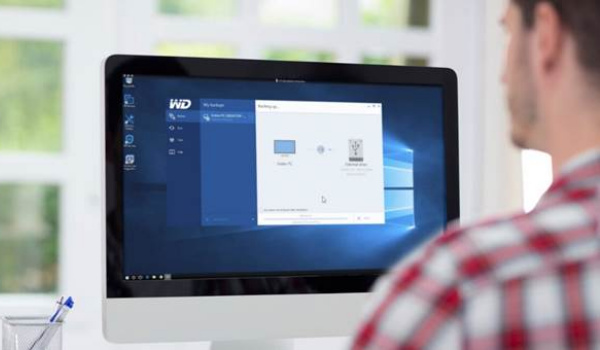
After a long year of using your PC for everything both personal and professional, you probably feel the computer is slow and sluggish. It might seem like the best option is to simply purchase a new laptop and save the headache, but don’t give up on it just yet.
An internal storage device can bring it back to its peak performance and then some. The WD Blue™ SN550 NVMe™ SSD can deliver over 4 times the speed of Western Digital’s best SATA SSDs.
Whether creating digital art, using CAD software or in post-production, take advantage of this powerful internal drive’s high speeds to do more, faster. Get breakneck sequential read speeds up to 2,600 MB/s* to improve your productivity and everyday workflow no matter what you’re creating.
Backup is vital
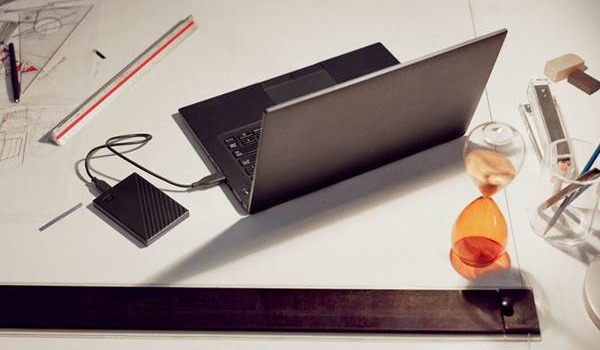
Losing a file is a headache you can do without. Automatic backup simplifies backing up – without adding another to-do item to your already hectic day.
The My PassportTM drive is trusted, portable storage device that gives you the confidence and freedom to drive forward in life. Available in a range of vibrant colours with a new, stylish design that fits in the palm of your hand, there’s space to store, organize, and share your photos, videos, music, and documents.
Perfectly paired with WD Backup™ software and password protection, the My Passport drive helps keep your digital life’s contents safe. With various capacities available, families can select up to 5TB (5000GB)** of storage to back up loads of files on a drive built for durability and long-term reliability.
Optimize your workflow
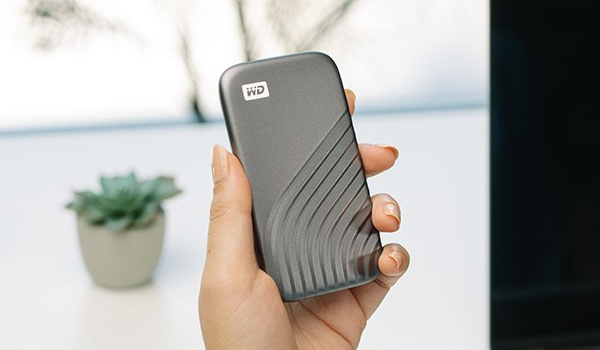
If your work – or your kids’ class work – requires large files, the lightning-fast speeds of an SSD can give you much-needed time back for a quick workout or coffee break.
The My Passport™ SSD delivers read speeds of up to 1050MB/s* and write speeds of up to 1000MB/s*, and capacities of up to 2TB** so you can access your digital world anytime, anywhere because larger files and more content demand next-level performance.
Stylishly designed in a range of colors, enclosed in a compact sleek metal design, the device is engineered from the ground up to be a quality drive, inside and out, to deliver reliable performance.
The My Passport SSD is ready to use right out of the box and is compatible with PC and Mac. Equipped with a USB 3.2 Gen-2 interface, the My Passport SSD comes with a USB-C™ cable and USB-A adaptor to work with legacy systems.
Create at the speed of life
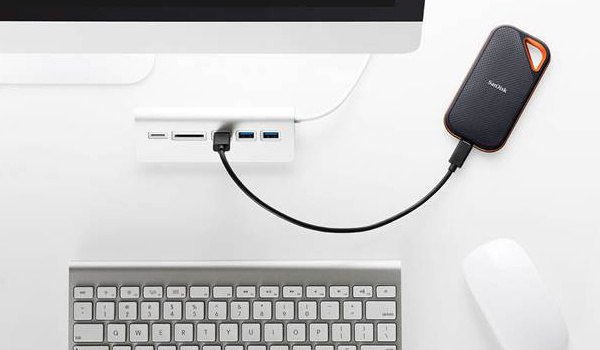
The newest SanDisk Extreme® Portable SSD leverages Western Digital’s lightning fast NVMe™ technology to dramatically increase transfer speeds to up to 1050MB/s* read and up to 1000MB/s* write speeds in a portable, high-capacity drive that’s perfect for creating amazing content or capturing incredible footage.
With an IP55 rating1, it also stands up to rain, splashes, spills, and dust. And it’s no problem to deliver files when you have up to 2TB (2000GB) of space for a library of content in a pocket-sized design.
Enable peace of mind with password protection featuring 256-bit AES hardware encryption2 to help private content remain secure.
Author:Content Partner
Add MobilityArena as a preferred source on Google
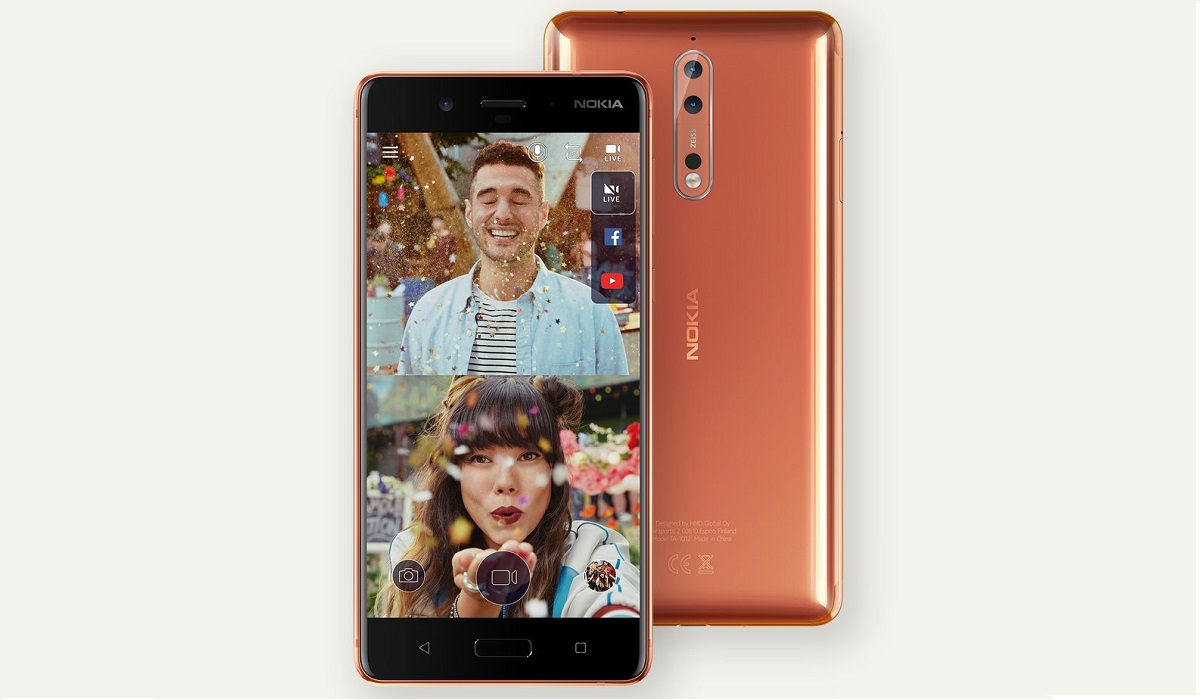
What is a bothie camera? A bothie camera is a feature that allows you to take a photo or video using both the front and back cameras of your smartphone at the same time. This way, you can capture yourself and what you are seeing in one image. A bothie camera can be fun and creative, especially when you want to share your experiences with others.
The term was first used by HMD Global, manufacturer of Android Nokia phones, when they launched the Nokia 8 in 2017. In addition to the Nokia 8, HMD Global quicly followed up by including bothie mode in the built-in camera app of the Nokia 7 as well, also launched in 2017.
- Other Smartphone Brands That Have A Bothie Camera
- How Bothie Camera Mode Works
- How To Get Bothie Mode On Your Smartphone
- How to take a bothie ok your smartphone
Other Smartphone Brands That Have A Bothie Camera
While HMD Global and Nokia first introduced the term, they do not talk a lot about it much any more. But they are not the only ones including it in their smartphones. Some other smartphone manufacturers have embraced the concept.
For example, Samsung has a similar feature. Other smartphone brands that toe the line includes LG and OPPO.
Samsung Mobile calls their bothie feature Dual Shot. LG calls it dual camera mode. OPPO Mobile introduced dual-view video, which is a split-view video using both the front and rear cameras of the phone.
Note that this dual-sight view feature is not available on all phone models from these manufacturers. So, what do you do if your smartphone does not have it built in but you want it?
How Bothie Camera Mode Works
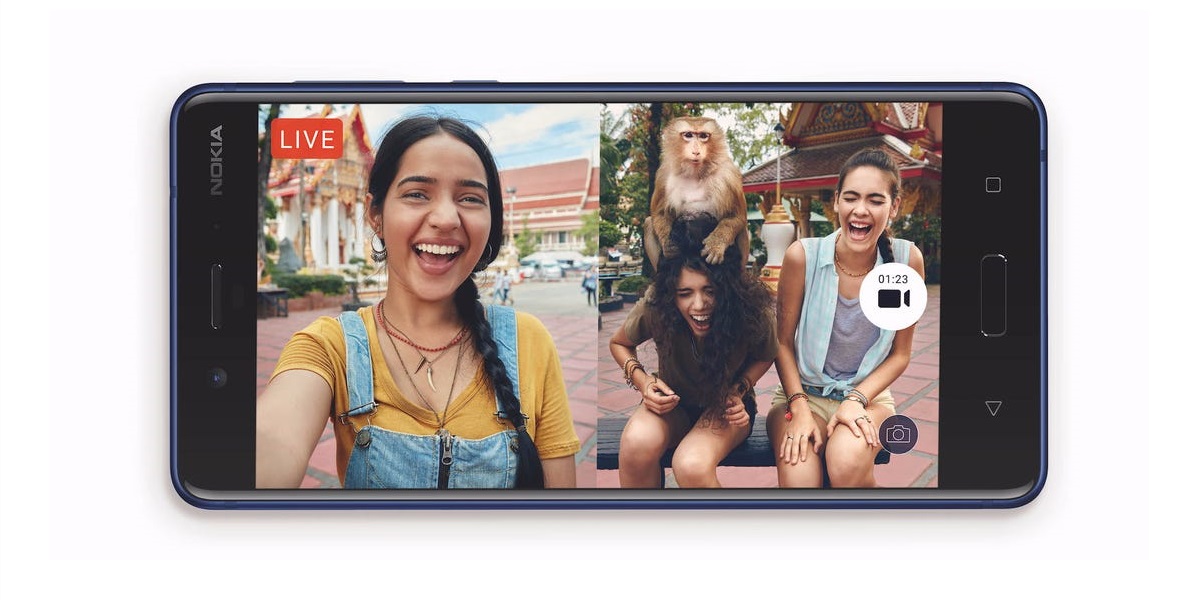
As already mentioned, bothie camera works by using the front and rear cameras simultaneously and presents both views in a split-view on the smartphone.
How To Get Bothie Mode On Your Smartphone
.If your smartphone camera does not have a bothie mode or dual-view photo or video mode but you want the feature, you can download a 3rd party app to add the functionality.
There are quite a number of them available in the app store. Some, like Dual Camera for Android, work only with Snapdragon processor phones. Even the ones that work often have some quirks. For example, when you launc FrontBack Camera app for Android, you get a split screen but only one view is active at a time and you have to shoot with one camera first before the other, after which the app presents you your Bothie or dual-sight photo.
It is not as elegant as what comes built-in on select phones, but it works. You can give it a try by downloading it HERE . Check for others in the app store.
Other Bothie camera or dual-sight view camera apps get developed and released from time to time, so do check in your app store.
One thing is clear, Bothie or Dual-Sight Mode photography and video recording is fun and a great way to showcase your enviroment while staying in the picture, literally.
How to take a bothie ok your smartphone
If your phone does not have a bothie camera feature, you can try using some apps that can mimic this effect. For example, FrontBack is an app that lets you take a photo with the front and back cameras and combine them in a single picture. Another app is Split Camera, which lets you split the screen and use both cameras at the same time.
To take a bothie with your phone, follow these steps:
- Open the camera app on your phone and look for the dual camera mode or the bothie camera feature. If you have a Nokia phone, tap the icon that resembles a person in a white square and select Dual. If you have another phone, look for a similar option in the camera settings.
- Adjust the camera settings according to your preference. You can change the aspect ratio, the resolution, the flash, and other options. You can also swap the sides of the front and back cameras by tapping the swap icon.
- Find the perfect angle for your bothie. You can use a selfie stick, a tripod, or a friend to help you hold the phone. Make sure that both cameras are capturing what you want to show in your bothie. You can also use the timer or the voice control to take the photo without touching the phone.
- Capture the bothie by pressing the shutter button or saying the voice command. You can also record a video with both cameras if you want to.
- Share and enjoy your bothie. You can edit your bothie with some filters, stickers, or text. You can also share it with your friends on social media or send it to them via messaging apps. You can also go live with your bothie and stream it to your followers on social media.
Copyright Notice : Reproduction of this article on any website, ebook, book, newspaper, magazine or other media without express written permsission from MobilityArena is a violation of copyright rules and will result in appropriate action being taken against violators.
Author:Mister Mobility
Digital Skills and Communication Coach | Mobile Phone Connoisseur since 2001 | Tech Blogging since 2004
