Add MobilityArena as a preferred source on Google
Energy conservation and energy efficiency are two related but different approaches to reducing total energy consumption. One seeks to reduce the demand for energy, while the other seeks to use available energy to produce more.
The two are related, yet different. Ideally, it is best to combine both in different measures for maximum effect and best results. I explain further below.

- Energy Conservation
- Energy Efficiency
- Differences Between Energy Conservation and Energy Efficiency
- Examples of Energy Conservation And Energy Efficiency
Energy Conservation
Energy conservation seeks to reduce the total amount of energy consumed in carry out tasks. For example, residents of a neighbourhood or building can opt to switch off appliances and lights when they are out of the house. That is energy conservation. It simply seeks to reduce consumption by cutting down on demand.
Energy Efficiency
Energy efficiency, on the other hand, seeks to find more efficient ways to use energy, such that users can achieve more with the same energy as before or with less. Energy efficiency uses newer, more advanced technology to make better use of available energy.

Differences Between Energy Conservation and Energy Efficiency
Here are the key differences between energy conservation and energy efficiency:
- Definition: Energy conservation refers to reducing energy consumption by reducing the amount of energy used. Energy efficiency, on the other hand, refers to reducing energy consumption by using energy more efficiently to achieve the same or better results with less energy.
- Focus: Energy conservation focuses on reducing the overall demand for energy, while energy efficiency focuses on reducing the amount of energy needed to perform a specific task.
- Methods: Energy conservation can be achieved through behavioral changes, such as turning off lights when they are not needed or using public transportation instead of driving. Energy efficiency, on the other hand, is achieved through the use of energy-efficient technologies, such as LED light bulbs or Energy Star-rated appliances.
- Benefits: Energy conservation can help to reduce overall energy consumption and save money on energy bills. Energy efficiency can also help to save money on energy bills, but it can also improve performance and reduce environmental impact.
- Limitations: Energy conservation can be limited by the need to maintain a certain level of comfort or productivity, while energy efficiency can be limited by the availability and cost of energy-efficient technologies.
Examples of Energy Conservation And Energy Efficiency
Here are examples of energy conservation and energy efficiency:
- Energy Conservation: One example of energy conservation is turning off lights and electronics when they are not in use. This simple action can help to reduce overall energy consumption and save money on energy bills. An energy efficient home is one that is designed to consume as little electricity as possible by using adequate natural lighting and ventilation, so there is little or no need for electric lights, electric fans, and air conditioning.
- Energy Efficiency: One example of energy efficiency is using LED light bulbs instead of traditional incandescent light bulbs. LED light bulbs use less energy to produce the same amount of light, which can help to reduce energy consumption and save money on energy bills over time. An energy efficient home is one in which LED light bulbs are used instead of incandescent bulbs. This provides lighting at lower power consumption.
Both energy conservation and energy efficiency are important approaches to reducing energy consumption and can be used together to achieve greater energy savings and reduce environmental impact.
For example, you can have a home designed from the ground up to depend on natural ventilation such that there is no need for electric fans or A/C at all (in tropical climates). This same home can also be fitted with energy-efficient LED lights, as well as motion sensor lights , such that night lighting is achieved at lower energy consumption. This is an example of how both approaches can be combined.
Author:Mister Mobility
Digital Skills and Communication Coach | Mobile Phone Connoisseur since 2001 | Tech Blogging since 2004
Add MobilityArena as a preferred source on Google
Renaming apps on Android allows you to change the default names of your apps to something more personalized and meaningful to you. It’s like giving your apps a unique identity that reflects your style and preferences. Learn how to rename apps on Android if you want to organize your apps in a specific way or simply add a touch of creativity.
Renaming apps can make your phone feel truly yours, that’s why it’s great that all the tips you’ll need are included in this guide. Whether you want to express your style, stay organized, or maintain privacy, customizing app names is a fun and useful feature. Let’s dive in and make your app collection uniquely yours.
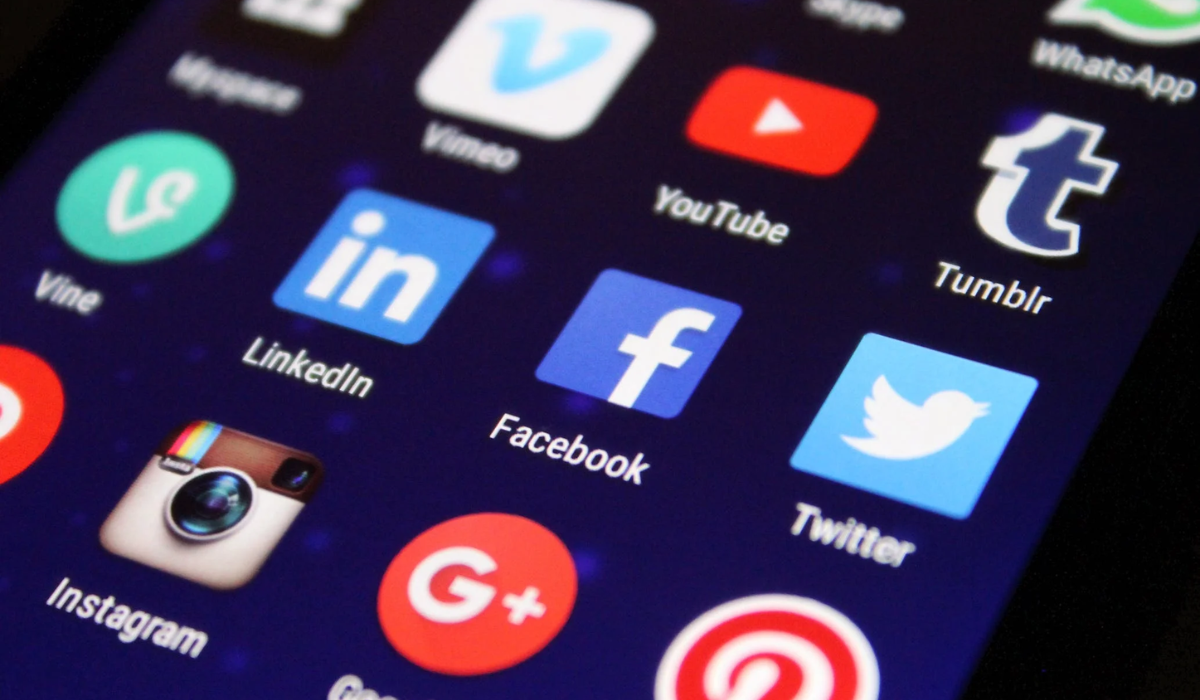
- How to Rename Apps on Android Using Built-In Features on Android Using a Custom Launcher
How to Rename Apps on Android
Do you know how sometimes you want to give your apps a personal touch and make them reflect your style? Well, renaming apps on Android allows you to do just that. By following a few simple steps, you can customize the names of your favorite apps and make your phone truly unique.
Renaming apps on Android is not only a fun way to personalize your device, but it also helps you stay organized and quickly find the apps you need. By changing the names of your apps, you can also hide certain apps discreetly, giving them names that won’t draw the attention of anyone looking through your phone. This can be helpful if you want to maintain privacy or keep certain apps hidden from prying eyes.
Now that you understand the importance and benefits of renaming apps on Android, here’s how to do it step by step.
Using Built-In Features on Android
This method can be used on specific smartphones, depending on the device’s software. To change the name of an app on an Android phone, you can use a built-in feature within the device’s software. Here’s how to rename an app using the built-in feature on Android; follow these steps:
- Long-press the app icon you want to rename on your home screen or app drawer.
- Tap on the “ Edit ” option or the pencil icon that appears.
- Enter the new name for the app using the on-screen keyboard.
- Tap “ OK ” or “ Save ” to apply the new name.
- The app should now have a new name on your home screen and app drawer.
Please note that the availability of this feature may vary depending on your device’s software.
Using a Custom Launcher
Another way to rename your app on Android is to use a custom launcher app, such as Nova Launcher or Apex Launcher , which allows you to change the names of your apps directly from the home screen settings. Here’s how to use Nova Launcher to rename an app on Android:
- Download and install Nova Launcher from the Google Play Store.
- Set Nova Launcher as your default launcher by going to your device’s Settings > Apps > Default Apps > Home App > Select Nova Launcher .
- Go to your device’s home screen and long-press on the app you want to rename.
- Tap on the “ Edit ” option that appears on the pop-up menu.
- In the “ Edit ” menu, you’ll see the current name of the app.
- Tap on the app’s name and enter the new name you want to give it.
- Once you’ve entered the new name, tap “ OK ” or “ Save ” to apply the changes.
- The app will now be renamed on your home screen and in the app drawer.
That’s it. You’ve successfully renamed the app using Nova Launcher. But make sure to keep the Nova Launcher app installed even after renaming your apps. If you uninstall it, the changes you made will be undone, and your apps will go back to their original names.
To sum up, renaming apps on Android is a simple process that can be done using the built-in features of the device’s software or through custom launchers like Nova Launcher or Apex Launcher. By following the step-by-step instructions provided, you can easily personalize your app names to suit your preferences.
So go ahead and give it a try to make your Android experience even more customized and enjoyable. Make sure to check out this category if you’d like more useful tips to navigate your smartphone use.
