Add MobilityArena as a preferred source on Google
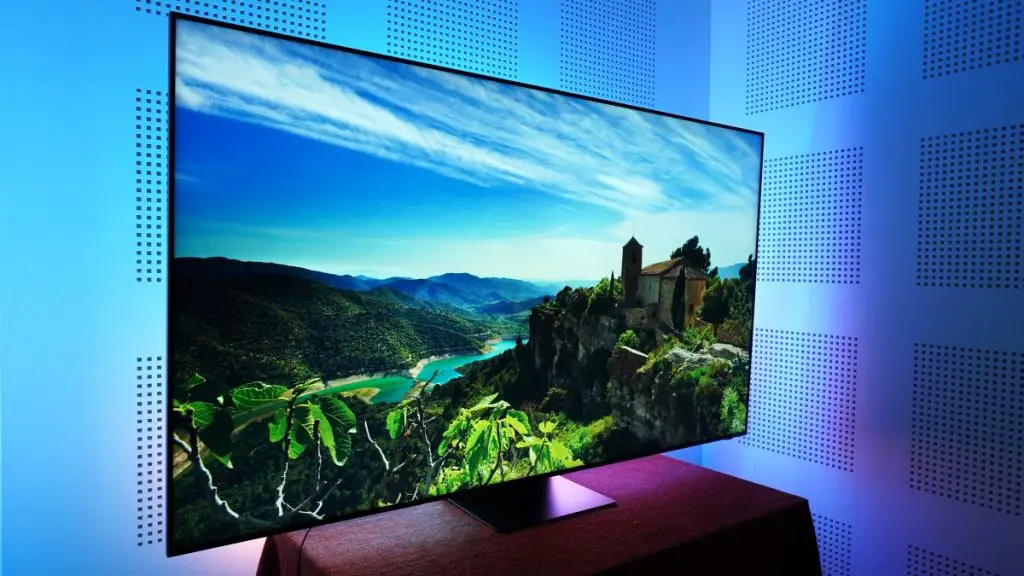
The Samsung QN800C Neo QLED 8K TV has rapidly gained popularity among home theater enthusiasts, celebrated for its stunning visuals and cutting-edge technology. With an impressive 8K resolution and Quantum HDR , it promises an unparalleled viewing experience that elevates your entertainment to new heights. However, some users have reported picture quality issues that can detract from this otherwise enhanced performance . This article will delve into these common problems, providing effective solutions to ensure you enjoy the full potential of your viewing experience. By understanding the potential pitfalls and implementing these practical fixes, you can transform your Samsung QN800C into a truly remarkable centerpiece for your home theater setup. Whether you’re watching movies, playing video games, or streaming your favorite shows, addressing these picture quality concerns will help you achieve the vibrant and immersive visuals that this advanced TV is designed to deliver. Explore with me, these challenges as I reveal the secrets to enhanced viewing experience!
- Common Picture Quality Issues Inconsistent Brightness Levels Color Accuracy Problems Backlight Blooming Motion Blur and Judder Poor HDR Performance Conclusion
Common Picture Quality Issues
Inconsistent Brightness Levels

Users have noted that the brightness can fluctuate, leading to a less-than-ideal viewing experience, especially in scenes with varying light conditions. These solutions below will help you enhance your picture quality:
- Adjust Picture Mode: Switch from the default Eco mode to Standard or Movie mode. These modes utilize the TV’s full brightness potential, providing a more consistent picture quality.
- Local Dimming Settings: Set local dimming to Standard or High in the settings menu. This adjustment helps balance brightness levels across different scenes, reducing fluctuations.
Color Accuracy Problems
Some users report that colors appear oversaturated or unnatural, particularly in HDR content. To get a better enhanced color accuracy, follow these steps:
- Color Tone Adjustment: Navigate to Settings > Picture > Expert Settings and adjust the color tone to Warm2. This setting often provides a more natural color representation.
- Smart Calibration Feature: Use Samsung’s built-in calibration tool with a compatible smartphone. This feature helps fine-tune color accuracy according to your specific viewing environment.
Backlight Blooming
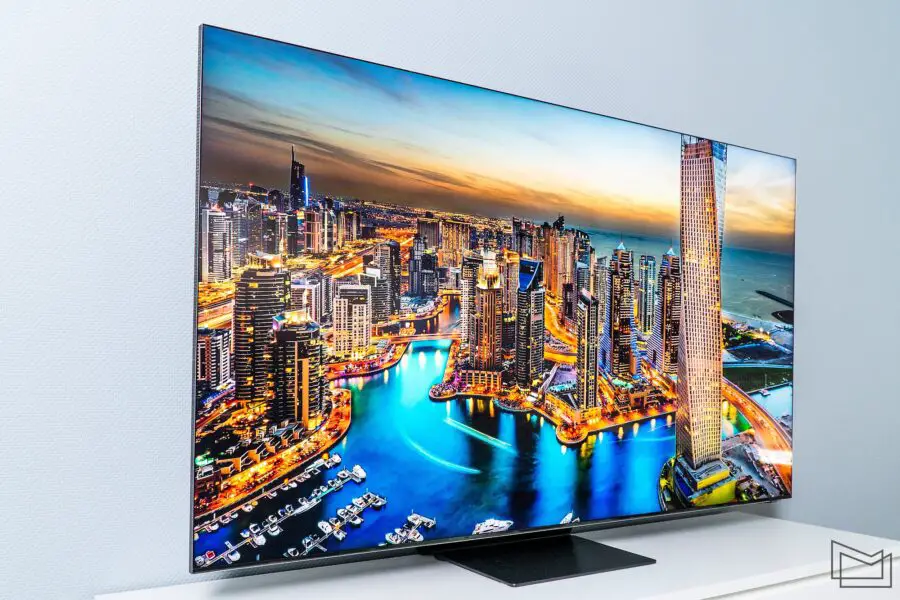
Backlight blooming can occur when bright objects on-screen bleed into darker areas, affecting overall image clarity. I recommend the following to have a better enhanced experience:
- Adjust Local Dimming Settings: Experiment with local dimming settings; sometimes setting it to Standard rather than High can reduce blooming while maintaining good contrast.
- Picture Clarity Settings: Turn off any unnecessary picture clarity features that may exacerbate blooming issues, particularly when watching content with high contrast.
Motion Blur and Judder

- Motion Plus Settings: Go to Settings > Picture > Picture Clarity Settings and set Motion Plus to your preference. For fast-paced content, adjusting this setting can help reduce blur.
- Film Mode Activation: Enable Film Mode for smoother playback of movies and shows, especially those shot at 24 frames per second.
Poor HDR Performance
Despite the TV’s capabilities, some users find HDR content lacking in vibrancy or detail. I recommend the following solutions to better enhance your HDR performance:
- HDR Tone Mapping: Ensure that HDR Tone Mapping is enabled in the settings. This feature optimizes brightness and contrast based on HDR content.
Peak Brightness Adjustment: Set peak brightness to its maximum level in Expert Settings . This adjustment allows the TV to display HDR content more effectively.
Conclusion
While the Samsung QN800C Neo QLED 8K TV offers remarkable features and stunning visuals, addressing common picture quality issues is essential for maximizing your viewing experience. By implementing these practical solutions—such as adjusting picture modes, calibrating color settings, and optimizing local dimming—you can enhance the overall performance of your TV. Embrace these adjustments as opportunities to unlock the full potential of your Samsung QN800C. With a little effort, you’ll find that this exceptional television can deliver breathtaking visuals worthy of its premium price tag! Enjoy your cinematic journey with enhanced clarity and color accuracy that truly brings your favorite content to life.
Author:Ifeoluwa Adeleke
Add MobilityArena as a preferred source on Google
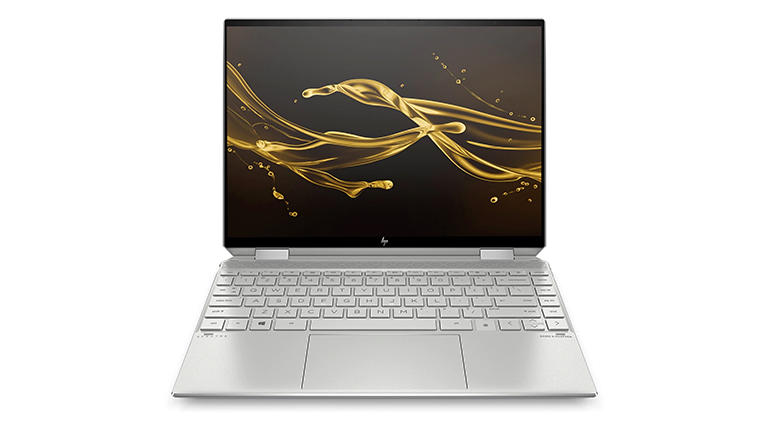
The HP Spectre x360 14 is celebrated for its elegant design and powerful features, making it a popular choice among professionals and students alike. However, many users have reported experiencing performance lag, which can hinder productivity and overall enjoyment of the device. This issue can manifest during everyday tasks, such as web browsing or running applications, leading to frustrating delays. In this article, we’ll explore the common causes of performance lag in the HP Spectre x360 14 and provide effective solutions to help you achieve an enhanced computing experience. By understanding the underlying factors contributing to this lag and implementing practical fixes, you can significantly improve your laptop’s responsiveness. Whether you’re multitasking with demanding software or simply navigating through your favorite applications, addressing these issues will ensure that your HP Spectre x360 14 operates smoothly and efficiently. Read through as I dive into the details and discover how to optimize your device for peak performance !
- Common Causes of Performance Lag & Effective Solutions Background Applications Thermal Throttling Outdated Drivers Insufficient RAM Storage Issues
- Conclusion
Common Causes of Performance Lag & Effective Solutions
Background Applications
One of the most frequent culprits of performance lag is the presence of multiple background applications consuming system resources. This can lead to slowdowns, especially when running demanding software. You should follow these solutions to effectively manage background apps to have a better experience:
- Task Manager: Press Ctrl + Shift + Esc to open Task Manager and identify resource-hogging applications. Close unnecessary programs to free up memory.
- Startup Programs: Disable unnecessary startup programs by navigating to Task Manager > Startup tab and disabling apps that aren’t essential at boot.
Thermal Throttling
The Spectre x360 can become warm during intensive tasks, leading to thermal throttling. This occurs when the CPU reduces its speed to avoid overheating, resulting in noticeable lag. To effectively resolve this, I recommend you monitor and manage the PC’s temperature by doing the following:
- Cooling Pad: Consider using a cooling pad to help maintain optimal temperatures during heavy usage.
- Clean Vents: Regularly clean the laptop’s vents to prevent dust buildup that can impede airflow and cause overheating.
Outdated Drivers
Outdated or incompatible drivers can significantly impact system performance. Graphics drivers, in particular, are crucial for maintaining smooth operation during graphics-intensive tasks. To effectively get this fixed, I recommend that you regularly update the driver of your PC by doing the following:
- HP Support Assistant: Use the HP Support Assistant tool to check for and install the latest driver updates easily.
- Device Manager: Right-click on the Start button, select Device Manager, and manually update graphics and other critical drivers.
Insufficient RAM
While the Spectre x360 comes with decent RAM options, running multiple applications simultaneously can exhaust available memory, leading to sluggish performance. To effectively get this resolved, if your model allows it, consider upgrading your RAM for better multitasking capabilities:
- Check Compatibility: Verify compatibility with your specific model before purchasing additional RAM.
- Consult HP Support: If you’re unsure about upgrading, consult HP support or a professional technician for guidance.
Storage Issues

A nearly full hard drive can slow down your laptop considerably. When storage space is low, the system struggles to manage files efficiently. You can effectively maximize your storage by doing the following:
- Disk Cleanup Tool: Use Windows’ built-in Disk Cleanup tool to remove temporary files and free up space.
- External Storage: Consider using an external hard drive or cloud storage solutions to offload large files that you don’t need immediate access to.
Conclusion
While performance lag can be a frustrating issue for HP Spectre x360 14 users, understanding its common causes and implementing these practical solutions can lead to a significantly improved experience. By managing background applications, monitoring temperature, updating drivers, considering hardware upgrades, freeing up storage space, and performing regular maintenance, you can unlock the full potential of your device. Embrace these strategies as opportunities to enhance your productivity and enjoyment with your HP Spectre x360 14. With a little effort and attention, you’ll find that this remarkable laptop can deliver the seamless performance you expect!
