Add MobilityArena as a preferred source on Google
Yes; I had completely forgotten how painfully slow regular charging is. That’s what happens to you when you get comfortable with new things. You forget. It is human nature. I got used to fast charging and probably took it for granted, until an experience this morning reminded me.
I had a 30-minute time slot to plug in my devices and get their batteries up a bit. So I plugged in the Freetel ICE 2. It was at 15% battery charge at the time. Thirty minutes later, when I took it off the charger, its tiny 1350 mAh battery was registering a mere 27% charge. It had gained just 12% charge in 30 minutes. The oldest quick charge technology would have given me extra 30% charge in 30 minutes. And the newest? Almost 100%.
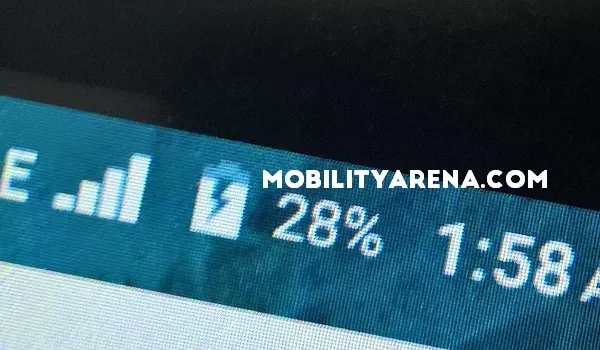
It felt so….what is a word I can use to describe this? Perhaps what irked me is that we are talking about a measly 1350 mAh battery. But the lack of fast charging technology isn’t a fault of the phone. This is a bottom-of-the-pyramid smartphone, after all. Fast charging is a luxury at that price point.
Thankful For Fast Charging
So, this post is dedicated to those who innovated fast charge technology. You are lifesavers. You have boosted our productivity and our convenience. Without your work, we would be waiting four hours for a 5,000 mAh battery to fill up from 5% charge. Nobody has that kind of time.
If time is important to you, and you can afford one, always get a smartphone with fast charging technology. Your sanity might very well depend on it.
How To Charge Your Phone Faster Without Quick Charge
The best way to get the fastest charging is to buy a phone that supports one of the available quick chargers and use one with it.
But even if your mobile phone does not have fast charging technology built in, you can still get it to charge faster than usual. There are a few things you can do to make your phone charge faster. Note that the core of the issue is activity: you want to reduce as much battery draining activity as possible while your phone is plugged in.
- Keep the display turned off. Your phone’s screen is its greatest battery drainer. Turn off the screen and leave the phone alone during charging.
- Turn Off Mobile Data and Wifi. Internet usage is another serious battery drainer. When there is an internet connection, there are several apps and processes connecting in the background and all contributing to battery drain. Turning off mobile data and Wifi during charging eliminates these activities and lets the battery top up faster.
- Switch to Airplane Mode / Flight Mode. If you are not expecting any urgent calls or text messages, switch your phone to Airplane/Flight Mode. That turns off all wireless connections i.e. network radio, Bluetooth, Wifi. Of course, this turns off the internet as well.
- Activate Battery Saving Mode. If your phone has Battery Saving Mode (BSM), you can use that. BSM works differently from phone to phone. Some just turn off background processes. Others turn off both background processes and data. Some phones have Extreme Battery Saving Mode, which turns off mobile data, Wifi and all smartphone activities and processes.
- Turn off the phone. Where all else fails, or for best results, just turn off the phone. You probably don’t let it rest much anyway. Give it a much deserved break while it charges 😉
None of the above steps will give you quick charge speeds, but if you are pressed for time, using them will give your phone more charge than usual within the limited time you have.
For more information about fast charging technology in mobile phones, our article, Quick Chargers: All Your Questions Answered sheds light on the technology.
- Don’t miss our reviews .
- Join our WhatsApp Group , to be notified of the most important articles and deals,
- Follow us on Instagram , Facebook , Twitter , and YouTube .
Author:Mister Mobility
Digital Skills and Communication Coach | Mobile Phone Connoisseur since 2001 | Tech Blogging since 2004
Add MobilityArena as a preferred source on Google
WhatsApp has announced a new feature that allows you to share your location in real-time with others. Location Sharing is not a new feature in mobile apps. It already exists on other mobile applications like Google Maps, Facebook Messenger, and Snapchat. It is a great way to let people know where you are, for example if you have travelled to a country or city that you are not familiar with. Here is how WhatsApp Location sharing works.
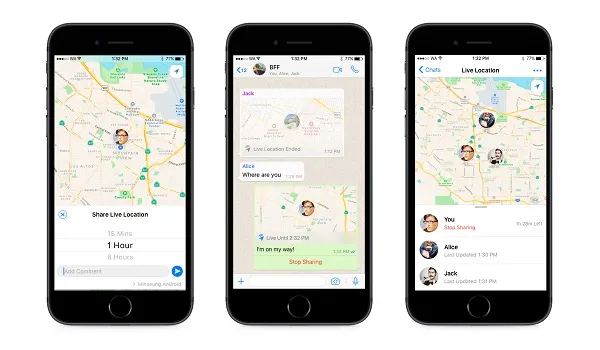
WhatsApp calls it Live Location. We just call it WhatsApp Location Sharing.
How WhatsApp Location Sharing (Live Location) Works
- Open a chat with the person you want to share with
- Under “Location” in the attach button, there’s a new option to “Share Live Location.”
- Choose for how long you want to share and tap send
That is it. Your recipient will be able to see your real-time location on a map. Think of it working the same way your Uber driver is able to locate you (and vice-versa).
WhatsApp Location Sharing works for groups too, so you can share your location with a group you are chatting with and every one in that group will see your location same way. If multiple people in the group share their locations, all those locations will be visible on the same map. Nice.
Again, this is a great tool for travellers and adventurers who need to meet up. It also sounds like something that will come in handy for security purposes and in emergencies.
WhatsApp Live Location has end-to-end encrypted feature lets you control who you share with and for how long. You can choose to stop sharing at any time or let the Live Location timer simply expire. Live Location is available for Android smartphones and iPhones.
How Will You Get WhatsApp Live Location?
The feature will be rolling out to WhatsApp users in the next few weeks via an update to the WhatsApp mobile app. Update: WhatsApp Location Sharing has since been active and is widely used on both Android devices and Apple’s iPhone and iPad devices.
- Don’t miss our reviews .
- Join our WhatsApp Group , to be notified of the most important articles and deals,
- Follow us on Instagram , Facebook , Twitter , and YouTube .
Author:Mister Mobility
Digital Skills and Communication Coach | Mobile Phone Connoisseur since 2001 | Tech Blogging since 2004
