Add MobilityArena as a preferred source on Google
The medical ID feature on the iPhone and Apple Watch provides important information about you and your health. No one prays for health emergencies, but having relevant health information that a medical ID provides can mean the difference between life and death in some health cases.
If you know how to find medical ID on a device, essential details such as a person’s name, age, blood type, existing medical conditions, current medications, and other important medical details become available. So, in this article, I’ll show you how to find medical ID on your iPhone and Apple Watch.
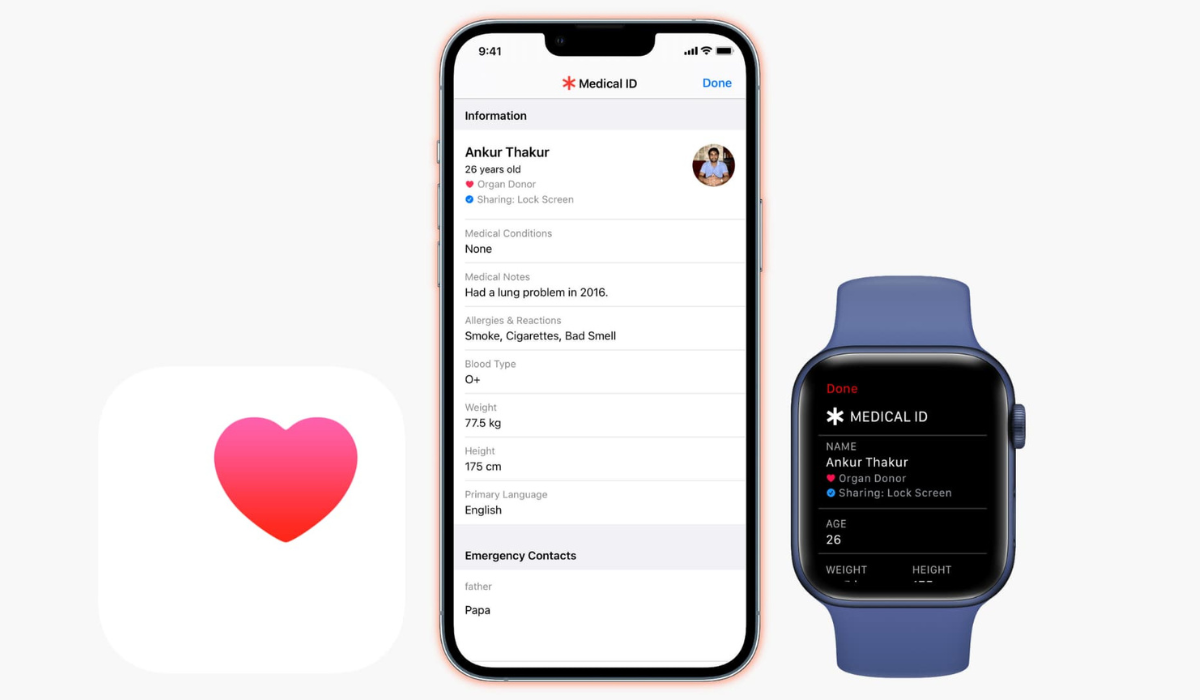
How Can You Find Medical ID on an iPhone and Apple Watch?
If you set up Apple’s Medical ID function beforehand, it may be able to save your life in an emergency. Also, knowing where to find medical ID on an iPhone or Apple Watch can be useful whether you’re a paramedic, a first-aid provider, or just a well-meaning passerby. You’ll be able to find vital information about someone if they are rendered unconscious, and also to return a lost device to its rightful owner.
The steps to find medical ID on an iPhone and Apple Watch are described below.
How to Find Medical ID on an iPhone
There are several ways to find medical ID on an iPhone, whether it’s yours or someone else’s:
- Press the Side or Top button five consecutive times, then slide across the screen with the Medical ID slider. Depending on the settings, this may cause the iPhone to enter emergency SOS mode.
- You could also hold the Side or Top button together with either Volume button, then slide across on the Medical ID option.
- Swipe up (or press the Home button if there is one) from the lock screen to access the passcode entry screen. Then, in the bottom-left corner, select Emergency > Medical ID .
- Look for the Health app and launch it if the iPhone is unlocked. Then, in the top-right corner, tap the profile icon and select Medical ID .
If you don’t see a Medical ID option on the device, it means the user has either not configured it on their device or has opted not to share it from the Lock Screen.
Follow the directions above and use the “ Emergency Call ” slider instead if you need to call the emergency services. This initiates a call to your local emergency services. When you end the call, the iPhone will send a message to each emergency contact listed on the Medical ID, which is just one of the iPhone’s emergency features.
How to Find Medical ID on an Apple Watch
Both an iPhone and an Apple Watch have similar potential to save your life in an emergency situation since first responders are trained to seek out medical bracelets. Here are the steps to find medical ID on an Apple Watch:
- Press and hold the Side button, then slide across on the Medical ID slider on an Apple Watch to view medical ID.
- Ensure that you are pressing the Side button and not the Digital Crown on the Apple Watch.
To contact the local emergency services, swipe across the Emergency Call slider. If you aren’t using a cellular Apple Watch, the device will have to be close to a paired iPhone before you can do this. The Apple Watch will notify each emergency contact after calling emergency services and display the medical ID.
Please keep in mind that Apple’s Medical ID is only helpful if users activate it on their devices. So don’t forget to set it up on your personal device as well. Also, to find medical ID on a locked iPhone screen, you must keep Show When Lock enabled ( Settings > Health > Medical ID > Edit > Scroll down and enable Show When Lock ).
It’s true that many of us are unlikely to ever need Apple’s Medical ID, but it’s still useful to know how to locate it on your iPhone and Apple Watch. I hope the information above is helpful in case you ever need to find medical ID on an iPhone or Apple Watch.
Author:Joan Agie
Add MobilityArena as a preferred source on Google
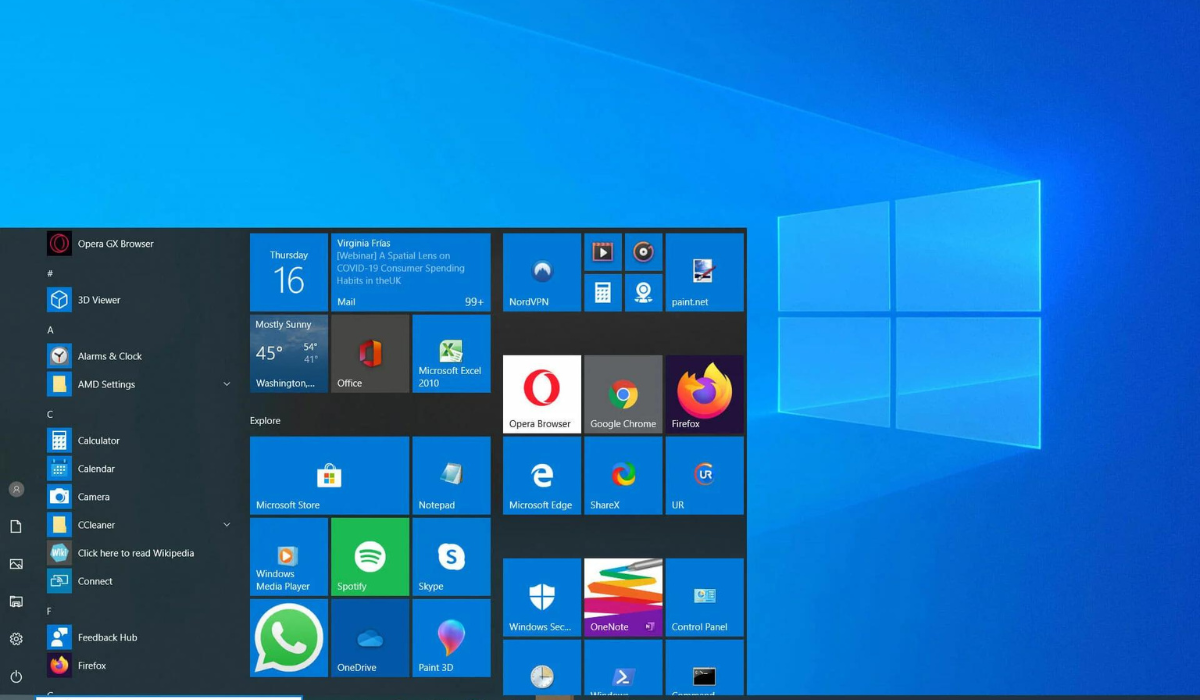
One of the most common problems that many users face is the Windows start menu button not working or opening. When you click the start menu button, it can sometimes crash and not respond, and other times it might not open at all. Considering that it’s included in practically every Windows version, it can be a bother when it stops working.
Fortunately, there are several troubleshooting techniques to fix Windows Start button not working. In this article, I will discuss some of these methods, so pay attention to learn how to resolve this common problem.
How Can You Fix Windows Start Button Not Working?
The Windows start button may not function for several reasons, such as corrupted hardware, malware, some problems with Windows Explorer, and Windows update issues. Follow the helpful troubleshooting steps described below to fix Windows start button not working.
Restart Your Computer
Restarting the system can sometimes fix basic issues because it reloads all of the settings in memory on boot up and gives the system a new start.
When you can’t access Start , hit Ctrl + Alt + Delete , then select Power , then Restart . You can also manually turn off your device by pushing and holding the power button. This may be the solution you need to fix Windows Start button not working.
Update Windows
If something isn’t working properly, your first instinct should be to check for and install a Windows update. Updating Windows is one of the simplest ways to fix problems with it. Microsoft releases patches, improvements, and new Windows features on a regular basis, with major updates every year and minor security updates from time to time.
So check for updates – press the Windows key , type “ Updates ,” and then select Check for updates from the menu. Allow the system to check for and download updates if any are available.
Finally, restart your computer to complete the update and check if it helps to fix Windows Start button not working.
Sign Out of Your Account
Following a Windows update, sign out and back in to your user account. This is another quick way to fix Windows Start button not working, so follow these steps.
- To sign out of your computer, press Win + X to open the Windows Power User Menu.
- Select Sign out from the menu.
- After signing out, wait a few seconds before signing in again.
Restart Windows Explorer
Explorer allows you to view, interact with, and modify files on your computer as the default file manager for Windows. Sometimes, problems with Windows Explorer cause the Start Menu button to stop functioning. In some cases, the entire Windows operating system may become unresponsive.
In such cases, simply restarting Explorer can help to fix Windows Start button not working, as well as other problems with the Start Menu and Taskbar. To restart Explorer, follow these steps:
- To open Task Manager , press Ctrl + Shift + Esc .
- Right-click Windows Explorer and select Restart from the Processes tab.
- Allow the Explorer to start up.
The graphical user interface (GUI) on top of the file system will momentarily vanish when you restart Windows Explorer because the Explorer application will shut down. So don’t be alarmed if everything goes black for a second.
Run the System File Checker Scan
Corrupt system files causing unanticipated problems can also have an impact on the Start Menu and cause it to malfunction. Windows, however, includes file repair tools that can resolve most issues associated with corrupt system files. The System File Checker (SFC) is one such utility, and it can also help fix Windows Start button not working.
Start the Command Prompt as an administrator. To accomplish this:
- Press Win+S , type “ Command ,” right-click on Command Prompt , and select Run as administrator .
- In the Command Prompt window, type “ SFC /scannow ” and hit Enter .
- Allow the utility to do a scan.
If Windows does not detect any integrity violations, the files are fine. However, if Windows discovers problems but is unable to resolve them, you may need to run additional scans.
Re-register the Built-in Windows App Using Powershell
Reregistering the app using Windows PowerShell is a temporary way to fix Windows Start button not working. However, keep in mind that if the issue recurs in the future, you might need to repeat the procedure before you pull the trigger.
- To open the search bar, press Win + S and type “ Powershell .”
- Run Windows PowerShell as administrator by right-clicking on it.
- Paste the following command into Powershell, then hit Enter : Get-AppXPackage -AllUsers | Foreach {Add-AppxPackage -DisableDevelopmentMode -Register “$($_.InstallLocation)AppXManifest.xml”}
Deactivate Temporary Cortana files Using the Command Prompt
Windows Explorer can function improperly sometimes due to Cortana. Deleting and recreating temporary Cortana files can help in this case to fix Windows Start button not working, as well as similar Explorer issues.
Follow these steps:
- Enter “ Command Prompt ” by pressing Win + S.
- Right-click Command Prompt and choose the option to run it as an administrator from the menu.
Once Command Prompt is launched, perform the following commands in the following order:
- CD/d “%LOCALAPPDATA%PackagesMicrosoft.Windows.Cortana_cw5n1h2txyewy”
- Taskkill /F /IM SearchUI.exe
- RD/S/Q Settings
If these commands don’t work, you have a few more options to fix Windows Start button not working, so keep reading.
Boot into Safe Mode
Booting into Safe Mode can be a great way to fix Windows Start button not working if you don’t mind giving up access to third-party programs. Safe mode is a feature of Windows that disables pointless drivers and programs to start the computer with just the essential programs.
Users can troubleshoot problems in such a minimal setting by concentrating on the underlying causes without worrying about user applications interfering with the system. So, boot into Safe Mode and see if that fixes the Start Menu button.
Run a System Restore or Factory Reset
If none of the above suggestions work to fix Windows Start button not working, it would indicate that the Start Menu’s misbehavior is being caused by one of Windows’ core precepts. If so, you might have to restore or reset Windows to its factory settings in order to get it working again.
Ultimately, issues with the Windows Start button can be particularly inconvenient since it contains all of the apps, settings, and other things you might need. Hopefully, the methods mentioned above will help you fix Windows Start button not working.
Remember, if you’re going to do a full PC reset to fix the problem, make a backup of your computer so you can restore everything once you’re done.
