Add MobilityArena as a preferred source on Google
Finding your stolen smartphone is much easier than it used to be. If your Android smartphone ever gets stolen or lost, finding it can be as easy as using Google.com. Simply Google “Find my phone” and the search result will throw up a map and attempt to locate it. Like this:
Once you locate your smartphone on the map, you can trace its current location. Be careful if you choose to go after a thief. Personal safety is key.
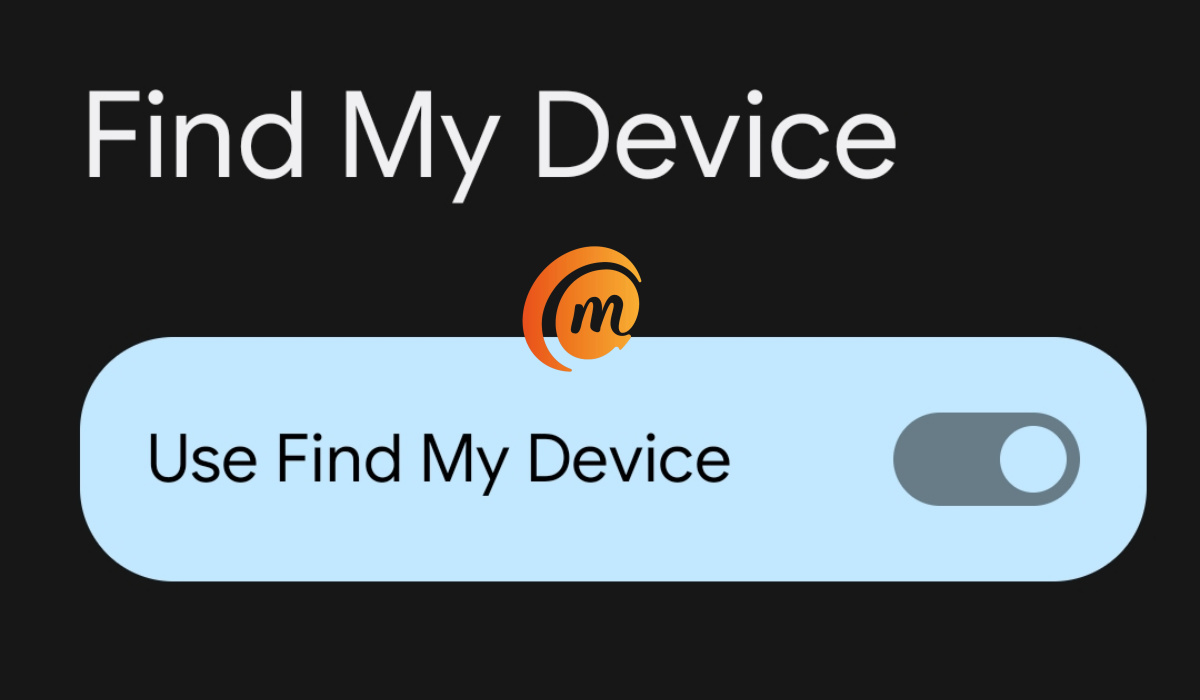
You can ring up the phone too – in which case the phone will ring out. This is ideal if you just do not know where you placed the phone or if you suspect that the thief is still within the vicinity. If you select the “Recover” option, you get further options. You can remotely set a password to lock the screen, sign out of the phone, or erase it to keep contents secure.
- To Be Able To Find Your Stolen Smartphone
- Using Android Device Manager (now Find My Device)
- A Strong Case for Location Access
To Be Able To Find Your Stolen Smartphone
There are requirements for this to work though:
- Your smartphone’s GPS or location access has to be turned on
- you need to be signed in to your Google Account
- the stolen smartphone must still be turned on
- your stolen smartphone must have an active internet connection, be it mobile data or Wi-Fi
- the stolen smartphone must have been linked to Google by you
Using Android Device Manager (now Find My Device)
If your smartphone is not linked to Google (step 5 above), you can still find it if it goes missing or gets stolen. Just visit android.com/devicemanager and sign into your Google account. Android Device Manager (Find My Device) will show you the approximate location of your smartphone. Android Device Manager (Find My Device) gives you options to go after it using maps, make it ring out or if absolutely required, wipe/erase it.
If you have another smartphone available, you can install the Android Device Manager (Find My Device) app on it and use it to locate your stolen smartphone. Note that Android Device Manager (Find My Device) will only work if your stolen smartphone is turned on and has an active internet connection as well.
Important : You can use Android Device Manager (Find My Device) to make your phone ring out, to lock it or erase it without your location access turned on. But it won’t be able to find the phone. If you want to be able to find your stolen smartphone using Android Device Manager (Find My Device), you need to keep the phone GPS or location access turned on.
A Strong Case for Location Access
More and more, new helpful smartphone features require that users leave their location access turned on all the time. There are arguments about the pros and cons of this in terms of privacy. But it is looking more and more like the average smartphone user who wants to get the best out of their devices will have little option but to leave their location turned on.
For one, without location access turned on, forget about using any software to find your stolen smartphone. Once stolen or lost, you might as well forget about it and move on.
Author:Mister Mobility
Digital Skills and Communication Coach | Mobile Phone Connoisseur since 2001 | Tech Blogging since 2004
Add MobilityArena as a preferred source on Google
Like many people, you have probably wondered why your cell phone hangs, freezes, or pauses in the middle of you carrying out a task with it. Phone hanging is a very common issue experienced by smartphone users. Resolving the issue is not a difficult thing. We have compiled a list of the top reasons why your phone may be hanging, along with easy solutions that you can carry out.
Low Internal Storage Space Can Lead To Phone Hanging
Check your smartphone’s internal storage. If it is getting full, with less than 10% space left free, chances are that it will slow down your phone and even lead to hanging. To resolve this, delete unimportant apps, videos, files (or move them to a memory card).
A Rogue App Can Leave Your Phone Hanging
Look at the most recently installed applications just before the instability/hanging started. If you did install some apps around that time, chances are that one or more of them are responsible for the hanging. Make a list of the apps, then uninstall all of those apps on the list. If your smartphone runs better after uninstalling them, then it is clear that one or more of them is the culprit. If they are all non-essential apps, you can forget about them and move on.
However, if one of those apps is important to you, you can do something to pinpoint the specific rogue app. Re-install the deleted apps one at a time and check to see how your phone behaves after installing each. You should be able to narrow down the list to the particular app that is messing things up. Once confirmed, delete that app and keep the others.
Too Many Apps Running In The Background
If you have too many apps running at the same time for a long period, this can make your smartphone hang. Shut down some of the apps that are running. Your phone hanging problem should go away, if this was the reason for the problem. You will have to continually keep an eye on running apps though, especially if your phone has a low RAM amount.
Phones with less than 2 GB of RAM are especially probe to this. If your phone has 4 GB RAM and above, you have very little to worry about this happening. You can run many apps at the same time without issues.
A Software Issue May Be Responsible
Underlying software issues can be responsible for your cell phone hanging. Usually, a restart helps. But in extreme cases, a factory reset may be required. This clears up your phone and returns it to factory settings and state. Note that this will delete your apps, videos, music and other files permanently. As such, you should backup all your files before carrying this out. To do a factory reset, go to the Settings menu of your phone and look under Backup & Reset .
Hardware Damage Is Possible, Too
If you have tried out the above solutions and none of them worked, perhaps your phone may have a hardware damage responsible for the hanging. It may be time to visit a service centre to have it checked out.
- Don’t miss our mobile phone reviews .
- Follow our news on Google News .
- Join our WhatsApp Group , to be notified of the most important articles and deals,
- Follow us on Instagram , Facebook , Twitter , and YouTube .
Author:Mister Mobility
Digital Skills and Communication Coach | Mobile Phone Connoisseur since 2001 | Tech Blogging since 2004
