Add MobilityArena as a preferred source on Google
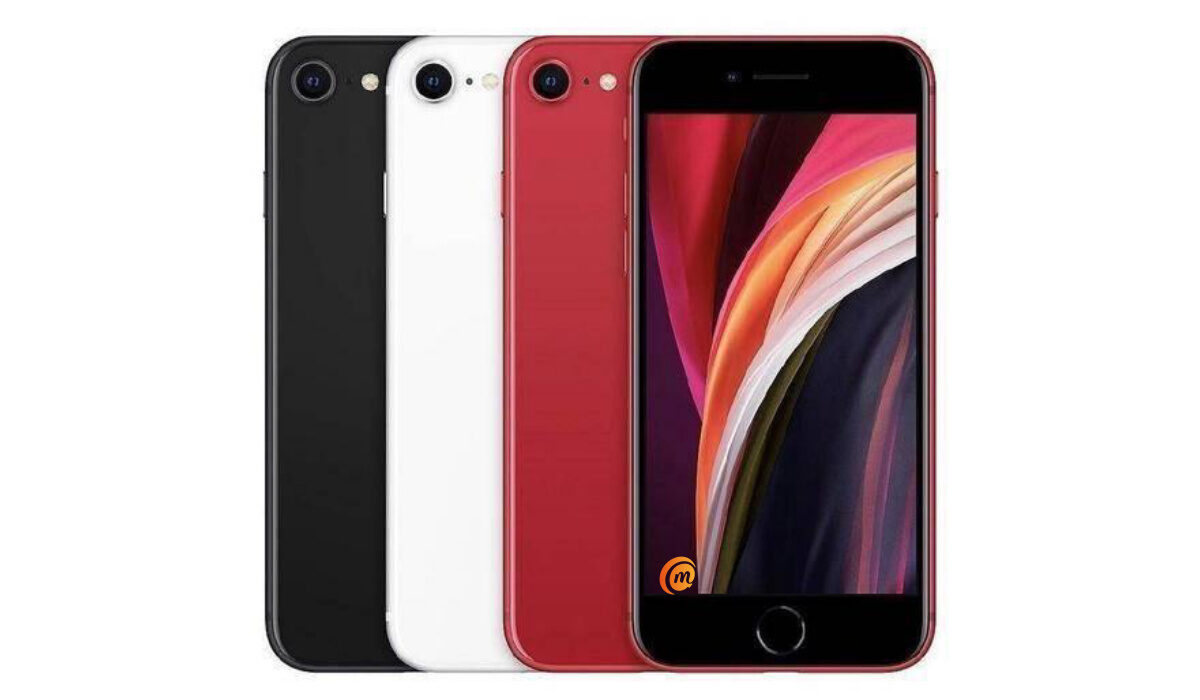
One thing that every iPhone user dreads is losing their phone. Not being able to find your phone can be a traumatic experience. While there are things you can do to keep your device from getting lost, there is no guarantee that it won’t happen. Which is why there are things you can try out if you lose your phone. For example, you can find your lost iPhone using Apple Watch, if you own one of those. The Ping iPhone feature on Apple Watch makes your iPhone give a loud pinging sound, so you can locate it easily.
How The Ping iPhone Feature Works
Note that the ping iPhone feature requires that your Apple Watch be paired and connected to your smartphone via Bluetooth or Wi-Fi beforehand. Otherwise, it won’t work.
Here’s what to do to ping your missing iPhone with Apple Watch:
- Swipe upwards from the Apple Watch clock face to get to Glances .
- Swipe right two times until the Control Panel opens. You should see some features like Airplay, Do Not Disturb, and Ping iPhone.
- If there is a green indicator shown, tap Ping iPhone . This will make your phone ring out loud, so you can follow the sound to find your phone.
A variation of this feature lets your phone flash blink when you ping it. This is helpful when you search in dark areas, and also helpful for people with impaired hearing. To use the flashing LED light, tap and hold the ping button instead. Now, you do not need to ask your roommate or spouse to call your iPhone any longer when you can’t find it.
Note that if you do not see a green indicator displayed when carrying out the above steps, your device is too far (perhaps you forgot it at the office or somewhere else you have been), the ping iPhone feature will not work. In that case, you will have to try finding your phone using iCloud.
- Don’t miss our reviews .
- Follow our news on Google News .
- Join our WhatsApp Group , to be notified of the most important articles and deals,
- Follow us on Instagram , Facebook , Twitter , and YouTube .
Author:EmmyCN
Add MobilityArena as a preferred source on Google
Switching from an Android smartphone to an Apple iPhone usually meant worrying about how to transfer your WhatsApp data from your Android phone to iPhone. It was a huddle, and I recall a number of acquaintances complain about it. However, there is good news: Android users who need to switch to iPhone can now do so and carry their WhatsApp data over easily – and for free.
This new method of moving your WhatsApp data from your Android phone to iPhone works by using a free app developed by Apple. The app is called Move to iOS . According to WhatsApp, the transfer will only work on factory reset or new iPhones. This is the same restriction the process has when transferring from iPhone to Android.
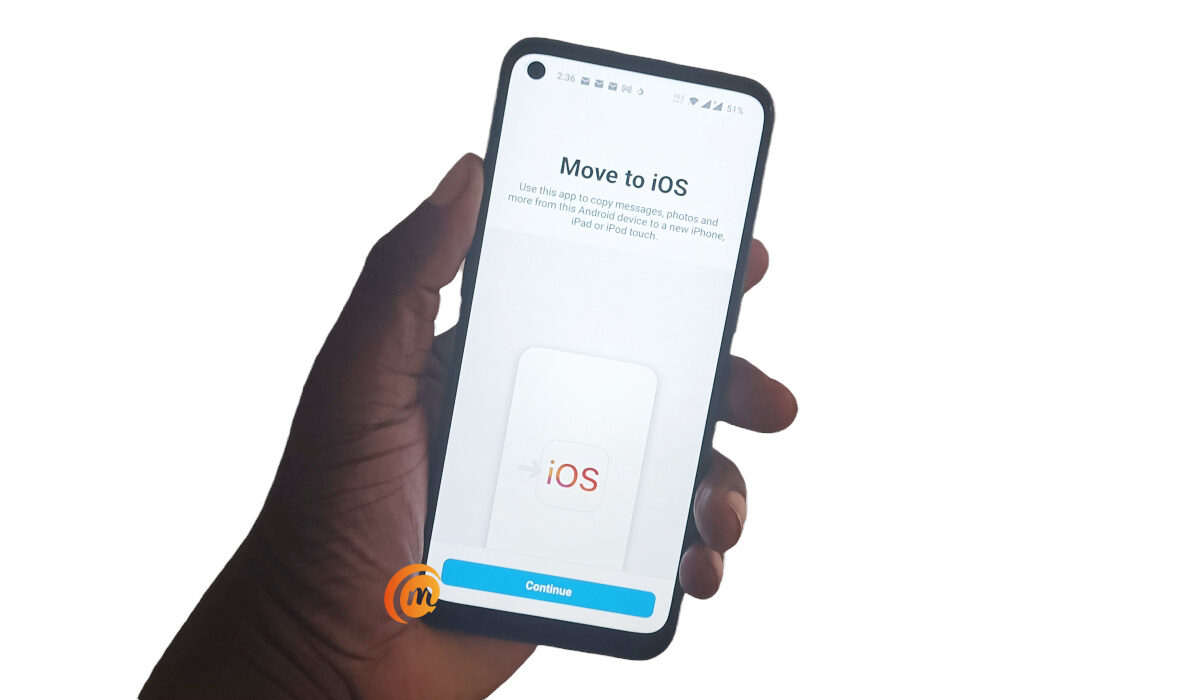
You can transfer your WhatsApp data from your Android phone to iPhone using Move to iOS app
The Move to iOS app supports Android phones running Android 5 and newer, and iPhones running iOS 15.5 and newer, so make sure you have both your devices updated to meet these requirements. Psst : If you are still using an Android 5 phone, you really need to get rid of it already. Come on.
How to transfer WhatsApp data from your Android phone to iPhone
To get started, you’ll have to download, install, and open the Move to iOS app on your Android phone. Next, follow these steps:
- Grant the requested permissions
- Accept the terms and conditions
- Next, you will need to find a 6-digit Single-Use Code displayed on your iPhone and enter it in the app in your Android phone. Tap the blue Continue bar at the bottom of the screen, and punch in the Single-Use Code.
- The app now connects to your iPhone and is ready to begin the transfer process.
- On the Transfer Data screen, select WhatsApp ”, and then press “ Start .” WhatsApp will then prepare a copy of your data and begin the transfer process from Android to iPhone.
- Download and install WhatsApp on your iPhone, enter your number, and tap Restore .
- On the “Import chats” page, tap Start , to begin the transfer.
Depending on the size of your chats, they will be moved over to your iPhone in a matter of a few or many minutes. Congratulations; you now know how to transfer WhatsApp data from your Android phone to iPhone.
Download Move to iOS mobile app, to transfer WhatsApp data from your Android phone to iPhone
- Don’t miss our reviews .
- Follow our news on Google News .
- Join our WhatsApp Group , to be notified of the most important articles and deals,
- Follow us on Instagram , Facebook , Twitter , and YouTube .
Author:MobileChic
That motivated, gadget-loving geeky chic who tries to stay on top of things. Unapologetic iFan.
