Add MobilityArena as a preferred source on Google
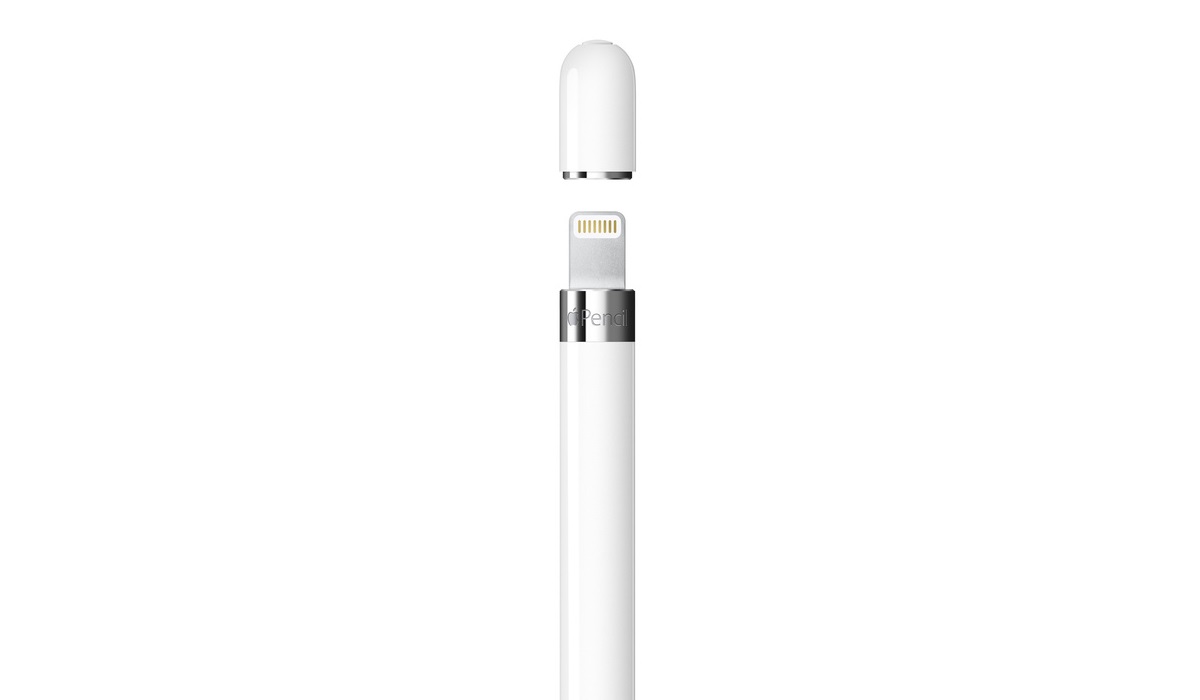
In addition to being a fantastic tool for digital designers and artists, the Apple Pencil has revolutionized how its regular users take notes. This $99 piece of portable technology is a versatile tool that many iPad creatives live and swear by.
But there is one issue that all Apple Pencil users have in common: they are constantly misplacing it. If this is an issue you constantly face, we’ve created this guide for you. In this guide, we’ve provided useful solutions to help you find your lost Apple Pencil.
- How Can You Find Your Lost Apple Pencil? Download and Use the Bluetooth Finder App Use the Bluetooth Connectivity on your iPad Nudge the Apple Pencil
How Can You Find Your Lost Apple Pencil?
Users of Apple Pencil models 1 and 2 have raised questions about whether or not one can find a lost Apple Pencil using Apple’s Find My app. Unfortunately, while most Apple gadgets can be found via the Find My app from Apple, the Apple Pencil is not one of them. Not to worry though, here are some other helpful ways to find your lost Apple Pencil.
Download and Use the Bluetooth Finder App
By connecting to its wireless signature, the Bluetooth Finder app can help find your lost Apple Pencil. Keep in mind though that the Bluetooth Finder app will only function with a charged and awake Apple Pencil. Here’s how to find your lost Apple Pencil with this option:
- Open the Bluetooth Finder app and choose Apple Pencil from the selection of previously paired devices
- You will then see a radar in the Bluetooth Finder app showing the signal strength and an estimate of your distance from the device. You’ll know that your Apple Pencil is fairly close if the app displays a distance of less than 0.5 meters (two feet).
Use the Bluetooth Connectivity on your iPad
When trying to find a lost Apple Pencil, you could also navigate to Settings > Bluetooth > My Devices on your iPad to see if your Apple Pencil is nearby. Given that Bluetooth’s range is 30 feet, if your Apple Pencil displays as Connected , you’ll know it must be nearby.
Keep in mind that the Bluetooth range is greatly reduced by the materials separating your devices. The quality of your Apple Pencil’s connection, for instance, can be impacted by thick walls, flooring, or even furniture.
Using this information, you can conclude that if your Apple Pencil maintains the Bluetooth link, it is most likely closer than 30 feet.
Nudge the Apple Pencil
There’s a chance that your Apple Pencil has fallen asleep if you’ve lost it for some time. Even if it is fully charged, an Apple Pencil cannot be connected over Bluetooth when it is asleep. You could make efforts to nudge the device and wake it up so it becomes simpler to find your lost Apple Pencil.
You might be able to shake your lost Apple Pencil awake by shaking your backpack, tossing the couch cushions, or digging through desk drawers. Driving around could also activate your Apple Pencil if you think you left it in your car.
Extra tip : It might also be beneficial to revisit any place you’ve gone or stayed in the past few hours so you can find your lost Apple Pencil.
Retrace your steps by recalling the precise location where you last held the Apple Pencil. Examine your most recent iPad files, such as signed papers, sketches, or notes, for hints like timestamps or location information.
Also remember to check any areas or crevices close to your desk, such as underneath the table, behind the display, or behind pedestals, if you bring your Apple Pencil to the office.
In case it has been found and an attempt has been made to return it, it’s also a good idea to check with the lost and found department at your workplace.
Summarily , dealing with a lost Apple Pencil can be frustrating but our helpful suggestions can help you. Try one or more of our recommended solutions to find your lost Apple Pencil.
Author:Joan Agie
Add MobilityArena as a preferred source on Google
Your computer may start running low on memory if you have too many tabs open. To avoid this, Chrome constantly refreshes those tabs automatically. However, it can be rather unpleasant to have to wait for tabs to reload constantly, especially when you’re working or need to find a specific piece of information quickly.
In this guide, we’ll show you different ways to keep Chrome tabs from constantly auto-refreshing. Take note of these instructions to enjoy better productivity when using Chrome.
- How Can I Stop Chrome Tabs Auto-Refreshing? Restart Google Chrome Close All Unnecessary Chrome Tabs Perform an SFC Scan Disable Chrome’s Memory Saver Use a Tab Auto-Refresh Extension
How Can I Stop Chrome Tabs Auto-Refreshing?
Even if it’s possible to wait for auto-reloads to finish, the wait can be annoying, especially if auto-reloading tabs delay your work. Try one or more of the following fixes to stop Chrome tabs from constantly auto-refreshing.
Restart Google Chrome
Restarting any problematic program is always the first step to try in debugging it. However, simply closing the window and restarting Google Chrome might not be enough to stop Chrome tabs from auto-refreshing constantly.
Instead, open the Activity Monitor or Task Manager on your Windows or Mac device respectively. From there, end any background processes that Chrome is still using.
Close All Unnecessary Chrome Tabs
Chrome typically uses a lot of your system’s resources especially if you have a lot of tabs open. As a result, Chrome will keep refreshing tabs because it is concentrating on the tabs you’re using rather than keeping all of them open.
So, closing any tabs you’re not currently using is an obvious way to keep Chrome tabs from constantly auto-refreshing. This will reduce the workload on Chrome.
If you believe you will need certain tabs in the future, you can bookmark them. Use a bookmark organizer plugin to keep your Chrome bookmarks organized.
Perform an SFC Scan
On a Windows PC, Chrome might continue to auto-refresh tabs due to a damaged system file. The System File Checker should resolve the issue in this situation and keep Chrome tabs from constantly auto-refreshing.
Launch Command Prompt as an administrator, enter “ sfc/scannow ,” and then click OK . When the scan is finished, see if Chrome can be used without auto-refreshing.
You should also employ more Windows in-built features to fix corrupt files if this fix didn’t work and you have reason to believe that the problem is related to corrupt system files.
Disable Chrome’s Memory Saver
The purpose of Chrome’s Memory Saver feature is to sleep tabs that aren’t currently in use. It does this to free up system resources and guarantee a smooth surfing experience. However, it’s advisable to disable this Memory Saver feature to keep Chrome tabs from constantly auto-refreshing or snoozing.
Access Chrome’s menu, then select Settings to disable it. On the left pane, select Performance and deactivate the toggle beside Memory saver . Chrome will do this regardless of the magnitude of system resources in use to keep all open tabs active.
Touch the Add button beside the option to Always keep these sites active . This will generate a list of websites that should always remain active on Chrome.
Use a Tab Auto-Refresh Extension
You could also try installing the Tab Auto Refresh extension to provide you with more control over your Chrome tabs if your system has the necessary resources.
You can specify the time that Tab Auto Refresh should automatically refresh your tabs. This way, you’ll be able to keep Chrome tabs from auto-refreshing constantly. If you’re waiting for a significant update or announcement, you can stop some tabs from auto-refreshing for a while or set them to reload every few seconds.
Enter the Chrome tab and tap the extension symbol to set the refresh timer. Now, input the time period to auto-refresh the tab or completely stop the auto-refresh function.
In summary , you no longer have to experience frustrating delays when working on Chrome. Learn from our suggestions in this guide to keep Chrome tabs from constantly auto-refreshing and enjoy an optimal workflow.
