Add MobilityArena as a preferred source on Google
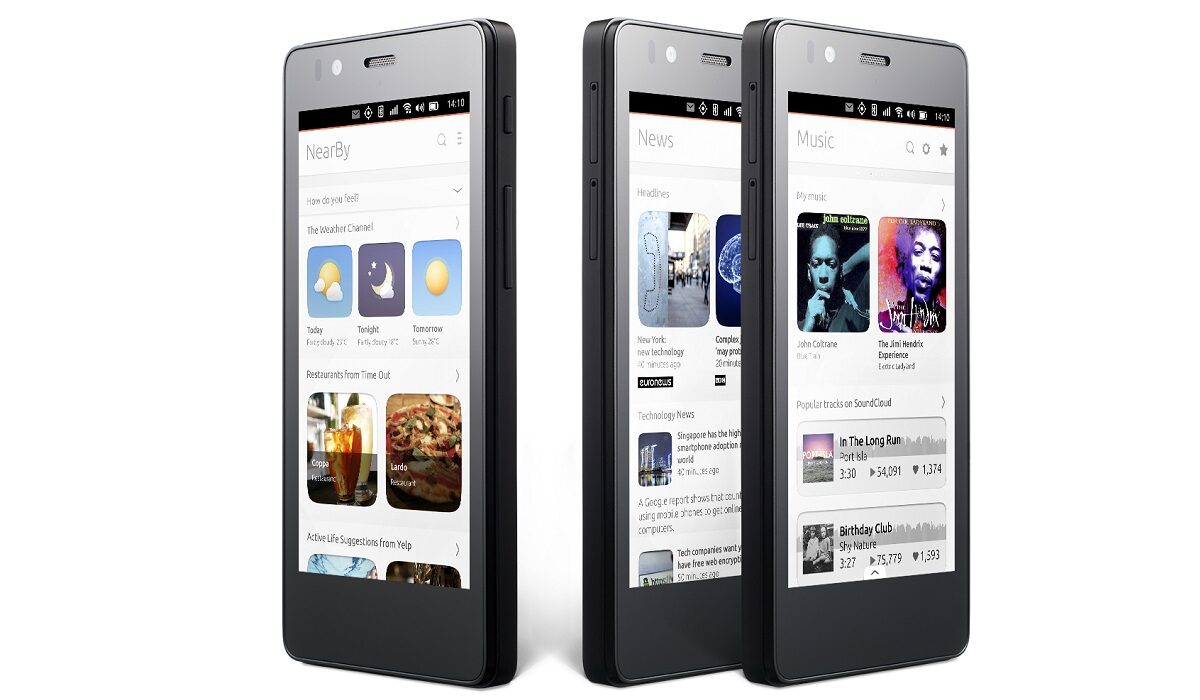
The BQ Aquaris E4.5 Ubuntu Edition is the world’s first Ubuntu phone, and I have had one for some days now. I shared my thoughts with Mister Mo, and he asked me to share my first impressions of the rare smartphone.
I am not a writer or a blogger, so bear with me: this article is not a detailed one. Let’s start with the key specs of the phone before I jump into my thoughts.
About BQ
Let’s get to meet the company, BQ, first. Originally called Mundo Reader , BQ is a Spanish company brand making smartphones, tablets, and e-readers, among other electronic gadgets.
In 2014, they produced the Aquaris E4.5 which shipped with Android OS. This was followed by the Aquaris E4.5 Ubuntu Edition in 2015. This has the same specs but shipped with Ubuntu Mobile Operating system instead, and it is this device that is the subject of this article.
BQ Aquaris E4.5 Ubuntu Edition Specs
- 4.5-inch, 540 x 960 pixel (240 ppi), IPS capacitive screen. Dragontrail protection, display
- Ubuntu Mobile OS
- 2G, 3G networks
- MediaTek processor
- 1 GB RAM
- 8 GB built-in storage memory
- 32 GB microSD card support
- 8 megapixels rear camera
- 5 megapixels front camera for selfies
- microUSB v2.0, micro-USB OTG slot
- 2,150mAh battery.

BQ Aquaris E4.5 Ubuntu Edition
BQ Aquaris E4.5 Ubuntu Edition: My first impressions
- Not brilliant battery life – quite poor, actually. Which is no surprise, considering the measly 2150mAh capacity of the battery
- The Keyboard is annoying to type on. It has one of the worst, if not the worst, autocorrect I’ve ever come across
- But I love Scopes. I am still trying to figure out how to add an app to the Apps scope
- The rear camera isn’t too bad. I am yet to try the front one. I wouldn’t expect much, though.
- HERE Maps isn’t offline, but at least there’s a map service available
- I should also add that it is pretty easy to find your way around the phone.
Your thoughts, everyone?
- Don’t miss our reviews .
- Join our WhatsApp Group , to be notified of the most important articles and deals,
- Follow us on Instagram , Facebook , Twitter , and YouTube .
Author:Noni
Thoughtful. Pragmatic. People watcher. Professional troublemaker.
Add MobilityArena as a preferred source on Google
Linking your phone to Google means connecting your Google account from your android phone to your desktop. Once this is done, you can send commands to your phone from the desktop and perform various functions like finding your phone , sending notes to your phone, setting an alarm, etc. Follow the steps below to link your Phone to Google:
1: Install/Update Google app
- Open Google Play Store and download Google Now , or update it if necessary.
2: Turn on Google Now
- Open Google app with the icon .
- Touch the Menu icon> Settings > Now cards .
- Initiate Show cards .
- Initiate Show notifications .
3: Initiate Web & App Activity
- Visit the Account History page .
- Tick the box to turn on Web Activity.

4: Sign in to your browser on phone and PC
- On your phone, open the Google app .
- Touch the Menu icon .
- In the top left corner, you’ll see the email address used for the Google app.
- Visit www.google.com on your computer.
- Make sure you’re signed in, click Sign in in the top right corner of the page.
- Sign in using the same Google Account used for the Google app.
That’s all…
From there you can proceed to do any of the searches.
note to self – For sending notes to your phone.
send directions to my phone – For sending directions to Google Maps installed on your phone.
Don’t miss our reviews .
Follow our news on Google News .
Join our WhatsApp Group , to be notified of the most important articles and deals,
Follow us on Instagram , Facebook , Twitter , and YouTube .
Author:Mister Mobility
Digital Skills and Communication Coach | Mobile Phone Connoisseur since 2001 | Tech Blogging since 2004
