Add MobilityArena as a preferred source on Google
I am a lover of compact smartphones . The rest of the world want their phones as big as possible, but that’s their business. Sony Mobile has the Xperia Compact 2021 for those of us who like them small.
Sony has been the number one champion of compact smartphones. For a while, it looked like they were moving on too, and joining in the race for bigger screens. Which would have been sad.
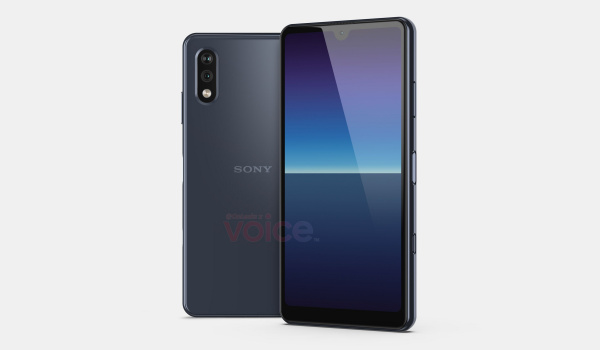
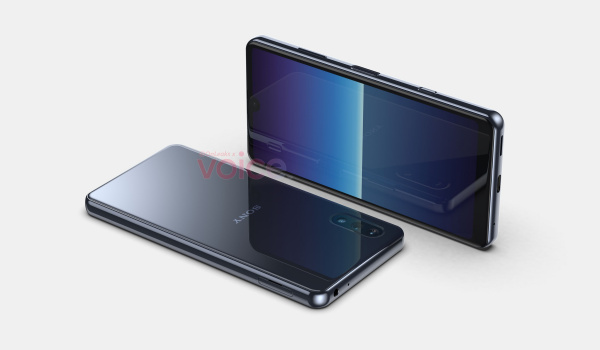
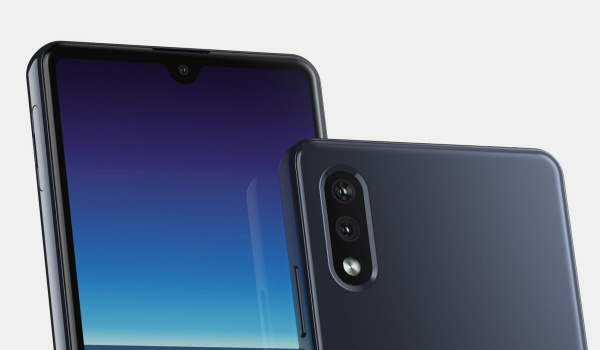
A new leak from Voice, however, give us images of what a new compact smartphone from Sony, an Xperia Compact 2021, looks like. The name is not confirmed yet, so we will have to do with that generic name.
Xperia Compact 2021 Photos/Images
Xperia Compact 2021 Phone Specs
- 140 x 68.9 x 8.9 mm dimensions
- 5.5 inches display
- 8MP front camera
- 13MP main camera
- 3.5mm audio jack
- Fingerprint scanner embedded in Power button
As we can see from the images, the 2021 Xperia Compact has slightly thick bezels. This follows the well known, time-tested design language of Sony Xperia phones .
Expect a glass body built around a metal frame – again. A Sony Xperia staple.
It makes for a smartphone that is easier to handle, especially in one-handed use.
There is no word about processor yet, but I fully expect a Qualcomm Snapdragon 888 SoC to power this.
Sony’s phones are also known for their stock Android interface, with minimal bloatware. So, we can expect to see Android 11 in this model.
Release Date and Pricing
There is no word on when exactly to expect the 2021 Compact to arrive in the market. There is no word on pricing yet either, but you can expect to pay a premium for it.
Sony’s compact phones have always been premium flagship devices and I don’t expect this one to be any different.
I am looking forward to seeing the Xperia Compact 2021 in the market. Sony is one of the smartphone makers whose products tickle me.
Finding them to buy is another matter entirely though, if one is not interested in the hassles of having it shipped in. Still, who knows?
Source
Author:Mister Mobility
Digital Skills and Communication Coach | Mobile Phone Connoisseur since 2001 | Tech Blogging since 2004
Add MobilityArena as a preferred source on Google
Every once in a while, there is the occasional slip of the hand where we mistakenly delete an important text message, leaving us perplexed or confused on how to get it back. What do you do when you mistakenly delete such text from your iPhone? How do you get it back and all the important information in it? You can find this out in this brief and straightforward guide.
- Recover messages from iTunes Backup: If you want to recover deleted text messages from your iPhone, you can try using iTunes back. To do this, follow these steps:
- Connect your iPhone to a synced PC/Mac.
- Launch iTunes.
- Select your iPhone from the device list.
- Tap Summary , then choose the recent backup entry date.
- Click Restore Backup , if you notice it is greyed out, change the backup preferences from iCloud to computer and the restore.
This method is useful in recovering old texts, but one huge disadvantage of this recovery method is it deletes the current data on your device. You also do not have the luxury of selecting the exact messages but will rather need to recover all the texts, making this process a tad cumbersome.
- Recover messages from iCloud backup: This method comes in particularly handy when you have backed up your iPhone’s data on iCloud, making it easier to recover deleted text messages from your iPhone through iCloud. To do this, you should clear all the content on your iPhone then replace it with the most recent iCloud backup. These tips below will help you recover deleted text messages from your iPhone:
- Go to Settings and click General > Reset > Erase all content and settings .
- In the confirmation box that pops up, pick Erase Now . Follow through with the instructions on screen till you get to the Apps & Data page.
- Click restore from iCloud backup.
- Sign in with your details into your iCloud account.
- Select the relevant backup from the list and wait for it to finish.
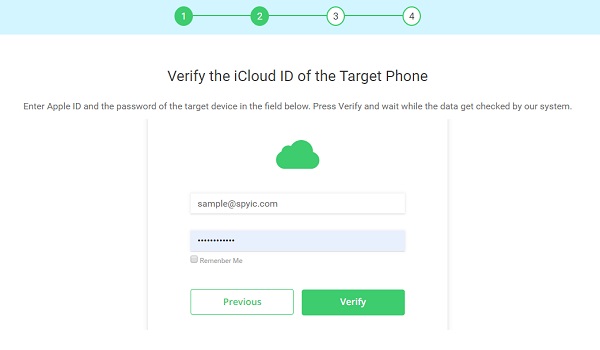
- Restore using a third-party app: You can recover some of your lost texts by using a trusted third-party app. All you need to do is plug your device into your computer, launch the application and follow the on-screen instructions. These apps are also useful in recovering call history, some of these apps include: iMobie PhoneRescue , Wondershare Dr. Fone , Stellar Data Recovery and Tenorshare UltData .
Author:Alfa Baye
Staff Writer
