Add MobilityArena as a preferred source on Google
Automatic device switching is a fantastic feature that allows you to use your AirPods to make calls, watch videos, and listen to music on your iPhone, iPad, or Mac. However, this function may cease to work sometimes.
If this is an issue you’re currently facing, we’ve created this guide to help you fix AirPods not switching automatically between Apple devices. We will look at several possible solutions, so feel free to try one or more options to get your AirPods to work well again with your Apple devices.
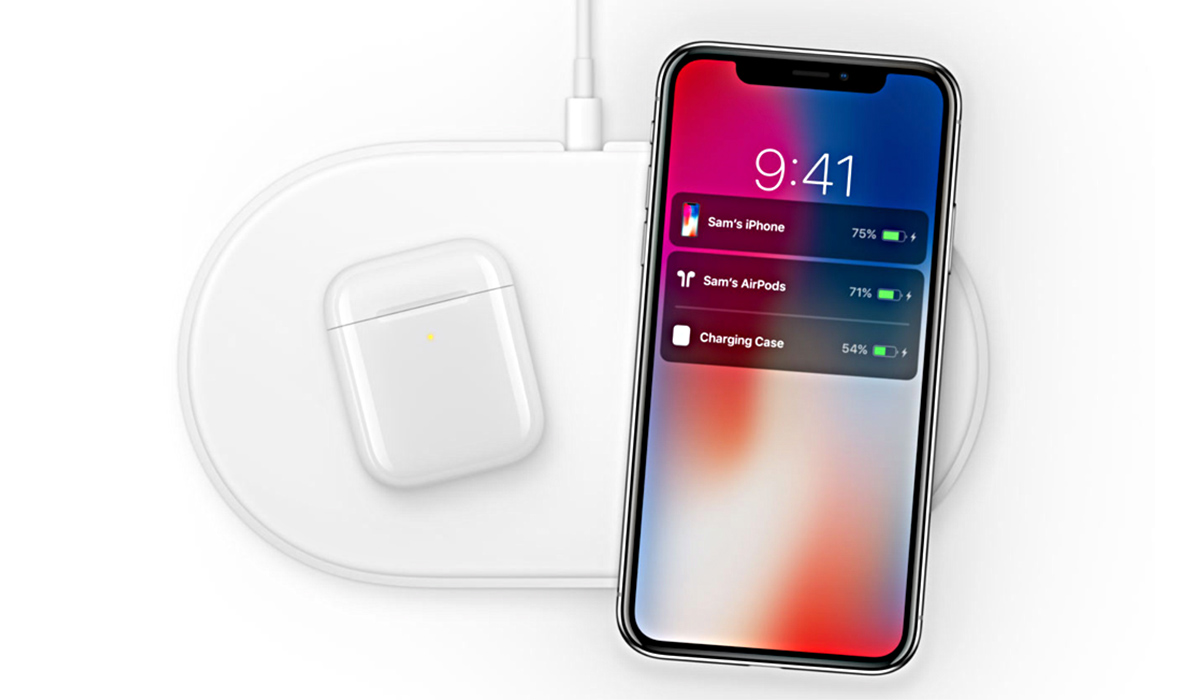
How Can I Fix AirPods Not Switching Automatically Between Apple Devices?
Your AirPods are supposed to automatically connect to each Apple device whenever you make a call, listen to music, or watch a video on your iPhone, iPad, or Mac. Your AirPods may not switch between devices, however, due to a number of issues, including compatibility problems and an out-of-date system.
Here are some options to fix AirPods not automatically switching between Apple devices.
Check AirPods Compatibility
Automatic device switching is supported by all AirPods models, except for the first-generation AirPods models. So, to fix AirPods not switching automatically between Apple devices, you need to know which AirPods you’re using. The first and second generations look the same, but you should be able to identify them by model number.
Here’s how it’s done:
- Connect your iPhone or iPad to your AirPods.
- Launch the Settings app.
- Select the Bluetooth .
- Right beside your AirPods, tap the i icon.
- Examine the model number. You have a set of first-generation AirPods that do not enable automatic audio switching if A1523 or A1722 are displayed next to it.
- If you see model number A2031 or later, your AirPods are compatible with automatic switching. In that case, proceed to the remaining options to fix AirPods not switching automatically between Apple devices.
Ensure that the Apple ID is the same across all devices
You must be signed in with the same Apple ID on all of your Apple devices in order to use automatic AirPod switching. If not, your AirPods won’t automatically switch between the devices.
How to Confirm Your Apple ID on an iPad and iPhone
Open Settings and tap your profile at the top to verify that your Apple ID is the same across your iPhone and iPad. Your Apple ID should display at the top of the next screen. If the Apple ID is not the same, sign out and sign back in using the same Apple ID as the rest of your devices. This should help fix AirPods not switching automatically between devices.
How to Confirm Your Apple ID on a Mac
On your Mac, launch the System Preferences app , then choose Apple ID .In the event that the Apple ID displayed differs from what you had anticipated, switch to the Overview tab and sign out of the device using the Sign Out option. Then, sign in with the same Apple ID you use everywhere else.
Turn on Automatic Audio Switching
Your Apple devices each have a unique setting that enables your AirPods to automatically switch to them. Verify that this is enabled on each of your Macs, iPhones, and iPads if you’re trying to fix AirPods not switching automatically between devices.
How to Enable Automatic Audio Switching on an iPad and iPhone
To enable automatic switching on an iPhone or iPad, follow these steps:
- Connect your iPhone or iPad to the AirPods.
- Select Bluetooth in the Settings app.
- Right beside your AirPods, tap the i icon.
- Then click Connect to This iPhone.
- Choose Automatically .
How to Enable Automatic Audio Switching on a Mac
To enable automatic switching on a Mac, follow these steps:
- Connect your Apple AirPods to your Mac.
- Select System Preferences from the Apple menu.
- Bluetooth should be selected here.
- Click on Options beside your AirPods
- Select Automatically from the menu next to Connect to This Mac .
- To save your changes, click Done .
Update Your System Software
Only devices running iOS 14, iPadOS 14, and macOS 11 Big Sur or later will automatically switch your AirPods on. You should therefore check the operating system version on all the Apple devices you own and, if necessary, upgrade them. This should help fix AirPods not switching automatically between devices.
How to Update an iPhone’s and iPad’s Operating System
Navigate to Settings > General > About on an iPad or iPhone. Next to Software Version , you should see the current iOS or iPadOS version of your device.
Return to the previous screen and select Software Update if you’re using iOS 13 or earlier. You should see an option to upgrade the system software here if your iPhone or iPad is compatible with iOS 14 or iPadOS 14 or later.
How to Update Mac’s Operating System
To find out what version of macOS is currently installed on your Mac, open the Apple menu and choose About This Mac . Choose Software Update to upgrade to a more recent version of the operating system if you’re still using macOS 10.15 Catalina or earlier. After the update, check if it helps to fix AirPods not switching automatically between Apple devices.
Reset the AirPods
You should reset your AirPods if none of the solutions mentioned above worked to fix AirPods not switching automatically between devices. This usually resolves common AirPods issues that prevent them from connecting to your devices automatically. Although the settings will be reset, changing them back shouldn’t take too long. After resetting your AirPods. Repeat the pairing process and reconnect them to your iPhone, iPad, or Mac.
Automatic device switching is a great feature that eliminates the effort of syncing your AirPods manually with various Apple devices. As such, we hope the above troubleshooting techniques helped you fix AirPods not switching automatically between Apple devices.
Author:Joan Agie
Add MobilityArena as a preferred source on Google
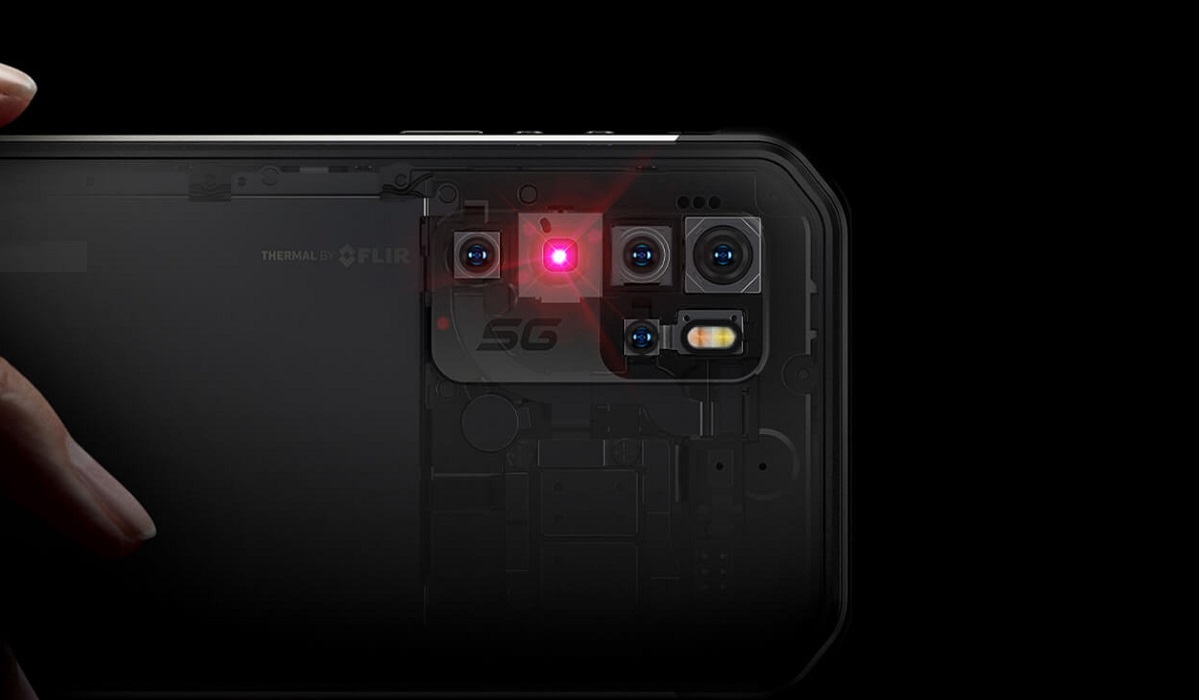
In recent years, smartphones have evolved into powerful tools that not only keep us connected but also help us capture and share our daily experiences. With advancements in technology, the capabilities of smartphone camera keep being expanded and extended. The arrival of smartphones with thermal imaging cameras is another step forward in this evolution.
Thermal camera phones are rarity for now, for the simple reason that the average person mostly has no need of them. But there is a category of devices that they come in useful – rugged or outdoors phones . These are phones built tough for outdoors professionals and enthusiasts e.g. search and rescue teams, security personnel, engineers, hunters, hikers, campers, and the like. This category of users finds thermal cameras useful.
- What are Thermal Cameras and what are they used for?
- How do Thermal Imaging Cameras work?
- Are Thermal Imaging Cameras limited to night use alone?
- Do thermal imaging mobile apps work?
- Do you need a Thermal Camera Phone?
- Can you add a thermal imaging camera to your regular smartphone?
- The Best Thermal Camera Phones Ulefone Armor 11T 5G AGM G2 Guardian CAT S62 Pro BL8800 Pro 5G
What are Thermal Cameras and what are they used for?
What do thermal cameras do? They allow users to see and capture objects that are visually difficult to see – whether in daylight or in the dark. They work by capturing the heat signature of objects they are pointed at. Think of infrared vision as seen in movies, and you have a good picture of the situation. Smartphones with thermal imaging cameras can be used to find missing people, animals, or objects in the dark or through smoke, can be used to detect camouflaged persons, animals or things, and can be used to detect heat leakages in industrial work areas.
How do Thermal Imaging Cameras work?
Regular cameras have lenses and sensors that work with light; thermal cameras have lenses and sensors that work with heat. They capture heat energy, process it, and render it as an image. Brightness or darkness does not matter at all here. All that a thermal camera works with is heat, and all humans, animals, and objects emit heat to varying degrees.
As lighting doesn’t matter, smartphones with thermal imaging cameras are better at detecting hidden or camouflaged objects better than the regular phone camera. Regular cameras are incapable of this, and thermal cameras are also incapable of doing what regular cameras do – processing light.
PS : I published a YouTube video demonstrating how a thermal imaging camera works. You can watch it here .
Are Thermal Imaging Cameras limited to night use alone?
Not at all. They can be used in daytime, for example, to see through fog or smoke, or to locate camouflaged persons, animals or objects in broad daylight as much as in the dark. This is because, unlike your regular camera, thermal cameras do not capture light; instead, they capture heat.
Do thermal imaging mobile apps work?
Thermal imaging apps work only if the phone has a thermal camera built in or added as a clip-on. Without a thermal sensor and lens, a thermal imaging app is useless.
Do you need a Thermal Camera Phone?
If you are not involved in the outdoors as a profession or a hobby, or do not have industrial use cases for it, you do not need a thermal camera phone. For example, I love the outdoors and fairly often have one adventure or the other. Having a thermal imaging camera in my smartphone will come in handy for me every now and then. As already mentioned, for most people, there is little use, if any, for a thermal imaging camera.
Can you add a thermal imaging camera to your regular smartphone?
Yes, you can buy an attachable thermal camera that you can clip to your iPhone or Android phone, so you can use this extra functionality.
The Best Thermal Camera Phones
While there are not many of them in the market, the field of smartphones with thermal imaging cameras is growing and quite a number of them are in the market already. Here is my curated list of the best of them.
Ulefone Armor 11T 5G
The Armor 11T 5G has an integrated FLIR thermal imaging 5MP camera, a 6.1-inch display, a MediaTek Dimensity 800 chipset, a 5200mAh battery. It has the MyFLIR app pre-installed. it was the first 5G smartphone with a thermal imaging camera.
AGM G2 Guardian
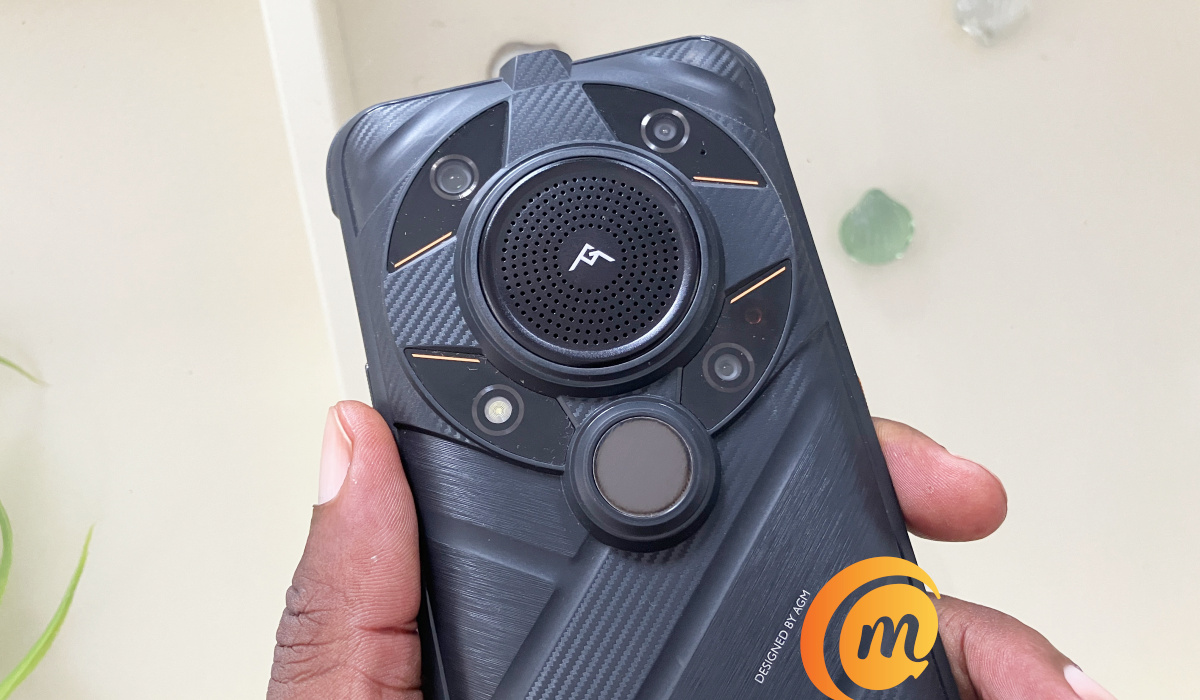
AGM G2 Guardian is a top-notch thermal camera phone
The AGM G2 Guardian has a 256×192 Thermal Monocular Long Detection autofocus thermal imaging camera with a 500m range, the longest on any thermal imaging camera phone. It is powered by a Qualcomm QCM6490 (which is a little above Snapdragon 778G and 782G in performance). The battery is of 7000mAh capacity, coupled with 18W fast charging. It has a 6.58-inch display.
CAT S62 Pro
The Cat S62 Pro uses a FLIR Lepton 3.5 professional-grade sensor and detects invisible heat energy up to 100 ft away. It has a smallish 5.7-inch display, so lovers of compact phones will love it. It is powered by a Qualcomm Snapdragon 660 4G chipset, coupled with 6Gb of RAM and 128GB built-in storage memory.
BL8800 Pro 5G
The BL8800 Pro 5G is fitted with a FLIR® Lepton® 2.5 Thermal Imaging camera, and is powered by a MediaTek Dimensity 700 5G chipset coupled with 8GB RAM and 128GB built-in storage. It has an 8380mAh battery with 33W Fast Charge.
Other phone brands are eyeing this segment of the market, too, and so we will see more thermal camera phones released into the market going forward.
Author:Mister Mobility
Digital Skills and Communication Coach | Mobile Phone Connoisseur since 2001 | Tech Blogging since 2004
