Add MobilityArena as a preferred source on Google
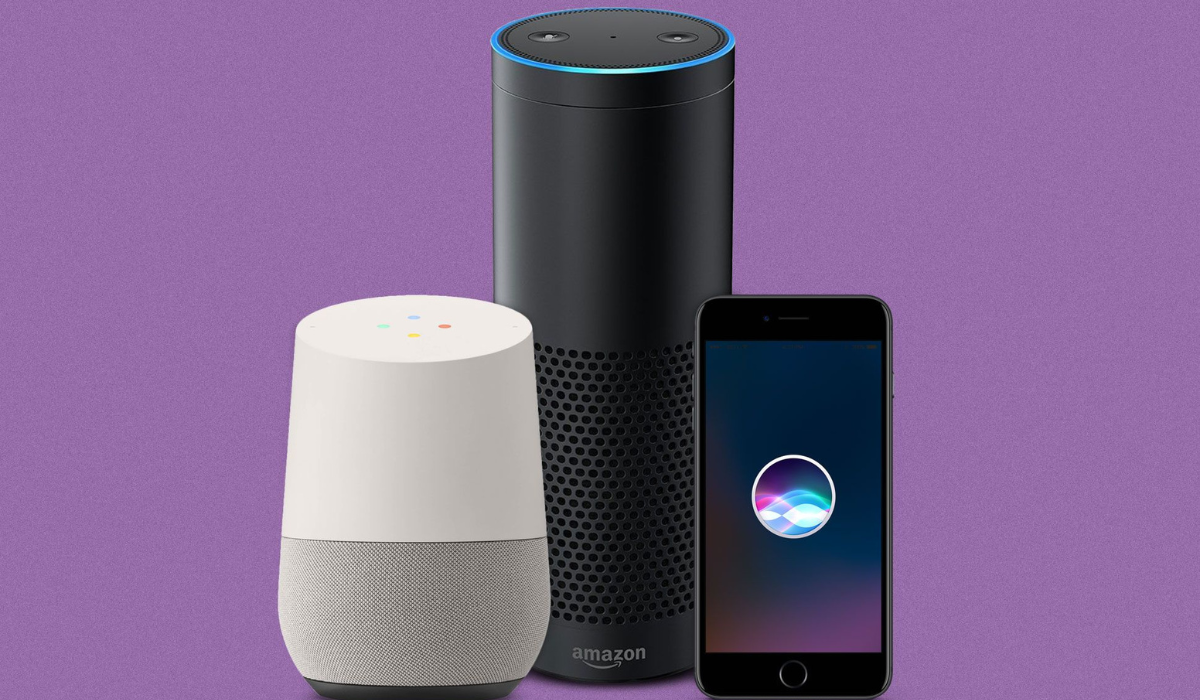
- How Can You Fix Alexa Not Responding? Speak Clearly to Your Alexa Device Check your Echo Device’s Microphone Restart Your Alexa-Enabled Device Examine the Wi-Fi Connection Signal Strength Modify Alexa’s Wake Word Modify Alexa’s Wake Word Through the Amazon Alexa App Reset Your Alexa-Enabled Device
How Can You Fix Alexa Not Responding?
Speak Clearly to Your Alexa Device
Sometimes, Alexa won’t respond to your questions because you’re summoning the virtual assistant incorrectly. To get Alexa’s attention, you must say the correct wake word.
Also, if there is a lot of noise around you when you call Alexa, it may lead Alexa to mistake what you say for something else. As such, to fix Alexa not responding, remove any unnecessary sounds, learn the correct wake word, and then try calling Alexa again.
Check your Echo Device’s Microphone
To check this, look for a red light on your Echo device indicating that the microphone is off. Turn on the microphone to fix Alexa not responding; you can do this by pressing the physical mic button on the Echo. You can now speak to Alexa, and she should understand your commands.
Restart Your Alexa-Enabled Device
A little glitch with Alexa-enabled devices could also cause problems. Alexa may therefore not answer your commands because of a problem with your device. Fortunately, these minor issues can be resolved simply by resetting the device.
When using an Alexa device that plugs into a power outlet, unplug it and leave it off for 30 to 60 seconds. Then, reconnect the gadget to the power outlet so it may be turned back on.
If you have a battery-powered Alexa device, remove the batteries to turn it off. Wait 30 seconds to 1 minute before replacing the batteries in the device. Hopefully, this action will help fix Alexa not responding to your commands once you turn the device back on.
Examine the Wi-Fi Connection Signal Strength
If your Alexa device doesn’t have a good Wi-Fi connection, it may remain unresponsive to your commands. In this case, restarting won’t resolve the issue, so continue working via the Alexa app on your phone.
- If you haven’t already, open the Alexa app on your Android or iPhone and sign in.
- Go to Device Settings and select Wi-Fi Network from the menu.
- Adhere to the directions you’ll see displayed on screen. By holding down the action button for 15 seconds or until the light goes orange, put your Alexa device on Setup Mode .
- Continue the on-screen instructions once the device is in setup mode, making sure to connect to the correct Wi-Fi network.
- Alexa should respond to you as soon as you are connected to the proper network.
Modify Alexa’s Wake Word
If your Alexa device still doesn’t respond, it could be waiting for a different wake word than the one you use. For instance, if you alter the wake word to “ Echo ” or “ Computer ” while you’ve set the device to listen to “ Alexa ,” it will not respond.
To see what wake word your Alexa device is using, or to change it, I’ve provided the instructions you’ll need below.
- Start the Amazon Alexa app on your smartphone.
- Tap Devices in the app’s bottom bar.
- Select All Devices from the menu at the top of the following screen.
- Select your Alexa device from the list that appears on your screen.
- Scroll down to the General area of the device’s screen. Tap the Wake Word option here.
- Close the app after selecting your preferred wake word from the available list.
Reset Your Alexa-Enabled Device
After the reset process is complete, you can re-configure your device with your account and add all the previous Alexa preferences and information.
Here’s how to use the Alexa smartphone app for the reset and fix Alexa not responding:
- Open your smartphone’s Amazon Alexa app.
- Select Devices from the app’s bottom menu.
- To select your Alexa device, tap All Devices and select it from the list.
- The settings menu on your device will appear. Scroll down and select Factory Reset .
- In the prompt that appears on your screen, tap Factory Reset once more.
- Your Alexa device should start resetting itself.
Author:Joan Agie
Add MobilityArena as a preferred source on Google
Windows provides simple options to change your username if you need to for any reason. These options come in handy if your account’s username was chosen at random when you first created it, but you now want to add something special, or you’ve grown weary of using the same username over and over again.
How Can You Change Your Windows 11 Username?
The need to change your Windows 11 username could arise due to several reasons. Perhaps there was a typo during setup, or the name needs to be changed for security reasons. To rename your Local user account or Microsoft account , you’ll only need to follow a few simple steps.
How to Change Your Windows 11 Username on the Local User Account
Local user accounts are the most common form of accounts used to access Windows operating systems. The account grants users access to all major resources and allows them to change settings and install programs.
You can change your Windows 11 username through the local user account by using any one of the approaches described below.
Change Your Windows 11 Username Using the Control Panel
The Control Panel is the center of the Windows operating system. The Control Panel allows you to customize the entire operating system, from changing the appearance of the operating system to setting the connected hardware. You can use it to change your username and manage your user account, among other things.
Follow these steps to change your Windows 11 username through the Control Panel:
- Enter “ Control Panel ” into Windows Search to launch the Control Panel app
- If it isn’t already chosen, select Large icons from the View by dropdown option
- Navigate to User Accounts , here select Change your account name
- Select Yes in the User Account Control (UAC) window.
- Enter your new username in the section marked “ New account name .”
- Click on Change Name after that.
- You must now sign out of your account and sign back in for the changes to take effect.
Change Your Windows 11 Username Using the Run Command
You can access the User Account settings through a simple command, “ netplwiz ,” which takes you to the account management page. It’s easy to change your Windows 11 username from there.
Follow these steps to change your Windows 11 username using the Run command:
- To access the Run command , press Win + R .
- In the Run command field, type “ netplwiz ” and hit Enter
- In the User Account Control (UAC) dialog box, select Yes .
- Choose the user account where the username has to be changed from the User Accounts window, then select Properties .
- You’ll see the current username in the General tab. After deleting it, rename it as you see fit.
- After adding the new username, select OK and then click Apply .
Finally, log out of your account, and when you sign back in, you’ll see your new username on the sign-in screen.
Change Your Windows 11 Username in the Local User and Group Management Tool
Another way you can change your Windows 11 username is with the local user and group management tool. This is the simplest way to change your Windows username because it allows you to rename your username directly, just like with any folder.
Follow these steps to change your Windows 11 username through the local user and group management tool:
- To open the Run command , press Win + R
- Enter “ lusrmgr.msc ” into the search box
- In the User Account Control (UAC) dialog box, select Yes
- In the left sidebar, choose the Users tab
- In the right pane, locate your account
- Rename the username by right-clicking it.
Then, close the local user and group management tool, sign out of your account, and your new username should appear on the sign-in screen.
Change Your Windows 11 Username Using Windows PowerShell
Windows Powershell was specifically created for IT managers to automate processes. Even so, its simplicity and usefulness make it worthwhile for non-programmers.
You can make any adjustments to your Windows device that you typically make using GUI-based applications and settings using its built-in cmdlets or by building your own custom scripts. You can also modify your username through this useful tool.
Follow these steps to change your Windows 11 username with Windows PowerShell:
- Open the Windows PowerShell app by typing “ Windows PowerShell ” into Windows Search.
- To find your current username, type the following command and hit Enter : “ Get-LocalUser ”
- After you’ve entered your current username and the one you want to switch to, type the following command: Rename-LocalUser -Name “Enter your current username” “Enter the new username”
- After entering the above command, press Enter .
- Finally, log out and log back into your account to see the changes you’ve made
How to Change Your Windows 11 Username on the Microsoft Website
It’s easy to change your Windows 11 username on the Microsoft website if you use a Microsoft account on your computer. To change your Microsoft website username, follow these steps:
- On the Microsoft website, navigate to your account page.
- If you haven’t already, sign in to your account.
- After logging in, go to the Your info menu.
- Select the Edit name option.
- Remove your current username and replace it with the one you want to use.
- Then click the Save button.
Please note that changing the username linked to your Microsoft account may require some time to take effect. You may not notice the new username after logging out of your account once, as with the previously described methods. To avoid this, I recommend rebooting your device rather than simply signing out.
To summarize, your username doesn’t have to be the same forever. You can use this guide’s instructions to change your Windows 11 username as you wish. I hope you find the different techniques in this guide useful to achieve this.
