Add MobilityArena as a preferred source on Google
iCloud is most likely used by anyone who has an Apple device. Apple’s cloud storage service allows you to easily sync photos, calendars, documents, emails, and other data across all of your Apple devices. However, there’s an uncomfortable risk of losing access to all your data if iCloud fails.
In this article, you’ll learn how to fix common iCloud problems. I’ve compiled the most common iCloud problems from across the web along with directions on how to fix them. So, whether iCloud just isn’t loading properly or you can’t sign in to iCloud from your iPhone, you should be able to find a fix for most iCloud issues in this guide.

How Can You Fix Common iCloud Problems?
Every year, millions of people use Apple’s iCloud service to back up documents and data across multiple devices, including the iPhone and iPad. However, issues do occur on occasion. Here’s how to fix common iCloud issues if you come across them.
Never-ending iCloud Settings Update
When signing into iCloud on your iPhone or iPad, a persistent loading screen typically appears, usually during a new device setup.
If you try to use the Files app, you may also see a message stating that iCloud Drive is loading. Alternatively, you might get a notification saying that there’s a communication issue with iCloud and you can’t sign in. Allow at least five minutes before attempting to repair it.
After five minutes, if you’re still at the iCloud updating or loading screen, do the following:
- Turn off your device and wait about a minute before restarting it.
- If your device is not responding, then force restart your iPhone or iPad.
- If you haven’t already, go to Settings and log into iCloud after restarting your device. Then try again with your iCloud apps.
Cannot Connect to iCloud
When your device is unable to connect to iCloud, the first step is to ensure that all of Apple’s systems are operational. Check each iCloud-related application on Apple’s System Status website to see if a green circle is present next to it.
Apple is having issues with that service if it has different shapes in yellow or red. There is nothing you can do if iCloud is currently down other than wait for Apple to fix the problem.
If iCloud is operational, you may be required to agree to new terms and conditions before reconnecting to it. Tap your name at the top of the Settings app on your iPhone or iPad. You’ll be prompted by a popup to accept any new terms and conditions if available.
In the event that that doesn’t work, sign out of iCloud on your iPhone or iPad, then sign back in. To do so:
- Navigate to Settings > [Your Name] .
- Scroll down to sign out.
- Turn off Find My by entering your Apple ID password if prompted.
- Choose which data you’d like to remain on your device (other things you don’t keep will still get saved to iCloud), then tap Sign Out .
- Go back to Settings and sign in again with your Apple ID information.
Data Sync Issues
If iCloud is functioning properly, it syncs everything for you automatically. Unfortunately, iCloud syncing doesn’t always work flawlessly. To resolve any iCloud syncing issue on your iPhone, follow the steps below:
- Turn off your device and wait about a minute before restarting it.
- To test your internet connection, try streaming a video from YouTube or another site. If it’s slow, try restarting your router to see if that helps.
- On each device, go to Settings > [Your Name] and make sure you’re using the same Apple ID account. If not, sign in again using the correct information.
- Navigate to Settings > [Your Name] > iCloud and enable all of the services
- Allow iCloud about 10 minutes to sync your data.
Third-Party Apps Not Saving to iCloud
Some third-party apps store their data in iCloud, which enables them to sync with all of your Apple devices. They tend to do this automatically, but you might need to make some changes to the settings if apps aren’t syncing as you would like them to.
The iCloud sync options on each of your Apple devices can be checked by following these steps:
- To access iCloud, click on Settings > [Your Name] > iCloud .
- Scroll down the list and enable the apps you want to sync via iCloud.
- If an app isn’t listed, contact the developer for more information.
iCloud Authentication Failure
Authentication failure prevents sign-in. This is yet another common iCloud issue that iPhone users encounter.
Try the following steps if you receive this message or other failed authentication messages:
- Navigate to the Apple ID website.
- Sign in with your Apple ID login details
- If you are still unable to sign in, go to Forgot your Apple ID or password to reset the login information.
- You might receive a notification to accept new terms and conditions after logging in online and seeing an account alert for your account. You should be able to sign in once more on your other devices after acknowledging these notices.
Using the above simple solutions to fix common iCloud problems, I believe you should find it easier to deal with any iCloud issues that arise.
Author:Joan Agie
Add MobilityArena as a preferred source on Google
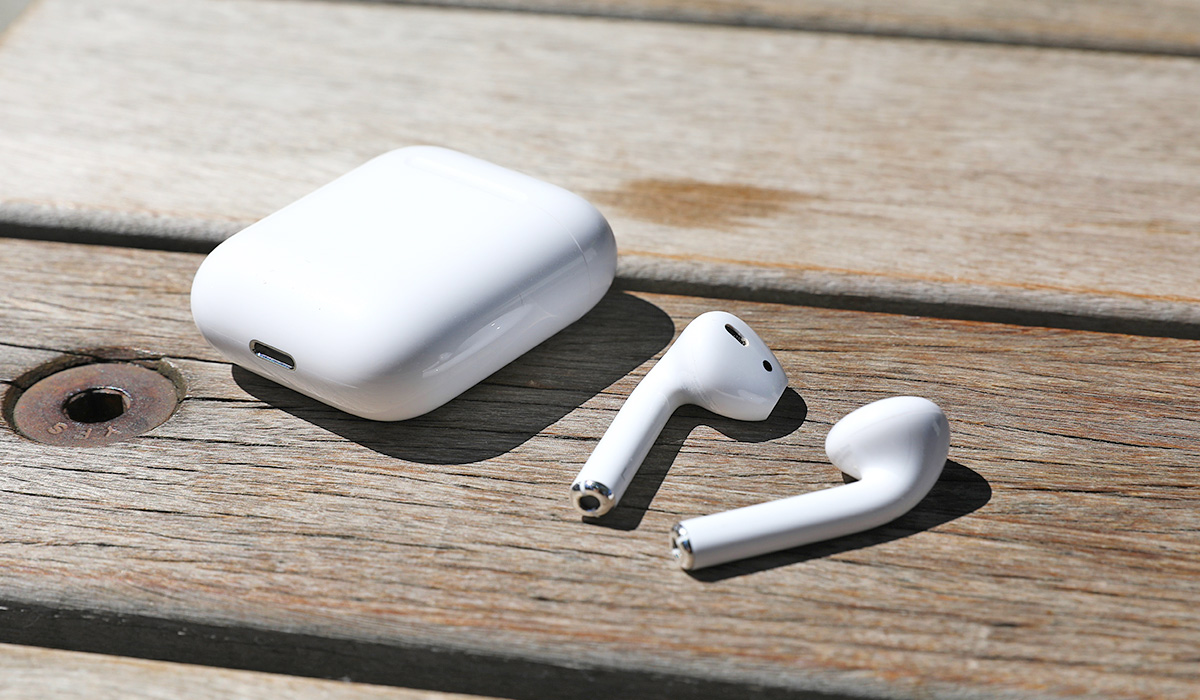
AirPods have become a must-have accessory for Apple users, offering a wireless and convenient way to listen to music, make phone calls, and interact with Siri. After successfully pairing your AirPods to your iPhone, they are added to Find My and should appear in the Find My app.
However, if this is not the case for your AirPods, there are several ways to fix when AirPods don’t show up in Find My. So, in this article, I’ll share some of the most common fixes and show you step-by-step instructions to help you solve the problem.
- How Can You Fix When AirPods Don’t Show Up in Find My? Ensure That Find My Is Active on Your Paired Device Check the Find My Server Status Activate Find My Network on Newer AirPods Use Find My on iCloud.com Unpair and Reconnect AirPods Update System Software Reset the AirPods
How Can You Fix When AirPods Don’t Show Up in Find My?
The Find My App is a useful tool in the search for lost AirPods. However, here’s how to quickly fix when AirPods don’t show up in Find My .
Ensure That Find My Is Active on Your Paired Device
Find My is enabled by default when you set up your iPhone. When you pair your AirPods with this iPhone, Find My is enabled for the AirPods as well. You don’t need to do anything else. However, turning off Find My for your iPhone will have the same effect on your AirPods.
To make sure Find My is turned on for your iPhone, keep your AirPods connected to it and take the following actions:
- Tap [ Your Name ] at the top of the Settings menu.
- Select Find My .
- If Find My iPhone is disabled, tap it to enable it on the next screen.
- Then tap Devices in the Find My app. Your AirPods should be visible here.
Check the Find My Server Status
On rare occasions, the issue may be with Apple rather than you. So, to fix when AirPods don’t show up in Find My, visit Apple’s System Status website to find out if there’s a problem with Apple. Make sure a green circle appears next to Apple ID , iCloud Account & Sign In , iCloud Web Apps , and Maps .
If these services display a yellow or red symbol, it indicates that they are experiencing a problem. You’ll need to wait until Apple resolves it. Then, launch the Find My app or navigate to iCloud.com/find to locate your AirPods.
Activate Find My Network on Newer AirPods
The Find My Network securely transmits the location of your lost AirPods to you via other nearby Apple devices. If you own an AirPods Pro, AirPods Max, or an older model of AirPods, for up to 24 hours after they were last linked to your device, you can use the Find My app to pinpoint their exact position.
You can locate your AirPods in the future by using the Find My app by following these steps to enable Find My Network for them:
- Connect your iPhone to your AirPods.
- On your iPhone, launch the Settings app and choose Bluetooth.
- Next to your AirPods, press the info i button.
- Enable the “Find My Network” switch.
Use Find My on iCloud.com
If you can’t find your AirPods in the Find My app, try this service in a browser. The steps are as follows:
- Sign in to iCloud.com with your Apple ID on your Mac, PC, iPad, or iPhone.
- Find iPhone by clicking or tapping. Your AirPods should be visible on mobile.
- Click All Devices on a computer, and your AirPods should show up in the list.
Unpair and Reconnect AirPods
You may need to unpair your AirPods and pair them again if none of the solutions above work to fix when AirPods don’t show up in Find My. These steps will demonstrate how to do so:
- Insert the AirPods into the charging case.
- On your iPhone, launch the Settings app
- and choose Bluetooth.
- Next to your AirPods, press the info i button.
- Tap Forget This Devic e and then select Forget Device .
- Start your iPhone again.
- Pair the AirPods with your device once more.
Update System Software
Running an out-of-date system software version, such as iOS 10 or macOS Sierra, can also cause problems in Find My. As a result, try to apply any pending updates to see if they fix when AirPods don’t show up in Find My.
- Open the Settings app on your iPhone, then select General > Software Update . Next, click Download & Install to install the most recent iOS updates.
- Software Update can be accessed on your Mac by opening the System Preferences application. Then, to update your macOS device, choose Update Now .
Reset the AirPods
Finally, if the problem persists, the last resort to fix when AirPods don’t show up in Find My is to reset the AirPods. This will unpair the AirPods from any previous devices you’ve paired them with, and you’ll have to reconnect them from the beginning. This resolves several major issues with the AirPods, so they may slso work to fix when AirPods don’t show up in Find My.
I believe the tips above will help you fix when AirPods don’t show up in Find My App. If you’ve already lost your AirPods and none of the above solutions have worked, visit your nearest Apple Store to get a replacement pair.
