Add MobilityArena as a preferred source on Google
When I need a break from the outside world, or I just want to sleep or focus better on work, Do Not Disturb (DND) is my go-to mode. When Do Not Disturb mode is enabled on iPhones, avoiding calls and texts is usually successful. But if you’ve turned on DND mode and you’re still receiving calls and messages, what’s the next step?
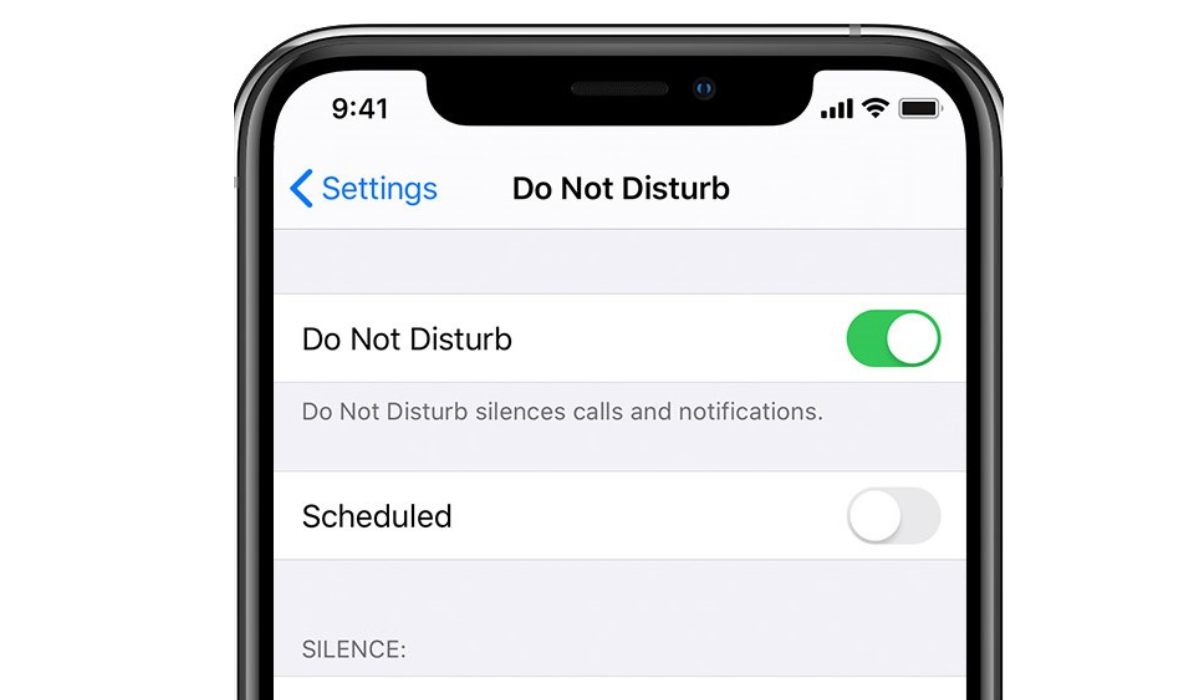
- How Can You Fix Disruptions to DND Mode on iPhones? Verify That You Enabled the Correct Focus Mode Examine Your Permitted Apps Turn Off Time-Sensitive Notifications Change the Incoming Call Settings Do Not Allow Repeated Calls Disable or Hide Your Focus Status Check your Do Not Disturb Schedule Restart Your iPhone
How Can You Fix Disruptions to DND Mode on iPhones?
No one enjoys being disturbed by phone calls or text messages while attending conferences or events, or even resting. This is what the Do Not Disturb mode helps us avoid. So if you’re still getting disrupted by texts and calls despite placing your phone on DND, it pretty much defeats the point.
Below are some tips to fix disruptions to DND mode on iPhones, so you can try them to regain peace and quiet.
Verify That You Enabled the Correct Focus Mode
Apple initially introduced only Do Not Disturb, however, since iOS 15, the function has subsequently been expanded to include Focus mode. Among the focus options are Do Not Disturb , Personal , Work , and others. You can set up and personalize different focus modes for various purposes.
When an iPhone is accidentally set to Work mode instead of Do Not Disturb or Personal mode, the user will almost surely get messages and phone calls from coworkers. This is because the Work mode was not designed to prevent calls or messages from people in your workplace.
So, when trying to fix disruptions to DND mode on iPhones, first open the Control Center on the device. Here, you can check to make sure that the appropriate focus mode is activated before moving to other potential fixes.
Examine Your Permitted Apps
Even when Do Not Disturb is activated, you can pick which app can still receive notifications. For instance, you wouldn’t want to miss notifications from work communication apps like Slack and Asana when you’re working.
However, if you’re receiving notifications from unwanted apps, you can fix disruptions to DND mode on iPhones by navigating to Settings > Focus > Do Not Disturb > Apps . There, review the apps you have allowed notifications for. To remove an unwanted app from the list, press the minus (-) button so it doesn’t keep bypassing “ Do Not Disturb ” mode.
Turn Off Time-Sensitive Notifications
Do Not Disturb will let you get reminders, emails, messages and other time-sensitive notifications from Reminders and Messages apps even if they’re not on your list of allowed applications.
To fix this, go to your “ Do Not Disturb ” settings in the Settings app so you don’t receive such notifications. Tap Apps and turn off Time-Sensitive Notifications here, and you’ll successfully fix disruptions to DND mode on iPhones.
Alternatively, if you see a specific app’s notifications on your lock screen, press Turn Off .
Change the Incoming Call Settings
Favorites is the default setting for incoming calls allowed when you first enable Do Not Disturb mode on your iPhone. As such, you may still receive calls from people on this list even after enabling DND. This is especially true if you’ve added a lot of family members and friends to your Favorites list.
To adjust this setting and fix disruptions to DND mode on iPhones, navigate to Settings > Focus > Do Not Disturb > People . Then, select “ Allow Calls From ” and your selected option. If you only want certain people to be able to call you while in Do Not Disturb mode, select Allowed People Only and then tap the Add button above to choose the contacts you’re exempting.
Do Not Allow Repeated Calls
If you get a call from a number more than once in a three-minute period, Do Not Disturb allows the call to go through, regardless of the incoming call settings you specified before. This feature makes sure that you can be reached in an emergency, so disruptions could happen making you think Do Not Disturb mode is malfunctioning.
You can disable this feature to fix disruptions to DND mode on iPhones. Select Settings > Focus > Do Not Disturb > People and turn off Allow Repeated Calls .
Disable or Hide Your Focus Status
When you enable Do Not Disturb , it’s possible to communicate your Focus status with your contacts, letting them know you’re temporarily unreachable. Although it’s a considerate feature that helps you notify others, its “ Notify Anyway ” option for your callers is a drawback. This option allows others to contact you despite your Do Not Disturb mode being in effect.
If this is the case, you can fix disruptions to DND mode on iPhones by turning off your Focus status or hiding your Focus status from specific iPhone contacts. Click Settings > Focus and turn off Focus Status .
Check your Do Not Disturb Schedule
Imagine that you work daily morning shifts and you’ve set your Do Not Disturb schedule accordingly. If you switch shifts and don’t adjust your Do Not Disturb schedule accordingly, you’ll be getting unwanted texts and phone calls during your new shift times.
This is something to consider when trying to fix disruptions to DND mode on iPhones. If your routine changes, remember to check and alter your Do Not Disturb schedule accordingly.
To update your existing schedule, go to your “ Do Not Disturb ” settings and tap on it. You can also add a new time to switch on Do Not Disturb by tapping Add Schedule .
Restart Your iPhone
If you followed all my suggestions above to fix disruptions to DND mode on iPhone yet nothing works, try restarting your device. Software bugs can sometimes prevent features like “ Do Not Disturb ” from working properly. Luckily, this can be resolved with a simple reboot.
To summarize, I’m sure you’ll find at least one tip useful to fix disruptions to DND mode on iPhones. Also, if you haven’t already, update your iPhone to the most recent iOS version. It’s also helpful to contact Apple’s Help Center for any further support you might need.
Author:Joan Agie
Add MobilityArena as a preferred source on Google
Even though I know there are other options, Safari is my preferred iPhone browser. I’m sure you can relate to this if you’re familiar with Safari’s capacity for speed and efficiency. But sometimes, it feels like Safari gets slow, and since that’s rather inconvenient, some users may opt to download another third-party browser.
However, you can speed up Safari on your iPhone rather than dumping it for a new browser. I’ll show you how to do it in this article. So get ready to try any of these techniques, and your Safari browser should be up and running in no time.
How Can You Speed Up Safari on Your iPhone?
If, as you’re reading this guide, your Safari webpages are taking forever to load, try these troubleshooting procedures to speed up Safari on your iPhone device.
First, it’s a good idea to check your connection speed before blaming Safari. By doing so, you can be certain that Safari is the source of the problem and rule out anything else before proceeding.
If you’re connected to Wi-Fi, launch another computer or smartphone device on the same Wi-Fi network. Afterward, visit Speedtest’s site to check your internet speed. This is not something you should attempt on an iPhone, as problems with Safari may cause your connection to lag and result in a false negative. If your internet connection is fast, you’ll be sure that Safari is the problem, so it’s time for you to fix it.
Close All Safari Tabs
Usually, Safari can handle a lot of bandwidth and maintain multiple open tabs. Some websites, however, consume Safari data. You can confirm if one of the open websites is using too much data by closing all of the currently open tabs. This should help speed up Safari on your iPhone.
Open Safari and hold the Tab button in the bottom right-hand corner to close all tabs. You will be prompted to Close all open tabs . When this appears, select “ Close All Tabs . ” Then try Safari once more.
Clear Your Browsing History and Data
If closing the tabs didn’t speed up Safari on your iPhone, you can reset Safari and clear the cache to make it run faster. To clear Safari’s history and data, go to Settings > Safari > Clear History and Data .
Restart Safari after doing this to check if it is loading pages quickly enough. If it gets faster for a short period of time before slowing down again, move on to the next tip.
Check the iPhone’s Storage
If the storage on your iPhone is nearly full, it won’t be able to store much more data. Safari, like most apps, stores app data in device storage. And a lack of storage implies that Safari will not have enough memory to function.
In this regard, some users have noticed that Safari became faster after clearing their browsing history and data. But some users could use so much storage that even after clearing the cache, Safari might not still speed up.
Fortunately, determining whether or not this is a problem is simple. Simply go to Settings > General > Storage to discover how much space your iPhone has used up. If it’s nearly full, you may have to delete some large files to speed up Safari on your iPhone. Otherwise, if you don’t want to lose important data, consider signing up for a paid iCloud plan.
Update iOS on Your iPhone
Safari is an essential app, and all updates, fixes, and enhancements are handled directly through iOS software upgrades. It’s always recommended to use the most recent iOS version, so this may help speed up Safari on your iPhone.
To update iOS on your device, launch the Settings app and select General . Then press Software Update , and if there are any pending updates, tap Download and Install .
Reset Network Settings
If nothing else works to speed up Safari on your iPhone, you can reset the phone’s network settings. This will reset any network-related connections on your iPhone, possibly speeding up Safari in the process. In order to do this, navigate to Settings > General > Transfer or Reset iPhone > Reset > Reset Network Settings .
After that, you’ll need to reconfigure your network connections. This requires you to re-enter your Wi-Fi passwords. However, it can fix a lot of bugs, so it’s worth a try if everything else fails. As a final option, you can reset your iPhone to factory settings.
Ultimately , when Safari is slow or lagging, switching to a third-party browser may seem appealing. But this just means that you’ll miss out on Safari’s flawless experience.
As such, it’s worth your time to try to speed up Safari on your iPhone, and I hope the suggestions above help you do this successfully. If, in the end, you are still dissatisfied with Safari, you can try some other reliable iOS browsers.
