Add MobilityArena as a preferred source on Google
As many iOS users will agree, iMessage is one of the more attractive options for text messaging. It is easy to set up, offers multiple benefits and support for different platforms, and allows free messaging. It’s therefore not hard to see why it’s so popular among Apple users.
However, like with many platforms, you might still run into issues with iMessage, especially during the activation process. If this ever happens to you, there’s no need to worry.

There are some troubleshooting steps you could try if you’re looking to fix iMessage activation problems. We’ve recommended some of these options in this guide, so make sure to read thoroughly if you’re interested in ways to fix iMessage activation problems.
- What iMessage Activation Problems Could I Run Into?
- How Can I Fix iMessage Activation Problems? Ensure that Time and Date Settings are Correct Check your Internet Connection Deactivate and Reactivate iMessage Reset Network Settings on your Device Update your Apple Device
What iMessage Activation Problems Could I Run Into?
It’s possible to encounter problems with iMessage, just like any other service. A lot of these issues generally happen while you’re trying to activate the service.
The most popular error messages include the following:
- “Activation unsuccessful”
- “Could not sign in, please check your network connection”
- “Waiting for activation”
- “Unable to contact the iMessage server”
- “An error occurred during activation”
If you ever run into any of these error messages when trying to activate iMessage on your Apple device, it’s normal to get a little frustrated. However, you should try out one of the options we’ve suggested in the next section to fix iMessage activation problems.
How Can I Fix iMessage Activation Problems?
Consider one or more of the following troubleshooting tips we’ve recommended to fix iMessage activation problems:
Ensure that Time and Date Settings are Correct
It’s important to make sure the date and time settings on your iPhone or iPad are set correctly. For many instant communication services, including iMessage, this is crucial, so it’s something to look at when trying to fix iMessage activation problems.
- Launch the Settings app.
- Pick General from the menu.
- Click on Date & Time .
- To set up automatic date and time on your iPhone, turn on the Set Automatically option.
Check your Internet Connection
iMessage usually sends and receives messages over your internet connection. So, when trying to fix iMessage activation issues, one of the first things to verify is whether or not the internet connection is active on your iPhone or any other Apple device you’re using the feature on.
Launch any webpage on your device with a web browser to see if the internet is functional. If the website loads, everything is most likely good with your internet.
If the website won’t load, your internet connection most likely has a problem. You should ask your internet service provider if they can be of assistance in this case.
Deactivate and Reactivate iMessage
Another worthwhile way to fix iMessage activation issues is to turn the feature off and then back on. This process is basically the same as when you first enabled iMessage on your Apple device:
- Click Settings , then select Messages .
- Turn off the iMessage feature.
- Take a few seconds to wait, about 10 seconds is a good wait period.
- Activate the iMessage setting again.
You can check afterward if this simple action worked to fix iMessage activation problems on your device.
Reset Network Settings on your Device
There may be a problem with your device’s network settings if iMessage is still not functional after all the options you’ve tried to fix iMessage activation problems. You can reset and modify your network settings in this situation.
Your saved Wi-Fi networks will delete as a result, but you can always reconnect to any network you prefer if you know its password.
- Open the Settings application.
- Next, select Transfer or Reset iPhone (or iPad) under General .
- Press Reset .
- Click on Reset Network Settings .
Update your Apple Device
Whatever the problem, it’s always a good idea to update your device to the most recent version of iOS, iPadOS, or macOS if you’re still on an older version. The most recent version typically addresses all bugs and other problems that existed in earlier versions. This might help to fix iMessage activation problems if you’re still encountering them at this point.
Follow these steps to update your device:
- Access your device’s Settings , then select General .
- Select Software Update from the menu.
- Wait for the newest update to be verified on your iPhone.
- Tap Download and Install if you see an update available.
In summary , to fix iMessage activation problems, there are different options to try. We’ve recommended some of the most important ones in this guide, so feel free to attempt them and see if they help to fix iMessage activation problems on your device.
Author:Joan Agie
Add MobilityArena as a preferred source on Google
Even while Android is a fantastic operating system that serves millions of smartphone users around the globe, it’s not without its flaws. The spread of counterfeit apps is one of the main issues Android users typically encounter.
These apps are made to look authentic, but they sometimes include malware that can damage your phone or steal your data. Thankfully, there are some tips that can help to recognize fake Android apps, so you do not download and install them on your device.
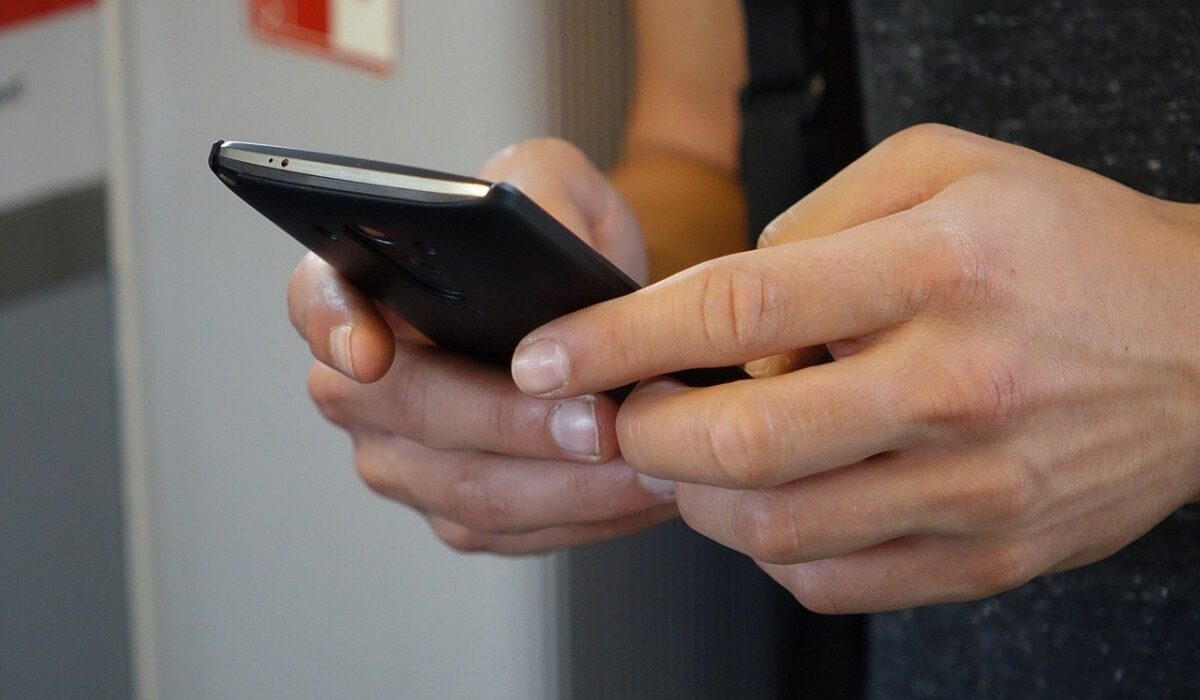
In this guide, we’ve described some of the best ways to recognize fake Android apps. Pay attention to these tips, so that you can avoid downloading any apps that might compromise your smartphone and security.
What are the Signs that Help to Recognize Fake Android Apps?
The following warning signs can help you recognize fake Android apps. Recognizing fake apps might not always be straightforward, but these signs could give you a good enough hint.
Poor App Reviews
Review and rating information are important to consider when choosing an app from the Google Play Store. This is one of the easiest and most helpful ways to recognize fake Android apps.
An app may be fake if it receives a lot of negative feedback or has a low rating. Of course, there will always be those people who dislike a certain program, but it’s advisable to avoid any app if most of the reviews under it are unfavorable.
Number of Downloads
Examining an app’s download statistics is another option to help you recognize fake Android apps. An app is most likely legitimate if it has received millions of downloads. However, if there are relatively few downloads, there may be good reasons to be suspicious of the app’s legitimacy and trustworthiness.
Generic App Icons
App icons are another thing to look out for when trying to recognize fake Android apps. A nondescript or unprofessional-looking icon is a common feature of fraudulent applications. It’s safe to assume that an app is not a legitimate one if its icon appears hastily created or doesn’t fit with the rest of the app.
Reputation of the App’s Developer
One of the best things you can do if you’re unsure about an app is to search online for the app developer’s name. This is a particularly great way to recognize fake Android apps.
The developer’s reputation should be easily discernible with a basic Google search. It’s generally advised to stay away from the app if there are either no results or largely unfavorable findings from the search you carried out.
High Amount of Grammatical or Spelling Errors in the App Description
Another thing to consider when trying to recognize fake Android apps is the wording used in app descriptions. The software is probably dubious and should be avoided if there are numerous typos or grammar mistakes in its description. This is due to the fact that creators of trustworthy apps usually take the time to carefully review their descriptions before making them publicly visible to potential users.
Requested Permissions
You will be prompted to give an app permission to access particular areas of your phone when you install it. This is a good way to recognize fake Android apps, particularly those capable of compromising privacy on your device.
Take note of the permissions that newly-installed apps request on your device, and be wary of any app that asks for more permissions and access than necessary. For instance, a basic calculator program that requests access to your camera or contacts should be considered suspicious and immediately uninstalled.
Use your Discretion
Finally, when trying to recognize fake Android apps, it is important to trust and use your intuition. If an app appears too good to be true, it might be a scam, and should thus be avoided for safety reasons. If you’ve gone as far as downloading an app already, watch the app activities carefully. Make sure to uninstall it immediately if you notice any actions that don’t seem quite right.
In summary , there are no instructions that are set in stone to recognize fake Android apps. However, there are some red flags that could alert you to possible danger. So, take note of these tips we’ve provided to recognize fake Android apps and keep your device safe from harmful applications.
- Don’t miss our mobile phone reviews .
- Follow our news on Google News .
- Join our WhatsApp Group , to be notified of the most important articles and deals,
- Follow us on Instagram , Facebook , Twitter , and YouTube .
