Add MobilityArena as a preferred source on Google
Here’s my honest take on laptops that lag often — they suck! I hate nothing more than when my personal computer ruins my day by running slowly. It stretches out already lengthy and stressful tasks, so if you’re currently facing this, I know it can’t be a fun ride for you. Not to worry though, I bring good tidings!
I’ve written this guide and packed it with fire tips to fix lagging on Windows PCs. From today, you can say goodbye to slow running on your PC and get tasks done seamlessly without delays. So, if you’re here, annoyed and desperate for a fix, keep reading to find out the helpful suggestions I’ve included in this article.

- How Can You Fix Lagging in Windows PCs? Check For Apps That Stress Memory, CPU, and Memory Pause Windows Updates Disable Notifications Disable Some Windows Permissions Deactivate Some Third-Party Services
How Can You Fix Lagging in Windows PCs?
Below are my five best suggestions to fix lagging on Windows PCs. Try any of the fixes you can, and keep as many as possible in your mental toolbox for whenever your Windows PC tries to lag or slow you down.
Check For Apps That Stress Memory, CPU, and Memory
When a Windows PC won’t stop lagging, there’s a high chance that certain processes are putting strain on the device. As such, to fix lagging on Windows PCs, you need to find such operations and which components they are putting under the most strain. You can easily check this through the following steps:
- Launch the Task Manager and examine the resource usage of each component, including RAM , CPU , GPU , Disk , and Network .
- If any component shows its resource use percentage to be near 100%, the component is likely stressed and needs to be removed
- To sort the processes using the most resources down, click the column header of that component in Task Manager.
- Remove and end the processes that are stressing out that component. Do this by right-clicking and selecting End task .
Pause Windows Updates
It’s true that systems run more effectively when we allow available Windows updates to install. These updates, nevertheless, can negatively affect system performance if they download in the background or if you don’t apply them in a timely manner.
To fix lagging on Windows PCs, one approach is to pause Windows updates while you are actively working and then allow them to download and install themselves when the workday is over. Doing this means you get to increase your operational efficiency by reducing the bandwidth used for automatic updates.
Follow these steps to pause updates and fix lagging on Windows PCs:
- Launch the Settings app.
- Go to the Windows Update tab by navigating.
- Select the desired timeframe by expanding the dropdown menu next to the word “ Pause updates .”
Disable Notifications
Windows notifies users of new app updates, unresolved problems with installed programs, faulty syncing, etc. on a frequent basis. These notifications use a lot of system resources even if they can be useful occasionally. As such, turning off these notifications for particular apps and services can improve device performance and help fix lagging on Windows PCs.
The steps listed below can be used to disable these notifications easily:
- Go to System > Notifications in the Settings app after opening it.
- To stop receiving any notifications, turn off the toggle next to Notifications .
- In the section labeled “ Notifications from apps and other senders ,” turn off the toggle next to each individual app.
Disable Some Windows Permissions
Some Windows permissions don’t significantly enhance user experience. Note that turning them off won’t have a big impact on how you use your computer, but it may improve performance enough to fix lagging on Windows PCs. Follow the steps below:
- Navigate to the Windows Settings app.
- Click on Privacy & Security
- Examine every setting under “ Windows permissions ” and turn off those you think won’t have an impact on any Windows capabilities you might require.
Deactivate Some Third-Party Services
When you install third-party programs, their services typically start up. These services keep the app current and functional in their own way. However, they could also overtax your system’s resources, especially if they build up over time. You can enhance system performance and fix lagging on Windows PCs by deactivating these third-party apps
Follow these steps to do so:
- Open the System Configuration window by typing “ System Configuration ” into Windows Search .
- Check the box next to Hide all Microsoft services on the Services tab.
- From the remaining services, check the boxes next to the ones you don’t use frequently.
- Select OK after clicking Disable all .
All in all , it’s really great when you get to fix lagging on Windows PCs. You’ll enjoy the renewed ease with which your work will flow and experience fewer frustrations. I therefore hope that this guide has helped you fix lagging in Windows PCs. Consider visiting the Windows Help Center or a repair professional if none of the fixes work, or if you’re dealing with something more technical than you can handle.
Author:Joan Agie
Add MobilityArena as a preferred source on Google
Whatever I try to do with slow mobile data mostly ends up leaving me frustrated. Working with a slow data connection is incredibly inconvenient, no matter what you’re trying to do. Many times, a slow data connection could be due to location or network congestion.
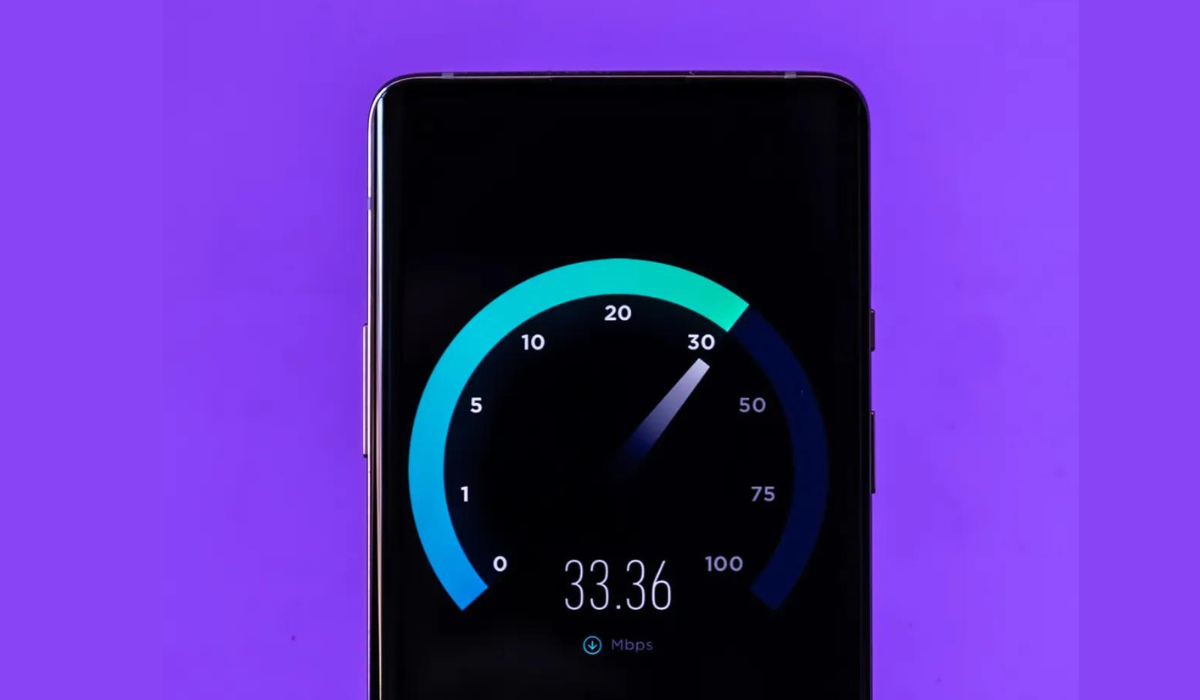
I’ll show you how to speed up your mobile data in this guide, so you can finally say goodbye to slow downloads, streaming, or whatever purpose for which you need a mobile data connection. You can achieve this through different ways, and I’ll demonstrate these techniques in detail in this article.
- How Can You Speed Up Your Mobile Data? Restart Your Phone Update and Deactivate Network-Heavy Apps Disable Data Saver or Low Data Mode Disconnect from your VPN Change Your Location Check your Data Usage cap Reset the Network Settings on Your Phone
How Can You Speed Up Your Mobile Data?
My downtimes are mostly filled with surfing and binge-watching, so you can imagine my annoyance when slow internet speeds try to ruin that. Sometimes, slow internet even affects crucial tasks like transactions or sending essential emails or texts.
If you’re currently experiencing this, try these easy suggestions to speed up your mobile data.
Restart Your Phone
This is the most cliche solution, but it usually works. Restarting your phone can help speed up your mobile data, particularly if you haven’t turned off your device in a while. If you’re in a hurry, you could just put your phone in Airplane mode. However, a complete restart is usually a good idea.
It’s easy to restart your phone. Follow these steps:
Press and hold the Side button and the Volume Up or Volume Down button if you’re using an iPhone without a Home button. Do this until the Slide to Power Off screen appears. Hold the side button again after powering off your iPhone to turn it back on.
Hold the side button (typically on the right side of the phone or the top of older devices) until Slide to Power Off shows on the screen if you have an iPhone with a Home button.
To restart most Android phones, you can hold the power button down until the power options display on the screen, then tap Restart . If you don’t see Restart , choose Power Off , then hold the Power button again to turn on your phone.
When your device is back on, check if this worked to speed up your mobile data, and proceed to the next tip if necessary.
Update and Deactivate Network-Heavy Apps
Sometimes, certain apps could slow down your entire browsing experience by using up all of your data connection. In such cases, it becomes important to investigate what, if anything, is consuming your internet speed. If something is wrong, you can either disable or delete the app’s access to your cellular data connection so that you can successfully speed up your mobile data.
Go to Settings > Cellular on your iPhone when the internet connection is slow and use the list to prevent any app from using your cellular data connection.
Go to Settings > Network & Internet > Mobile network (called SIMs on Android 12 ) > App data usage to view data usage for specific apps on Android. To block an app from using data in the background, tap it and then slide the Background Data slider off.
Additionally, always keep an eye out for app updates. App developers frequently provide updates to fix bugs, some of which may address issues that can help speed up your mobile data, increase network performance, or curtail excessive data usage.
Disable Data Saver or Low Data Mode
Modes for reducing data usage are available on both Android and iPhone devices. These are helpful if you only have a limited amount of data available, but could also make your mobile connection seem slower than it actually is. Disabling these modes will speed up your mobile data and make your browsing experience faster.
On Android, select Settings > Network & Internet > Data Saver . On an iPhone, go to Settings > Cellular > Cellular Data Options > Data Mode to access a similar feature called Low Data Mode .
Remember to turn these back on after a while if you’re concerned about how much data you use. You should ideally be able to determine whether or not this setting slows down your mobile data.
Disconnect from your VPN
VPNs provide additional privacy and allow you to circumvent geo-restrictions, but they might also slow down your mobile connections due to added overhead. As a result, if your phone is linked to a VPN and you need to speed up your mobile data, unplug from the VPN first.
When you disconnect, you should notice an instant improvement. If that does resolve the issue, you can increase the speed of your VPN when you reconnect.
Change Your Location
Sometimes the solution needed to speed up your mobile data is as easy as changing locations. Since your current location’s service may be subpar, moving to a location with a better service connection will help speed up your internet connection.
Check your Data Usage cap
When trying to speed up your mobile data, it’s also a good idea to double-check your data cap on your phone plan. Even if you have an unlimited data plan, your data often has a limit beyond which the pace slows. If you’re not sure what your data limit is, contact your mobile data provider.
If you’ve used all your limits, you’ll have to either wait until your bill cycle resets or purchase more high-speed data.
Reset the Network Settings on Your Phone
Resetting your network settings is a more dramatic solution for a poor mobile data connection. This resets everything connected to networking to its factory settings. This includes removing your Bluetooth devices, Wi-Fi access points, and similar gadgets. It’s not the end of the world if you lose these, but you’ll have to reconnect to stored Wi-Fi networks and re-pair your Bluetooth devices later.
To reset an iPhone’s network settings in order to speed up your mobile data, go to Settings > General > Transfer or Reset iPhone > Reset > Reset Network Settings . Your phone will ask you for your passcode if you have one before restarting to finish the procedure.
Navigate to Settings > System > Advanced > Reset Options > Reset Wi-Fi, Mobile, and Bluetooth if you’re trying to speed up your mobile data on an Android device. This can be in a different location depending on the brand and Android version of your phone. If you can’t locate it, try typing “ reset ” into the Settings search bar.
To conclude, most cellular data speed issues are temporary and usually have simple fixes. I’m sure that at least one of the suggestions described above will speed up your mobile data without requiring you to contact your carrier.
However, if none of the above work, the problem could be something on your provider’s end that you can’t fix. You may also be dealing with a general network outage, in which case you can connect to someone else’s Wi-Fi and check Down Detector to confirm.
