Add MobilityArena as a preferred source on Google
To be honest, notifications stress me out, especially when they’re a lot. At the same time, when no notifications pop up on my iPhone for a while, I panic because I’m most likely missing important texts, calls, emails, and reminders. If you have a busy work or social life like me, you’ll agree that this can quickly escalate into a significant problem.
However, no need to panic just yet. This guide contains different ways to fix notifications not showing up on iPhones. Feel free to try these fixes regardless of whether the issue is specific to one app or affects the entire system.
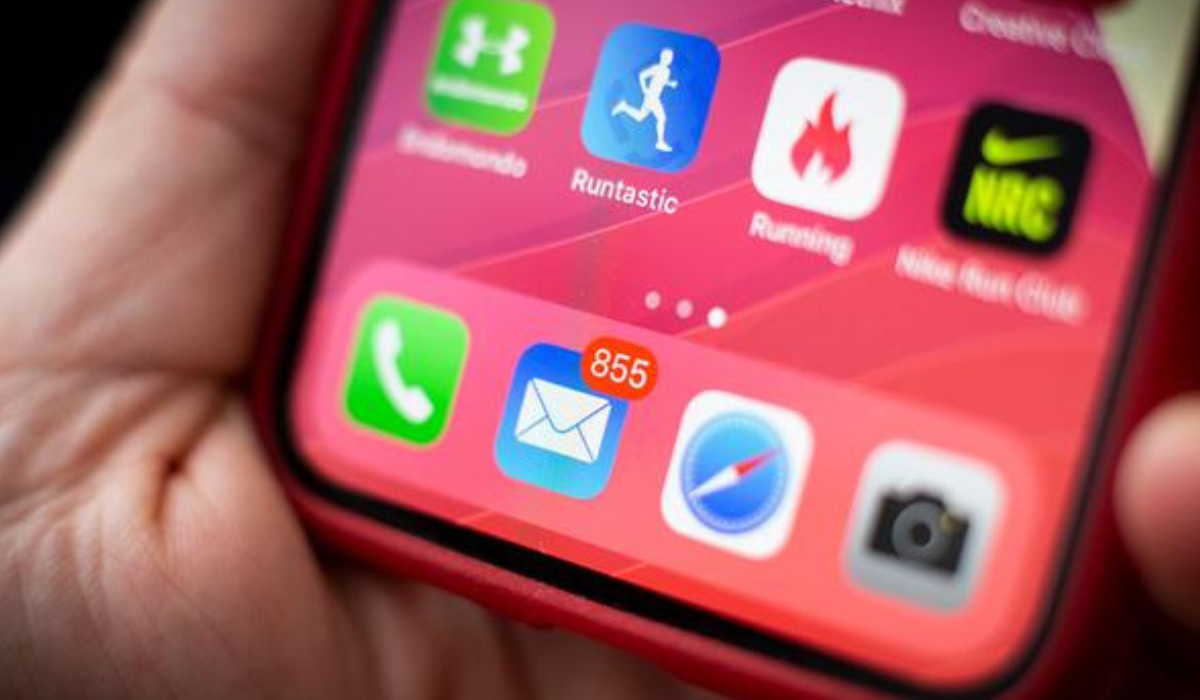
- How Can You Fix Notifications Not Showing Up on iPhones? Unmute your iPhone Restart Your iPhone Check your Internet Connection Turn off Focus Mode Modify App Notifications in the Settings Menu Turn off Scheduled Summary Check the In-App Notification Settings Update Your iPhone Update Your App Reset the iPhone Settings
How Can You Fix Notifications Not Showing Up on iPhones?
There are several ways to fix notifications not showing up on iPhones. If you’re currently dealing with this issue, proceed with the troubleshooting methods described below.
Unmute your iPhone
Checking to see if you unintentionally silenced your iPhone is important when you’re looking to fix notifications not showing up on iPhones. You won’t hear incoming notification alerts while Silent mode is activated, leading you to believe that you aren’t getting notifications as they come in.
On the upper side of your iPhone, you’ll find the Silent switch. Your iPhone is muted if an orange strip is visible in this region. Unmute it by flicking the switch.
Restart Your iPhone
Your iPhone will occasionally act up for no apparent reason. Most times, a simple reboot is all that is required to remove these flaws that cause temporary difficulties.
If you don’t notice any notifications, consider turning off and restarting your iPhone before proceeding to more complex ways to fix notifications not showing up on iPhones.
Check your Internet Connection
If your iPhone doesn’t display any notifications, especially for apps that require an internet connection, make sure your network connection is active and reliable. To verify that the pages load, try visiting a few websites in your browser.
Your notification issue is likely network-related if your browser or other apps are unable to connect to the internet. Turn off and re-enable cellular data to restore cellular connections. Alternatively, activate Airplane Mode and then deactivate it after a few seconds. Both of these options can be found in your device’s Control Center .
To connect to a Wi-Fi network, go to “ Settings “> tap on “ Wi-Fi “> turn it on, then select your preferred network and connect to it by entering its password.
Either of these should restore your iPhone’s Wi-Fi network or cellular connection from a temporary problem. It may also help you fix notifications not showing up on iPhones.
Turn off Focus Mode
While enabled, focus modes like Do Not Disturb , Sleep , and Personal help to keep notifications silent. So, when you don’t see any notifications on your iPhone, it’s possible that you accidentally enabled Focus mode.
To confirm, open the Control Center on your iPhone by swiping down from the top-right corner on models with Face ID and up from the bottom on models with a Home button.
As an example, check out the color of the crescent moon icon in Do Not Disturb . If it’s violet (bluish-purple), it signifies that Do Not Disturb is turned on; tap the icon to turn it off. The crescent moon will turn white as a result. Check afterward to see if this works to fix notifications not showing up on iPhones.
Modify App Notifications in the Settings Menu
It might also help to check that the app’s notification settings and preferences are correctly configured if your iPhone does not display notifications for a certain app.
Select Notifications in the Settings app. Next, select the affected app and make sure Allow Notifications is enabled to fix notifications not showing up on iPhones.
Additionally, ensure that Lock Screen , Notification Center , and Banners are activated according to your preferences. You should also enable Sounds and Badges for the app if you want them to be triggered when you receive new notifications.
Turn off Scheduled Summary
You will not receive notifications from an app at other periods during the day if it is part of your Scheduled Summary . As a result, it may appear that your iPhone’s alerts aren’t being shown correctly.
To review the settings and fix notifications not showing up on iPhones, navigate to Settings > Notifications > Scheduled Summary . Toggle off any apps that you no longer wish to appear in your summary.
Check the In-App Notification Settings
Some apps have specific notification settings, especially social media platforms and instant messengers like WhatsApp, Telegram, Instagram, and others. These operate separately from the notification settings you’ve set up in your iPhone’s Settings menu, which I addressed above.
Therefore, if an app doesn’t display notifications despite having notifications enabled on your iPhone, look for any issues in the app’s in-app notification settings. For instance, WhatsApp lets you permanently block specific conversations. If you don’t unmute them, you’ll still get new messages without any problems, but you won’t be alerted when they are received.
Update Your iPhone
A software flaw could have screwed up your iPhone’s notifications. It’s therefore a good idea to download and install the most recent iPhone software update to fix notifications not showing up on iPhones.
Navigate to Settings > General > Software Update to check for updates. If there is, tap Download and Install to begin the process of updating your device.
Update Your App
On occasion, the apps themselves—not your iPhone—are the source of the issue. It might be a bug that can be fixed with an update if you’re not getting notifications for just one specific app.
Open the App Store , enter the app’s name in the Search tab, and press the Search button . You’ll see an Update button next to the app’s name if there is an update available.
You can uninstall and reinstall the app even if there isn’t a new update yet. This may help fix notifications not showing up on iPhones
Reset the iPhone Settings
It’s possible that after applying the aforementioned solutions, you’re still unable to fix notifications not showing up on iPhones. Try to reset the settings on your device at this point. This will reset your iPhone’s notification preferences to factory defaults, and hopefully resolve whatever is causing notification delivery issues.
To reset all settings, go to Settings > General > Transfer or Reset iPhone . On the prompt, click Reset All Settings .
Keep in mind that when you reset the settings on your iPhone, everything goes back to default. This requires reconnecting to Wi-Fi networks, reconfiguring Bluetooth devices, adjusting your privacy settings, and more. Your data is unaffected by this, though.
Basically, there’s a good chance that one of the fixes in this guide will help you fix notifications not showing up on iPhones. If you still don’t receive notifications after attempting them, your iPhone may need to be factory reset. And if that doesn’t work either, it’s time to contact Apple for help.
Author:Joan Agie
Add MobilityArena as a preferred source on Google
The 3.5mm headphone jack is slowly becoming a rare feature in high-end and premium smartphones. This means that you are hunting for Samsung phones with headphone jack in 2024, you have to look at models below a certain price point. No high-end or premium flagship smartphones for you.
That is the price to pay for not wanting to move with the times. Personally, I prefer a headphone jack to Bluetooth connectivity for earphones and headphones. But the demigods at Apple and Samsung have decided that the 3.5mm headphone jack must be sacrificed to the gods. And so, here we are. Of course, the decision has been met with mixed reactions, as some users still prefer using wired headphones
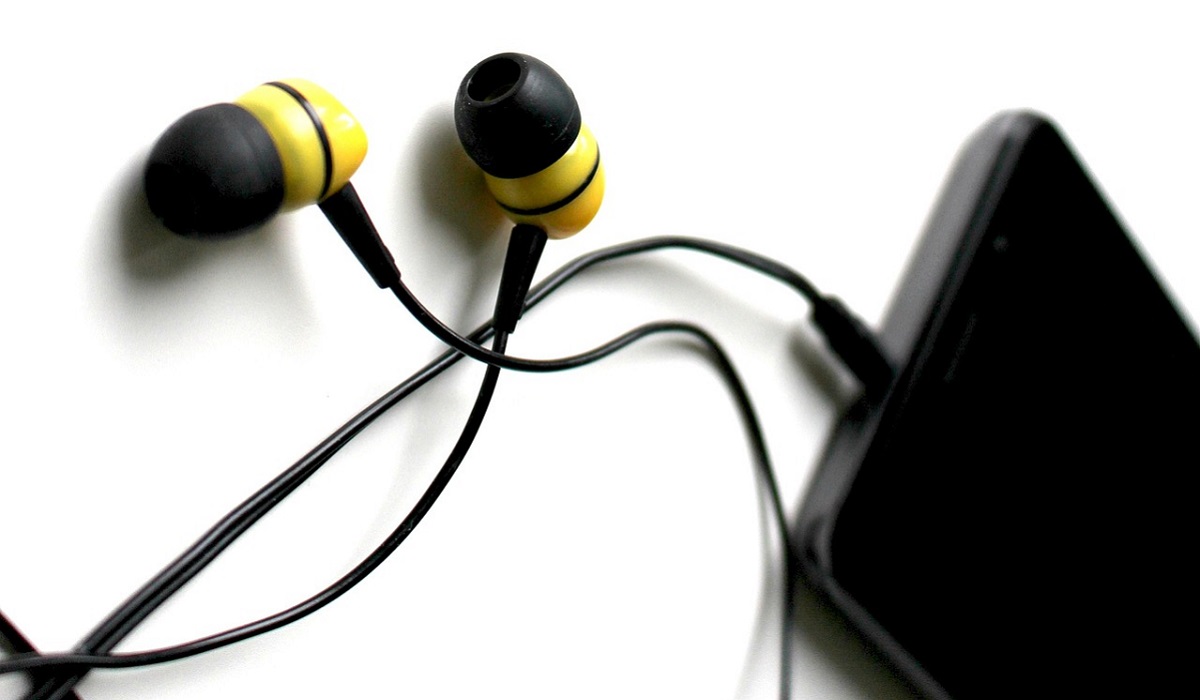
Samsung phones with headphone jack are becoming an endangered species.
- Why did Samsung remove headphone jack in some of their phones?
- List of Samsung phones with headphone jack
- The last Samsung phone with headphone jack in 2024
- What to do if your Samsung phone doesn’t have an earphone jack Method 1. USB-C to 3.5mm Adapter Method 2. USB-C wired headphones Method 3. Bluetooth Wireless headphones
Why did Samsung remove headphone jack in some of their phones?
Samsung decided to remove the headphone jack from some of their devices for a few reasons:
Space Efficiency : Removing the headphone jack allowed Samsung to make their devices thinner, thus improving handling and overall feel in the hand. It also freed up physical space inside the phone for more battery capacity and for other features.
User Trends : Samsung found that 70% of Galaxy S and Note owners didn’t use the headphone jack, as more people shift toward wireless earbuds. Why put the feature in if buyers were not using it?
Sustainability : Samsung believes that removing the headphones and charging brick from the box can help address the growing e-waste problem and unnecessary duplication of these items.
Whether you and I agree with the decision or not, we are in this situation today in which Samsung phones with headphone jack are fast going extinct, as you shall see when you have had a good look at the list below.
List of Samsung phones with headphone jack
How many Samsung phones with headphone jack can you buy today? In compiling this list, I had to include models that were released in 2022 also, otherwise it would be a very limited list. That is how bad the situation is. The headphone jack is going extinct in smartphones.
- Samsung Galaxy A25
- Samsung Galaxy A05s
- Samsung Galaxy A05
- Samsung Galaxy F34 5G
- Samsung Galaxy A14
- Samsung Galaxy A14 5G
- Samsung Galaxy A13
- Samsung Galaxy A13 5G
- Samsung Galaxy A24 4G
- Samsung Galaxy A23
- Samsung Galaxy A04
- Samsung Galaxy M14
- Samsung Galaxy A04s
- Samsung Galaxy A04e
- Samsung Galaxy A23 5G
- Samsung Galaxy M33
- Samsung Galaxy F14
- Samsung Galaxy F23
- Samsung Galaxy F13
- Samsung Galaxy M13
- Samsung Galaxy M23
- Samsung Galaxy M04
- Samsung Galaxy F04
- Samsung Galaxy M13
- Samsung Galaxy M13 5G
- Samsung Galaxy Xcover6 Pro
- Galaxy Xcover6 Pro
Somebody will scratch their head and say, “Mister Mobility, are you saying there are only 27 Samsung phones with headphone jack in 2024?” To which I shall reply, “Yes, and that is because I added 2022 models. Maybe I missed a few, but this is pretty much the complete list of Samsung phones with headphone jack from 2022 to 2024.”
The Samsung Galaxy A34 does not have headphone jack, and every other model above it does not have that feature either. Go with some of the new alternatives (discussed below) or stick to the above entry-level Samsung phones if you really want a headphone jack. Or buy an older high-end or premium model from 2021, 2020 or before.
The last Samsung phone with headphone jack in 2024
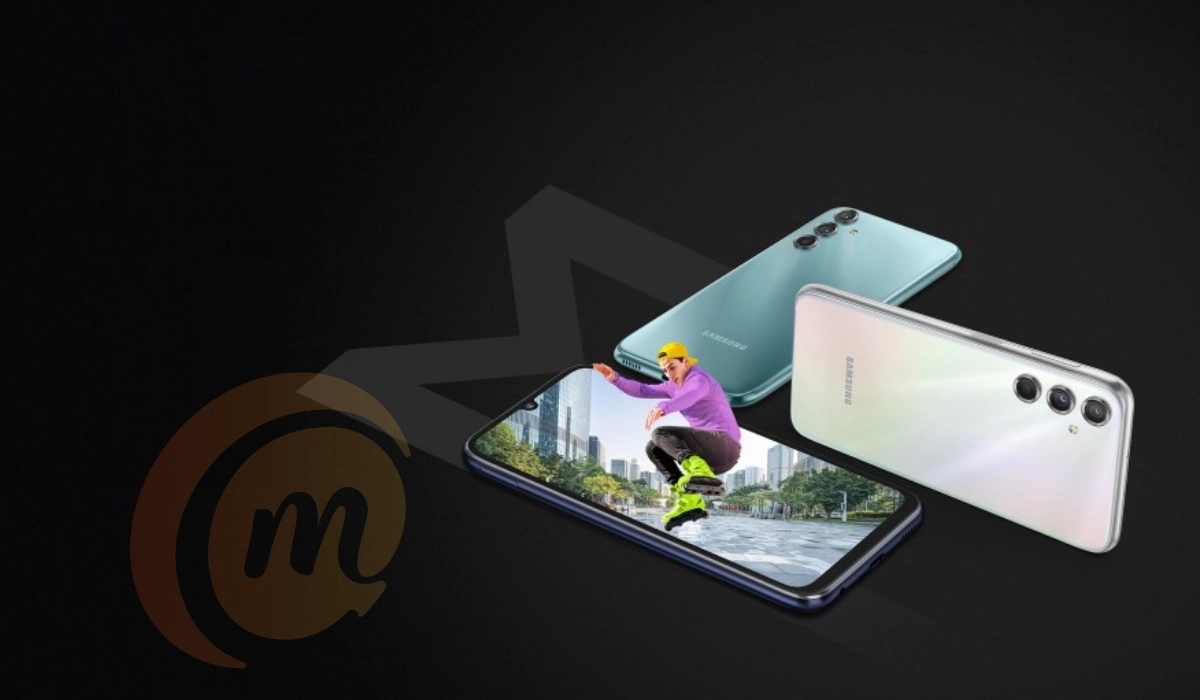
Which is the last Samsung phone with headphone jack?
If you are interested in knowing the last Samsung phone with headphone jack in 2024, I sorted that out for you as well. As at the time of this article, only eight Samsung phones with headphone jack have been released this year. Of those eighth, the latest one is the Samsung Galaxy F34 (with the Galaxy A05 and Galaxy A05s released later in October 2023).
Unfortunately, it is not available in most markets. The next one is Galaxy M34 5G, announced in July. If you cannot find that, you will have to settle for the Galaxy A24 4G as the latest Samsung phone with headphone jack; it is more widely available.
PS: January 2024 update: Samsung Galaxy A25 is now the last Samsung phone with headphone jack.
The best Samsung phones with headphone jack are the Galaxy A25, A24 4G, and Galaxy A23 5G.
What to do if your Samsung phone doesn’t have an earphone jack
If you do not want any of the models in the above list of Samsung phones with headphone jack, and you want to know how you can use headphones if your model does not have an earphone jack, there are alternative ways.
Method 1. USB-C to 3.5mm Adapter
A USB-C to 3.5mm adapter does what it says – it connects your 3.5mm earphone to the USB-C port of your Samsung phone. Buy a USB-C to 3.5mm adapter and plug it t your phone, then your headphones into the adapter. This frees you to buy any of the other hundreds of Samsung phones that do not have a headphone jack. But be aware that there may be some performance issues when using such an adapter.
Method 2. USB-C wired headphones
Instead of getting a USB-C adapter, you should consider a USB-C wired earphone or headphone. In this case, instead of a 3.5mm port, the headphones have a USB-C end that plugs directly int your Samsung phone’s USB-C port.
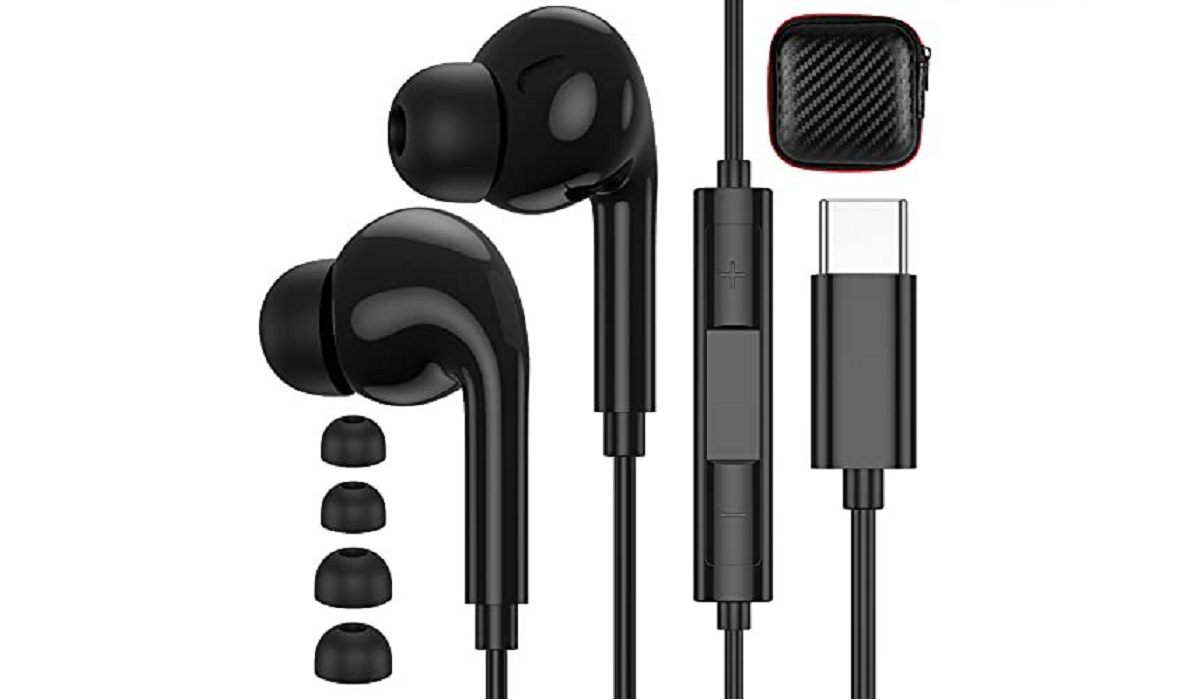
USB-C wired earphones
Method 3. Bluetooth Wireless headphones
I will let you into an open secret: Samsung prefers that you migrate from wired headphones to Bluetooth Wireless headphones. Of course, they also prefer that your Bluetooth earphones be a Galaxy Bud. Those are pricey though, and there are many other wireless earbuds from other brands that work as well, if not better. Feel free to shop around.
Over to you: are you going to buy any of the Samsung phones with headphone jack, or get one without and use one of the three alternative means of using earphones with it? How will you swing?
PS : Apple is the pioneer of this shift. You might also be interested in the last iPhones with headphone jack . If Samsung smartphones and iPhones are not your cup of tea, have a look at OnePlus phones with a 3.5mm headphone jack .
Author:Mister Mobility
Digital Skills and Communication Coach | Mobile Phone Connoisseur since 2001 | Tech Blogging since 2004
