Add MobilityArena as a preferred source on Google
The Windows 11 PC Clock app can do much more than just tell the time. It helps you create a countdown timer, set alarms, use a stopwatch, or start a focus session. But if the Windows 11 Clock fails to load or open on your PC, you may be unable to do any of the above.
In this article, I’ll show you some ways to fix the Windows 11 Clock App not working. Luckily, you can resolve this issue with a few simple and effective troubleshooting techniques. Let’s have a look…
- How Can You Fix the Windows 11 Clock App Not Working? Restart Your Computer Scan System Files with SFC and DISM Repair or Reset the Clock App Run the Windows Store Apps Troubleshooter Reinstall the Clock App With PowerShell Update the Clock App
How Can You Fix the Windows 11 Clock App Not Working?
There are many common fixes that the Windows Clock app has in common with other similar applications. As a result, you can attempt these general remedies for Windows apps to see if they work, and if they don’t, you can move on to the more advanced fix. With these Windows 11 fixes listed below you can restore the Clock app.
Restart Your Computer
Restarting your computer is a tried-and-true troubleshooting method that can help you resolve a range of issues with your apps and Windows. If it’s simply a little bug that’s causing the Windows Clock app to behave strangely, restarting your PC should solve the problem and save you a lot of time. As a result, it should be the first thing you try to fix the Windows 11 Clock app not working.
Scan System Files with SFC and DISM
Problems with your PC’s system files can potentially cause the Clock app to misbehave. SFC (System File Checker) and DISM (Deployment Image Servicing and Management) are two Windows system utilities that can help repair corrupted system files to fix the Windows 11 Clock app not working.
- Click the Search icon.
- In the Search field, type “ cmd ”
- Select the option to Run as Administrator by right-clicking the Command Prompt .
- Put in the command sfc /scannow and press Enter .
- After that, run the Dism/Online/Cleanup-Image/RestoreHealth command.
- Restart your computer afterward and see if you can now access all of the Clock app’s features.
Repair or Reset the Clock App
For UWP (Universal Windows Platform) apps, Windows 11 includes a handy repair feature. If the Windows troubleshooter fails to find any problems, you can use the UWP repair to try to fix the Windows 11 Clock app not working on your PC. The procedure is as follows:
- Go to the Settings menu and select Apps .
- Next, select your Apps and features .
- Look for the Clock app.
- Select Advanced Options after clicking the three dot-menu.
- Finally, click on Repair .
If repairing the app does not solve the problem, click the Reset option. By doing this, Windows will be able to clear any app-related data and restore the app to its original state.
Run the Windows Store Apps Troubleshooter
Your PC’s apps can be scanned for common problems by the Windows Store Apps troubleshooter, and it can then try to resolve them on its own. Running this tool should help fix the Windows 11 Clock app not working.
Follow these steps to launch the Windows Store Apps troubleshooter:
- To access the Settings app, press Win + I .
- On the System tab, select Troubleshoot > Other Troubleshooters .
- Locate the Windows Store Apps button and press the Run button beside it.
Reinstall the Clock App With PowerShell
Sometimes the way to fix the Windows 11 Clock app not working involves completely uninstalling the app and installing it again. So you might try uninstalling the app first, then using PowerShell, install it again. The steps are as follows:
- Open PowerShell using admin rights.
- To uninstall the application, use the following command: “ get-appxpackage Microsoft.WindowsAlarms | remove-appxpackage ”
- Then, to reinstall the Clock app, run the following command: Get-AppxPackage -allusers Microsoft.WindowsAlarms | Foreach {Add-AppxPackage -DisableDevelopmentMode -Register “$($_.InstallLocation)\AppXManifest.xml”
- Finally, restart your computer and launch the app.
If you can’t install the app via PowerShell, try installing it using the Microsoft Store.
Update the Clock App
If you’ve turned off the Windows Store app’s automatic updates at some point, you may be using an out-of-date version of the Clock app, which might cause performance issues. As a result, it’s a good idea to see if there’s an updated version available to fix the Windows 11 Clock app not working.
Search for the Windows Clock app in the Microsoft Store app. Click the Update button to install a new version if one is available. The app is already up to date if you see the “ Open ” button.
Basically, the Clock app in Windows 11 received a significant visual change, as well as some intriguing new functionality. Those upgrades, however, have not rendered the app immune to occasional glitches and hiccups. Hopefully, one of the above solutions has helped you fix the Windows 11 Clock app not working, and everything is back to normal.
Author:Joan Agie
Add MobilityArena as a preferred source on Google
If like me, you are tired of remembering and entering passwords every time you need to sign into a service, I have good news for you. There is a newer alternative to traditional passwords. A passkey is a unique combination of letters, numbers, and symbols generated by an application or website that can be used as a replacement for your password.
The key difference between a passkey and a regular password is that the former is much longer and more complex, usually consisting of 32 characters or more, making them more secure. They are also designed to be unique for every service you use, meaning that each account you have will have its own unique passkey.
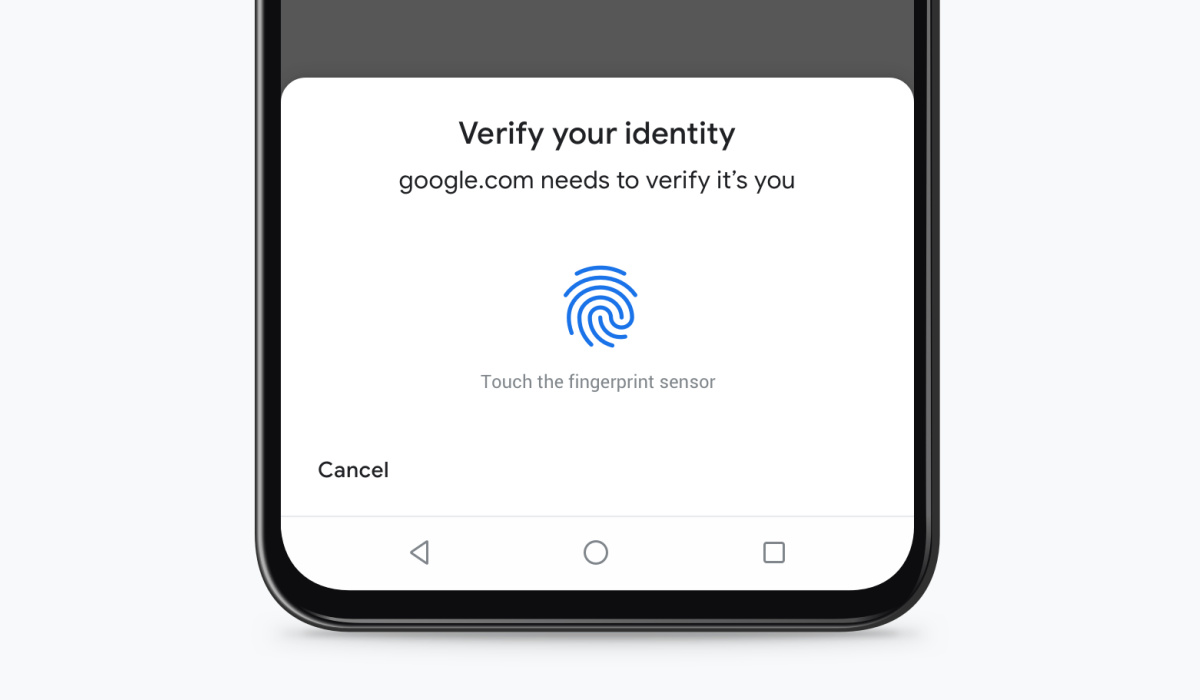
Mama! Look! No password needed!
Best of all, passkeys let users sign in to apps and sites the same way they unlock their devices: with a fingerprint, a face scan or a screen lock PIN. As such, do not be surprised that once you have set it up on your device, you get prompted for manual or biometric login whenever you need to login to the websites and apps you have set up. And do not fret – your biometric information is never revealed to the website or the app. Your biometric information never leaves your device.
- How passkeys work
- How to setup and use a passkey for an account on your iPhone
- How to setup and use a passkey for an account on your Android smartphone
- Death to passwords
How passkeys work
One of the benefits is that it frees you from having to remember multiple complex passwords for different accounts. The other is that they provide a more secure way to protect your online accounts.
How to setup and use a passkey for an account on your iPhone
Setting up one on your iPhone is straightforward.
- On your iPhone, take one of the following steps: For a new account: On the account sign-up screen, enter an account name. For an existing account: Sign in with your password, then go to the account management screen.
- When you see the option to save a passkey for the account, tap Continue . That is it; you are good to go. Whenever you need to access or login to that website or app, you will be prompted to enter your iPhone’s PIN or password, or authenticate yourself via fingerprint ot face recognition. When you do this, you are automatically logged into that service and access is granted to you.

How to setup and use a passkey for an account on your Android smartphone
If you use an Android smartphone (Samsung, Motorola, Google Pixel, ASUS Zenfone, Nokia, or other), setting up one for a website or app is a straightforward exercise.
- Go to the app and sign in using your existing sign-in method (usually a password or one-time OTP).
- Click Create a passkey button.
- Check the information stored with the new passkey.
- Use the device screen unlock to create the passkey.
You are all set up. That is it. Whenever you return to this website or app to sign in, on the sign in page, select passkey as your option, use your smartphone’s screen unlock, fingerprint, or face recognition to complete the login. You do not have to remember that website or app’s password.
Death to passwords
Don’t forget that each website or app you use has its own unique passkey, so you have to set one up for each of them. Once done, you can use them across multiple devices. You don’t have to try to remember the passwords to the 666 different online or digital accounts and services that you use. Google and a number of prominent digital services have adopted this new, passwordless authentication method, so you can begin to enjoy the freedom of not having to remember and manage passwords to the multiple online services that you love and use.
Author:Anna Makama
Gadget lover making my way through life one day at a time.
