Add MobilityArena as a preferred source on Google
The Samsung S22 Ultra was released in late February 2022 as one of the most powerful smartphones on the planet, for good reason too. It is a fan favourite for some while we have other users on the other side of the spectrum who have nothing but complaints about the pricey device. It doesn’t matter how many cutting-edge features a smartphone might have, it will always have problems of its own. The Samsung Galaxy S22 Ultra is just one of the newer members of the party. Let’s take a look at some of the problems that users have been facing while operating this device.
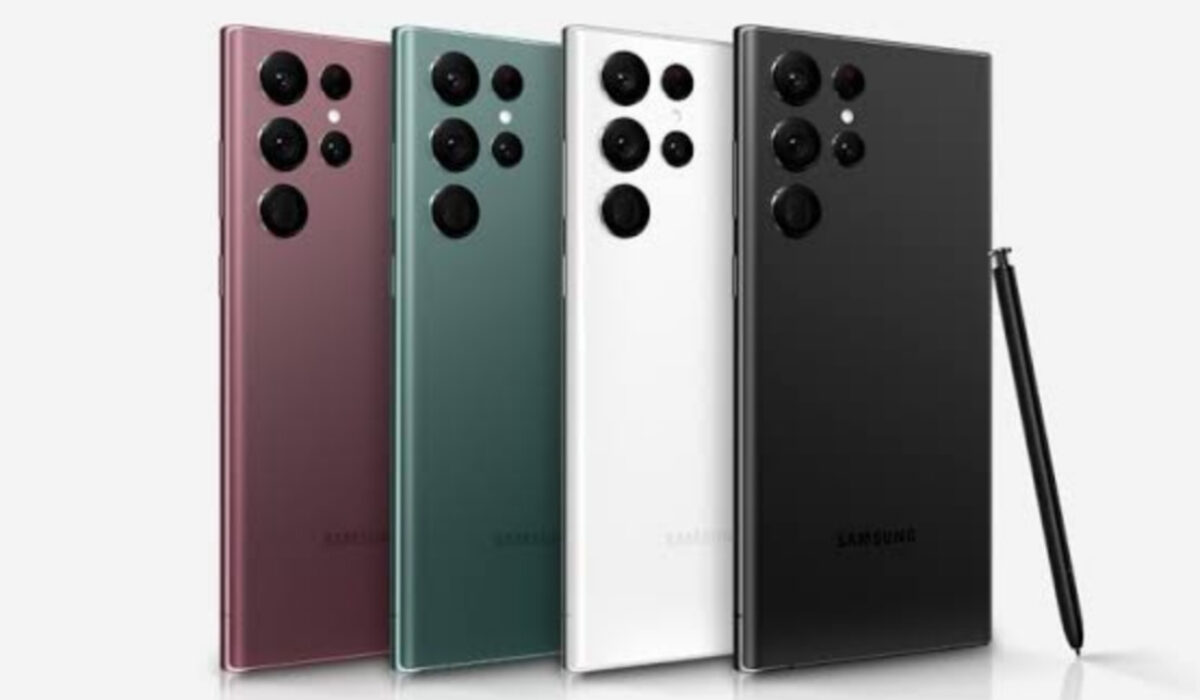
- Samsung Galaxy S22 Ultra problem: Battery Drain
- Samsung Galaxy S22 Ultra problem: Overheating
- Samsung Galaxy S22 Ultra problem: Notifications
- Samsung Galaxy S22 Ultra problem: Lagging/running slow
Samsung Galaxy S22 Ultra problem:Battery Drain
Some users have observed that the battery of the Samsung S22 Ultra drains fast for the pricey flagship smartphone it is with a 5,000mAh battery. This can be caused by multiple reasons. Some believe the phone is much too powerful for itself. Usually, problems like these are addressed in updates or can happen due to new software updates.
When you install a new software update on your device (any device), it takes time for the device to adjust to some of the new features, adjustments, or improvements. So, your device’s battery will drain faster than it did before the new update, adjust with time and get better. But if the issue persists after a couple of days and weeks, here are a few solutions you can try before taking the device to get checked and fixed.
• Clear unused apps running in the background of your Samsung S22 Ultra, these contribute a lot to how fast your battery drains.
• Having apps like Cleaner and Antivirus drain your device heavily and cause it to heat. If you have any of these installed, delete them immediately.
• Screen brightness is another factor that could be adding to how fast your battery drains. Reduce the brightness as much as you can. Leaving it on high brightness volumes will not only drain your battery but heat your phone.
Samsung Galaxy S22 Ultra problem:Overheating
There have been lots of user complaints about the Samsung S22 Ultra overheating quickly. How fast it is said to overheat is honestly alarming. These have come from customers who say it was during casual use and those who say it was while gaming or doing something heavy. Again, you will have to wait for future Samsung software updates for a significant change to the overheating problem. Here are things you can do for now to reduce it.
• Close apps that you have running in the background that you are not using. These open apps added to whatever activity you might be engaged in will work the processor heavily and cause it to heat.
• Now, we see, again, just how important it is to put off connectivity options that are in use. They don’t just contribute to one problem but multiple. Leaving your Wi-Fi, GPS, hotspot, e.t.c. will not just drain your battery but overheat your Samsung Galaxy S22 Ultra. And with a phone that heats as quickly as this, you do not need all of these to add to the overheating.
• One of the most common reasons that users gave for the Samsung S22 Ultra overheating was gaming. They noticed how hot the phone got after a while of playing games. If you want to reduce how much the phone heats, then you might need to take breaks in between gaming hours or cut down the number of hours you spend gaming.
• To help your Samsung Galaxy S22 Ultra dissipate heat, get a phone cover that gives it room to do so and not a bulky, thick one.
Samsung Galaxy S22 Ultra problem:Notifications
Users of Samsung S22 Ultra have complained about certain app notifications not popping up until they open the app. The most common affected apps are Messages and WhatsApp. Here are a few things you can do to possibly solve this.
The Galaxy S22’s battery optimization settings are likely causing a notification delay. Go to Settings–>Apps and tap on the three vertical dots at the top right corner. Tap on “Special access” and select “Optimise battery usage”. Scan the apps you are not receiving notifications from. If you don’t see the entire app list, look for the Apps not optimized section at the top of the page and tap on All.
Go to Settings–>Apps–>WhatsApp–>Storage and tap on both Clear cache and Clear data. If you don’t see any improvement or change, you might want to uninstall and redownload the app again.
Samsung Galaxy S22 Ultra problem:Lagging/running slow
It is difficult to imagine a premium flagship lagging, but there are a great many things that can cause lagging on your Samsung S22 Ultra. There are not a lot of problems that can be as frustrating as lagging. Here are some ways to get rid of it on your device.
• Using a cleaner or/and an antivirus app on your device will make it lag terribly. These apps also cause overheating. Delete these apps and your device might return to its former state if it was these apps causing the problem
• Insufficient storage might be the big bad in terms of causing lag on your Samsung Galaxy S22 Ultra. If you have used up most of your phone’s storage then your phone will start to lag. Clear up some space and delete what you don’t need to make room for the phone to run smoothly.
- Don’t miss our mobile phone reviews .
- Follow our news on Google News .
- Follow us on Instagram , Facebook , Twitter , and YouTube .
Author:Flamez
Flamez loves basketball, art, gadgets and cars.
Add MobilityArena as a preferred source on Google
If you’ve ever had a need to translate content into your local tongue, you might be able to testify to how can be difficult it can get. Even if web applications like Google Translate make it simpler, switching between various browser tabs or applications is still required. You might also need to take a screenshot in some circumstances in order to translate it into your original tongue, which we’re sure you’ll agree is quite a hassle.
Fortunately, a few Play Store apps make it simple to translate text within Android apps into any language. An important thing to note before we begin is that because these apps do not allow offline languages, they require an active internet connection to function. Naturally, these apps will also need a few Android permissions, such as Accessibility Service, in order to function effectively.
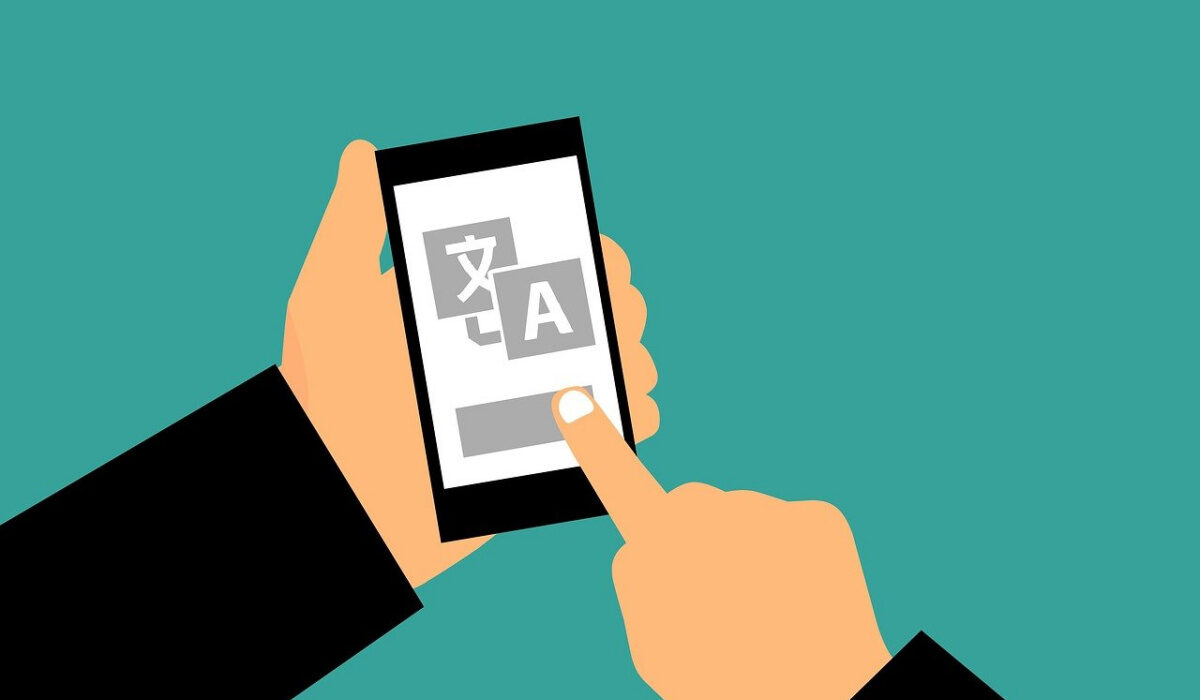
Google Translate
You may translate text easily within apps using Google Translate. Google introduced this tool called “Tap to Translate” in 2016 to make things easier when translating words and short phrases on the go.
It’s important to note that this function is disabled by default, so you’ll need to activate it first. Open the Translate application, select Settings > Tap to Translate , and then turn the switch on. Just choose your preferred language, and you’re good to go.
When you long-press on a text and choose Copy, the bubble will appear in the top-right corner of the screen. To see the translated text, simply tap on it.
Although it’s a decent way to view the translations you make, this app is limited in its ability to display translated versions of lengthy paragraphs or brief notes. Additionally, it is practically ineffective on applications such as Instagram, where the native method is unavailable for copying unselectable text.
Language Navi
With this app, you can easily and accurately translate all of the text in the app’s UI, including Instagram and Facebook, to the language of your choice. Both the source language and the target language are options. Additionally, it has the ability to recognize the language used on the app’s interface.
However, using this program to translate texts is a little different from using Google Translate. It simply does not function on top of any program, unlike Google Translate. Instead, Language Navi would need to be opened in order to access it.
Consider this example; to open Google Play Books and translate a section of a book, click Language Navi, you’d need to scroll down the app list, and select Play Books. After choosing your preferred language, hit “Launch.”
Language Navi is quite quick in terms of speed. Nevertheless, the speed may vary based on the chosen text’s length.
Since Google Translate is used, the majority of the text that is produced is fairly accurate. It also includes an integrated OCR capability for games and supports a wide range of languages, including German, Portuguese, French, and Turkish.
Installing the Language Navi app from the Play Store comes with no incurred costs. A few skippable adverts are present in the free version but they can be removed by upgrading the app to its pro version.
SnapTrans
SnapTrans eliminates the confusing method used by Language Navi to translate Android apps, so we give this a higher rating for simplicity. You can activate the floating bubble, which resembles Messenger, and floats over everything else on your screen, whenever you like. Popular languages like Chinese, Spanish, Portuguese, and French are also supported on this app.
One-word and full-page translations are two notable functionalities of SnapTrans. In a nutshell, its functionality combines SnapTrans and Google’s Tap on Translate.
You would need to give the Overlay permission for this app because it operates through the floating bubble. You would need to input the source language and the target language at first in order to use this program. From now on, double-tap the bubble whenever you see text written in a foreign language to view the translation.
Tap on the gear-shaped icon to change the language settings. To keep the program running in the background, a sticky notice is displayed in the notification drawer. You may whitelist it under battery optimization, though, if you love to keep a tidy notification tray.
To conclude , the world has truly become a global village and there’s no need to let any language barriers hinder you from using your favorite apps on your Android device. Simply take a cue from our suggestions in this guide, and translate any content as you please if you ever get stuck on an unfamiliar language.
We hope you’ve gained a lot from this article, so we encourage you to share it with anyone you know who might be in need of the knowledge.
- Don’t miss our mobile phone reviews .
- Follow our news on Google News .
- Join our WhatsApp Group , to be notified of the most important articles and deals,
- Follow us on Instagram , Facebook , Twitter , and YouTube .
