Add MobilityArena as a preferred source on Google
A force restart is a hardware-level reset that physically interrupts the flow of power from the battery to the logic board. When you force restart a frozen iPod, the music player should typically restart without erasing any music, settings, or data.
To force an iPod device to restart, thereby rebooting and reloading its software, you simply need to know which buttons to press and in what order. So if your iPod is no longer working, frozen, or inactive, simply follow the instructions in this article. Here, you’ll learn how to force restart any frozen iPod so you can easily resolve most software issues.
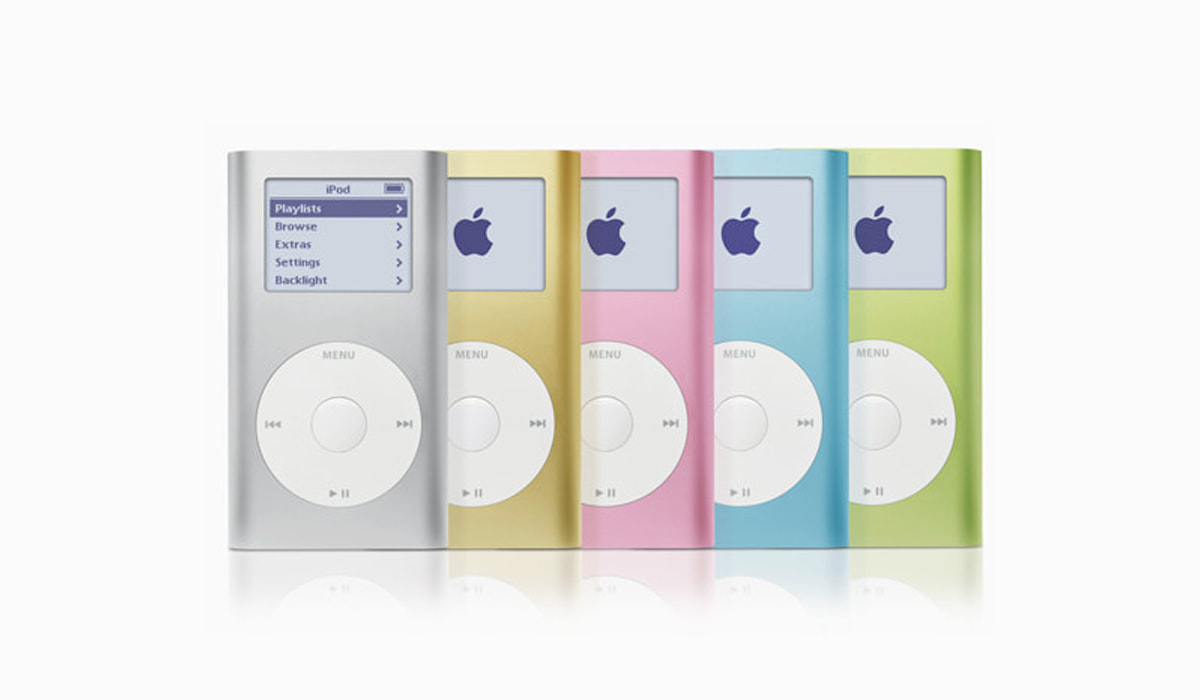
How Can I Restart a Frozen iPod?
First, make sure the iPod is not paused and that the “hold switch” is in the “locked position,” which is denoted by a small “padlock” icon on the screen (if applicable) and a color that can be seen on the right side of the “hold switch” (on the top of the iPod).
How to Restart a Frozen iPod Touch
Depending on the model, try the following instructions to force restart a frozen iPod touch:
- iPod touch (7th generation): Press and hold the Sleep/Wake button in the upper right corner and the Volume Down button in the lower left corner for at least ten seconds, or until you see the Apple logo.
- iPod touch (6th generation and previous): Press and hold the Home button below the display and the Sleep/Wake button in the top-right corner for roughly ten seconds, or until you see the Apple logo.
You can also restart a frozen iPod Touch device by going to Settings > General > Restart .
How to Restart a Frozen iPod nano
The steps required to force restart a frozen iPod nano varies depending on the device’s generation.
- 7th generation iPod nano: Press and hold the Home and Sleep/Wake buttons simultaneously until the iPod restarts.
- 6th generation iPod nano: Press and hold the Volume Down and Sleep/Wake buttons until the Apple logo appears.This could take at least 8 seconds.
- 5th generation or earlier iPod nano: Turn off the Hold switch. Then hold down the Center and Menu buttons until the Apple logo shows up, this could take at least 8 seconds.
If the initial attempt is unsuccessful, connect the iPod nano to power and try a second hard reboot.
How to Force Restart a Frozen iPod Shuffle
The steps below can be used to force your iPod shuffle to restart if it becomes unresponsive:
- Disconnect your iPod shuffle from the computer and unplug it from its charger.
- Slide the Power switch so that the green stripe is no longer visible.
- Allow at least ten seconds before returning the Power switch to the ON position.
Visit Apple’s website if you need assistance finding the iPod shuffle power switch.
How to Force Restart iPod Models Using a Click Wheel
To force restart a frozen iPod classic or any other model with a click wheel, follow these instructions:
- Cover the orange layer by turning the Hold switch to the OFF (unlocked) position.
- Hold down the Menu and Select (or Center ) buttons at the same time, and release them when the Apple logo appears, this should be about eight seconds.
If this doesn’t work to restart the frozen iPod, make sure you’re not pressing the Center button while touching the click wheel. To avoid accidentally hitting the selection button, click the Menu button near the outside of the click wheel rather than closer to the center.
How to Force Restart First, Second, and Third Generation iPods
If you have a first-generation iPod with a scroll wheel, a second-generation iPod with a touch wheel, or a third-generation iPod with a dock connector, follow these steps:
- Cover the orange layer and flip the Hold switch to the OFF (unlocked) position.
- Hold down the Play/Pause and Menu buttons at the same time, then release when the Apple logo shows up on the screen. This could take anywhere between six and ten seconds.
Make sure you let go of the buttons after you see the Apple logo. Please keep in mind that if you try the instructions for your particular model of iPod several times and they still don’t work to force restart a frozen iPod, there may be a hardware issue that requires the services of a repair technician. Consider scheduling a visit to the Apple Store in that case.
So, depending on the model you use, any one of the above sets of instructions should work to force restart a frozen iPod and bring it back alive.
Author:Joan Agie
Add MobilityArena as a preferred source on Google
Slow booting is one of the most aggravating issues to experience on Windows PCs. Many users report that Windows 10 boot time and startup in particular are extremely slow, especially after a recent update. A large part of this is due to an outdated or fragmented hard drive, installing too many apps, falling behind on Windows or driver updates, and having too many startup programs.
Fortunately, it’s not impossible to fix slow boot times in Windows 10 because you won’t enjoy turning on or restarting your computer if Windows takes forever to boot. So, in this article, I’ll go over the most common ways to fix slow boot times in Windows 10.
How Can You Fix Slow Boot Times in Windows 10?
Several factors could cause your computer to start up slower than usual, just as there are reasons for many of Windows 10 errors and issues. This also implies that the issue is solvable, so here are some useful tips and tricks to fix slow boot times in Windows 10.
Turn off Fast Startup
While Fast Startup was designed to improve boot times, some users have complained that it only slows down the boot process. Fortunately, you there’s an easy way to disable this option to fix slow boot times in Windows 10.
To disable fast startup in Windows 10, follow these steps:
- On your keyboard, click the Windows + R keys. This will launch the Run tool.
- Enter “control” and press the OK button. This will launch the traditional Control Panel application .
- Check to see if your view mode is set to “Small icons” or “Large icon” This will display all Control Panel items on a single page.
- Select “Power Options.”
- From the left-side panel, click the “Choose what the power buttons do” link.
- Click the link “Change settings that are currently unavailable.” You may be asked for administrator credentials.
- Click Save changes after unticking the “Turn on fast startup (recommended)” checkbox. You can try restarting your computer to see if the boot time has improved.
Disable Startup Programs
Many new programs will want to launch automatically when you boot up your computer. This means that these programs and services run at startup and consume unnecessary system resources. Stopping programs from loading at startup is therefore very useful to fix slow boot times in Windows 10 and speed up your computer.
Here are the steps to disable some of the startup program in Window 10:
- Using a keyboard shortcut: Shift + Ctrl + Esc , launch the Task manager.
- Select More details at the bottom of the window.
- Navigate to the Startup tab to see a list of all startup running apps with startup impact.
- Simply choose Disable in the bottom-right of the window, then repeat the process for all startup applications.
Update Graphics Drivers
Unfortunately, Windows 10 is known to cause driver issues. You should take a closer look at updating your graphics card drivers as it can sometimes help to fix slow boot times in Windows 10.
To access the Device Manager, right-click the Start button (or press Win + X ) and select Device Manager . To find out which graphics card you’re using, go to Display adapters (typically Nvidia or AMD if you have a dedicated graphics card).
On most PCs, you can check for graphics driver updates by opening the corresponding vendor’s software. If you don’t have the software, go to the vendor’s website (or, if your laptop has integrated graphics, the manufacturer’s website) to see if there are any driver updates available.
Check to see if you can successfully fix slow boot times in Windows 10 by installing any updated versions, restarting your device, and so on. Hopefully, an update will resolve your problem. Although graphics drivers are the most frequent to slow down booting, it might also be worthwhile to check for other driver updates while you’re at it.
It’s also a good idea to check for and install any pending Windows updates by going to Settings > Update & Security > Windows Update while you’re installing updates.
Upgrade Your Storage Drive
Running Windows from an HDD will result in generally slow performance. Although hard drives are a great way to store a lot of data for a low price, they are currently too slow to serve as your primary OS disk.
If it is possible on your machine, consider upgrading to an SSD, which will significantly improve performance and fix slow boot times in Windows 10. This comes at an additional cost, but an SSD is a significant upgrade you’ll appreciate.
Reset the Windows PC
It might also be beneficial to give up and reinstall a fresh copy of Windows 10 if you’ve tried all the aforementioned fixes and still can’t fix slow boot times in Windows 10.
You have a few options for resetting your computer. The built-in Refresh feature allows you to reinstall Windows without deleting any of your files. However, before continuing, you should still backup your computer’s data. Go to Settings > Update & Security > Recovery and choose Get started from the Reset this PC menu.
Ultimately, slow startup times are a huge annoyance, so I hope that applying one or more of our suggestions in this guide helps you fix slow boot times in Windows 10.
