Add MobilityArena as a preferred source on Google
If you have the faintest interest in smartphones, you must already be aware of the legendary face-off between Google’s Android OS (used in phones by Samsung, Xiaomi, Nokia, OnePlus, Motorola, TECNO, and others), and Apple’s iOS used in iPhones. Apple has now announced iOS 16, the 2022 version of their mobile operating system, and it has some features that Android OS has had for years.
That isn’t a new pattern though: in terms of features, iOS generally comes late to the party, but tends to implement those old features better than has obtained on Android. Team Android forever claims first strike, while Team iOS proudly claims to have it better. I think such rivalry is great for the industry. In this article I point out four iOS 16 features that Android cell phone users have had for longer.
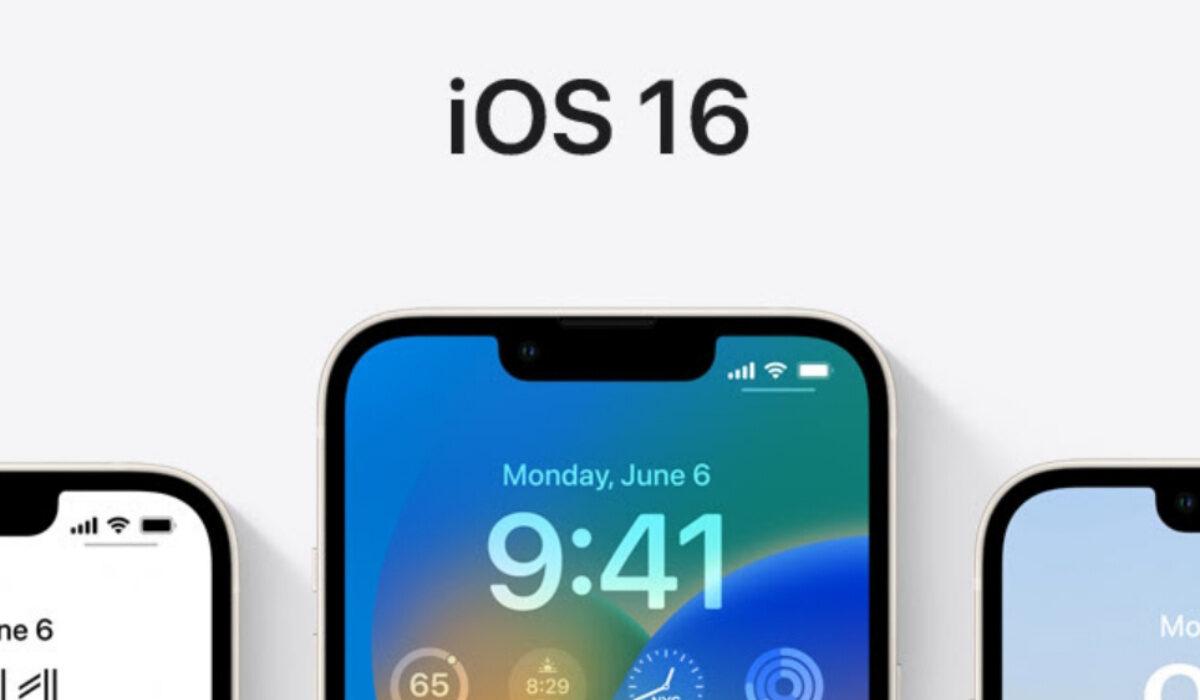
Lockscreen Widgets
Whoever thought lockscreen widgets would be a thing on iOS one day. But it was only a matter of time, as soon as Apple announced widgets for use on iPhone home screen. It made sense that those would make it to the lockscreen too some day. And they now have, in iOS 16. Not only that, lockscreen widgets are the most visual addition addition to iOS 16. Really.
Live Caption
Accessibility is important today, .ore than ever before. iOS 16 takes a huge step in providing that with the introduction of real-time transcriptions for conversations, audio, and videos on iPhones. Android users have had this for a few years already and iPhone users will be chuffed to be able to enjoy this feature too, now.
Translate Camera
If, when you first heard of Translate Camera in iOS 16, your mind went to the Google Translate app for Android, you know the smartphone industry well. Yes; you can now point your iPhone camera at anything that has text on it, capture it, and have the translation printed on the screen for you. Nifty.
Undo Sending Of Emails, And Scheduling Of Emails
For a few years now, Android users have been able to quickly unsend an email after realising they made a mistake somewhere. This feature is such a Godsend and has probably helped pull the world back from the brink of global war at some point. Android users have also been able to schedule emails. And now, these two features have crossed the pond over to iPhones in iOS 16. Here is cheers to more worked wars averted, as iPhone users embrace these productivity features.
While iOS 16 has more to it than the above, these listed ones are those that Android users will tell and brag about as having been copied by Apple. Which is more impactful – to do it first, or to do it better? In the context of the eternal wars between Android phone and iPhone users , the answer probably depends on where your allegiance lies.
- Don’t miss our mobile phone reviews .
- Follow our news on Google News .
- Join our WhatsApp Group , to be notified of the most important articles and deals,
- Follow us on Instagram , Facebook , Twitter , and YouTube .
Author:Mister Mobility
Digital Skills and Communication Coach | Mobile Phone Connoisseur since 2001 | Tech Blogging since 2004
Add MobilityArena as a preferred source on Google
Spotify is an audio streaming service available for smartphones and PCs. It isn’t limited to only music streaming; you can also find and listen to podcasts. Spotify has a free service, as well as a paid, Premium service. If, for any reason, you wish to cancel your Spotify Premium subscription, the process isn’t difficult but it isn’t quite obvious either.
While you have access to your account settings in the mobile app, it does not provide you with the menu to cancel your Premium subscription. To do that, you need to use the Web interface. Thankfully, you can do it on both desktop Web and mobile Web, so you do not need a PC or laptop for it. If you signed up for Spotify Premium using your Apple ID, you can also cancel your subscription from your iPhone or iPad’s Settings menu. Let’s walk you through the two options below.
How to cancel your Spotify Premium subscription on your iPhone via Apple ID
- Open the Settings app on your Apple iPhone or iPad.
- Tap your name and Apple ID at the top of the Settings homepage.
- On your Apple ID page, tap Subscriptions .
- In your list of subscriptions, find and select Spotify .
- Then select Cancel Subscription on the Spotify page. That’s it; you have cancelled your Premium subscription and will be switched over to the free service.
How to cancel your Spotify Premium service on a mobile Web browser
If you are an Android user, the way to cancel your Spotify premium is to use your phone’s browser.
- Launch your mobile Web browser, browse to Spotify.com and log in to your account with your username and password.
- Once logged in, go to your Account page. Tap the icon of three horizontal lines in the top-right corner and select Account in the drop-down menu.
- Scroll down till you see the section labelled, Your plan , and tap on Change Plan .
- After the page loads, scroll down to the section labelled, Spotify Free , and tap on Cancel Premium .
- On the next page, scroll to the bottom, tap on, Continue to cancel . Spotify doesn’t want to see you go, so you will still see one more, Continue to cancel , on the next page. Tap it. You’ve got this.
- Next, you should now see, Yes, cancel . Tap on it to confirm your cancellation. You have now cancelled your Spotify Premium subscription, and you will be switched over to the free service.
How do I remove my card details from Spotify?
To remove your card you have to be logged in at spotify.com and go to the Account page, as already described above. Tap on “ Manage subscriptions and payment ” and then “Change payment method or card details”. The option to remove your credit card is presented to you there.
Does Spotify require a credit card?
There are multiple payment options available to you for paying for your Spotify Premium Subscription. These include: Credit/debit card, Prepaid cards, PayPal Gift cards, Pay by mobile, and Pay as you go.
How do I change my payment method for Spotify?
Launch the Web browser on your smartphone (or PC). Go to Spotify.com, log in and go to your Account page, and navigate to the tab marked Account overview . Scroll down to the section labelled, Your Plan , then to the Payment section, where you will see your current payment method listed. Enter your new payment method.
Download the Spotify mobile app
If you have not tried out Spotify and would love to give it a try, you can download the app from the iPhone Appstore or Google Play Store for Android phones. Search for “Spotify” in either of those mobile app stores.
- Don’t miss our reviews .
- Follow our news on Google News .
- Join our WhatsApp Group , to be notified of the most important articles and deals,
- Follow us on Instagram , Facebook , Twitter , and YouTube .
