Add MobilityArena as a preferred source on Google
If your Galaxy S24 or S24 Ultra seems to be losing battery faster than you can find your charger, you’re not alone. A lot of users have been scratching their heads over unexpected Galaxy S24 battery drain — even when the phone is just sitting idle. It’s frustrating, especially if you rely on your phone to get through a busy day. Whether you’re streaming content, running apps, or barely touching your device, that battery percentage seems to drop a little too quickly. But don’t worry — there are reasons this happens, and thankfully, some straightforward fixes too. From background apps and screen brightness to rogue software updates or settings you didn’t even know were on, several factors can cause Galaxy S24 battery drain . In this guide, we’ll break down the most common culprits and show you how to tweak your settings, manage apps, and extend your battery life with a few smart changes. If Galaxy S24 battery drain is ruining your day, stick with us — we’ve got solutions that can make a real difference.

- Why Is Your Galaxy S24 Battery Draining So Fast? Always-On Display (AOD) High Refresh Rate and Brightness Background App Activity Software Bugs and Updates PowerShare and Other Features Push Notifications and Syncing Faulty Battery
- How to Fix Galaxy S24 Battery Drain: 7 Practical Tips Turn Off Always-On Display Lower Screen Brightness and Refresh Rate Enable Adaptive Battery Sleep or Restrict Unused Apps Limit Location Access Update Software and Apps Clear Cache Partition
- When to Consider a Battery Replacement
- Conclusion
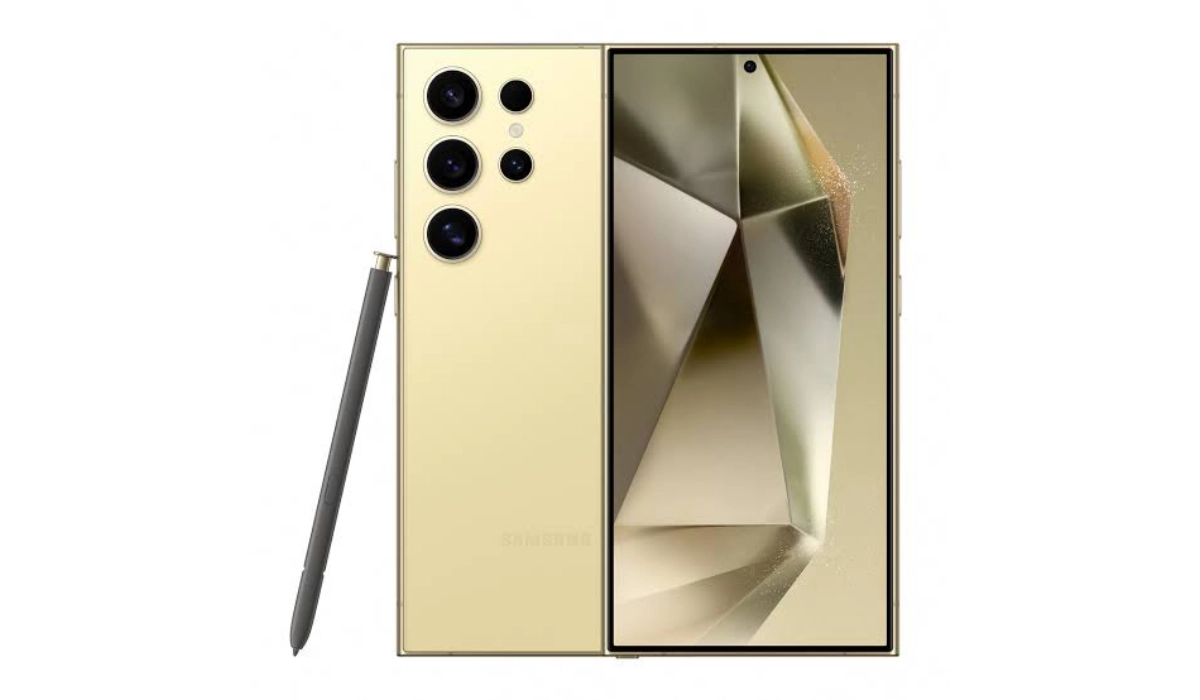
Why Is Your Galaxy S24 Battery Draining So Fast?
Several factors can turn your sleek Galaxy S24 into a battery guzzler:
Always-On Display (AOD)
That handy feature that lets you glance at the time, notifications, and widgets without unlocking your phone? It’s also a sneaky battery drainer. Keeping parts of your screen lit 24/7 means your phone is always sipping power, even when you’re not using it.
High Refresh Rate and Brightness
The Galaxy S24’s gorgeous 120Hz AMOLED display is buttery smooth but can be thirsty for juice. Running the screen at max brightness and refresh rate all the time can significantly reduce battery life.
Background App Activity
Some apps love to keep working behind the scenes—fetching data, sending notifications, or just generally being busy. Apps like social media, messaging, and navigation can quietly drain your battery even when you’re not actively using them.
Software Bugs and Updates
New updates like One UI 7 (based on Android 15) have introduced some battery drain issues for Galaxy S24 users. Sometimes, after an update, certain processes or apps get stuck in loops or don’t optimize power usage properly.
PowerShare and Other Features
Samsung’s PowerShare lets you charge other devices wirelessly from your phone’s battery. Handy? Yes. Battery-friendly? Not so much. If you’ve accidentally left PowerShare enabled, your battery might be bleeding juice.
Push Notifications and Syncing
Constantly syncing emails, social media, and other accounts keeps your phone connected and active, which can drain battery faster—especially if you get a flood of notifications.
Faulty Battery
In rare cases, your battery itself might be defective or degraded, causing rapid drain regardless of your settings.
How to Fix Galaxy S24 Battery Drain: 7 Practical Tips
Ready to tame that battery beast? Here are some proven fixes:
Turn Off Always-On Display
- Go to Settings > Lock Screen > Always On Display and toggle it off or customize it to show less information.
- This simple step can save a surprising amount of power.
Lower Screen Brightness and Refresh Rate
- Head to Settings > Display.
- Reduce brightness manually or enable adaptive brightness.
- Set Motion Smoothness to Standard (60Hz) instead of 120Hz to save battery.
Enable Adaptive Battery
- Go to Settings > Battery and device care > Battery > Background usage limits > Adaptive battery.
- This smart feature learns your app usage and limits battery for apps you rarely use.
Sleep or Restrict Unused Apps
- In Battery settings, put unused apps to sleep or restrict their background activity.
- This stops apps from draining power when you’re not using them.
Limit Location Access
- Go to Settings > Location > App permissions.
- Set apps to access location only while using the app or deny if not needed.
Update Software and Apps
- Make sure your phone is running the latest One UI and Android updates (Settings > Software update).
- Update apps via the Galaxy Store or Google Play Store to fix known bugs.
Clear Cache Partition
- Sometimes, leftover cache from updates can cause issues.
- Turn off your phone, then press and hold Volume Up + Power buttons to enter recovery mode.
- Select Wipe cache partition (don’t worry, your data stays safe).
When to Consider a Battery Replacement
If you’ve tried everything and your Galaxy S24 still drains battery like it’s got a hole in its tank, it might be time to check the battery health:
- Go to Settings > Battery and device care > Battery > Battery usage.
- If the battery capacity is significantly degraded or you see performance warnings, visit a Samsung service center or authorized repair shop for a battery replacement.
Conclusion
Galaxy S24 battery drain can be a real pain, especially when you’re on the go and need your phone to last all day. But the good news is, a few simple changes — like turning off Always-On Display, limiting background app activity, adjusting your screen’s refresh rate, and staying on top of software updates — can make a big difference. If you’re still noticing Galaxy S24 battery drain after trying these tips, it might be time to look into a battery health check or even a replacement. At the end of the day, dealing with Galaxy S24 battery drain is all about knowing the right fixes and giving your phone what it needs to keep up with your day.
Author:Ifeoluwa Adeleke
Add MobilityArena as a preferred source on Google
If you’re a Samsung Galaxy S24 user excited to explore all the new features packed into One UI 7, chances are you’ve hit a few unexpected bumps along the way. For many, the experience has gone from excitement to sheer frustration, thanks to a wave of One UI 7 update problems. From failed downloads and constant error messages to installations that freeze mid-way, it feels like getting the update is more of a battle than it should be. These One UI 7 update problems aren’t just isolated cases either — social media and community forums are flooded with complaints from users facing the same issues. Some people report the update stalling at random percentages, while others say the download doesn’t even start. For a highly anticipated update, it’s safe to say this hasn’t been the smoothest rollout. But don’t worry — there are a few workarounds that have helped users get past these glitches. Restarting your phone, clearing cache, switching from Wi-Fi to mobile data (or vice versa), and even using Samsung’s PC suite (Smart Switch) for the update have all shown some success. If you’re dealing with One UI 7 update problems , trying one or more of these steps might just do the trick and get you running the latest software without the headache.

- What are the One UI 7 Update Problems on the Galaxy S24?
- Tried-and-True Workarounds to Bypass the Update Glitches Pause, Restart, and Resume the Download Switch Your Network Use Samsung Smart Switch on Your PC or Mac Free Up Storage Space Restart Your Phone Regularly
- When to Seek Help
- Conclusion
What are the One UI 7 Update Problems on the Galaxy S24?
Since the One UI 7 update began rolling out in late April 2025, Galaxy S24, S24+, and especially S24 Ultra users have encountered a slew of issues. The most common complaints include:
- Update download pausing or getting stuck at various percentages (sometimes even at 100%)
- Error messages like “Couldn’t install update” or “There was a problem downloading the update. Try again later.”
- Repeated error pop-ups that disrupt normal phone usage
The root cause? Samsung’s servers are likely overwhelmed by millions of devices trying to download the update simultaneously worldwide. Add to that unstable Wi-Fi connections or regional rollout hiccups, and you get a perfect storm of update headaches.
Tried-and-True Workarounds to Bypass the Update Glitches
While Samsung works behind the scenes to fix server issues and push smoother updates, here are some practical tricks that users have found helpful:
Pause, Restart, and Resume the Download
This might sound like tech folklore, but it really works for many:
- When the update download stalls, pause it from the notification or update settings.
- Restart your phone to clear temporary glitches.
- Go back and resume the download.
This simple dance can nudge the update process forward and sometimes gets you past the stuck point.
Switch Your Network
Your Wi-Fi might be the sneaky culprit. Try:
- Switching to a different Wi-Fi network
- Using mobile data if your plan allows
- Moving closer to your router for a stronger signal
A stable and fast connection is key to a smooth update.
Use Samsung Smart Switch on Your PC or Mac
If over-the-air (OTA) updates keep failing, Samsung’s Smart Switch app can be your savior:
- Download and install Smart Switch on your computer.
- Connect your Galaxy S24 via USB.
- Use the app to download and install the One UI 7 update directly.
This method bypasses server overload and network instability, often resulting in a smoother update experience.
Free Up Storage Space
Insufficient storage can cause update failures. Check:
- Settings > Battery and device care > Storage
- Delete unnecessary files, apps, or large media to free up space.
Restart Your Phone Regularly
Sometimes, a simple reboot can clear background processes that interfere with updates.
When to Seek Help
If none of these workarounds help and your phone is stuck in a loop of error messages or won’t update at all:
- Visit a Samsung service center or authorized repair shop.
- Contact Samsung Support online or via phone for guidance.
- Keep an eye on Samsung’s official forums and social media for update patches or announcements.
Conclusion
The One UI 7 update problems have definitely frustrated many Galaxy S24 users hoping for a smoother upgrade experience. From server overload to unstable networks, it hasn’t been the easiest rollout. But don’t worry — most of these issues are fixable. Whether it’s pausing and resuming the download, switching to a stronger Wi-Fi connection, or trying Smart Switch, these simple solutions can go a long way. While One UI 7 update problems may be annoying now, they’re usually temporary. With a little patience and a few quick fixes, you’ll be enjoying the new features in no time. So if you’re stuck, remember you’re not alone — many others are working through the same One UI 7 update problems, and solutions are already helping users get back on track.
