Add MobilityArena as a preferred source on Google
Are you tired of staring at the same boring wallpaper on your smartphone? Well, it’s time to switch things up and add some personality to your device with cool wallpapers. With so many options available, you can easily find a wallpaper that matches your style and interests.
Whether you’re a fan of nature, abstract art, or pop culture, there’s a wallpaper out there for you. You can even find default wallpapers from popular Android devices like the Google Pixel. With thousands of free options available, you can change your wallpaper as often as you like to keep your device feeling fresh and new. So why settle for a dull background when you can have a cool wallpaper that reflects your unique personality?

- Why Use Cool Wallpapers on Your Smartphone? Benefits of Using Cool Wallpapers
- Where to Find Cool Wallpapers? Best Apps for Downloading Cool Wallpapers Top Websites for Free Photos Talented Creators
- How to Set Cool Wallpapers on Your Smartphone? Setting Up Cool Wallpapers on Android Phones Setting Up Cool Wallpapers on iPhones
- Customizing Your Cool Wallpapers Using Widgets and Icon Packs Creating Personalized Wallpapers
- Sharing Your Cool Wallpapers Sharing on Social Media Joining a Community of Wallpaper Enthusiasts
Why Use Cool Wallpapers on Your Smartphone?
When it comes to personalizing your smartphone, one of the easiest and most effective ways is by using cool wallpapers. Not only do they add a touch of personality to your device, but they also offer a range of benefits that make using them worthwhile.
Benefits of Using Cool Wallpapers
Express Yourself: Your smartphone is an extension of your personality, and using cool wallpapers is a great way to express yourself. Whether you prefer minimalist designs, vibrant colors, or stunning landscapes, there are endless options to choose from.
Enhance Aesthetics: A cool wallpaper can enhance the overall aesthetics of your smartphone. It can make your device look more visually appealing and interesting. It can also help to create a cohesive look and feel with your other devices and accessories.
Reduce Eye Strain: Using a cool wallpaper with a darker color scheme can help to reduce eye strain, especially when using your smartphone for extended periods. Darker wallpapers are also easier on your device’s battery life, helping to conserve power.
Boost Productivity: A cool wallpaper can also help to boost productivity by providing a motivational or inspiring backdrop. It can serve as a reminder of your goals or help to keep you focused and on task.
Show off Your Style: Using a cool wallpaper is an easy way to show off your personal style and taste. It can also be a conversation starter, sparking interest and curiosity from others.
Overall, using cool wallpapers on your smartphone is a simple and effective way to personalize your device and enjoy a range of benefits. With so many options available, you’re sure to find a wallpaper that suits your style and needs.
Where to Find Cool Wallpapers?
Looking for cool wallpapers to give your smartphone a fresh look? You’re in luck! There are many options available to you, from apps to websites to talented creators. Here are some of the best places to find cool wallpapers for your device.
Best Apps for Downloading Cool Wallpapers
There are many apps available for both Android and iOS devices that offer a wide range of cool wallpapers. Some of the best apps for downloading cool wallpapers include:
- Zedge: This app offers a huge selection of wallpapers in various categories, including nature, abstract, and sports.
- Backdrops: Backdrops is a great app for finding unique and artistic wallpapers. It also allows you to create your own wallpapers using its built-in editor.
- Walli: Walli is a community-driven app that features wallpapers created by talented artists from around the world.
Top Websites for Free Photos
If you’re looking for free photos to use as wallpapers, there are many websites that offer high-quality images. Some of the top websites for free photos include:
- Pexels: Pexels offers a huge selection of free photos in various categories, including nature, abstract, and technology.
- Unsplash: Unsplash features a vast collection of high-resolution photos that you can use for free.
- Pixabay: Pixabay offers over 1.8 million free photos, illustrations, and vectors for you to use.
Talented Creators
If you’re looking for something truly unique and original, consider checking out the work of talented creators. Many artists and designers offer their own wallpapers for free or for a small fee. Some websites that feature the work of talented creators include:
- DeviantArt: DeviantArt is a community of artists and designers who share their work with others. You can find a wide range of wallpapers on the site, from fan art to original creations.
- Etsy: Etsy is a marketplace where independent artists and designers sell their work. You can find many unique and creative wallpapers on the site.
- Behance: Behance is a platform for creative professionals to showcase their work. You can find many talented designers and artists on the site who offer their own wallpapers.
In conclusion, there are many options available to you when it comes to finding cool wallpapers for your device. Whether you prefer apps, websites, or the work of talented creators, you’re sure to find something that suits your style.
How to Set Cool Wallpapers on Your Smartphone?
If you’re looking to add a fresh new look to your smartphone, changing your wallpaper is one of the easiest ways to do it. In this section, we’ll show you how to set up cool wallpapers on your Android phone and iPhone.
Setting Up Cool Wallpapers on Android Phones
Android phones offer a lot of customization options, and changing your wallpaper is no exception. Here’s how you can set up cool wallpapers on your Android phone:
- Download the wallpapers of your choice from any of the sources I already mentioned above.
- Once the wallpapers are stored on your phone, open your gallery and browse through the available wallpapers.
- Select the wallpaper you want to use and tap on it to preview it.
- If you like the wallpaper, tap on the “Set as Wallpaper” button to apply it to your home screen.
If you want to use your own image as wallpaper, you can do that too. Here’s how:
- Open the Gallery app and select the image you want to use as wallpaper.
- Tap on the image to open it, and then tap on the three dots in the top right corner.
- Select “Set as wallpaper” from the options.
- Choose whether you want to set the image as your home screen wallpaper, lock screen wallpaper, or both.
Setting Up Cool Wallpapers on iPhones
iPhones also offer a lot of customization options, including changing your wallpaper. Here’s how you can set up cool wallpapers on your iPhone:
- Open the Photos app and select the image you want to use as wallpaper.
- Tap on the image to open it, and then tap on the share icon in the bottom left corner.
- Select “Use as Wallpaper” from the options.
- Choose whether you want to set the image as your home screen wallpaper, lock screen wallpaper, or both.
- Adjust the image as necessary by pinching to zoom in or out, and then tap “Set” to apply the wallpaper.
If you want to use a dynamic wallpaper, which changes based on the time of day or your location, you can do that too. Here’s how:
- Open the Settings app and go to “Wallpaper.”
- Select “Choose a New Wallpaper” and then select “Dynamic.”
- Choose the dynamic wallpaper you want to use, and then tap “Set” to apply it.
In conclusion, setting up cool wallpapers on your smartphone is a quick and easy way to give it a fresh new look. Whether you’re using an Android phone or iPhone, there are plenty of options available to you.
Customizing Your Cool Wallpapers
If you’re looking to make your smartphone stand out, customizing your wallpaper is a great place to start. Here are two ways to personalize your cool wallpapers:
Using Widgets and Icon Packs
Widgets and icon packs are a great way to add personality to your smartphone. Widgets are small apps that run on your home screen, and they can display everything from the weather to your calendar events. Icon packs, on the other hand, change the look of your app icons, giving them a fresh new look.
To use widgets, simply long-press on your home screen and select “Widgets.” From there, you can choose from a variety of widgets to add to your home screen. To use an icon pack, you’ll need to download one from the Google Play Store. Once you’ve installed the icon pack, you can apply it by going to “Settings” > “Display” > “Icon pack.”
Creating Personalized Wallpapers
If you want to take your customization to the next level, consider creating your own personalized wallpaper. There are a variety of apps available that make it easy to create your own wallpaper, even if you don’t have any design experience.
One such app is Canva, which allows you to create custom wallpapers using your own photos and artwork. Simply choose a template, upload your own images, and customize the design to your liking. Another option is Adobe Express, which offers a range of tools for creating stunning wallpapers from scratch.
No matter how you choose to customize your wallpaper, the key is to have fun and let your personality shine through. With a little creativity, you can transform your smartphone into a reflection of your unique style.
Sharing Your Cool Wallpapers
If you’ve found some cool wallpapers that you want to share with others, there are a few ways to do it. Here are some options:
Sharing on Social Media
One of the easiest ways to share your cool wallpapers is to post them on social media. You can share them on platforms like Facebook, Twitter, Instagram, or Pinterest. When you post your wallpapers, make sure to use relevant hashtags so that others can find them easily. You can also tag people or pages that might be interested in your wallpapers.
Joining a Community of Wallpaper Enthusiasts
There are many online communities of wallpaper enthusiasts where you can share your cool wallpapers and get feedback from others. Some popular communities include Reddit’s r/wallpapers, DeviantArt, and Wallpaper Abyss. When you join a community, make sure to follow the rules and guidelines to avoid getting banned. You can also participate in discussions and engage with other members to build relationships and get more exposure for your wallpapers.
Here are some tips for sharing your wallpapers in a community:
- Provide a high-quality image: Make sure your wallpaper is in high resolution and looks good on different devices.
- Use a descriptive title: Your title should be descriptive and catchy to attract attention.
- Add a description: You can add a brief description of your wallpaper, such as the inspiration behind it or the tools you used to create it.
- Share the link: If you’re sharing your wallpaper on a community that allows external links, you can share the link to your wallpaper on your website or portfolio.
- Be respectful: Always be respectful to other members and follow the community guidelines.
Overall, sharing your cool wallpapers is a great way to showcase your creativity and connect with others who share your interests. Whether you choose to share them on social media or join a community of wallpaper enthusiasts, make sure to follow best practices and engage with others to get the most out of your experience.
Author:MobileChic
That motivated, gadget-loving geeky chic who tries to stay on top of things. Unapologetic iFan.
Add MobilityArena as a preferred source on Google
AGM NOTE N1 is not the typical AGM smartphone, in the sense that this is not a rugged device. There is no mention of ingress rating, shock resistance or drop resistance in the official specs. This looks like a regular smartphone.
Welcome to our complete guide to the AGM NOTE N1. On this page, we cover everything you need to know about this mobile device, including its specifications, price, release date, and more.
AGM NOTE N1: brief specs
- OS: Android 13
- Release Date: 2023
- Network Type: 2G/3G/4G
- Display: 6.52-inch, 720 x 1600 pixels resolution
- Processor: Unisoc T606
- Selfie Camera: 8 MP
- Rear camera: 50 MP
- RAM: 8 GB
- ROM: 128 GB
- Battery: 5000 mAh
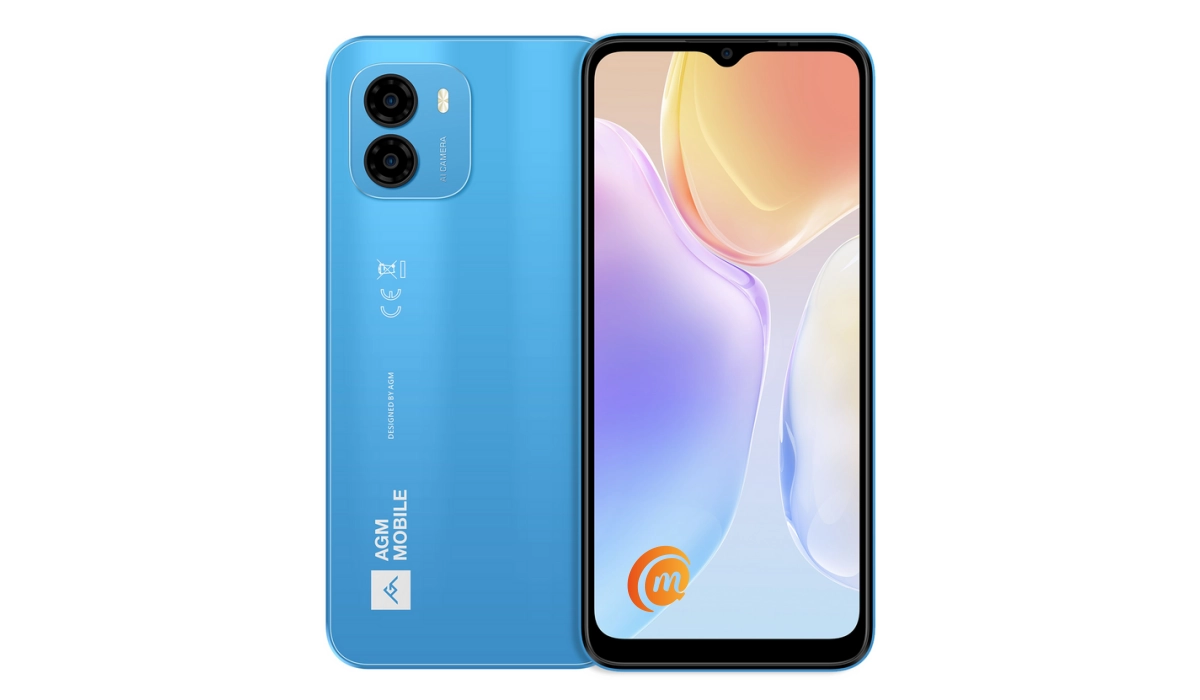
AGM Note N1.
- Detailed Specs
- Prices in the USA, UK, and EU Does AGM NOTE N1 have Google Play Store? Will AGM NOTE N1 work in the USA?
Detailed Specs
Mobile Wireless Network and Software
- 2G mobile network bands : GSM, GPRS, EDGE 850 / 900 / 1800 / 1900 MHz.
- 3G mobile network bands : UMTS, WCDMA, HSDPA 850 / 900 / 2100 MHz
- 4G mobile network bands : LTE: B1 / B2 / B3 / B5 / B7 / B8 / B20 / 34 / 38 / 39 / 40 / 41
- 5G mobile network bands : No
- SIM Type : Nano-SIM, Dual SIM
- Software / OS : Android 13
Design, Form Factor, Appearance
- Dimensions : 164.2 x 76 x 8.55 mm
- Weight : 190g
- Display : 6.52 inches, 720 x 1600 pixels, 90 Hz refresh rate, 20:9 aspect ratio, IPS LCD screen
- Colours : Blue. Gray.
- Physical Build : Plastic frame; plastic back panel.
Internal Hardware Specs
- CPU/ Processor : 64-bit, 1.6 GHz Octa-core
- Chipset : Unisoc Spreadtrum T606
- GPU/ Graphics Processing Unit : ARM Mali-G57 MP (up to 650 MHz)
- RAM : 8 GB
- Extended/Virtual RAM : 8 GB
- Internal Storage : 128 GB
- External Storage : microSD, up to 256 GB (dedicated slot)
Photography, Video Recording
- Main Camera : 50 MP main sensor + 2 MP macro lens, autofocus, LED flash, 1080p@30fps video recording
- Front Camera : 8 MP, fixed focus, Face Recognition, 1080p@30fps video capture
Audio, Video Playback
- Music Support : PCM, AAC / AAC + / eAAC + / MP3 / AMR – NB / WB / APE
- Audio : 3.5 mm audio jack
- Loudspeaker : Mono speaker
- Video Support : H.264/MP4/MPEG4 player
- FM Radio :
Phone Sensors
- Digital Compass : Yes.
- Accelerometer : Yes.
- Proximity Sensor : Yes.
- Ambient Light Sensor : Yes.
- Barometer : No.
- Pedometer : No.
- Heart Rate Monitor : No.
- Gyroscope (G-Sensor) : Yes.
- Fingerprint Scanner : Yes; side-mounted in Power button.
- Face Unlock : Yes.
- Iris Scanner : No.
- Motion Sensing / Gesture Control : No.
- Voice Control : No.
- Intelligent Digital Assistant : Yes; Google Assistant.
- Infra-red Blaster : No.
Connectivity Options
- Bluetooth Version : 5.0
- Bluetooth Profiles : A2DP, LE
- WiFi : Wi-Fi 802.11 ac/b/g/n, hotspot
- GPS : Yes, A-GPS, GLONASS, BDS, Galileo
- USB : microUSB v2.0. Type-C. USB-OTG.
- NFC : No.
Miscellaneous Specs and Features
- Battery Type and Capacity : Non-Removable Lithium-Ion 5000 mAh
- Battery Charging : 10W charging
- Wireless Charging : No.
- Reverse Charging : No.
- Model Version/Number :
Launch/Release Dates and Information
- Announced : May 2023
- Release Date : June 2023
Pricesin the USA, UK, and EU
- USA : $169
- United Kingdom (UK) : £
- European Union (EU) : €
The above prices may change with time from country to country, as market forces and economic policies influence product price movements.
Does AGM NOTE N1 have Google Play Store?
It supports Google Services and software applications, including Play Store and Maps, Gmail, YouTube, and others.
Will AGM NOTE N1 work in the USA?
This is a GSM phone and is supported on US GSM carriers like AT&T and T-Mobile and other networks riding on their networks. It does not support CDMA networks. Do make inquiries from your carrier to know what bands/frequencies are supported on their service.
MobilityArena Buyer’s Guide Verdict
AGM Note N1 is the first non-rugged smartphone from AGM. It has no water resistance rating, no shock-proof protection, and all the usual toughness that is built into AGM’s rugged smartphone models. It is the regular lower mid-range smartphone, and it works as advertised. There are more competitive devices available at the same price range, though, depending on what country you are located in.
Our Buyer’s Guide Verdict is a recommendation based on the specifications of the device and a general guide to help you understand how much value a device offers for its price. It is not an endorsement of the device. Ask questions and use your judgement when buying any device; MobilityArena takes no responsibility for your buying decisions .
