Add MobilityArena as a preferred source on Google
Every time there is a new upgrade to the existing operating system, there are typical complaints regarding battery life and quick battery drain, and the iOS 15 is no exception. With each subsequent point release since that of iOS 15, there have been even more reports of battery life problems.
Some of the causes of the battery life problems that iOS 15 faces include software bugs, excessive GPS use, and system-demanding games and apps, among other factors. Granted, if a software bug is the reason for your battery life problems, there’s nothing to do until Apple releases an update to resolve it, so that’s out of your hands.
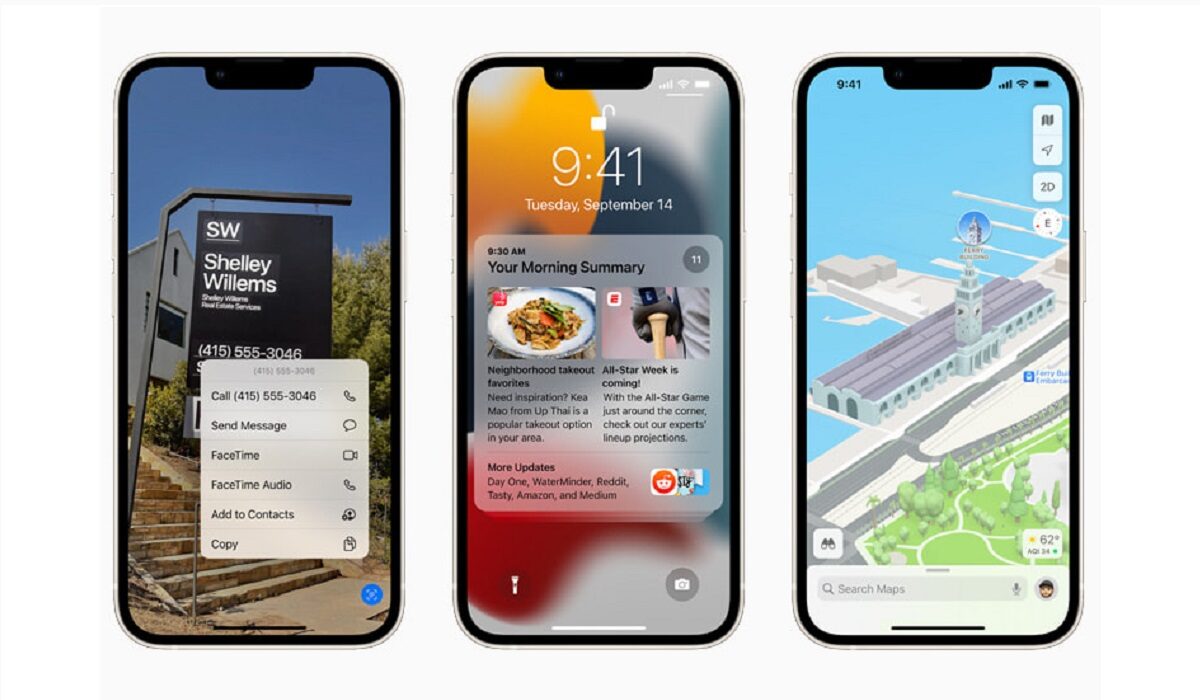
Regardless of the cause, however, there are some helpful actions you can take personally to improve your battery life and reduce hidden factors that may be causing excess drainage. We have prepared this guide to show you just that, so take advantage of the following helpful tips to improve the battery life of your iOS 15 device.
Activate the Low Power Mode
Since the Low Power Mode became available (a few years now), it has been the best setting to activate if the battery life of your device is a problem. Background downloads and other activities are reduced, and the brightness of your screen is reduced more rapidly after inactivity.
When the iPhone’s battery is 20% full, a pop-up asking you to activate Low Power Mode will appear. However, you can do so whenever you want by touching the battery symbol in Control Center or by asking Siri to do so. You may also find it in the Settings app.
- Launch Settings.
- Tap Battery after swiping down.
- Toggle the Low Power Mode setting.
Your iPhone’s battery symbol will become yellow when Low Power Mode is activated, alerting you to its presence. Despite the fact that Low Power Mode automatically switches off once the iPhone is being charged, some users actually choose to leave their iPhones in this state all the time to help their batteries last longer.
When possible, use Wifi
Apple suggests using WiFi whenever feasible to connect to the internet since it consumes less power than a cellular connection and can help extend battery life. For instance, WiFi should be turned on at home or at work to conserve cellular data and prolong battery life.
Manage Apps that Drain your Battery
To ensure that nothing is covertly depleting your phone’s battery without your notice, the iPhone lets you know which apps use the most energy. By launching the Settings app and selecting the Battery option, you can view your battery usage statistics.
You can view charts that show your battery level over the previous 24 hours or up to 10 days, as well as the apps that consumed the most battery life. You can then uninstall any apps you deem to be unnecessary and that appear to be consuming an excessive amount of battery.
You could also limit how frequently you use the apps you do need to save battery use.
Verify your Battery’s Health
An old battery that isn’t performing at its best may be the cause of your battery’s quick drain. These steps will help you determine your battery’s condition:
- Launch the Settings app.
- Tap Battery after swiping down.
- Click on Battery Health
You will find a measurement of the battery’s capacity in relation to when it was new in the Battery Health section under the heading “Maximum Capacity.”
If the capacity is less than 80%, it could be worthwhile to look for a replacement battery. Under the terms of the one-year warranty or AppleCare+, Apple will replace any battery that has less than 80% of its original capacity free of charge.
You should consider enabling Optimized Battery Charging in the Settings app’s Battery Health section to ensure that your iPhone battery lasts longer. The iPhone can learn your charging routine thanks to optimized battery charging, allowing it to wait until you want it to charge past 80%. For instance, if you charge your phone at night, the Optimized Battery Charging setting may keep the iPhone at 80% charge, recharging it just before you wake up to slow down battery aging.
There are several different ways to help the battery life of your iOS 15 device last longer, it just takes a bit of intentionality on your part. Pay attention to the tips we’ve provided for you above, and you’ll be well on your way to achieving better results with your device. If you’ve found this article helpful, remember to share it with your loved ones so they can benefit from it too.
- Don’t miss our reviews .
- Follow our news on Google News .
- Join our WhatsApp Group , to be notified of the most important articles and deals,
- Follow us on Instagram , Facebook , Twitter , and YouTube .
Author:Joan Agie
Add MobilityArena as a preferred source on Google
Apple produces upgrades to macOS — the operating system (OS) that runs on your Mac — every year. The yearly cycle for Apple Mac updates frequently includes repetitive improvements, but some years have rather significant changes. Typically, as long as Apple still supports your device, you can update your macOS operating system (or OS X for earlier versions of macOS) every fall.
Regularly, it is ideal to check your Mac for and apply software updates. Updates to macOS are great because they bring new features, increase power effectiveness, or fix troublesome software problems. To make sure everything is performing exactly as intended, your Mac’s apps also need to be updated, in addition to the operating system.
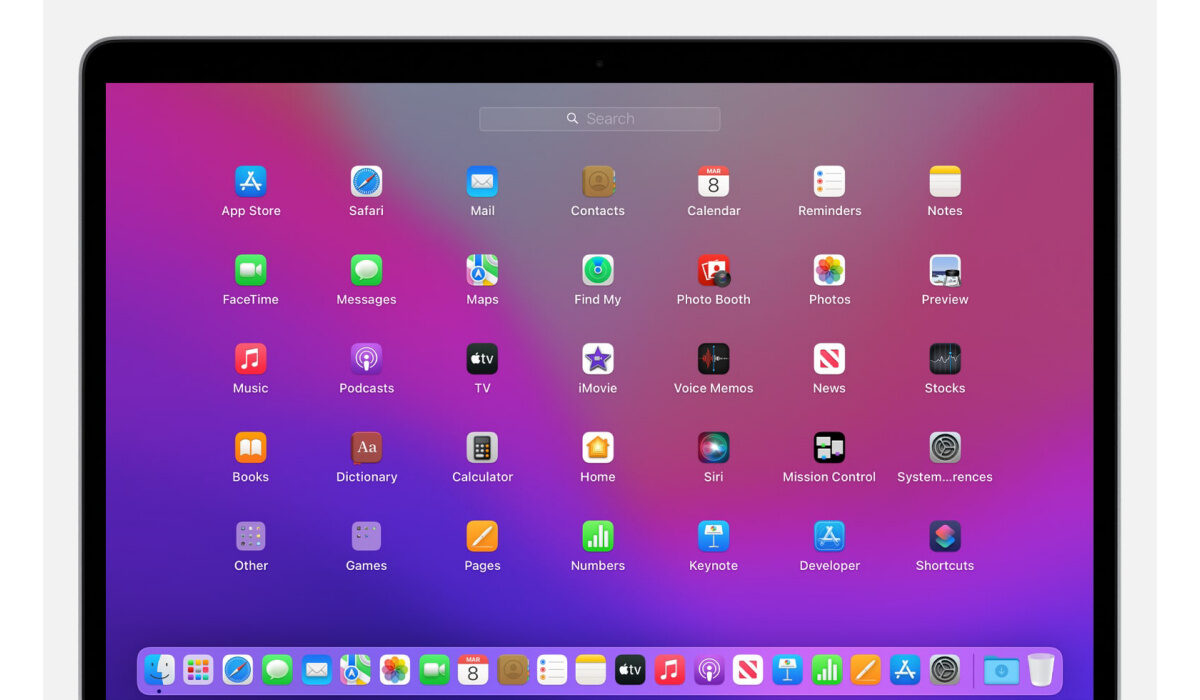
In this article, we’ll take you through how to set up your Mac for updates, how to properly upgrade macOS to the most recent release of OS X or macOS, as well as how to update apps on your Mac device.
The Updating Process
To check for fresh Apple software upgrades on your Mac, follow these steps:
- Select the Apple menu.
- In the window that appears, select About This Mac , then select Software Update .
- The System Preferences window will open and check for fresh updates to macOS. Click on Update Now to download and set up any updates that are discovered. To install the update if it has already been downloaded, click Restart Now .
Depending on the update size and the strength of your internet connection, downloading and installing a new Mac software update could take anywhere from five minutes to five hours. Your Mac will ask you to restart it after the update has been downloaded so that it can install.
Setting up Automatic Operating System Updates
Configuring your Mac to automatically update macOS does sound like a smart move so you never have to stress about missing any crucial updates. First, however, a word of warning. Many people have their Macs set for automatic updates so they won’t have to worry about it every few months.
Although this is fine, some newer macOS releases have features that break older apps. Avoiding automatic upgrades is advisable in this case if you can’t risk programs not functioning or possibly, files being moved. Instead, we would urge you to think carefully about your specific needs.
That being said, to automatically update your Mac OS:
- Access the Software Update page in the System Preferences .
- Select the option that reads Automatically keep my Mac up to date .
Remember that you do have some power over this situation. Your Mac can be set to automatically check for updates but not download them. This is a wise option for individuals who want a little more control over their Mac updates, and we favor the idea because it enables you to use Get Backup Pro to make a backup of your contents to secure them before installing the update.
You have the benefit of getting real-time security updates apart from standard macOS upgrades if your Mac is running macOS 13 Ventura. This adjustment was made by Apple to guarantee that, even if you don’t update your macOS on time, your Mac always conforms to the most recent security requirements and is less susceptible to malware and security breaches.
Updating Apps on your Mac
Every app on your Mac needs to be updated frequently, much like the operating system. You can guarantee that you have all the newest features and none of the newest defects by installing the most recent software upgrades for your Mac programs.
Unfortunately, updating all of your programs is a tad more difficult than updating macOS. This is because you need to update programs that you downloaded from the App Store and apps that you downloaded elsewhere using different procedures.
To update Mac App Store applications:
- Launch the Mac App Store .
- In the sidebar, select Updates .
- Click on Update All to download and set up any available updates.
You must go to the developer’s website and download the most recent updates there to update Mac apps that you did not purchase from the App Store. These apps can also ask you to upgrade when you launch them.
- Don’t miss our reviews .
- Follow our news on Google News .
- Join our WhatsApp Group , to be notified of the most important articles and deals,
- Follow us on Instagram , Facebook , Twitter , and YouTube .
