Add MobilityArena as a preferred source on Google
Whenever I use a Mac for my daily tasks, Spotlight is my go-to tool to quickly locate any apps and files I need. Spotlight makes the search much easier, and I almost always find exactly what I’m looking for. However, there are times that Spotlight fails to provide the desired search results. So if you’re facing this issue, I have some tips for you.
In this article, I’ll show you how to get the desired Spotlight search results on Macs. You can do this with just a bit of troubleshooting, so pay attention to these tips to see the results of your selected search in no time.

How Can You Get the Desired Spotlight Search Results on Macs?
Spotlight Search is a valuable Mac utility that allows you to quickly locate a specific file, folder, app, or other item. However, if you just can’t get the desired Spotlight search results on Macs, here’s what you can do.
Make Sure You Entered the Right Search Term
When we type items in search forms or text boxes on our Mac, we sometimes make mistakes in a hurry or simply not paying enough attention. In either case, you’ll most likely get the wrong search results because the search term is wrong.
To make sure you always get the desired Spotlight search results on Macs, double-check what you type into the search bar during the search. Spotlight might be returning irrelevant search results because you inaccurately spelt out your search term. A single incorrect character can mean the difference between an accurate or undesired search result.
Also, double-check that you’ve entered the correct term. If you type a phrase, be sure it’s correct and that you put it in quotes; putting a phrase in quotes ensures that you obtain results that contain exactly that phrase.
Search for a File by Type
When looking for a specific sort of file, such as an app, PDF, or image, being specific can help you get the desired Spotlight search results on Macs. This means you should try searching by file type. It’s a useful approach to optimizing your Spotlight searches in macOS.
To do this, type “ kind: ” followed by the exact file type to see only files of that type. If you’re looking for JPG documents, for example, put “ kind:JPG ” to limit your search results to this file format.
Check Your Spotlight Settings
When you’re finding it hard to get the desired Spotlight search results on Macs, it’s possible that you’ve blocked specific files from appearing in Spotlight searches. You can easily confirm this through your Mac’s System Preferences . If some files are indeed blocked from appearing in Spotlight search results, proceed as follows:
- Navigate to the Apple menu > System Settings from the menu bar, and then choose Siri and Spotlight from the options in the sidebar.
- Check the categories you want to appear in Spotlight searches under Search results .
- Scroll down to the bottom of the menu and select “ Spotlight Privacy .”
- Select the folder you want to unhide from the Privacy popup menu, then click the minus ( – ) button to remove it from the list.
Now, when you search for previously hidden categories and Finder locations in Spotlight, you should see them easily.
Check the Archive Files
You won’t see a file in Spotlight if you haven’t extracted it from an archive, such as a ZIP or RAR file. So, to get the desired Spotlight search results on Macs, first extract the file, then restart your search.
On a Mac, extracting a ZIP file is rather simple — just locate the ZIP file in question and double-click on it to find the extract option.Try searching Spotlight again when you’ve extracted the archive files.
Check Your Backups
We sometimes delete files by accident or because we no longer believe they are useful. We may need these files again and look for them, forgetting we erased them.
This could be the case if you can’t get the desired Spotlight search results on Macs. Fortunately, if you’ve backed up your Mac with Time Machine, you might be able to restore the deleted file and see it again in your Spotlight search results.
So, the next time you can’t locate something in Spotlight or elsewhere on your Mac, it’s possible that it’s on a backup of your Mac rather than your Mac itself.
Recreate Your Spotlight Index
You can also rebuild your Spotlight index as a final resort to get the desired Spotlight search results on Macs. This will restore Spotlight to regular operation on your Mac. Here’s how to go about it:
- On your Mac, go to System Settings , choose Siri and Spotlight from the sidebar, and then choose Spotlight Privacy at the bottom.
- To add a folder or disk to the list of sites excluded from Spotlight searches, click the Add button. Alternatively, you can drag and drop the folder or disk you want to reinstall into the list.
- Choose the item you just added to the list, then press the minus ( – ) button.
- Close System Settings after clicking “ Done .”
Spotlight will start to reindex the contents of the folder or disk, although the time it takes will depend on its size.
To conclude, Spotlight is a powerful search tool that can search your whole Mac and find exactly what you’re looking for in seconds. It eliminates the need to search through folders for files. So, try one of the solutions listed above if you somehow can’t get the desired Spotlight search results on Macs. Also consider reaching out to Apple Support if the problem persists.
Author:Joan Agie
Add MobilityArena as a preferred source on Google
Considering that mid-range smartphones from brands like Nokia, Google Pixel, Motorola, and OnePlus, to mention just a few, have had support for the more advanced Bluetooth aptX Adaptive , aptx HD, aptX Lossless Bluetooth, and Bluetooth LE Audio codecs for some years now, you would expect that the best Samsung phones would support those features.
It is even more expected because Samsung (like Apple) have been quick to throw out the 3.5mm headphone jack, forcing users of their flagship devices to depend on Bluetooth for audio instead. But Samsung conveniently continues to leave out these features, year after year. Samsung S22 models did not have them, and the S23 models do not either. Not even the S23 Ultra does.
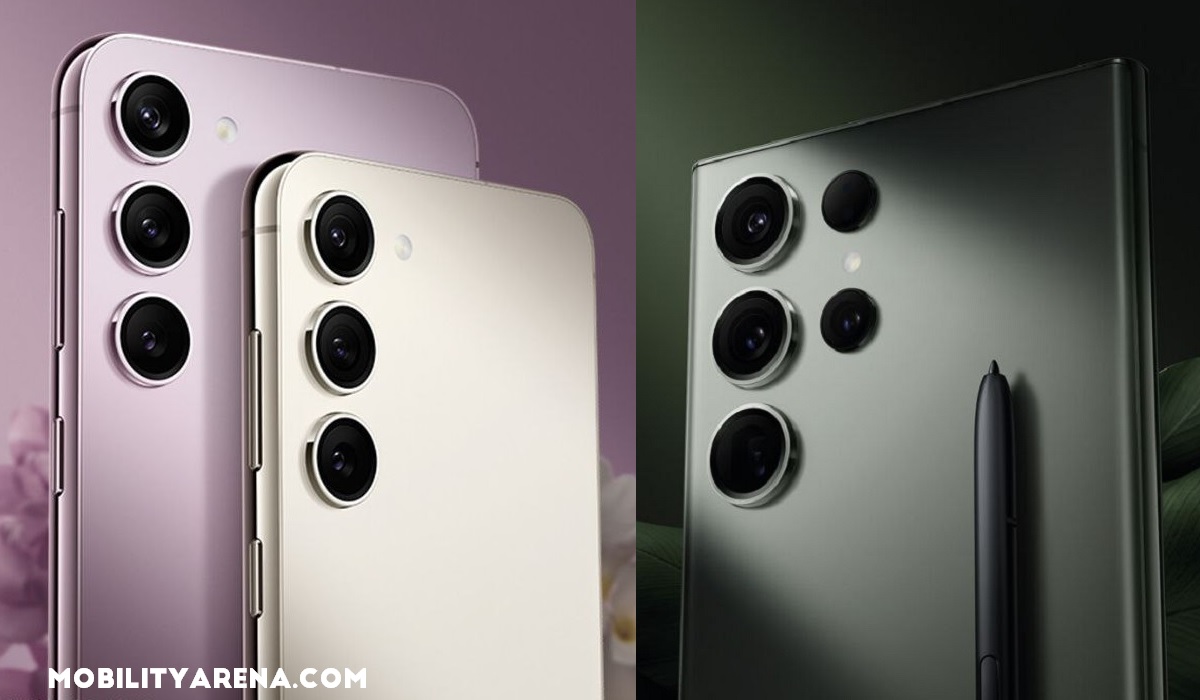
Samsung S23, S23+, and S23 Ultra do not support aptX Adaptive, aptX HD, aptX Lossless Bluetooth, and Bluetooth LE Audio codecs.
- No wired headset, but no advanced Bluetooth aptX codecs either
- Apple is guilty too
- How to know if your Samsung phone supports Bluetooth aptX codecs
- Look elsewhere for advanced Bluetooth aptX codecs and others
No wired headset, but no advanced Bluetooth aptX codecs either
If a phone brand is leaving out support for wired headphones and earphones, why are they not including support for advanced Bluetooth aptX codecs that deliver the same quality of audio that wired headsets provide? Android OS supports these codecs, and as already pointed out, other smartphone brands have them in their phones. Samsung’s refusal to include these codecs is mind-boggling. What Samsung has been known to support is the older “aptX” classic codec.
Instead, premium flagships by Samsung have been known to support SBC (Sub-Band Codec), AAC (Advanced Audio Codec), aptX, LDAC, and the proprietary Samsung Seamless Codec (SSC) which was introduced with the Galaxy Buds 2 Pro in August 2022. This limits the range of high-definition wireless headphones that are supported by the Samsung S23, S23 Plus, and S23 Ultra.
aptX codecs are from Qualcomm. Perhaps the reason why Samsung turns a blind eye to the more advanced aptX codecs is that they want to save costs by avoiding licensing fees. Yes, at the end of the day, the almighty dollar is king and dictates what features make it to your $1000 premium flagship smartphone. Odd though that Nokia is able to include these codes in much more affordable devices to the Samsung S23 series.
Apple is guilty too
Apple is another premium smartphone brand that has ditched support for 3.5mm wired headsets yet does not include support for advanced Bluetooth aptX codecs. None of the iPhone 14 models have them.
How to know if your Samsung phone supports Bluetooth aptX codecs
To confirm the Bluetooth audio codecs supported by your Samsung phone, you have to enable and look in Developer options. Note that Developer Options is hidden by default (as most mobile users are not developers). to tun it on so you can see it, follow these steps:
- Pair your device with a pair of earbuds or headphones that support any of the aptX codecs.
- Go to “Settings”.
- Tap “About device” or “About phone”.
- Tap “Software information”.
- Tap “Build number” seven times.
- Enter your pattern, PIN or password to enable the Developer options menu.
- The “Developer options” menu will now appear in your Settings menu.
Now, go back to Settings; Developer Options will be the last item at the bottom of the screen. To check the list of supported Bluetooth codecs supported on your Samsung, go to Settings > Developer Options > Bluetooth Audio Codec. The list will be displayed. Any item that is greyed out is not supported by phone or headset.
You will find that the S23 supports the basic “aptX” codec, but not any of the more advanced ones like aptx HD, aptX Adaptive, aptX Lossless Bluetooth, and Bluetooth LE Audio.
Look elsewhere for advanced Bluetooth aptX codecs and others
In contrast, I have reviewed the Nokia G60 5G that costs about half the Samsung S23 and that budget smartphone supports both aptX HD and aptX Adaptive. I am currently with a Samsung S23 and I can tell you for a fact that it does not support these advanced Bluetooth aptX codecs; only the classic aptX, along with SBC, AAC, LDAC, and SSC. Below is a photo of the Bluetooth audio codec menu of the Samsung S23.
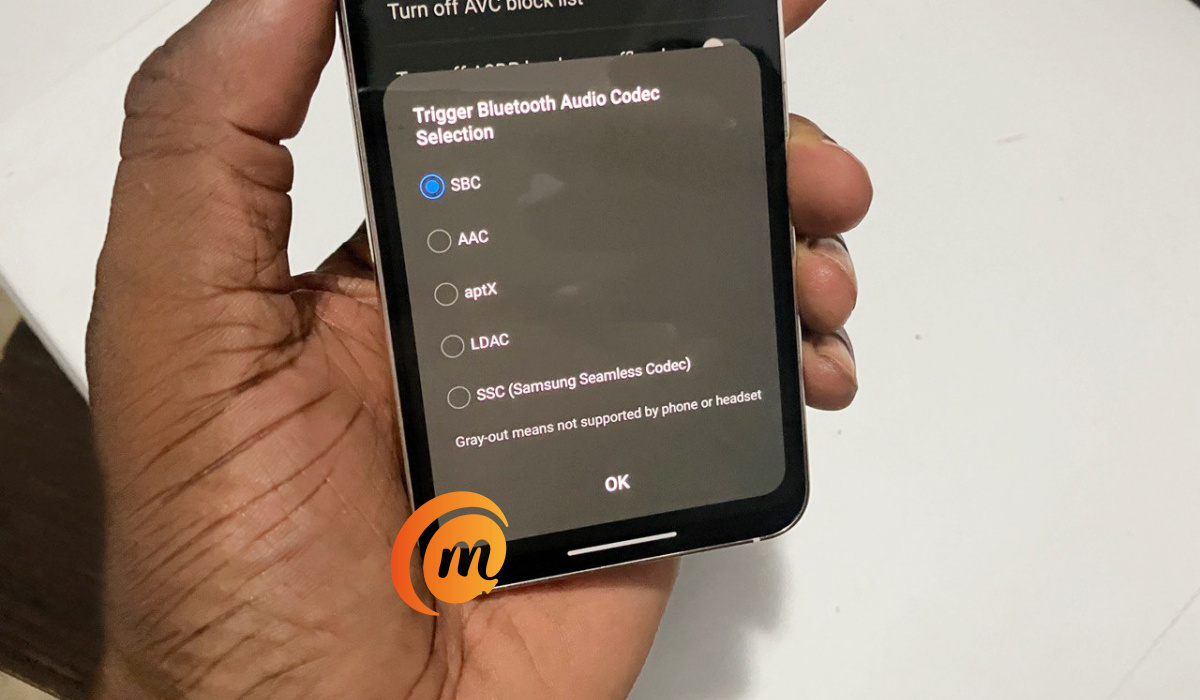
The only Bluetooth Audio codecs supported by Samsung S23 are SBC, AAC, aptX, LDAC, and SSC.
If you are looking for a smartphone that supports aptX HD, aptx Adaptive, aptX Lossless Bluetooth, or Bluetooth LE Audio, look elsewhere; the Samsung Galaxy S23 phones are not for you. Look at mid-range and high-end models from Nokia, Google Pixel, Motorola, Sony, OnePlus, and ASUS.
2024 update : The S23 series’ successor, the Galaxy S24 series, do not support these aptX codecs either.
Author:Mister Mobility
Digital Skills and Communication Coach | Mobile Phone Connoisseur since 2001 | Tech Blogging since 2004
