Add MobilityArena as a preferred source on Google
Content creation has exploded in recent years, with smartphones becoming powerful tools for capturing and sharing creative content. Whether you are creating content for YouTube and social media, or providing photo and video recording at corporate events, weddings, and parties, embracing a few critical smartphone accessories is a good investment.
Modern smartphones are extremely powerful and capable for creating content. Whether you go for a Pixel Fold or a Samsung S23 or a Nokia G60 , with the right accessories, you can produce even more spectacular content. Let’s explore a range of essential smartphone accessories for content creators that can enhance your work process and help you produce high-quality content that captivates your audience.
- I. Tripods and Stabilizers:
- II. External Microphones:
- III. External Lens Attachments:
- IV. Portable Lighting:
- V. Battery Packs and Power Banks:
- VI. Smartphone Mounts and Grips:
- VII. Portable Storage and Memory Cards:
- VIII. Editing Apps and Software:
- IX. Smartphone Gimbal Stabilizers:
- Last words on essential smartphone accessories for content creators:
I. Tripods and Stabilizers:
When it comes to content creation, stability is key to achieving professional-looking shots. Tripods and stabilizers for smartphones provide the necessary stability and eliminate shaky footage. There are various types available, including compact tripods, flexible tripods, and gimbal stabilizers. Compact tripods are portable and provide a stable base for your smartphone. Flexible tripods allow you to mount your phone on various surfaces, giving you flexibility in shooting angles. Gimbal stabilizers use advanced technology to minimize camera shake, resulting in smooth and cinematic shots.
II. External Microphones:
High-quality audio is just as important as visual quality in content creation. External microphones for smartphones help capture clear and crisp audio, enhancing the overall viewing experience for your audience. Lapel microphones, shotgun microphones, and handheld microphones are popular options. Lapel microphones are ideal for interviews and vlogs where the subject is close to the camera. Shotgun microphones are highly directional and capture sound from a specific direction, making them suitable for outdoor recording. Handheld microphones are versatile and offer flexibility in capturing audio from different sources.
III. External Lens Attachments:
To unlock the full potential of your smartphone camera, external lens attachments are essential smartphone accessories for content creators. Wide-angle lenses expand the field of view, perfect for capturing landscapes or group shots. Macro lenses enable detailed close-up shots, revealing intricate textures and small subjects. Fisheye lenses create a unique, distorted effect, adding a creative touch to your content. These lens attachments enhance your creative possibilities and allow you to experiment with different visual styles.
IV. Portable Lighting:
Proper lighting greatly enhances the visual appeal of your content. Portable lighting options such as LED panels and ring lights provide additional illumination, helping you achieve well-lit shots in any environment. LED panels are versatile and adjustable, allowing you to control the intensity and color temperature of the light. Ring lights provide even lighting and create a soft glow on your subject’s face, making them popular for beauty and lifestyle content. Understanding lighting techniques and using portable lighting effectively can greatly enhance the visual quality of your content.
V. Battery Packs and Power Banks:
One of the challenges content creators face is managing battery life during long shooting or live streaming sessions. To ensure uninterrupted content creation, having backup power is essential. Battery packs and power banks provide portable charging solutions for your smartphone. These accessories allow you to recharge your phone on the go, extending your content creation time without worrying about running out of battery. Look for battery packs or power banks with sufficient capacity to meet your needs.
VI. Smartphone Mounts and Grips:
Capturing stable shots and preventing accidental drops are crucial for content creators. Phone mounts and grips provide stability and security for your phone while filming, making them essential smartphone accessories for content creators. Mounts can be attached to tripods or other surfaces, holding your phone in place. Grips provide a secure hold on your phone, making it easier to handle during filming. Look for features like adjustable angles and sturdy construction when choosing a mount or grip that suits your content creation style.
VII. Portable Storage and Memory Cards:
As a content creator, having sufficient storage for your files is essential. Portable storage devices and memory cards provide ample space to store your photos, videos, and other content. Portable SSDs or hard drives are ideal for backing up and transferring files. Memory cards with high capacity and fast transfer speeds ensure smooth recording and storage of your content. Consider your storage needs and the compatibility of the devices with your smartphone when selecting portable storage and memory cards.
VIII. Editing Apps and Software:
Editing plays a vital role in refining your content and adding creative elements. Numerous editing apps and software are available for smartphones, providing a range of features to trim, cut, add transitions, apply filters, and incorporate music into your content. Popular editing apps such as iMovie, Adobe Premiere Rush, and FilmoraGo offer intuitive interfaces and powerful editing capabilities. Experiment with different editing tools to find the one that suits your style and helps you bring your creative vision to life.
IX. Smartphone Gimbal Stabilizers:
Dedicated to stabilizing smartphone footage, gimbal stabilizers are becoming increasingly popular among content creators. These handheld devices use advanced stabilization technology to eliminate camera shake and produce smooth and cinematic footage. Smartphone gimbal stabilizers offer various features such as tracking, time-lapse, and panoramic modes, allowing you to capture professional-looking shots with ease. Investing in a smartphone gimbal stabilizer can significantly enhance the visual quality of your content.
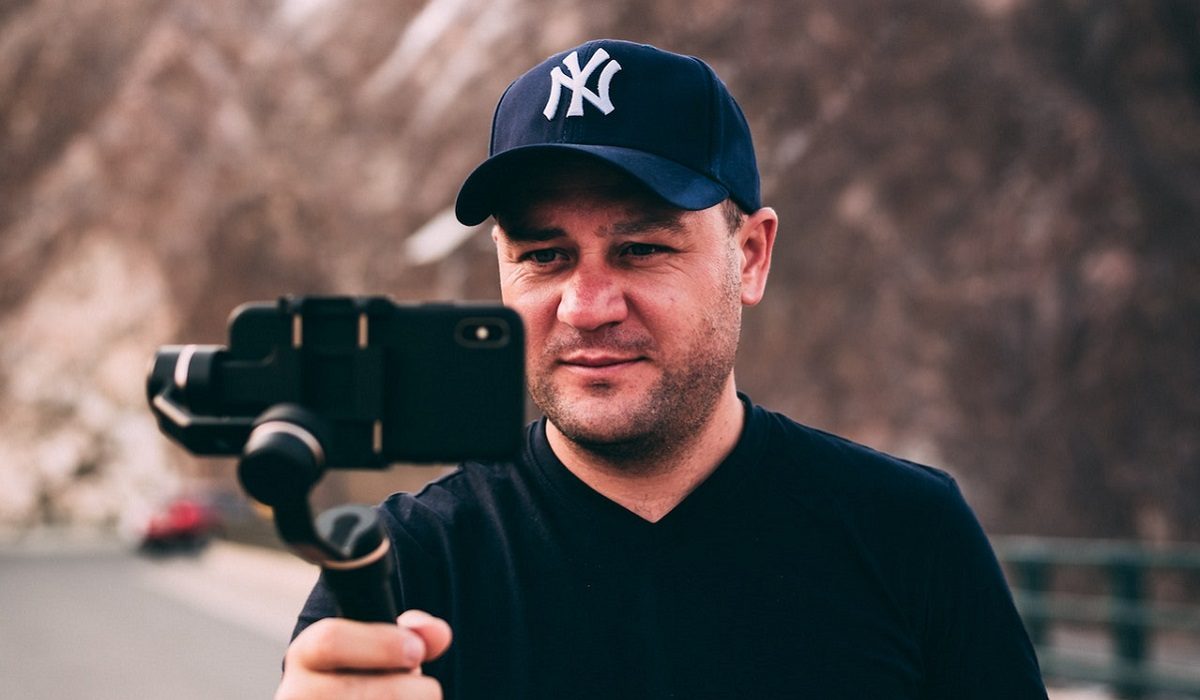
A phone Gimbal Stabilizer is one of the essential smartphone accessories for content creators.
Last words on essential smartphone accessories for content creators:
Having the right smartphone accessories is essential to elevate your content creation game. Tripods, stabilizers, external microphones, lens attachments, portable lighting, battery packs, mounts, grips, portable storage, memory cards, editing apps, and smartphone gimbal stabilizers are all crucial tools that can enhance your creativity and help you produce high-quality content. By investing in these essential smartphone accessories for content creators, you can unlock the full potential of your creativity and create captivating content that resonates with your audience.
Author:MobileChic
That motivated, gadget-loving geeky chic who tries to stay on top of things. Unapologetic iFan.
Add MobilityArena as a preferred source on Google
AirDrop is one of Apple’s most helpful and convenient features. I’m a big fan of how it helps me share media, links, and documents easily through Bluetooth or Wi-Fi to other Apple devices. However, one serious issue that most Apple users suffer is when Airdrop doesn’t work due to whatever reason.
So, in this article, I’ll show you how to fix Airdrop not working on your Apple device. With these tips, you can resume Airdrop use without hitches or interruption.
- How Can You Fix Airdrop Not Working on Your Apple Device? Update your Operating System Restart Both Devices Disable AirDrop Restrictions Turn off Personal Hotspot on your iPhone Disable Do Not Disturb Mode Restart Wi-Fi and Bluetooth on Both Devices Change the AirDrop Visibility Settings Set Up Both Devices to Accept an AirDrop Request Disable Your Mac’s Firewall Sign Out and Back In to Your Apple ID Account Reset Your Apple’s Network Settings
How Can You Fix Airdrop Not Working on Your Apple Device?
Airdrop is one of the most safe and convenient ways to send and receive files . If you are having issues with AirDrop on any Apple device, the first step to fix Airdrop not working on your Apple device is to check if your device is truly compatible with AirDrop. Apple’s requirements change from time to time, but as of now, you can use AirDrop with the following devices:
- iOS 7 or later versions of the iPhone, iPad, and iPod touch
- Any Mac released after 2011 (with the exception of the 2012 Mac Pro) that runs OS X Yosemite or later
Make sure you understand how to use AirDrop once you’ve established that your device is compatible. If it still doesn’t work, try the troubleshooting steps I’ve described below to fix Airdrop not working on your Apple device.
Update your Operating System
iOS, iPadOS, and macOS all receive regular updates from Apple that are intended to fix software flaws. So it makes sense to install the most recent updates if you want to fix Airdrop not working on your Apple device.
Go to Settings > General > Software Update on an iPhone or iPad. Open the Apple menu on a Mac, then select System Settings > General > Software Update .
Restart Both Devices
Due to its effectiveness, this method of troubleshooting is well-known. You might only need to restart your iPhone, iPad, or Mac to get AirDrop back in operation. It only takes a few seconds to give it a try, so do it to see if it helps fix Airdrop not working on your Apple device.
Disable AirDrop Restrictions
Perhaps you’ve blocked AirDrop in your Content & Privacy Restrictions if you don’t see the option at all. In this case, to fix Airdrop not working on your Apple device, go to Settings > Screen Time > Content & Privacy Restrictions > Allowed Apps on an iPhone or iPad.
On a Mac, navigate to the App Restrictions area by selecting System Settings > Screen Time > Content & Privacy . Ensure that each device has AirDrop enabled. To make changes, you might have to enter a Screen Time passcode.
Turn off Personal Hotspot on your iPhone
It’s impossible to use AirDrop and Personal Hotspot simultaneously because they both use Bluetooth and Wi-Fi connections. So to fix Airdrop not working on your Apple device, try turning off Personal Hotspot by going to Settings > Personal Hotspot . When this is done, try using AirDrop once more.
Disable Do Not Disturb Mode
If Do Not Disturb or any other Focus mode is enabled on your device, it may not receive transfer requests from AirDrop. Consider turning it off to fix Airdrop not working on your Apple device — open the Control Center and tap the moon or Focus icon to do so.
Restart Wi-Fi and Bluetooth on Both Devices
Disabling and re-enabling Wi-Fi and Bluetooth is a very beneficial solution to fix Airdrop not working on your Apple device. To do this, launch the Control Center on your iPhone, iPad, or Mac, tap the Wi-Fi and Bluetooth icons to toggle them off, then tap them once more to toggle them back on.
Change the AirDrop Visibility Settings
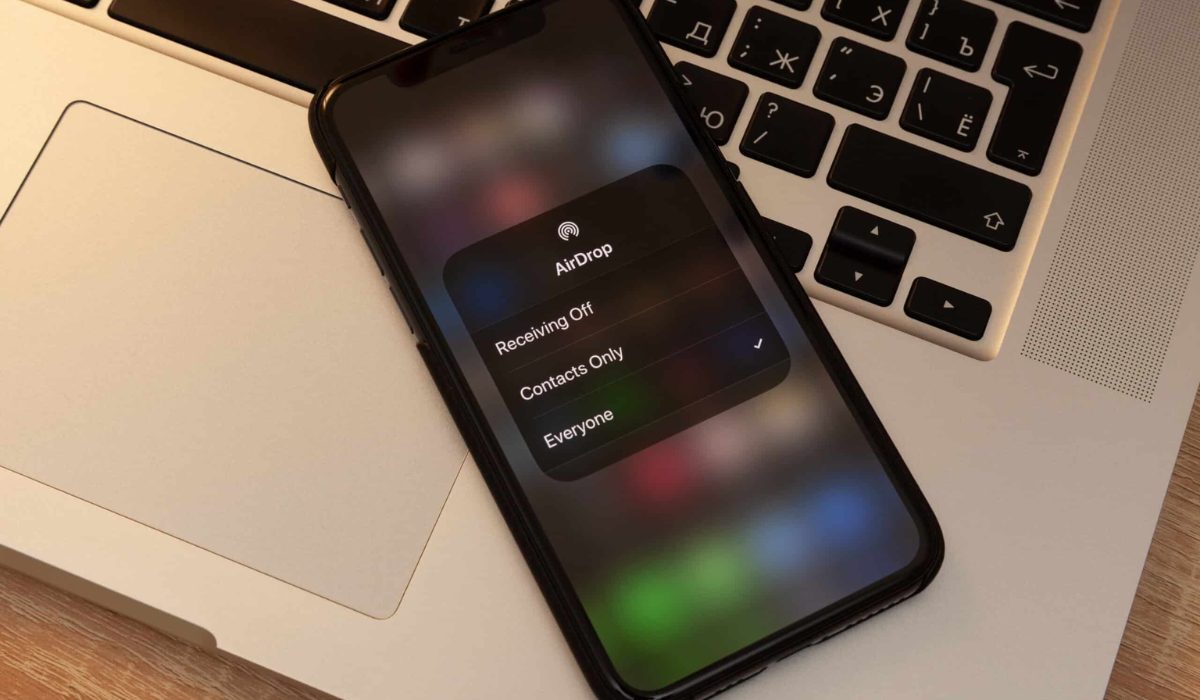
Everyone , Contacts Only , and Receiving Off are the three visibility options provided by AirDrop. Try switching to each of these options to see if any of them help you fix Airdrop not working on your Apple device. This could be especially useful if your device isn’t appearing in AirDrop.
Follow these steps according to your Apple device:
- Open the Control Center on an iPhone or iPad, then tap and hold in the top-left section to display an AirDrop button and select another option.
- Open Control Center on a Mac and select AirDrop from the top-left menu. Select Contacts Only or Everyone in the popup that appears.
Set Up Both Devices to Accept an AirDrop Request
The chance that an AirDrop transfer will appear on another device can increase when you set up your device for incoming transfers. Ensure to unlock your iPhone or iPad, and prepare it by leaving it on the Home Screen. On a Mac, launch a new Finder window and select Go > AirDrop from the menu.
Disable Your Mac’s Firewall
Your Mac’s firewall may be configured to prevent any incoming connections, which sometimes includes new AirDrop transfers. So if you can’t get AirDrop to work, remove these restrictions from the System Settings to fix Airdrop not working on your Apple device.
Navigate to System Settings > Network > Firewall . To disable the Firewall, click the toggle; you might need to provide your administrator password to do so.
Sign Out and Back In to Your Apple ID Account
On your iPhone or Mac, go to Settings or System Settings , pick [ Your Name ] at the top of the Settings , and then select Sign Out . Select the data you wish to keep on your device, then confirm that you want to Sign Out .
Go back to Settings afterward to sign in to your Apple ID once more, then check if this helped to fix Airdrop not working on your Apple device.
Reset Your Apple’s Network Settings
You can reset the network settings on an iPhone or iPad to fix a number of Wi-Fi or Bluetooth difficulties, including problems with AirDrop. Your device will lose any saved Wi-Fi passwords when you reset these settings, so you’ll need to reconnect to reliable networks once more.
If you decide to proceed with this option to fix Airdrop not working on your Apple device, navigate to Settings > General > Transfer or Reset [Device] > Reset , then press Reset Network Settings . To reset network settings, enter your passcode and then confirm your decision.
With the suggestions above, you can easily fix Airdrop not working on your Apple device. Make sure to contact Apple’s Help center if the tips above are not sufficient to fix the issue
