Add MobilityArena as a preferred source on Google
It is not every day that I hear the announcement of any new smartphone and I immediately began to consider getting one. But the announcement of the new Google Pixel 8 had me in that situation immediately.
For starters, I am a fan of Pixel smartphones. In an ideal world, Pixel phones would be my primary phones – the ones I use daily. They run stock Android OS (or as close to stock as it can get), have great cameras, have solid build quality, and provide timely software updates. What is not to like? There are a few issues, from my experience with them.
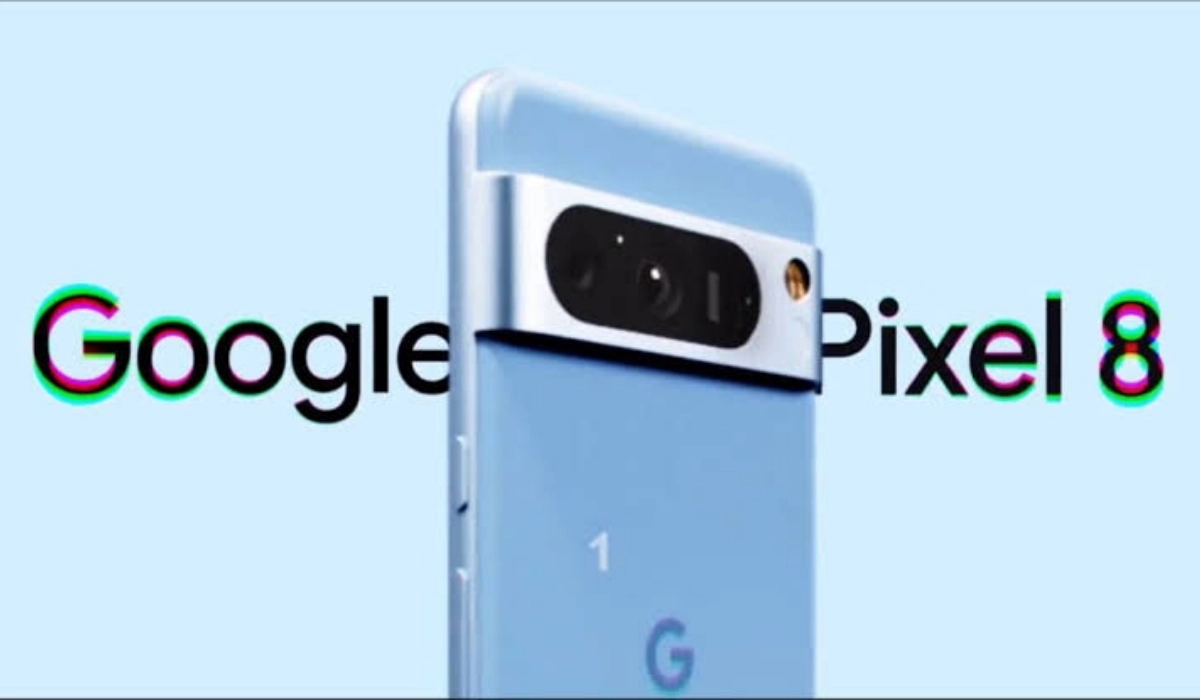
Then there eisnthe inclusion of Ultra-HDR , Google’s new advanced image-enhancibg technology that is sold as being able to make images more life-like. Google Pixels have always had solid photography, and this just makes them juicier.
The problem with last Pixel phones
I owned the Pixel 3, Pixel 3a, and Pixel 5A 5G, and all three gave me a certain suite of issues. The major one was overheating, which triggers a number of accomplice issues. That is my main grouse with Google’s smartphones: overheating . Of course, I’ve also disliked the rather slow charging that Google includes with them (thankfully, wired charging has gotten another bump up to 27W this year, though that is still miserable compared to what is available from many other brands). And I wish they had better battery life as well. But I can live with those two issues. The overheating is unbearable, a complete deal breaker for me.
I have read that the older Tensor processors used in previous Pixel models were responsible for the overheating problem in those phones. It is said that the new Samsung-made 4nm Google Tensor G3 chipset in the Pixel 8 promises better efficiency and higher performance, and generates much less heat, compared to its predecessors. I do desperately want that to be true. But Pixel phones were overheating even before Tensor chips began to be used in them. For example, the Pixel 3 had a Snapdragon 845 processor in it, yet it overheated.
I am not convinced that the Tensor processors are the problem. Perhaps they contribute to it, but it can’t just be that. Pixel smartphones definitely have some problem at the level of software-hardware optimization, especially with the cameras. Consider how fast the phones heat up once you start using the cameras, and you catch my drift.
Juicy Android software update support
Anyway, Google Pixel 8 has me considering another adventure in that direction. Why? I am still wary of the brand because of my experience with overheating, but the idea of getting timely software updates on a phone for 7 years has me drooling. It smells so good that I want to taste it. And as we all know so well, the taste of the pissing is in the eating. Or rather, in this case, the taste of a smartphone is in owning one. A part of me wants to own a Pixel 8. Another part is flashing bright red lights and reminding me that this phone will end up boiling me water for mugs of cocoa drinks.
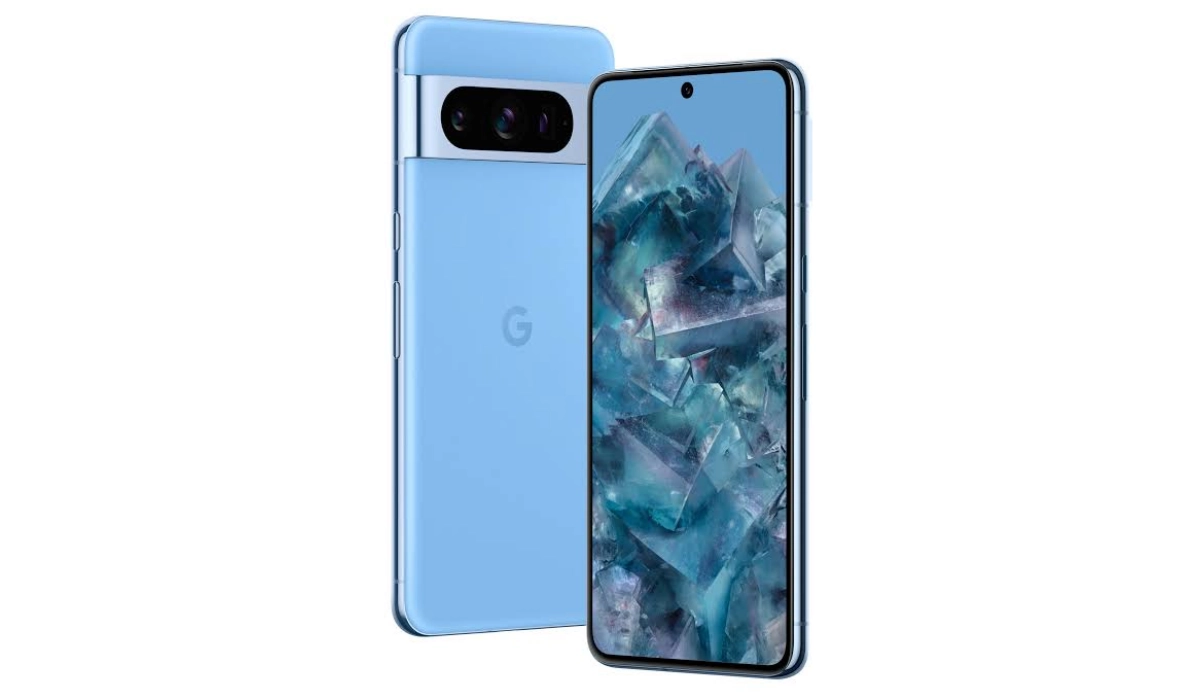
I am likely to bite and get one. Or more likely, I just might wait for the Pixel 8a to be announced to see if it will get the same 7-year update treatment. The 8a will cost less and so reduce whatever pains I will feel should the old overheating issue spring up on it as well. If I go that route, there will be no Pixel experience for me this year, as the Pixel 8a won’t be arriving till around May 2024. And that is fine. What is the hurry?
I am not particular about any other features of the phone. I simply want guaranteed software updates, so I can keep up with new features in Android OS. That’s it. I’d have loved to have a telephoto lens, but I don’t think that is worth paying the extra cost to get the Pixel 8 Pro. Plus, I prefer my smartphones to exist on compact sizes. The Pixel 8 will do just fine. Or like I already mentioned, the Pixel 8a.
Google Pixel 8 Price
In the United States of America, the 8/128GB variant sells for $699, while the 8/256GB variant sells for $759.
In the United Kingdom, the 8/128GB variant sells for £699, while the 8/256GB variant sells for £759.
In Canada, the 8/128GB variant sells for CA$1,555, while the 8/256GB variant sells for CA$1,675.
In the European Union, the 8/128GB variant sells for €799, while the 8/256GB variant sells for €859.
Author:Mister Mobility
Digital Skills and Communication Coach | Mobile Phone Connoisseur since 2001 | Tech Blogging since 2004
Add MobilityArena as a preferred source on Google
Virtual Private Networks (VPNs) offer a secure and versatile way to change your smartphone’s location virtually. Whether you want to access geo-restricted content, enhance your online privacy, or protect your data while on public Wi-Fi, a VPN can help.
Using a VPN on your smartphone to change your location is a pretty straightforward process that provides numerous benefits. Below, I walk you through the steps to change your smartphone’s location using a VPN.
- Step 1: Choose a Reliable VPN Service
- Step 2: Download and Install the VPN App
- Step 3: Sign Up and Log In
- Step 4: Connect to a VPN Server
- Step 5: Confirm Your New Location
- Step 6: Disconnect and Revert to Your Real Location
- Some VPN apps you can use to change your smartphone’s location
Step 1: Choose a Reliable VPN Service
Before getting started, you’ll need to select a trustworthy VPN service. Look for one that offers a large number of servers in different locations, robust security features, and a user-friendly mobile app. You can even test out a few with a VPN trial . Some popular VPN services for smartphones are listed in the last section of this article: be sure to check them out.
Step 2: Download and Install the VPN App
- Open the app store on your smartphone (e.g., Google Play Store for Android or App Store for iOS).
- Search for your chosen VPN provider’s app.
- Download and install the app on your smartphone.
Once the app is installed, you need to carry out the following actions:
- Open the VPN app.
- Sign up for an account if you haven’t already.
- Log in with your credentials.
Step 4: Connect to a VPN Server
Now that you’re logged in, the next step is to connect to a VPN server in the location you want to virtually appear in . Here’s how to do that:
- Open the VPN app.
- Usually, you’ll see a “Connect” button or a list of servers. Tap “Connect.”
- Select a server in the desired location. Most VPN apps offer servers in various countries and cities.
- Tap on the chosen server to establish a connection.
Step 5: Confirm Your New Location
After a few moments, your smartphone will be connected to the selected VPN server. To ensure your location has changed:
- Open a web browser.
- Visit a website that shows your IP address and location, like “ iplocation.net ” or “ whatismyip.com .”
- Check if the displayed IP address and location match the server you connected to. If they do, your location has been successfully changed.
Step 6: Disconnect and Revert to Your Real Location
When you’re finished using the VPN and want to revert to your actual location, here is what to do:
- Open the VPN app.
- Tap the “Disconnect” button or option within the app.
- Your smartphone will disconnect from the VPN server, and your location will return to its default setting.

Some VPN apps you can use to change your smartphone’s location
Here are some of the best mobile VPNs to consider:
- ExpressVPN : Known for its speed and wide server network across the globe, ExpressVPN offers user-friendly apps for both Android and iOS. It’s a great choice for changing your smartphone’s location while maintaining high speeds.
- NordVPN : NordVPN is highly regarded for its security features and extensive server network. It has a user-friendly mobile app that allows you to connect to servers in various countries.
- CyberGhost : CyberGhost is known for its user-friendly apps and dedicated streaming servers that can help you access geo-restricted content. It offers apps for both Android and iOS.
- Surfshark : Surfshark is a budget-friendly option with a strong focus on security and privacy. It offers unlimited simultaneous connections, making it suitable for multiple devices, including smartphones.
- IPVanish : IPVanish offers a robust mobile app and a decent server network. It’s known for its strong privacy features and solid performance.
- VyprVPN : VyprVPN offers a unique Chameleon protocol designed to bypass censorship and VPN blocking. It has a mobile app for both Android and iOS.
- ProtonVPN : Developed by the team behind ProtonMail, ProtonVPN is known for its strong commitment to privacy and security. It offers mobile apps for both major platforms.
- Windscribe : Windscribe is a user-friendly VPN with a free plan (with limitations) and a paid version with more features. It has mobile apps for Android and iOS.
- TunnelBear : TunnelBear is another user-friendly VPN known for its simplicity. It offers mobile apps and a free plan with limited data, as well as a paid version.
- Hotspot Shield : Hotspot Shield is recognized for its speed and is particularly popular for streaming content. It offers mobile apps for both major platforms.
Author:MobileChic
That motivated, gadget-loving geeky chic who tries to stay on top of things. Unapologetic iFan.
