Add MobilityArena as a preferred source on Google
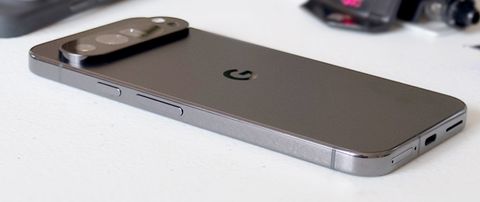
The Google Pixel 9 Pro XL is another powerful device that has made waves with its cutting-edge features and AI capabilities. But most definitely like any advanced device, users have reported some challenges. From battery life concerns to software glitches, and from camera performance to display issues, the Pixel 9 Pro XL has its share of user complaints. However, many of these problems can be addressed through simple adjustments, software updates, or changes in usage patterns. By understanding these common issues and implementing targeted solutions, users can maximize the potential of this advanced smartphone and enjoy a smoother, more satisfying experience with their Pixel 9 Pro XL. Let’s dive into these issues as I explore practical solutions to enhance your Pixel 9 Pro XL experience.
- Battery Life Concerns
- Smoothing Out Software Glitches
- Camera Performance
- Auto-Brightness Quirks
- Keyboard Gestures
- Conclusion
Battery Life Concerns
Many users have reported that the Google Pixel 9 Pro XL’s battery doesn’t always last through a full day of use. This is a frustrating experience. You can follow these steps below to better enhance the battery life of your device:
- Enable Adaptive Battery: Go to Settings > Battery > Adaptive preferences and turn on “Use Adaptive Battery.” Give it a few weeks to learn your usage patterns.
- Optimize display settings: Lower screen brightness, enable Dark theme, and reduce screen timeout.
- Manage power-hungry apps: In Settings > Battery > Battery usage, identify and restrict background activity for energy-intensive apps.
- Use Battery Saver mode when needed: Enable it in Settings > Battery > Battery Saver.
Smoothing Out Software Glitches

Users have experienced lag when scrolling and issues with the universal back gesture with the Google Pixel 9 Pro XL. This is definitely a software glitch, simple device update could solve this. Simply check with these steps:
- Keep your device updated: Regularly check for and install system updates.
- Clear app cache: Go to Settings > Apps > See all apps, select problematic apps, and clear their cache.
- Restart your device regularly: This can help clear temporary glitches.
- Consider a factory reset as a last resort: Back up your data first!
Camera Performance

Some users feel the camera quality of the Google Pixel 9 Pro XL doesn’t meet their expectations compared to its other counterpart in the tech market. Enhancing the camera performance could help with a better quality:
- Ensure you’re using the latest camera app version.
- Experiment with different camera modes and settings.
- Use Night Sight for low-light situations.
- Consider third-party camera apps for additional features.
Auto-Brightness Quirks
Odd auto-brightness behavior is one of the issues that has been reported by users, especially in dark rooms. Follow these simple steps and it’ll be resolved:
- Recalibrate auto-brightness: Go to Settings > Display > Adaptive brightness and toggle it off and on.
- Manually adjust brightness in problematic lighting conditions.
- Give the AI time to learn your preferences.
Keyboard Gestures
The touchbox under the keyboard spacebar can interfere with gestures for some users. If this is also the experience with your Google Pixel 9 Pro XL, follow these steps to resolve this particular issue:
- Adjust keyboard height in Gboard settings.
- Experiment with different keyboard apps that might offer better customization.
- Practice using the gesture area to improve accuracy over time.
Conclusion
While these issues may seem daunting, it’s important to remember that the Google Pixel 9 Pro XL is a powerful device with impressive capabilities. Many of these problems can be resolved through software updates or simple adjustments to your usage patterns. By implementing these practical solutions, you can significantly enhance your Google Pixel 9 Pro XL experience. Remember, every new technology has a learning curve, and with a little patience and optimization, you can unlock the full potential of your device. Stay positive and embrace the journey of discovering all that your Google Pixel 9 Pro XL has to offer. With its advanced AI features, impressive camera system, and sleek design, it’s a device that’s ready to tackle your daily needs with renewed efficiency and reliability.
Author:Ifeoluwa Adeleke
Add MobilityArena as a preferred source on Google
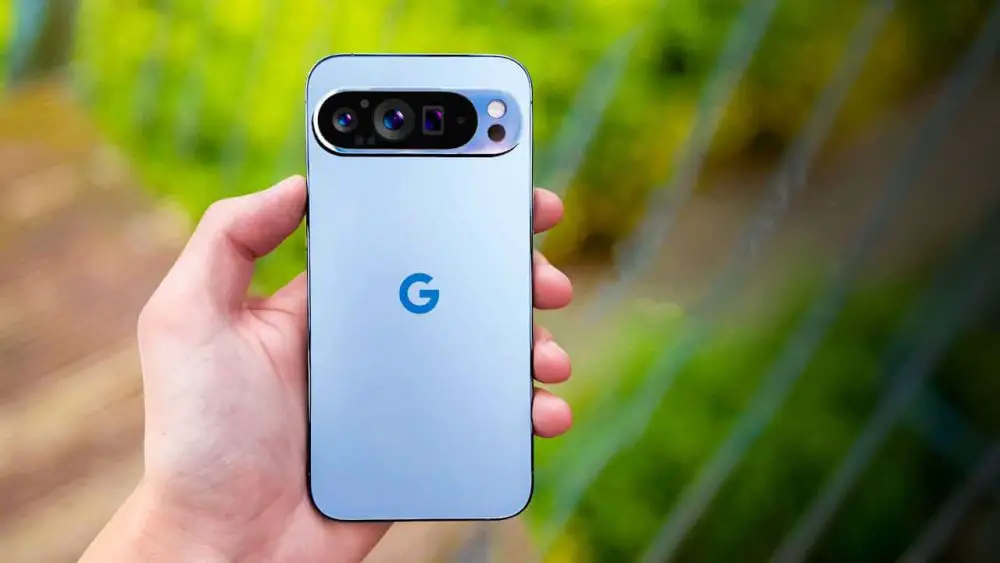
The Google Pixel 9 Pro has made waves in the smartphone market with its cutting-edge features and AI capabilities. Nonetheless, like any and every other advanced device, it’s not without its challenges. Many users have reported battery life concerns, which can be frustrating when you’re trying to make the most of your new phone. Let me show you some practical solutions to help you maximize your Pixel 9 Pro’s battery life and enjoy a seamless experience.
- Solutions to the Battery Drain Issues of Google Pixel 9 Pro Optimize Your Display Settings The Power of Adaptive Battery Manage Battery-Draining Apps Leverage Battery Saver Mode Fine-Tune Your Connectivity Update Your Phone and Apps
- Embracing Advanced Techniques
- Conclusion
Solutions to the Battery Drain Issues of Google Pixel 9 Pro
Optimize Your Display Settings
One of the biggest culprits of battery drain is your phone’s display. Here’s how to tackle it:
- Lower your screen brightness or enable Adaptive brightness in Settings > Display
- Consider using Dark theme, which can be activated in Settings > Display
- Reduce screen timeout to 30 seconds or 1 minute in Settings > Display > Screen timeout
- If you’re willing to sacrifice some smoothness for battery life, disable the 120Hz refresh rate by turning off Smooth Display in Settings > Display
The Power of Adaptive Battery
The Google Pixel 9 Pro comes with a smart feature called Adaptive Battery. To ensure it’s working for you:
- Go to Settings > Battery > Adaptive preferences
- Enable “Use Adaptive Battery”
- Give it a few weeks to learn your usage patterns for optimal performance
Manage Battery-Draining Apps
Some apps can be real power draining. Here’s how to keep them in check:
- Go to Settings > Battery > Battery usage to identify power-hungry apps
- For apps you don’t use often, select them and choose “Restricted” to limit their background activity
- Consider uninstalling apps you rarely use
Leverage Battery Saver Mode

Concept depicting new possibilities for the development of ecological battery technologies and green energy storage in the form of a battery-shaped pond located in a lush forest. 3d rendering.
When you’re running low on juice with the Google Pixel 9 Pro , especially in the middle of an important activity, battery Saver mode can be a lifesaver. To turn it on:
- Go to Settings > Battery > Battery Saver
- Enable “Use Battery Saver”
- You can choose between Standard and Extreme Battery Saver depending on your needs
Fine-Tune Your Connectivity
One of the features of your device that can be power draining is the wireless connectivity. Turn it off when not in use. To turn it off:
- Turn off Wi-Fi, Bluetooth, and mobile data when not needed
- Disable “Turn on Wi-Fi automatically” in Settings > Network & internet > Internet > Network preferences
- Turn off hotspot and tethering features when not in use
Update Your Phone and Apps

Regularly check for updates on your Google Pixel 9 Pro . It often include optimizations for battery life:
- Keep your Pixel 9 Pro updated to the latest version of Android
- Ensure all your apps are up to date through the Google Play Store
Embracing Advanced Techniques
For those looking to squeeze every last drop of battery life of the Google Pixel 9 Pro, consider these additional steps:
- Disable ‘Hey Google’ Detection: This feature constantly listens for voice commands, which can impact battery life.
- Use Adaptive Charging: Enable this feature in Settings > Battery to optimize overnight charging and prolong battery lifespan.
- Monitor Location Services: Go to Settings > Location and disable it when not needed, or restrict it for specific apps.
- Limit Background Processes: In Developer Options, you can limit the number of background processes to save battery.
Conclusion
In conclusion, implementing these practical solutions can significantly improve your Google Pixel 9 Pro’s battery life. Remember, it’s about finding the right balance between functionality and power efficiency that works for your lifestyle. Don’t let battery anxiety hold you back from enjoying all the amazing features your Pixel 9 Pro has to offer. With these tips, you’ll be well-equipped to tackle your day with confidence, knowing your phone will keep up with your demands. Embrace the power of optimization, and watch as your Pixel 9 Pro transforms into a long-lasting companion for all your daily adventures!
