Add MobilityArena as a preferred source on Google
The Google Pixel Fold is finally official, and it is available in the United States and the United Kingdom. It is also official for Germany and Japan. These are the only countries where the Pixel Fold has been announced for.
This is the first foldable device from Google, and it is looking to make a splash in a market that has become more exciting with devices from Motorola, Xiaomi, OPPO, Huawei, and Vivo challenging the market leader, Samsung’s Galaxy Z Fold series.
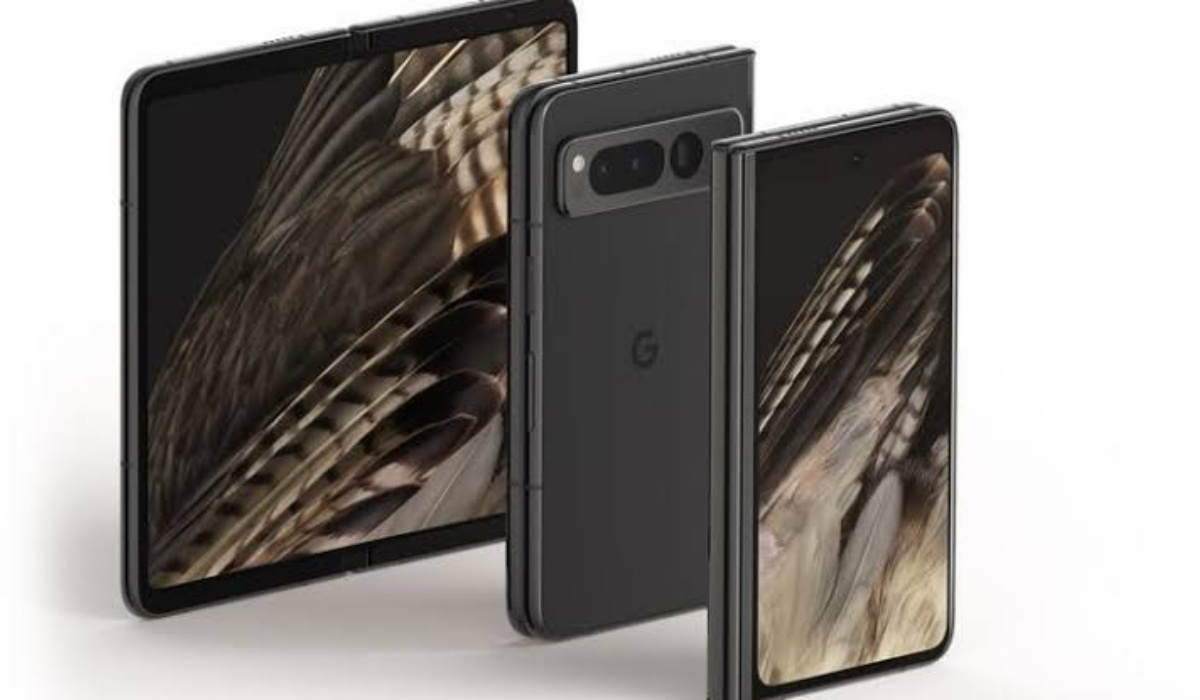
A reassuring feature of the Pixel fold is the hinge mechanism which Google says has a “fluid friction across the full 180-degree range of motion to securely support different postures”.
- Google Pixel Fold Specs
- Google Pixel Fold Preview
- Google Pixel Fold: Answers to your questions
- Google Pixel Fold: Availability and Price
Google Pixel Fold Specs
- Operating System: Android 13
- Network: 3G, 4G, 5G
- SIM Support: Nano-SIM + eSIM
- Dimensions (folded): 139.7 x 79.5 x 12.1 mm
- Dimensions (Unfolded): 139.7 x 158.7 x 5.8 mm
- Weight: 283g.
- Physical Build: IPX8 water resistance
- External Screen: 5.8-inch, 1080×2092 pixels, 120 Hz OLED with Gorilla Glass Victus
- Internal Screen: 7.6-inch, 2208×1840 pixels, 120 Hz refresh rate, Ultra Thin Glass with protective plastic
- Colors: Porcelain, Obsidian.
- Chipset: Google Tensor G2 SoC + Titan M2 security co-processor.
- RAM: 12GB LPDDR5 RAM
- Storage: 256GB / 512GB. UFS 3.1 storage.
- Rear Camera: 48 MP main lens, OIS + 10.8 MP ultrawide lens + 10.8 MP 5x optical zoom telephoto lens, Super Res Zoom up to 20x.
- Selfie Camera (outer screen): 9.5 MP fixed focus lens
- Selfie Camera (inner screen): 8 MP fixed focus lens.
- A fingerprint sensor (side-mounted in the power button)
- Stereo speakers.
- 4,821 mAh battery
- Charging: 30W USB-C charger, USB-PD 3.0.
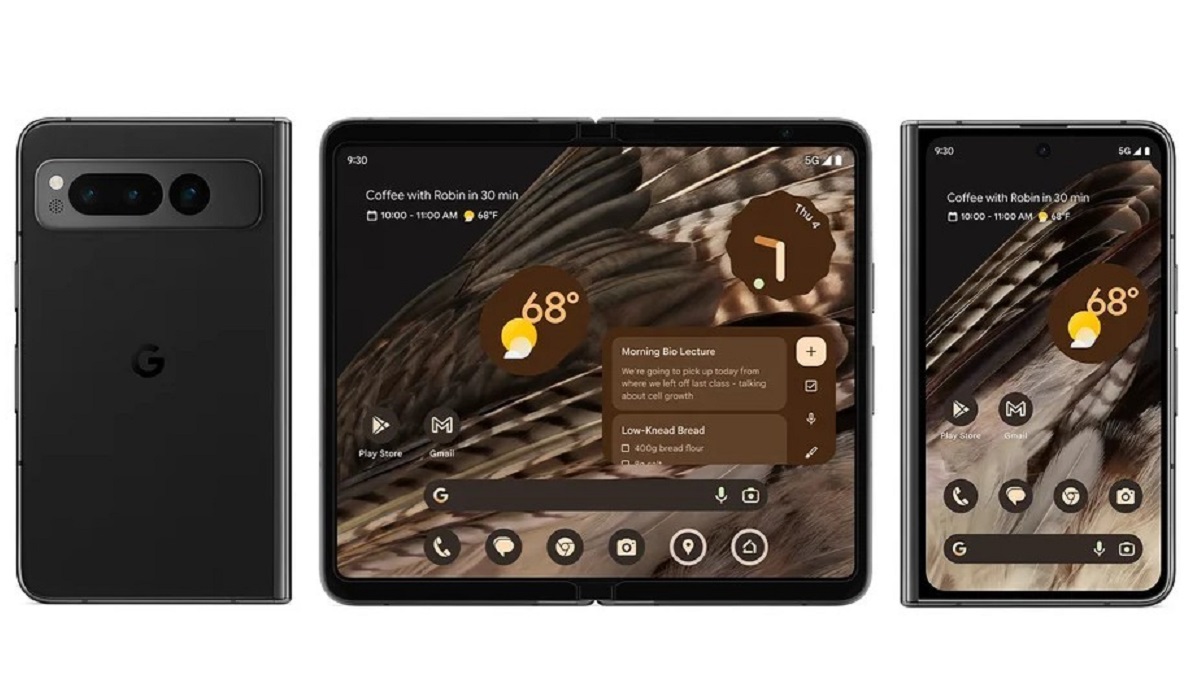
Google Pixel Fold Preview
The specs and features of the Pixel Fold generally look okay. It is good to finally see 30W fast charging in a Pixel device. Google has been stingy with fast charging speeds, and even 30W in a device of this class is still not generous, but it is okay. That battery capacity gives one cause for concern, though. From what we have seen of Google Pixel phones battery performance, I am betting twenty years of experience in this industry that the Pixel Fold will not have impressive battery life.
And from what we have seen, we can expect Google Pixel Fold to show up with the trademark overheating issue that is well known with Google Pixel phones. It is a Google phone thing, and it does not look like the makers are interested in fixing it.
Lastly, this is a Pixel and you can expect the cameras to provide you with solid photographs and videos. Buying one also means you will get Android software updates faster than any other foldable device in the market can, and for longer than most.
Google Pixel Fold: Answers to your questions
I have been asked some questions about this new device. I am including those questions and my answers in this section.
When should I expect Pixel Fold? The Pixel Fold is already available for pre-order in the US starting March 10, 2023. Shipping and sales start before the end of June. We do not have a timeline for the UK, Germany, and Japan yet.
Who makes the Pixel Fold? Pixel devices are designed, developed, and marketed by Google, but the manufacturing happens in China.
How thick is the Pixel Fold ? When folded, it is 12.1 mm thick, but when opened up, it is amazingly thin – a mere 5.8 inches in thickness.
How big is the Pixel Fold display? The external screen, which you can use when the Fold is in regular smartphone mode, is 5.8 inches in size, making it one of the most compact foldable devices in this class (certainly more compact than the Samsung Galaxy Z Fold4). The internal display (when you open the Pixel Fold up) is 7.6 inches in size.
Google Pixel Fold: Availability and Price
The Pixel Fold is already up for pre-order in the US for $1,799 and will become available before the end of June. It is time to add Google Pixel Fold to the list of foldable phones you can buy in 2023 .
Author:Mister Mobility
Digital Skills and Communication Coach | Mobile Phone Connoisseur since 2001 | Tech Blogging since 2004
Add MobilityArena as a preferred source on Google
If you tend towards nostalgia like me, a voicemail can help you recall happier times or preserve certain special moments in time. It could also be useful to remember important information, and that’s why I’ll show you how to save voicemails on your Android.
If you’d like to hold on to any special voicemail forever, there are several ways to achieve this on an Android device. So, keep reading to find out different ways to save voicemails on your Android.
How Can You Save Voicemails on Your Android Forever?
There are times when you must save a voicemail because it contains important information, like a medical appointment or directions. Other times, the voicemail could just be necessary for professional, personal, or other reasons. Use any of the methods below to permanently save voicemails on your Android smartphone.
Save Voicemails on Your Android Using the Default Android Voicemail App
Make sure you already know how to configure voicemail on Android before you proceed. After you set up voicemail, if your carrier allows visual voicemail, it will also show up in the Phone app. Due to this, some users may prefer not to change Android’s default voicemail setting.
If you’re one of such users, follow these instructions to use the Voicemail function of the Phone app to save voicemails on your Android device:
- Launch the Phone app
- Select Voicemail
- Choose Share
- Click on Drive
The voicemail will be saved to your Google Drive account in this case, but any cloud backup service like Dropbox will work. From this point:
- Give the voicemail a name.
- Select the location where the voicemail will be saved ( My Drive is the default choice).
- Navigate to Drive and locate the uploaded voicemail.
- Choose Settings and select Download .
The voicemail will then be downloaded to the internal storage of your Android device.
Save Voicemails on Your Android Using an SD Card
Apart from the option to save voicemails on your Android through its Phone app, you can also save voicemails to an SD card.
After completing the steps in the previous section, use the free Files by Google app to locate the voicemail you just downloaded. How to do it is as follows:
- Launch Files by Google
- Choose Browse
- Use a category such as Downloads or Audio to find your voicemail.
- On the voicemail, select Settings .
- Choose Move to
- To save the voicemail to your phone’s attached SD card, tap the SD Card icon.
If you own an Android without an SD card port, you’re not out of luck. A few extra steps are required if you have a desktop PC and are familiar with file transfers from Android to PC. Here’s the initial step:
- Download the voicemail to your PC using Google Drive or another cloud service.
- Place the SD card in its allocated slot on your computer.
- Open File Explorer on your PC and navigate to the SD card .
- Drag and drop the downloaded voicemail to the directory on your SD card.
Note that if your PC lacks an SD card slot, you can use a USB SD card reader instead.
Your voicemail should be stored in an AMR file format . If you intend to play the voicemail on your Android or Windows computer, that is acceptable. However, suppose you want to share your voicemail with others and want to ensure that it will play on almost any device. In that scenario, you must convert it to a widely accepted audio file format, such as MP3 .
Let’s look at how to do that in the next section.
How to Convert a Voicemail to MP3 Format on a Computer
After you’ve completed the above procedures to save voicemails on your Android without an SD card port, here’s how to convert your AMR voicemail message to an MP3:
- Choose Browse for Files .
- Select your AMR file by clicking it.
- Choose Open .
- Under the Target Format option , click Please Select .
- Choose MP3 .
- Select Start Converting . Alternatively, you can get a copy of your voicemail message in your mailbox by clicking the Send me an email with links to converted files button.
- Download the MP3 file to your computer.
Save Voicemails on Your Android From A Cellular Carrier
It’s also possible to save voicemails on your Android from your cellular carrier, especially if you use a major US phone carrier such as T-Mobile, Verizon, or AT&T. These carriers have an official visual voicemail app that lets you download and save voicemails on your Android phone.
Note that smaller phone carriers in the US may offer such visual voicemail apps, but there will be differences in mileage. Nonetheless, as an example, here’s how to use the T-Mobile Visual Voicemail app to save voicemails on your Android device:
- Launch the app, then click the voicemail you’d like to save to your Android device
- Click Settings from the screen’s top-right menu
- Click on the “ Save Message to ” option
- Input a name for your voicemail file
- You can leave the defaults file path as is, or type in your preference to save the voicemail
- Finally, click Save .
Note that the above-described process is similar across carriers, but there may be slight modifications according to the carrier you use. Nonetheless, it’s a great option to save voicemails on your Android device.
To conclude , by following the guidelines in this article, you will find a good way to save voicemails on your Android forever. Make sure to follow the instructions correctly to achieve the desired results.
