Add MobilityArena as a preferred source on Google
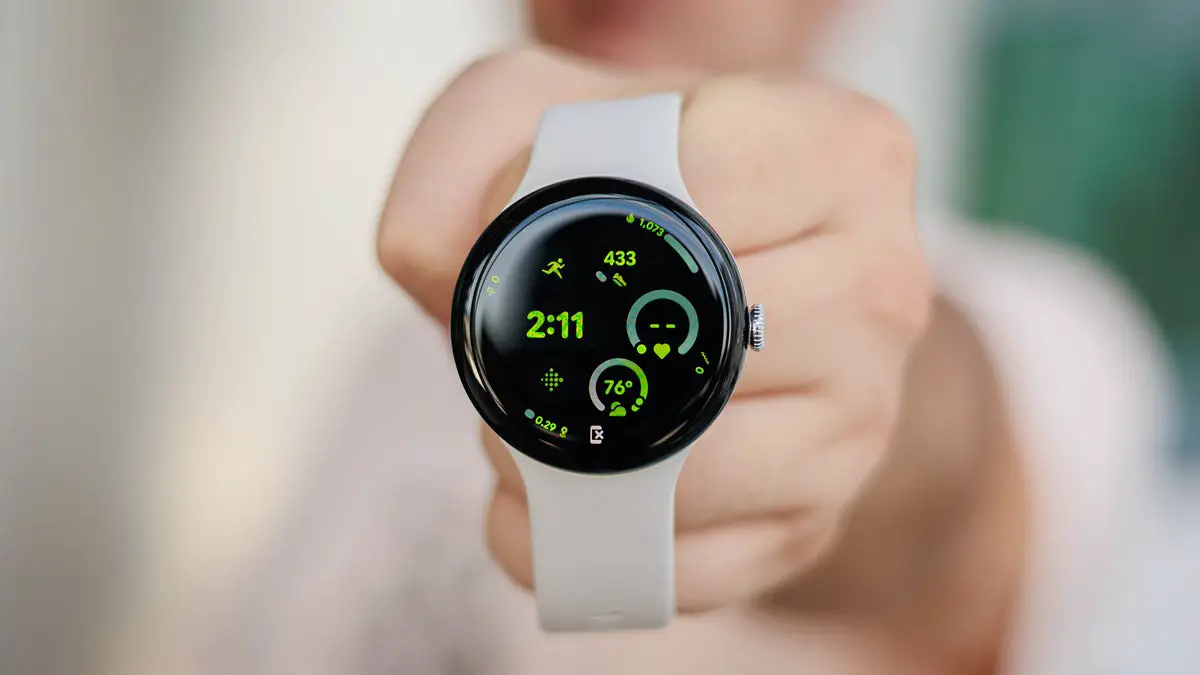
The Google Pixel Watch 3 has made significant strides in the smartwatch market, boasting a sleek design, advanced health tracking features, and improved battery life. However, some users have expressed concerns about battery performance, particularly regarding how long the watch lasts under various usage conditions. With claims of up to 24 hours with normal use and 36 hours in Battery Saver mode, many wonder if these figures hold true in real-world scenarios. By understanding how different features impact battery performance and implementing effective strategies, you can enhance your experience and make the most of your smartwatch. Whether you’re tracking workouts, receiving notifications, or simply checking the time, ensuring optimal battery life is crucial for maximizing the functionality of your Pixel Watch 3. Let’s dive into the details and discover how to tackle these battery concerns effectively!
- Common Battery Life Issues Limited Daily Usage Impact of Always-On Display Heavy App Usage Background Processes
- Charge Smartly
- Conclusion
Common Battery Life Issues
Limited Daily Usage

Although the Pixel Watch 3 is designed to last up to 24 hours with standard use and can extend to 36 hours in battery saver mode, many users find that their watch often requires charging before the end of the day. This can be particularly inconvenient for those who rely on it for fitness tracking or notifications throughout the day. I recommend that you activate Battery Saver mode when you anticipate needing your watch to last longer. Here is how to enable:
- Swipe down on your watch face, tap the settings cog, then select the battery icon and turn on Battery Saver. This mode disables features like the always-on display and limits background activity while still allowing essential notifications.
Impact of Always-On Display

The always-on display feature on the Pixel watch 3 is a popular option for many users, but it can significantly drain battery life. When enabled, this feature keeps the watch face visible at all times, which can lead to quicker battery depletion. Consider disabling or adjusting the always-on display feature. Here is how to adjust:
- Go to Settings > Display > Always-On Display and choose a setting that suits your needs without draining too much battery.
Heavy App Usage
Using resource-intensive apps, such as those for fitness tracking or streaming music, can also contribute to rapid battery drain on the Pixel Watch 3. Users who frequently switch between apps may notice a decline in battery performance. Monitor and limit the use of apps that consume significant power.
- NB: Use offline music options instead of streaming when working out or during commutes. Download music directly onto your watch to minimize data usage.
Background Processes
Certain background processes and notifications can consume additional power, leading to unexpected battery drain. This is especially true if location services are constantly active. Turn off unnecessary background processes that may be draining your battery:
- Navigate to Settings > Apps and review which apps are running in the background. Disable any that you do not need active at all times.
Charge Smartly

Use the provided charger correctly and avoid charging overnight.
- NB: The Pixel Watch 3 charges faster than previous models—up to 50% in just 28 minutes for the larger size—so take advantage of this by charging during short breaks rather than overnight.
Conclusion
While some users may experience battery life concerns with the Google Pixel Watch 3, understanding these issues and implementing effective solutions can significantly enhance your experience with this remarkable smartwatch. By utilizing Battery Saver mode, adjusting display settings, limiting app usage, managing background processes, optimizing location services, regularly updating software, and charging smartly, you can maximize your watch’s battery life. Embrace these strategies as opportunities to optimize your device for peak performance throughout your day. With a little attention and care, you’ll find that navigating any battery-related challenges becomes much more manageable, allowing you to fully enjoy all that your Google Pixel Watch 3 has to offer!
Author:Ifeoluwa Adeleke
Add MobilityArena as a preferred source on Google
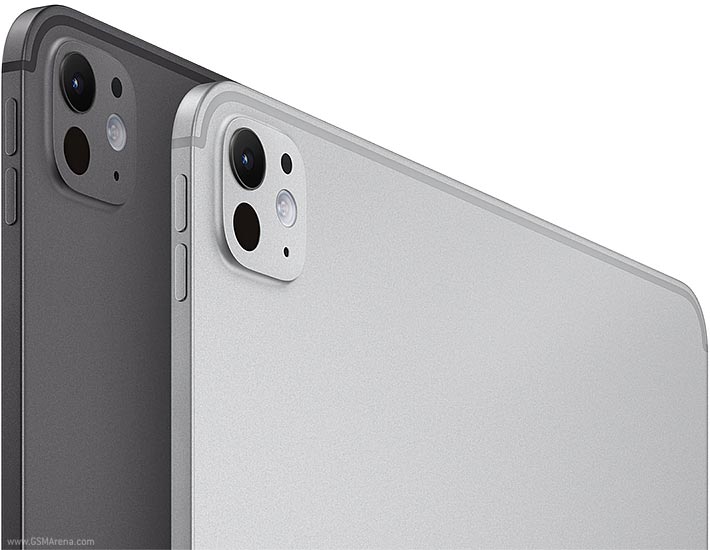
The Apple iPad Pro 2024 is renowned for its powerful performance, stunning Liquid Retina display, and seamless integration into the Apple ecosystem. However, following the recent update to iPadOS 17.6.1, some users have encountered frustrating glitches and freezes that can disrupt their workflow and overall user experience. Whether it’s issues with apps not functioning properly, unexpected freezes during use, or problems with connectivity, these challenges can be quite inconvenient. In particular, users have reported difficulties with Wi-Fi connectivity and app crashes that hinder productivity. By addressing these issues effectively, users can regain confidence in their device and make the most of its impressive capabilities. Understanding how to troubleshoot these glitches will empower you to navigate your iPad Pro with ease, allowing you to focus on what truly matters—your work and creativity. Let’s dive into the details and explore how to tackle these challenges head-on!
- Common Glitches and Freezes After Updating to iPadOS 17.6.1 App Crashes and Freezes Connectivity Issues Performance Lag Display Issues
- Some Other Practical Solutions for Enhanced Performance Clear App Cache Disable Background App Refresh
- Conclusion
Common Glitches and Freezes After Updating to iPadOS 17.6.1
App Crashes and Freezes
Many users of the iPad Pro 2024 have reported that apps frequently crash or freeze after updating to iPadOS 17.6.1. This can occur with both native apps like Safari and third-party applications, making it difficult to complete tasks. Ensure that all your apps are updated to their latest versions, as developers frequently release updates to address compatibility issues with new operating systems. How to Update:
- Open the App Store, tap on your profile icon in the upper right corner, and scroll down to see pending updates.
Connectivity Issues

Some users of the iPad Pro 2024 have experienced problems with Wi-Fi connectivity, where their iPad fails to connect to networks or drops connections unexpectedly. This can hinder productivity, especially for those relying on internet access for work or study. If you’re experiencing connectivity issues, Resetting your network settings can help resolve Wi-Fi connectivity problems:
- Go to Settings > General > Transfer or Reset iPad > Reset > Reset Network Settings . Note that this will erase saved Wi-Fi passwords.
Performance Lag

Users have noted performance lag when switching between apps or multitasking, which can be particularly frustrating given the powerful hardware of the iPad Pro. Low storage can lead to performance issues:
- Check your storage usage and delete unnecessary files or apps. Go to Settings > General > iPad Storage to see what’s taking up space.
Display Issues
Glitches related to the display, such as flickering screens or unresponsive touch inputs, have also been reported by several users of the iPad Pro after the update. A simple restart can often resolve minor glitches and refresh system resources:
- Press and hold the power button until you see the “slide to power off” option, then slide it to turn off your device. Wait a few seconds before turning it back on.
Some Other Practical Solutions for Enhanced Performance
Clear App Cache

Clearing the cache can free up resources and improve performance. Here is how to Clear Cache:
- Unfortunately, there isn’t a direct way to clear cache on iPads like on Android devices; however, deleting and reinstalling an app can achieve a similar effect.
Disable Background App Refresh
Limiting background activity can help improve performance. Disable background app refresh for non-essential apps:
- Go to Settings > General > Background App Refresh , then select “Off” or choose specific apps you want to disable.
Conclusion
While glitches and freezes following the update to iPadOS 17.6.1 on the Apple iPad Pro 2024 can be frustrating, understanding their common causes and implementing these effective solutions can significantly enhance your user experience. By restarting your device, updating apps, resetting network settings, clearing app cache, freeing up storage space, disabling background app refresh, and restoring your device if necessary, you can ensure that your iPad Pro operates smoothly. Embrace these strategies as opportunities to optimize your device for peak performance. With a little attention and care, you’ll find that navigating any glitches becomes much more manageable, allowing you to fully enjoy all that your powerful iPad Pro has to offer!
