Add MobilityArena as a preferred source on Google
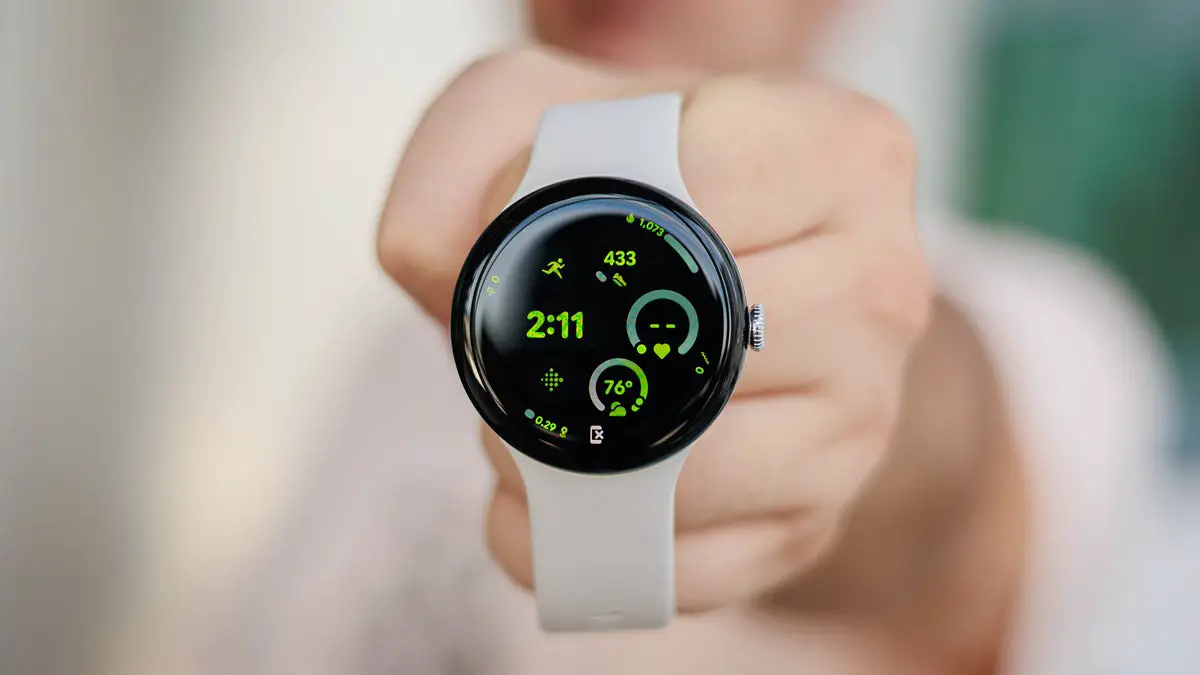
The Google Pixel Watch 3 has quickly gained popularity for its sleek design, robust features, and seamless integration with the Google ecosystem. However, many users have reported connectivity issues that can hinder the overall experience, affecting everything from notifications to health tracking. These problems can be particularly frustrating for users who rely on their smartwatches for daily tasks and communication. In this article, we will explore common connectivity problems associated with the Google Pixel Watch 3 and provide practical solutions to enhance your experience. By addressing these connectivity challenges effectively, you can ensure that your Pixel Watch 3 remains a reliable companion in your daily life, allowing you to fully enjoy its features and capabilities. Let’s delve into the specific issues and their corresponding solutions!
- Common Connectivity Issues Bluetooth Connection Problems Wi-Fi Connectivity Issues LTE Signal Strength Problems Setup Delays
- Conclusion
Common Connectivity Issues
Bluetooth Connection Problems

Users frequently encounter difficulties when trying to connect their Pixel Watch to their smartphones via Bluetooth. This can lead to interruptions in notifications and calls. The watch may fail to pair with the phone, or it may disconnect unexpectedly during use. I recommend the following:
- Restart Devices: Begin by restarting both your Pixel Watch and your smartphone. To restart your watch, press and hold the crown for three seconds, then tap “Restart.”
- Check Bluetooth Settings: Ensure that Bluetooth is enabled on both devices. On your phone, go to Settings > Bluetooth, and confirm that it’s turned on.
- Re-pair Devices: If issues persist, unpair the devices by going to Settings > Connected Devices > Forget Device, then re-pair them following the setup instructions.
Wi-Fi Connectivity Issues

Some users experience problems connecting to Wi-Fi networks, which can limit the watch’s functionality when not paired with a phone. The watch may show a “Network error” message or fail to connect to saved Wi-Fi networks. Apply the following solutions:
- Ensure Wi-Fi is Enabled: Check that Wi-Fi is turned on in your watch settings. Swipe down on your watch face, tap Settings > Connectivity > Wi-Fi, and toggle it on.
- Reconnect to Network: If you encounter a “Network error,” try forgetting the network and reconnecting. Go to Settings > Connectivity > Wi-Fi, select the network, and enter the password again.
- Check Phone Connection: Ensure that your smartphone is connected to a stable Wi-Fi network as the watch relies on it for updates and notifications.
LTE Signal Strength Problems
For those using the LTE version , weak signal strength can lead to dropped connections or inability to access data services while away from the phone. Users may notice inconsistent network performance, especially in areas with poor cellular coverage. I recommend the following:
- Check Signal Strength: On your watch, swipe down and go to Settings > Connectivity > Mobile > SIM Status to check signal strength.
- Move Closer to a Window or Outside: If you’re indoors and experiencing weak signals, try moving closer to a window or stepping outside for better reception.
- Contact Your Carrier: If signal issues persist, reach out to your carrier for assistance or consider switching carriers if coverage is consistently poor in your area.
Setup Delays

New users often report that setting up their Pixel Watch takes longer than expected, which can be frustrating. The setup process may time out or take more than 20 minutes to complete. I recommend the following:
- Follow Setup Instructions Carefully: Ensure you follow each step in the setup process without skipping any instructions. Refer to the official setup video if needed.
- Keep Devices Close Together: During setup, keep your watch and phone within close proximity (within about one foot) to ensure a smooth connection.
- Factory Reset if Necessary: If setup continues to fail, consider performing a factory reset on your watch by going to Settings > System > Disconnect & reset, then attempt the setup process again.
Conclusion
The Google Pixel Watch 3 offers an impressive array of features that enhance daily life, but connectivity issues can sometimes hinder user experience. By addressing common problems such as Bluetooth connection difficulties, Wi-Fi connectivity issues, LTE signal strength problems, and setup delays with practical solutions, users can significantly improve their experience with this innovative smartwatch. Embrace these tips to ensure that your Google Pixel Watch 3 remains connected and functional, allowing you to enjoy all its features without interruption! With a little troubleshooting, you can make the most out of this fantastic device and stay seamlessly connected throughout your day.
Author:Ifeoluwa Adeleke
Add MobilityArena as a preferred source on Google
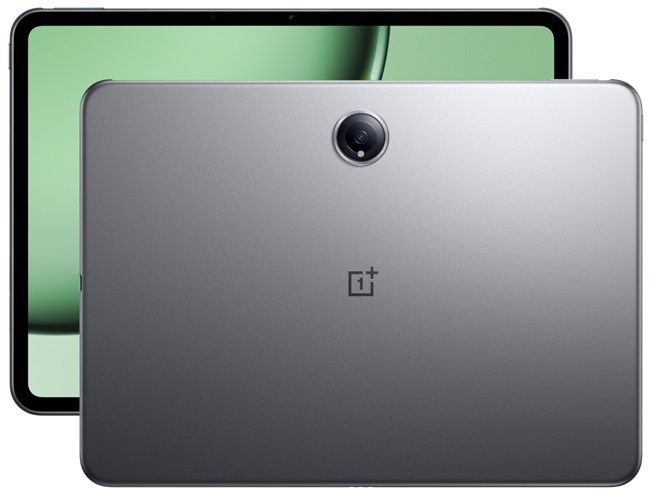
The OnePlus Pad has emerged as a compelling option in the tablet market, offering a sleek design, impressive performance, and an attractive price point. With its stunning display and powerful hardware, it aims to compete with other leading tablets. However, as with any device, users have reported some common issues that can detract from the overall experience. These challenges may include connectivity problems, software glitches, and battery management concerns. In this article, we will discuss these issues in detail and provide practical solutions to enhance your experience with the OnePlus Pad. By addressing these challenges effectively, you can ensure that your OnePlus Pad performs optimally and meets your expectations for productivity and entertainment. Let’s dive into the specific problems and their solutions!
- Common Issues with the OnePlus Pad Wi-Fi Connectivity Problems Bluetooth Connection Issues Software Bugs Affecting Performance Multi-Screen Connect Malfunctions
- Conclusion
Common Issues with the OnePlus Pad
Wi-Fi Connectivity Problems
Many users of the OnePlus Pad have reported intermittent Wi-Fi connectivity issues, where the tablet struggles to maintain a stable connection or fails to connect altogether. Users may experience slow loading times for websites, apps that fail to load, or frequent disconnections from Wi-Fi networks. To get this resolved, I recommend the following:
- Forget and Reconnect to Network: Go to Settings > Wi-Fi, select the problematic network, and tap Forget Network. Then reconnect by entering the password again.
- Restart Your Router: Sometimes, the issue lies with the router. Restart it by unplugging it for about 10 seconds and then plugging it back in.
- Network Reset Option: If problems persist, consider using the network reset option in the system reset menu. This can often resolve ongoing connectivity issues.
Bluetooth Connection Issues
Users have encountered difficulties when trying to pair their OnePlus Pad with Bluetooth devices such as headphones or keyboards. The tablet may not recognize Bluetooth devices or may disconnect unexpectedly during use. This can be a frustrating matter. To get this fixed, I recommend the following:
- Restart Bluetooth on Your Device: Turn off Bluetooth in Settings > Bluetooth, wait a few seconds, and then turn it back on.
- Clear Bluetooth Cache: Go to Settings > Apps > Show System Apps, find Bluetooth, and clear its cache.
- Re-pair Devices: If pairing fails, remove the device from your Bluetooth settings and attempt to pair again.
Software Bugs Affecting Performance

Computer bug, failure or error of software and hardware concept, miniature red ladybug on black computer motherboard PCB with soldering, programmer can debug to search for cause of error.
Some users of the OnePlus Pad have reported software-related issues that affect overall performance, including lagging during app usage or slow response times. Apps may take longer to open, and there can be noticeable delays when switching between tasks. I recommend the following:
- Check for Software Updates: Ensure your OnePlus Pad is running the latest software version by going to Settings > System > System Updates, as updates often include fixes for performance issues.
- Perform a Factory Reset if Necessary: If you’re experiencing persistent issues, consider resetting your device to factory settings by going to Settings > System > Reset Options > Erase All Data (Factory Reset). Remember to back up important data first.
Multi-Screen Connect Malfunctions
The Multi-Screen Connect feature, which allows users to link their OnePlus Pad with other OnePlus devices, has been reported to malfunction for some users. Users may find that the feature fails to connect or frequently drops the connection. These highlighted solutions below will help out:
- Update All Devices Involved: Ensure that both the OnePlus Pad and any connected devices are running the latest software versions.
- Re-enable Multi-Screen Connect Feature: Go to Settings > Connected Devices > Multi-Screen Connect, toggle it off and then back on.
- Restart Both Devices: Sometimes a simple restart of both your OnePlus Pad and the connected device can resolve connection issues.
Conclusion
The OnePlus Pad is an excellent choice for those seeking a powerful yet affordable tablet experience. While connectivity issues such as Wi-Fi problems, Bluetooth challenges, software bugs, and Multi-Screen Connect malfunctions can be frustrating, many of these challenges can be effectively addressed with practical solutions. By following these troubleshooting tips — such as forgetting and reconnecting Wi-Fi networks, clearing Bluetooth cache, checking for software updates, and ensuring all devices are updated — you can significantly enhance your experience with the OnePlus Pad. Embrace these strategies to ensure seamless connectivity and make the most out of your device!
