Add MobilityArena as a preferred source on Google
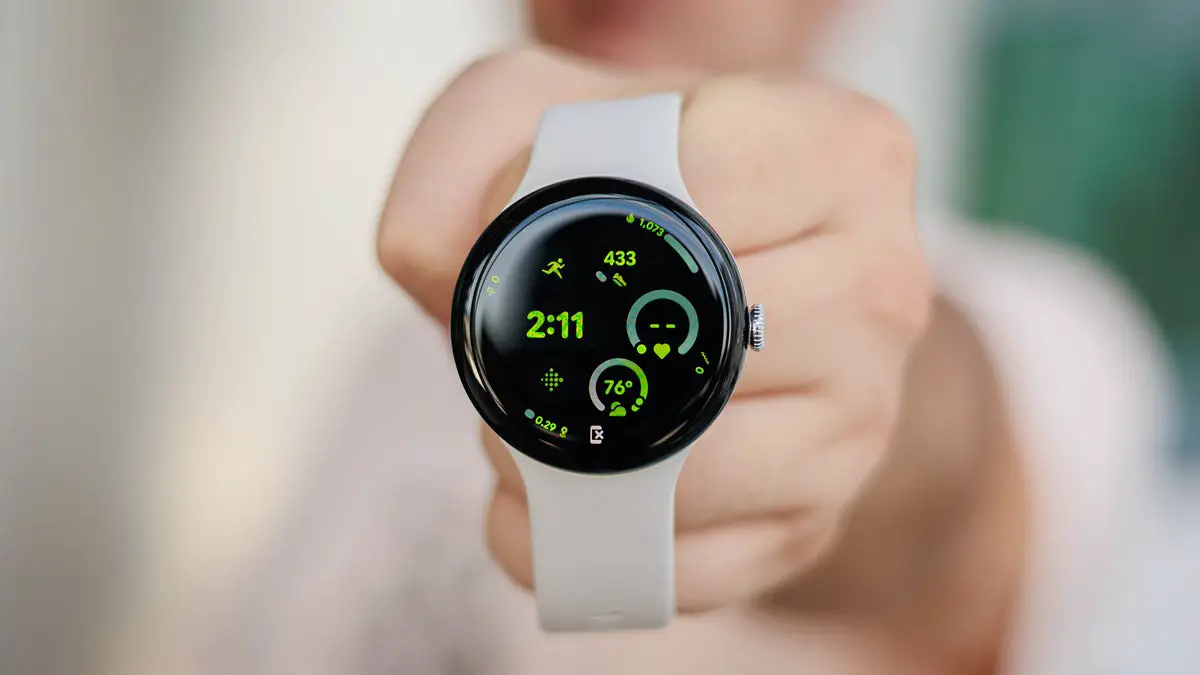
The Google Pixel Watch 3 has quickly become a favorite among smartwatch enthusiasts, thanks to its sleek design, advanced health tracking features, and seamless integration with the Google ecosystem. However, like any new technology, it comes with its own set of challenges that users may encounter. From connectivity problems and battery drain to software bugs and limited customization options, these challenges can affect your overall satisfaction with the device. Understanding these issues is crucial for maximizing the functionality of your Google Pixel Watch 3. By addressing these common complaints proactively, you can ensure that your time with this impressive smartwatch is both enjoyable and efficient. Let’s explore some common issues reported by users as I provide practical solutions to enhance your experience with this innovative smartwatch.
- Software Update Problems
- Connectivity Issues
- Battery Life Concerns
- Notification Issues
- Repairability Concerns
- Conclusion
Software Update Problems
Many users of the Google Pixel Watch 3 have encountered issues when updating to the latest version of Wear OS, leading to frozen screens or error messages during installation. This can be frustrating, especially when you’re eager to enjoy new features. Simply follow my recommendations to avoid further issues:
- Wait Before Updating: If you hear about issues with a new update, consider holding off until Google releases a patch or fixes the problems.
- Perform a Hard Reset: If your watch freezes during an update, try a hard reset by holding down the crown and side button simultaneously for about 20 seconds until the Google logo appears. This can help restart your device.
- Check for Updates Regularly: After resolving any issues, make it a habit to check for updates regularly under Settings > System > Updates .
Connectivity Issues
Some users have reported difficulties connecting their Google Pixel Watch 3 to their smartphones via Bluetooth, which can hinder notifications and app syncing. Follow these simple steps to get it resolved:
- Ensure Proximity: Make sure your watch and phone are within close range (about 1.6 feet) for optimal connectivity.
- Reset Bluetooth Connection: Turn off Bluetooth on both devices, then turn it back on and attempt to reconnect.
- Factory Reset: If problems persist, consider performing a factory reset on your watch. Go to Settings > System > Reset options , but remember that this will erase all data on the watch.
Battery Life Concerns
While the Google Pixel Watch 3 offers impressive features, some users have noted that battery life can drain quickly, especially when using GPS or health tracking functions. Do the following to get a better result:
- Optimize Settings: Reduce screen brightness and turn off always-on display features to conserve battery life. You can adjust these settings in Display under Settings .
- Limit Background Apps: Disable unnecessary background apps that may be consuming power. Go to Settings > Apps and review which apps you can limit.
- Use Battery Saver Mode: Activate battery saver mode when you anticipate needing extra battery life throughout the day.
Notification Issues
Some users have experienced problems receiving notifications from their phones on their Google Pixel Watch 3, which can be a significant drawback for those who rely on timely alerts. I recommend you do the following:
- Check Notification Settings: Ensure that notifications are enabled in both the Pixel Watch app on your phone and the watch itself. Navigate to Settings > Notifications and verify that they are turned on.
- Disable Do Not Disturb Mode: Make sure that Do Not Disturb mode is not activated on either device, as this will silence notifications.
- Reinstall Pixel Watch App: If notifications still aren’t working, try uninstalling and reinstalling the Pixel Watch app on your phone to reset connections.
Repairability Concerns
A significant issue that has arisen is that the Google Pixel Watch 3 is not easily repairable if damaged. This has left some users feeling concerned about long-term durability. Follow these recommendations:
- Consider Preferred Care: If you haven’t already, consider purchasing Google’s Preferred Care plan at the time of purchase or within 30 days. This plan offers replacement options for damaged devices at a reduced cost.
- Handle with Care: To minimize damage risk, invest in a protective case or screen protector designed specifically for the Google Pixel Watch 3.
- Stay Informed About Replacements: If damage occurs, reach out to Google support for replacement options as soon as possible to avoid further complications.
Conclusion
The Google Pixel Watch 3 is an exciting addition to the smartwatch market, offering advanced features that cater to tech-savvy users. While some challenges exist, many of these issues can be effectively addressed through practical solutions and proactive measures. By staying informed about software updates, optimizing settings for battery life, and ensuring proper connectivity, you can enhance your overall experience with this impressive device. Embrace these solutions as opportunities to unlock the full potential of your Pixel Watch 3! With a little effort and care, you can enjoy all the benefits this innovative smartwatch has to offer while minimizing any frustrations along the way. Remember, every challenge presents an opportunity for improvement—both for you as a user and for Google as a brand committed to excellence in wearable technology.
Author:Ifeoluwa Adeleke
Add MobilityArena as a preferred source on Google
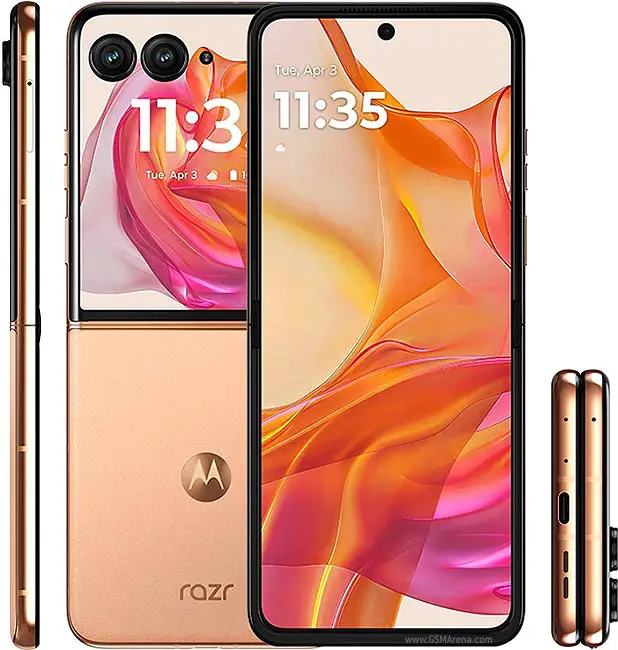
The Motorola Razr+ (2024) has captured the attention of smartphone enthusiasts with its nostalgic flip design, modern features, and impressive performance. However, like any innovative device, it comes with its own set of challenges that users may encounter. From software update delays and connectivity problems to battery life concerns and camera performance issues, these challenges can affect your overall satisfaction with the device. Understanding these issues is crucial for maximizing the functionality of your Razr+. By addressing these common complaints proactively, you can ensure that your time with this impressive smartphone is both enjoyable and efficient. With a little effort and the right strategies, you can unlock the full potential of your Motorola Razr+ (2024) and enjoy all it has to offer! Let’s explore some common issues reported by Razr+ users and provide practical solutions to enhance your experience with this stylish smartphone.
- Software Update Delays
- Connectivity Issues
- Battery Life Concerns
- Camera Performance Issues
- External Display Functionality
- Conclusion
Software Update Delays
Many users of the Motorola Razr+ (2024) have expressed frustration over slow or inconsistent software updates. Some have noted that their devices do not receive timely security patches or feature enhancements, which can impact overall performance. To get this fixed, I recommend the following:
- Check for Updates Regularly: Make it a habit to manually check for updates by navigating to Settings > System > Software Update . This ensures you’re always on the latest version available.
- Join Beta Programs: If you’re eager to access new features sooner, consider enrolling in Motorola’s beta testing programs. This allows you to test upcoming updates before they are widely released.
- Contact Support: If you notice prolonged delays in receiving updates, reach out to Motorola customer support for assistance and clarification on your device’s update schedule.
Connectivity Issues
Some users of the Motorola Razr+ (2024) have reported problems with Bluetooth and Wi-Fi connectivity, including dropped connections or difficulty connecting to devices. Tis highlighted solutions will be of help:
- Reset Network Settings: Go to Settings > System > Reset options > Reset Wi-Fi, mobile & Bluetooth . This can resolve many connectivity issues by resetting all network settings.
- Re-pair Bluetooth Devices: If you’re having trouble with Bluetooth connections, remove the device from your phone’s Bluetooth settings and re-pair it.
- Check for Interference: Ensure that there are no other electronic devices causing interference nearby, as this can disrupt connectivity.
Battery Life Concerns
While the Motorola Razr+ (2024) offers decent battery life, some users have noted that it drains faster than expected, especially when using power-intensive apps or features. Follow my recommendations
- Optimize Battery Settings: Navigate to Settings > Battery and enable battery saver mode. This will help extend battery life by limiting background processes and reducing screen brightness.
- Limit Background Apps: Close apps running in the background that you’re not actively using. You can do this by accessing the recent apps menu and swiping away unnecessary applications.
- Update Apps: Ensure all your apps are updated to their latest versions, as developers often release updates that improve efficiency and reduce battery drain.
Camera Performance Issues

Despite its advanced camera features, some users of Motorola Razr+ (2024) have reported inconsistent performance, particularly in low-light conditions where images may appear grainy or blurry. I recommend the following solutions:
- Use Night Mode: When shooting in low-light environments, enable Night Mode in the camera app to enhance image quality and reduce noise.
- Keep the Lens Clean: Regularly clean the camera lens with a soft cloth to avoid smudges that can affect picture quality.
- Experiment with Settings: Explore different camera settings and modes to find what works best for various lighting conditions.
External Display Functionality
Some users have experienced issues with the external display not recognizing certain apps or functionalities when the phone is closed. I recommend the following:
- App Permissions: Ensure that all necessary permissions are granted for apps you want to use on the external display. Check this under Settings > Apps > [App Name] > Permissions .
- Restart Your Device: Sometimes a simple restart can resolve temporary glitches affecting app functionality on the external display.
- Update Apps Regularly: Keep your apps updated through the Google Play Store to ensure compatibility with the Razr+’s external display features.
Conclusion
The Motorola Razr+ (2024) is an exciting smartphone that blends modern technology with a classic design. While some challenges exist, many of these issues can be effectively addressed through simple troubleshooting steps and proactive measures. By staying informed about software updates, optimizing settings for battery life, and utilizing camera features wisely, you can enhance your overall experience with this innovative device. Remember, every challenge presents an opportunity for improvement—both for you as a user and for Motorola as a brand dedicated to delivering exceptional mobile experiences. With a little effort and care, you can unlock the full potential of your Motorola Razr+ (2024) and enjoy everything it has to offer!
