Add MobilityArena as a preferred source on Google
Started in 2019, Google Stadia set out to provide game streaming, also called cloud gaming, to users across the globe. The service was designed to be accessible via any devices that had an up-to-date version of Chrome browser or the latest version of the Stadia app. This means access to Google Stadia is available on personal computers, tablets, and Android smartphones.

Google Stadia Controller
How Google Stadia Works
Think of how any streaming – of audio or video works. Instead of downloading the media file to your device, you play the file from a remote server. With Stadia, users ave no need to download games to their devices; they simply streamed gameplay from a remote server. Some of the benefits include saving of space and processing power on terminal equipment. As such, a reliable and fast Internet connection is always required to use the service. There is no offline gaming supported.
According to Google, playing games on Stadia consumes up to 2.7GB of data per hour in 720p streaming quality (the upper limit for mobile devices). As such, the service worked only over Wi-Fi networks. Users could not use mobile data, because of reliability and cost issues. With the arrival of 5G networks, which deliver greater capacity, Google widened access to support mobile data.
Being a cloud gaming service also opened up the opportunity for multiplayer games where multiple users play against one another. Playing of games on the service on a TV using Google Chromecast Ultra requires the use of a hardware Stadia Controller, along with an audio headset. Users are able to chat and communicate in-game. 3rd party gamepads are supported for playing on Android phones.
There are free and paid titles on the Stadia service. Subscribing to the paid service gives access to access higher streaming rates (up to 4K resolution), among other perks.
Stadia Device Support
Google Stadia arrived to criticism, especially over the limited hardware support for Android phones. At its launch, it supported only four smartphones – Google Pixel 3, Pixel 3 XL, Pixel 3a, and Pixel 3a XL. This greatly limited access to the service. Samsung, Asus, and Razer phones were added to the list, in 2020. Eventually, OnePlus, Apple and LG phones joined the list of supported mobile devices. This is in addition to being available via Smart TVs.
Games Library
Another criticism that Google Stadia faced had to do with the limited game titles available to users of the service. In April 2020, the platform got a boost with the announcement of games from EA (Electronic Arts), one of the world’s leading mobile game developers. EA Titles such as Star Wars Jedi: Fallen Order would be available to Stadia users. Another big name that supported Stadia was Ubisoft.
Hundreds of games were available to Google Stadia users. Some of the most popular available games include:
- Cyberpunk 2077
- Destiny 2
- FIFA 22
- Red Dead Redepmtion 2
- Baldur’s Gate 3 (Early Access)
- Resident Evil Village.
- Assassin’s Creed Valhalla.
- Hitman 3.
- Little Nightmares 2.
- Sekiro: Shadows Die Twice
Sunset for Google Stadia
Stadia continued to struggle, and in early 2022, rumours made the rounds that it would be shut down. Google tried to douse the fire with a statement saying, “Stadia is not shutting down. Rest assured we’re always working on bringing more great games to the platform and Stadia Pro. Let us know if you have other questions.”[1] However, barely two months later, in a September 29, 2022 statement[2], Google announced that the service had not gained traction and would be shut down Stadia in January 2023, bringing the service’s run to an end.
References
- Google says they are not shutting down Stadia [ source ]
- Google announces shutdown of Stadia [ source ]
- Don’t miss our mobile phone reviews .
- Follow our news on Google News .
- Join our WhatsApp Group , to be notified of the most important articles and deals,
- Follow us on Instagram , Facebook , Twitter , and YouTube .
Author:Mister Mobility
Digital Skills and Communication Coach | Mobile Phone Connoisseur since 2001 | Tech Blogging since 2004
Add MobilityArena as a preferred source on Google
There are thousands of free programs available in the Mac App Store. The Mac App Store will typically have you covered for everything from work tools to gaming apps. However, even though Macs do come with a ton of wonderful applications that may help you do the majority of your tasks right out of the box, the time will come when you’ll need to add your own personal favourites to the Dock at the bottom of your screen.
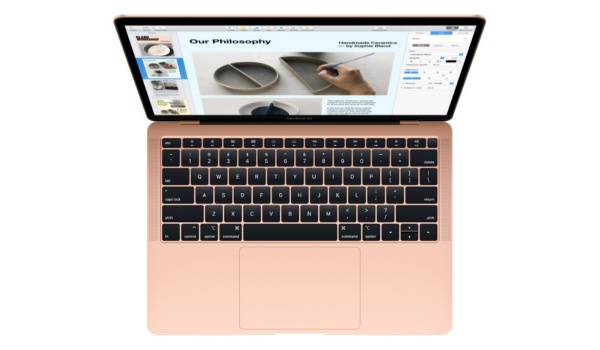
In this guide, we’ve provided instructions to help you download and install applications from the Mac App Store onto your Mac device, or directly from the website of the developer. So, feel free to take advantage of the helpful tips and instructions you’ll come across in this guide.
Downloading Apps from the Mac App Store
Once you’ve chosen an app you’d like to use on your Mac, you must download it from the App Store in order to use it. The basic procedures for downloading an app directly from the App Store have been outlined below.
Step 1: Opening the App Store is the first step in the procedure. One of the quickest methods to access the App Store is via the Dock or in Launchpad, however, you should note that there are other ways as well.
To open the app, click on the blue-background white ‘A’ that represents the App Store. As an alternative, you can launch the App Store using Spotlight Search. In the upper right corner of your screen, simply click the tiny magnifying glass symbol. Enter “App Store” and then click the icon to launch the application.
Step 2: If you haven’t previously, browse the options after accessing the App Store. You may also use the window’s search box to look for a specific app if you have one in mind.
There are thousands of free and premium apps available in the App Store. If you don’t currently have a payment method linked to your account, you’ll need to set one up if you wish to purchase an app.
By navigating the tabs on the window’s left side, you can browse particular app categories as well as featured apps.
Step 3: Click the app you want to download to launch it in the App Store window after you’ve made your selection. To download, click the “Get” button or the “Price” butto above the app’s description. The word “Get” stands for free apps, whereas the word “Price” stands for paid apps.
Let’s say you previously downloaded an app and later deleted it. The app will display a cloud with a downward-facing arrow in that case.
The button will turn green and say “Install” if you click the “Get” option. On the other side, the button will turn green and say “Buy App” if you click the price.
Step 4: The final step is to authenticate with TouchID or your Apple ID and password (this will typically depend on your MacBook Pro settings and model). This step must be finished before the software can start downloading.
Step 5: Once the download is finished, open the Finder and look in the Applications folder for the new program.
Simply launch Finder in the Dock and employ it to find the app. Next, select Applications from the window’s sidebar. Double-click the software to launch it after finding it.
As an alternative, Launchpad will also show the app in question. Start by launching the Launchpad app from the Dock if you choose to find the app using Launchpad. Search for the application in Launchpad, then click the icon to launch it.
Downloading Apps from Outside the Mac App Store
Although your Mac’s App Store has a sizable selection of apps, not all developers make their apps available there. The downloading and installing processes work in a different way in this situation. It’s important to be cautious when downloading programs from the internet. Apple inspects each software before placing it on the App Store to make sure it is free of viruses, spyware, and other harmful code, which is why it’s safer to download from the Mac App store.
We advise that you only download programs from reputable websites and businesses. You can download reputable programs and websites on your MacBook Pro, such as Slack, Microsoft, Asana, Wrike, Zoom, and Skype.
Once you’re on a website where you may download an app, follow these instructions:
Once you’ve located the program, click “Download Now” (or a similar button) to start the download. When the download has begun, a bar that has the app’s icon should appear at the screen’s bottom. It will be saved on your MacBook Pro as a “.dmg” file. Usually, it should end up in your Finder’s “Downloads” folder.
Step 2: The downloaded app will save to your Mac after it is done. There are several potential destinations for it. Once more, it should be saved to your “Downloads” folder, but if you change the location where your downloaded files save, the app might save somewhere else.
The name of the application will typically finish in “.dmg” and be a “Disk Image” file type. Another option is that it’ll have .zip at the end. This informs you that the file is a compressed Zip file, which downloads more quickly.
Step 3: To install the software after downloading it, click on it. If the file is a.zip, double-clicking it will unzip it; to install it, double-click it once more.
However, if the app ends in .dmg, it isn’t a zipped file and may simply be double-clicked to start the installation process.
Due to the fact that the file was downloaded from the internet, a window will appear when you double-click on it asking if you wish to access it. To confirm the installation, click Open.
In some circumstances, you might go through an installation wizard and be instructed by macOS to drag the application into the Applications folder. After dragging the application to the folder icon as directed, release the mouse button to complete the operation.
The download and installation status will be displayed in a tiny window. Depending on the size of the software, it may take a while.
You might be required to accept the terms of a licensing agreement when the installation is finished. If you want to move on with the process, click “Accept.”
Note that your MacBook Pro might prompt you to input your administrator password after downloading. It may appear before installation in certain circumstances or upon acceptance of the License Agreement in other circumstances (such as with Parallels Desktop).
Type in your password, then click “OK” when prompted to do so.
Step 4: Begin using your newly downloaded app after the installation is complete. To locate the app for use, adhere to the same instructions as above (for Dock, Launchpad, Finder, etc.).
In summary, it’s not difficult to download apps to your MacBook Pro, whether they are through the App Store or not. It’s true that downloading programs via the internet could involve a few extra steps, but overall it’s a simple procedure.
- Don’t miss our mobile phone reviews .
- Follow our news on Google News .
- Join our WhatsApp Group , to be notified of the most important articles and deals,
- Follow us on Instagram , Facebook , Twitter , and YouTube .
