Add MobilityArena as a preferred source on Google
Google is altering some of its data handling practices and has announced that it will automatically delete new users’ personal after a period of time. In a statement attributed to CEO Sundar Pichai, he made it known that the company is focused on three important principles when it comes to user data, these principles are keeping your information safe, treating it responsibly and putting you in control.
Google operates a number of services that collect users’ personal data including YouTube, Maps and Chrome. This data is useful in ensuring that it provides users with a customized experience, but is also a source of worry for those who are privacy-conscious. This has made the company consider some of its user protection policies, as it has announced that it will now delete users’ history automatically after 18 months.
Google began letting users automatically delete their history after 3 or 18 months last year, although this feature was not enabled by default. Google will delete data for location history, search history and voice commands from Assistant or Home. This new default from the company only applies to new users, existing Google Accounts will not see any changes but they can enable this feature from the Activity Page.
The company will also simplify Chrome’s Incognito mode, letting users switch to this mode with a long-press on their profile picture.
References
- Source ;
- Source .
Author:Alfa Baye
Staff Writer
Add MobilityArena as a preferred source on Google
A few days ago, my sister mentioned that she and her husband got a tablet so their children could have a dedicated device for online classes, as well as to keep them away from their own smartphones. They got a rude shock when they tried to install Zoom app and Google Play Store displayed a message that read, Your device is not compatible with this version .
In short, they were unable to install the Zoom app on the brand new tablet. That is a painful experience. You spend your hard earned money only to find the device useless for your purposes.
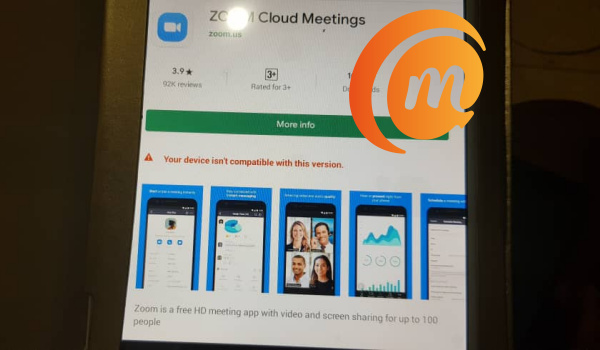
My immediate response was that the problem was the tablet, which was an unknown brand. But then my brother mentioned that he also had a Samsung tablet that was not compatible with the Zoom app as well. Odd. One would not expect that from a known brand like Samsung. Some days later, I did some digging around and found that the problem was a fairly common one. There are lots of tablet users getting that same Your device is not compatible with this version error when they tried to install one app or the other.
The error pops up when trying to Install Instagram, Zoom, GetUpside, and many more apps, and this was happening on all kind of devices – Samsung phones , Infinix phones , Huawei phones , and more. This didn’ty look like an issue that was device-specific.
Anyway, I found the fix for the problem. There are two possible issues. One has to do with the Android version that your smartphone or tablet is running. The other has to do with Google Play Store itself. The fixes are easy, so don’t get scared. let’s have a look at them.
- Fix Your device is not compatible with this version error by updating your device to the latest available version of Android
- Fix Your device is not compatible with this version error by clearing Google Play Store Cache and Data Files
Fix Your device is not compatible with this version error by updating your device to the latest available version of Android
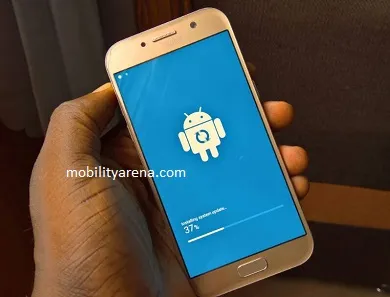
One of the things to do to solve the “Your device is not compatible with this version” problem is running a software update on your device. To check if there is an available software update for your device, follow these steps:
- Pull down the notification bar on your Android device and tap the gear-shaped settings icon to enter your device’s Settings ;
- Scroll and select About phone -> System update
- Your device will tell you if an update is available. If there is, run it. After the update has been downloaded and installed, your phone will restart. After that, try installing the affected app again. If it installs, problem solved. If it still displays the Your device is not compatible with this version error, then skip to the next solution below.
PS : Note that if your device’s Android version is old and incompatible with the app’s current version, there is nothing further you can do. Only a software update of your device can fix it.
Fix Your device is not compatible with this version error by clearing Google Play Store Cache and Data Files
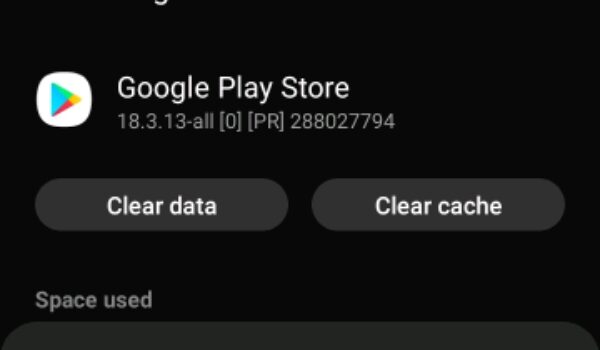
This is the more common fix for the “your device is not compatible with this version” error message displayed when trying to install Zoom, Instagram or other apps. To clear the Google Play Store cache, and data, follow the below steps:
- Pull down the notification bar on your Android device and tap the gear-shaped settings icon to enter your device’s Settings ;
- Navigate to Apps , or App Manager (the name will differ depending on your phone’s manufacturer);
- Scroll down and find and select Google Play Store ,
- You will see two options: Clear Data , and Clear Cache;
- Select Clear Cache to clear Google Play Store’s cache;
- Then select Clear Data to delete Google Play Store’s data.
Once done, launch Google Play Store again and try to install the app. Installation should work fine now. Now, you can enjoy the proceeds from your hard-earned money. All the best!
Author:Mister Mobility
Digital Skills and Communication Coach | Mobile Phone Connoisseur since 2001 | Tech Blogging since 2004
