Add MobilityArena as a preferred source on Google
If you are a sports fan these days, there is no reason not to know about the latest result or piece of hot gossip, and thanks to your mobile device you can have it all at your fingertips. However, when it comes to knowing the top sports apps to download, it is not quite so clear-cut. But that’s where MobilityArena comes in. Here we give you a guide to some of the best sports apps available.
ESPN
One of the most highly rated is ESPN’s app. It does exactly what you would expect from the sports TV giant, with the latest scores, news, and a range of video highlights all available.
Sports covered include Football, Cricket, Formula 1, Tennis, Golf, NBA, and the NFL, as well as some more niche sports like Darts and Snooker. It can also be tailored to your particular interests and has recently benefited from some updates (although all apps, like websites, tend to be a work in progress and forever evolving). It is not universally popular, but it is free and currently has a score of 4.2 out of 5 on Google Play (from over half a million reviews).
Bleacher
If you’re not feeling the ESPN app, there are a few others worth trying that might suit you and potentially tick similar boxes. One of the other good apps has to be Bleacher Report. Bleacher Report has been owned by Turner, a part of Time Warner, since summer 2012, and actually has a higher score, 4.5, on Google Play than ESPN (although, admittedly, that score is the result of just under 120,000 reviews).
Again, this app covers a variety of sports and has added some heavy-duty reporters since the Turner takeover, including Mike Freeman and Howard Beck from the New York Times. It also pulls together info from various social media platforms, like Twitter and Instagram, as well as from blogs. It is also another free one.
If you don’t fancy either of those, maybe try Fox Sports, BBC Sport, MSN Sport, Yahoo Sports or Sky Sports. All have ratings of 4 or above, but the review sample for any of them is a lot smaller than for either ESPN or Bleacher Report.
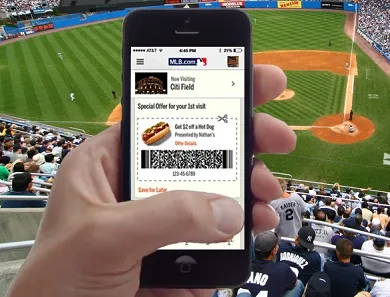
Source: Wikimedia
365 Scores
We should also recommend 365Scores, with its stated aim being to “create a better way for people to enjoy sports ”. Despite its name, it doesn’t only keep you up to date on the latest goals, touchdowns, etc., but also on news alerts and videos, all in real time. 365Scores might not cover quite the breadth of sports as ESPN or some of the others mentioned above. But it still includes all the major sports, namely Football, Basketball, Cricket, Rugby, Tennis, Ice Hockey, Baseball, Volleyball, American Football and Handball, although the obvious gaps include things like Boxing and Formula One.
There are also some charges for in-app products, but there is no charge to download. And the app is well recommended, with over 400,000 people giving it 5 out of 5 on Google Play.
All of these apps should help keep you informed about the goings-on in the sporting world ahead of the some ultimate sporting spectacles this summer , such as Wimbledon, the IAAF World Championships and SummerSlam, as well as those coming up, like the 2018 FIFA World Cup. So, what are you waiting for? Try out these apps, and never miss the very latest regarding your favourite sport.
- Don’t miss our reviews .
- Follow our news on Google News .
- Join our WhatsApp Group , to be notified of the most important articles and deals,
- Follow us on Instagram , Facebook , Twitter , and YouTube .
Author:Gladys Nwachukwu
Add MobilityArena as a preferred source on Google
If your family uses a shared computer, you can set up parental controls on it. This will help you limit your children’s access to apps, websites and stores, create a schedule for them for computer time, and protect their privacy. Here’s how to help you set up parental controls on your Mac for your kids.
CREATE A USER ACCOUNT
- Click on the Apple logo in your menu and choose System Preferences
- Select Users & Groups
- Click on the lock to enable changes and enter your password when prompted.
- Click on the+ button to add a new user
- In the New Account dropdown box, select Managed with Parental Controls
- Complete the rest of the information for your child and click Create User.
OPEN THE PARENTAL CONTROLS
Option 1 : If you just created the user’s account, click on Open Parental Controls on the user screen.
Option 2 : if the user’s account already exists, click the Apple logo in your menu, then choose System Preferences > Parental Controls. Click on the lock icon to enable changes and enter your password.
SET UP THE CONTROLS
Apps – Choose access to apps
The first set of controls lets you decide which apps your child should have access to. simply check or uncheck any item. If you choose Limit Mail , you can click on Manage to provide a list of allowed contacts. You can also enter an email address to be notified if the user tries to exchange messages with someone not on the list.
Web – Set browser restrictions
Choose your option from the three radio buttons displayed for restricted, limited with customization, or specific website access. Most likely, you would pick the third option for allowing only access to certain sites. Click on the + button and select Add Bookmark to enter a link, or select Add Folder to create a new folder. To remove a link, select it and click on the – button.
Stores – Disable or restrict stores
This section lets you disable access to the iTunes store, iTunes U, and the iBooks store. Just check and uncheck the options as desired. You can also restrict media such s movies, music and books. Just check or uncheck the items as necessary.
Time – Create a computer time schedule
To ensure that your child only has access to the computer during designated times, you can set up a customized schedule. This makes sure that homework gets done, bedtime is kept and the kids do not overuse the computer.
- Weekday and weekend time limits : You can set time limits on weekday usage and weekend usage. Check one or both of the boxes and then adjust the amount of time per day.
- Bedtime settings : Along with limiting the number of hours your child can use the computer each day, you can limit when it is used. For school nights and weekends, check one or both boxes and then adjust the allowable timetables for each.
Privacy – Manage the privacy settings
You can manage the apps requesting access to items like location, photos, and contacts. Click the manage Privacy button to make necessary adjustments.
- Don’t miss our reviews .
- Join our WhatsApp Group , to be notified of the most important articles and deals,
- Follow us on Instagram , Facebook , Twitter , and YouTube .
