Add MobilityArena as a preferred source on Google
While it might be easy for the avid smartphone enthusiast to spot a fake iPhone 6 from the genuine thing, it isn’t so easy for others. We have a few pics shared by someone on Twitter. Apparently, someone made a purchase that turned out to be fake.
Photos of a fake iPhone 6
First up, so here is the iPhone 6 booting:
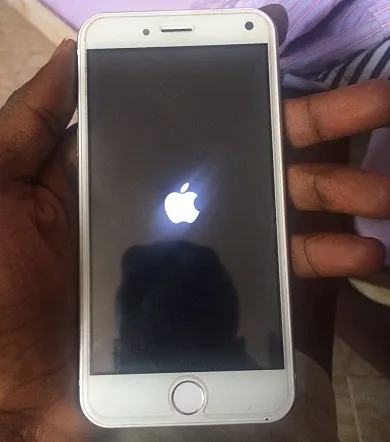
That looks like the authentic thing; right? So far, so good. Of course, if you look closer, the design elements are a bit different. Once booted, though, what you see an Android-style lock screen and matching wallpaper:
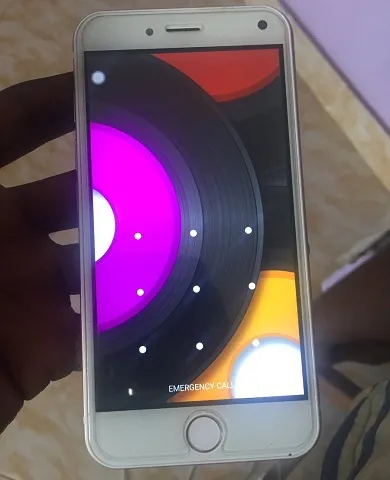
Dead give-away. There is no way that is an authentic iPhone 6. Finally, if you flip it over and have a look at the back:
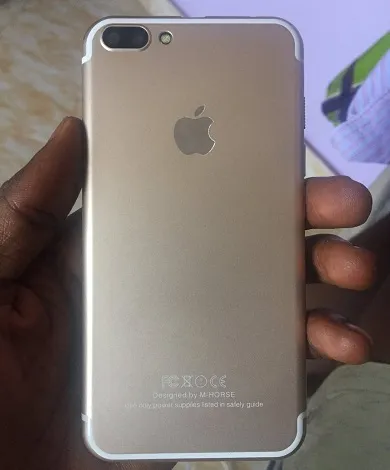
If you take a closer look at the bottom section of the rear cover, you will see this:
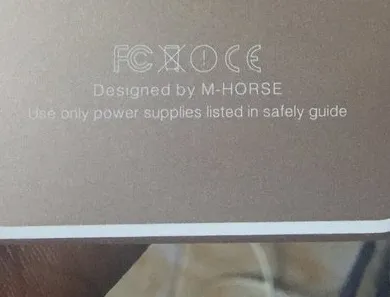
Yes; “Designed by M Horse”. Certainly not designed by Apple. This “iPhone” is a knock-off that runs Android OS.
Who is M Horse?
M Horse is a Chines mobile phone manufacturer of Android smartphones. Behind almost every fake iPhone model is an obscure Chinese manufacturer. No offence to other credible Chinese manufacturers who do not produce knock-offs. Do keep an eagle eye open when shopping for smartphones. There are fake models of every successful brand out there. If ever in doubt, walk away.
Source
- Don’t miss our reviews .
- Follow our news on Google News .
- Join our WhatsApp Group , to be notified of the most important articles and deals,
- Follow us on Instagram , Facebook , Twitter , and YouTube .
Author:Mister Mobility
Digital Skills and Communication Coach | Mobile Phone Connoisseur since 2001 | Tech Blogging since 2004
Add MobilityArena as a preferred source on Google
Did you know that you can make your Android phone faster? This is not with a speed booster app. You can force your CPU to run a bit faster than normal. The process is called overclocking, and what it does is increase a smartphone’s CPU clock speed.
It is quite easy to overclock Android smartphones, and it can add as much as 30 percent to the CPU power. Note that this requires root access on your device. This article puts you through the details and th steps to overclock Android smartphones.
What happens when you increase a phone CPU clock speed?
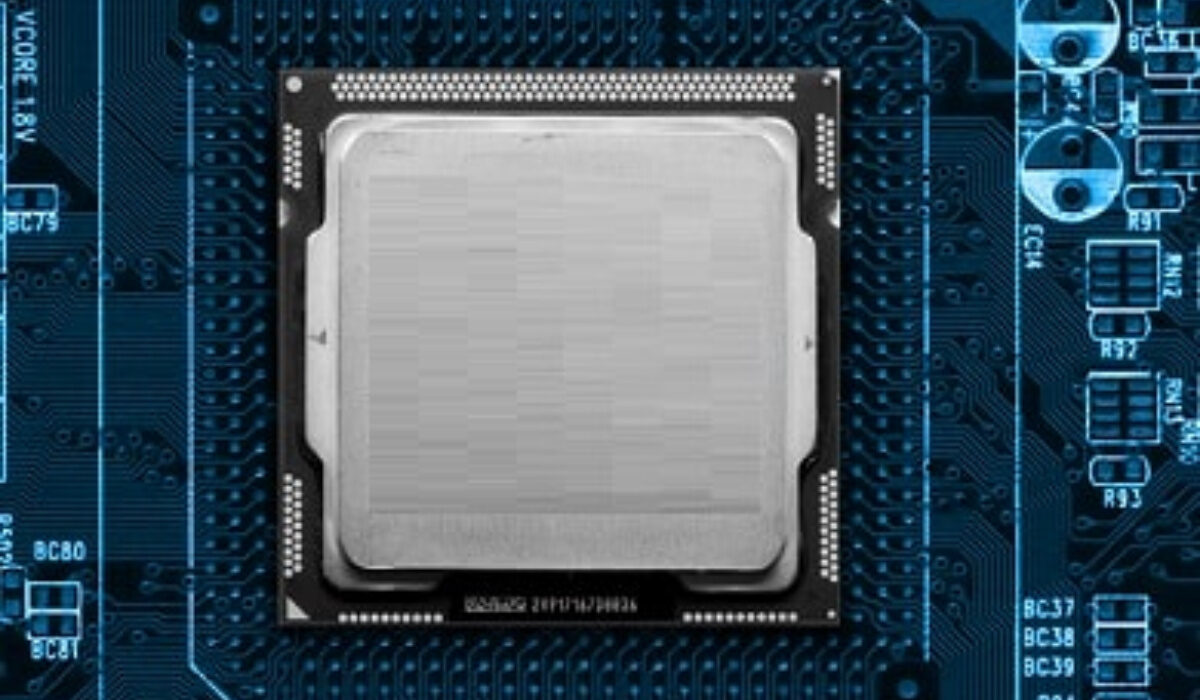
When you increase a phone’s CPU clock speed, you are essentially making the processor run at a higher frequency than its default or base clock speed. The CPU clock speed represents the number of cycles per second the processor can execute, measured in Hertz (Hz). It directly impacts the processing performance of the phone. Here’s what happens when you increase the CPU clock speed:
- Improved Performance : By increasing the CPU clock speed, the processor can perform more calculations and instructions per second. As a result, the overall performance of the phone is enhanced. Tasks such as app launches, multitasking, and complex computations may become noticeably faster.
- Faster App Response : Applications running on the phone may respond more quickly to user inputs, leading to a smoother and more responsive user experience.
- Enhanced Gaming Experience : For gaming enthusiasts, higher CPU clock speeds can lead to improved frame rates and graphics rendering, resulting in a better gaming experience with reduced lag.
- Higher Energy Consumption : Running the CPU at a higher clock speed requires more power. As a consequence, increasing the CPU clock speed can lead to higher energy consumption, which may impact the phone’s battery life. The battery will deplete faster, especially during CPU-intensive tasks.
- Increased Heat Generation : A faster CPU generates more heat as it processes data at a higher rate. This can cause the phone’s temperature to rise during intense usage, potentially leading to thermal throttling to prevent overheating.
- Battery Drain : The increased power consumption due to higher CPU clock speeds can cause the battery to drain more quickly, especially if the phone is under heavy load.
- Stability Concerns : Not all phones are designed to handle higher clock speeds than their default settings. Overclocking the CPU beyond manufacturer specifications can lead to stability issues, system crashes, and even permanent damage to the processor or other components.
- Warranty and Support : Overclocking a phone’s CPU can void the manufacturer’s warranty, as it involves modifying the original settings. It may also prevent you from getting official support in case of hardware-related issues.
Before You Start
Before you start overclocking, know this. To overclock Android smartphones is risky. It can make your device unstable and affect your battery life. It won’t make your phone catch fire or anything like that, but still. You need to take it slow. Don’t just jump directly to a 30 percent increase in clock speed immediately. Start small, and find out how well your device handles it each time. If the system shows no signs of malfunction, then you can try increasing your clock speed. Revert to a stable clock speed if you notice that something’s off.
How to overclock Android smartphones
Now, the only thing you need is a kernel that supports overclocking. There are loads of good kernels to choose from, but you should find the right kernel for your phone model. But first, know your phone model number and your Android version. Go to Settings>About Phone and check it out.
Now, note that your device needs to be rooted for you to install a custom kernel. Also, you need to install a custom recovery tool, as you cannot flash kernels using stock recovery. If you have made these arrangements, then follow these instructions to overclock your device:
- Make a backup of your data. This is important.
- Once you have chosen your preferred kernel, download it into your smartphone, along with any software that comes with it.
- Turnoff your phone, then put it in fastboot mode by pressing the power and lower volume buttons down.
- On the fastboot screen, use the volume buttons to highlight Recovery Mode and use the power button to select it. This will take you to your Custom Recovery.
- Tap Install and navigate to the location you saved your kernel zip file. Now flash the kernel zip file and wait for a success message. Note that some kernels allow you to set the CPU clock speed during installation. You can change the settings there or later through the CPU app.
- Once the kernel has been flashed successfully, wipe the cache.
- Go to Advanced Settings in Recovery and tap Fix Permissions. After that, reboot your device.
Now, you can change your CPU clock speed. If you did not do this while installing your custom kernel, launch your CPU manager or kernel app. Look for the settings that control clock speed, then adjust the speed. Remember to take it slowly. Try out each clock speed to see its effects on stability, battery life and heat.
