Add MobilityArena as a preferred source on Google
Have you ever been bombarded with notifications while browsing the internet? They usually come in the form “so so so website wants to send you notifications, accept or reject,” these notifications can be a disturbance and at the same time annoying.
It is time to turn off notifications on your web browser, either it is Google Chrome on your Android phone or Apple Safari on your iPhone or iPad.
Block Pestering Notifications On Chrome Web Browser

Block Pestering Notifications On Chrome Browser.
It is important to note that notifications on the Chrome browser are turned on by default, so it is important to know how to switch it off.
The fix offered in this article works on all Chrome browsers regardless of the device it is running on (Android, iOS, Windows, etc). It is quite easy to take control of the Notifications you receive while browsing the internet on your Chrome browser.
Chrome gives you the option to totally block all pestering notifications or allow a few of which you have completed choice over. To get this done, all you need is data connection and your Chrome browser, then follow the steps below.
- Head over to the browser settings and click site settings.
- You will see a bunch of options, find and click on notifications.
- Toggle the setting off
You can now wave goodbye to the ever present notifications on your Chrome browser. Through this setting you can also get control of other things a website
Block Pestering Notifications On Safari Browser
Block Pestering Notifications On Safari Browser
These notifications even exist in the Safari browser, which is Apple’s very own browser for all their smart products. But we can as well block notifications from the Safari browser in two ways, first being from the Safari browser settings:
- Open the Safari browser and navigate to settings
- Find preferences and click on it
- Open the “website” option listed and click on notifications
- You will be greeted with the list of notifications from various websites you have already blocked and if Joe exist you can just toggle on the settings to block off all notifications from websites
The second way to block pestering notifications on safari browser is through your iPhones settings:
- Open the settings application on your iPhone and head over to system preferences.
- Tap on notifications and find the Safari app icon listed among the other apps
- Now simply turn off “allow notifications” and just like that you have successfully blocked all notifications from websites you might visit in the future.
You are reading Mobility Arena .
- Don’t miss our reviews .
- Join our WhatsApp Group , to be notified of the most important articles and deals,
- Follow us on Instagram , Facebook , Twitter , and YouTube .
Author:KittysTech
Tech analyst, Collins Eshiet, writes about technology. Follow me on Twitter @KittysTech.
Add MobilityArena as a preferred source on Google
We love our unboxing sessions as much as the next guy, and today, we have pictures and first thoughts of Google’s latest flagship. In this Google Pixel 6 Pro unboxing, I share photos of this big, bad boy, as well as my first impressions of the device.
But before we dive into the meat of the article, introductions are in order. Or as we say it in my neck of the woods, first of all, introductions .
- Google Pixel 6 Pro Unboxing: Quick Specs
- Google Pixel 6 Pro Unboxing: Photos
- Google Pixel 6 Pro Unboxing: First Impressions
Google Pixel 6 Pro Unboxing: Quick Specs
The 6 Pro has a massive 6.71-inch AMOLED display, and the result is a big phone. This is a departure from the pattern with Google, who have had a track record of keeping Pixel phones compact and handy.
Sorry to disappoint you traditional Pixel lovers, but I love the size. Here’s to bigger phones from Google.
Other specifications of the Pix 6 Pro include: Gorilla Glass Victims protection on the screen, 120Hz refresh rate, always-on display, a 5030 mAh battery with 30W quick charge, and a 50MP rear camera.
There are storage options of 128 GB, 256 GB, and 512 GB. Each of them is coupled with 12 GB RAM. Along with the Tensor chipset, you are getting mostly cutting edge specs and features.
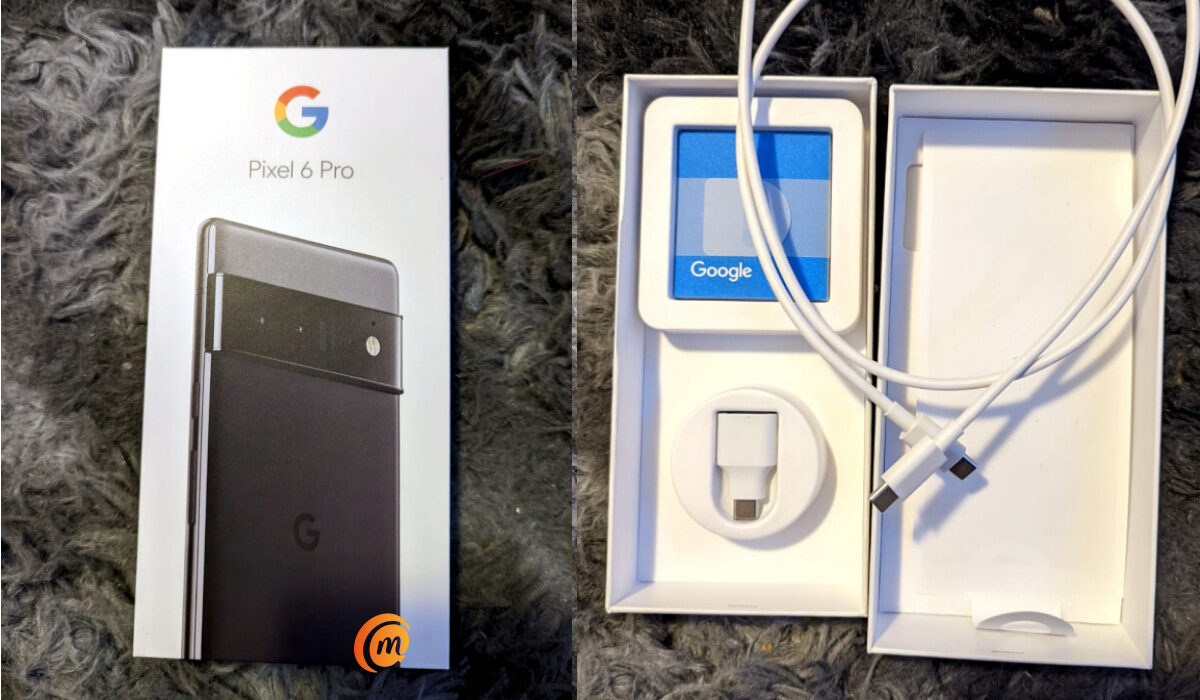
There is no charger in the box. No headset either.
In the box is the phone itself. This unit is in the Stormy Black colour. There is no charger or earphones included. All you get is a USB cable, a micro-USB adaptor, SIM ejector tool, and the usual paperwork.
Google Pixel 6 Pro Unboxing: Photos
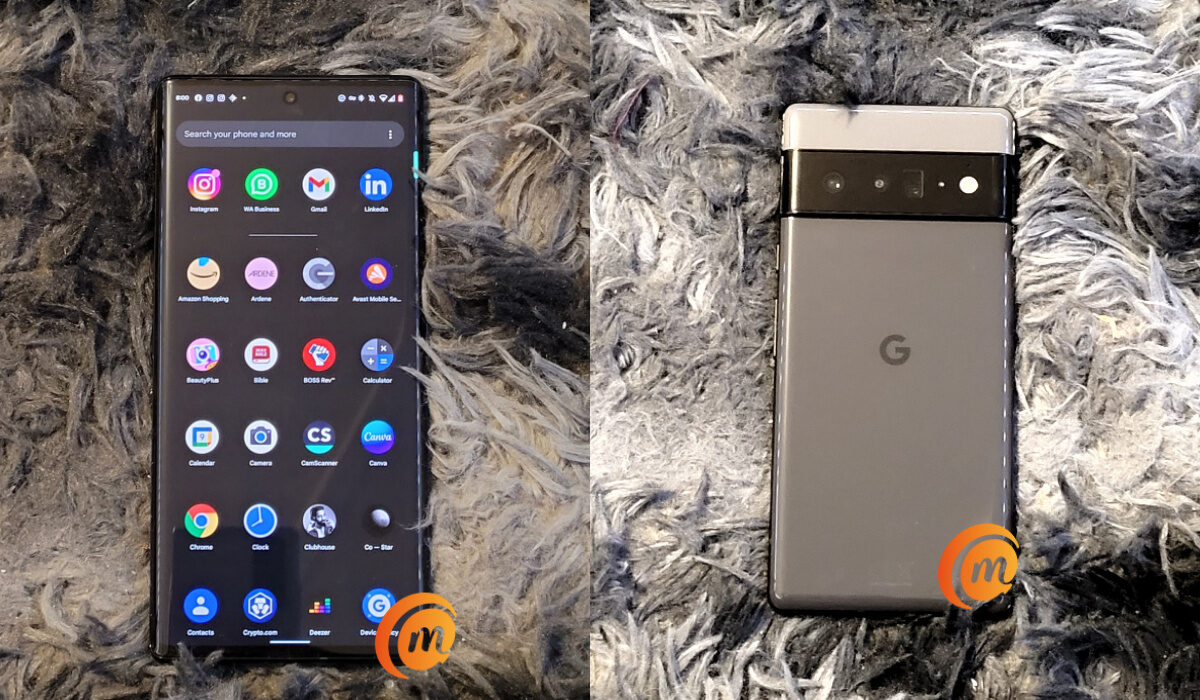
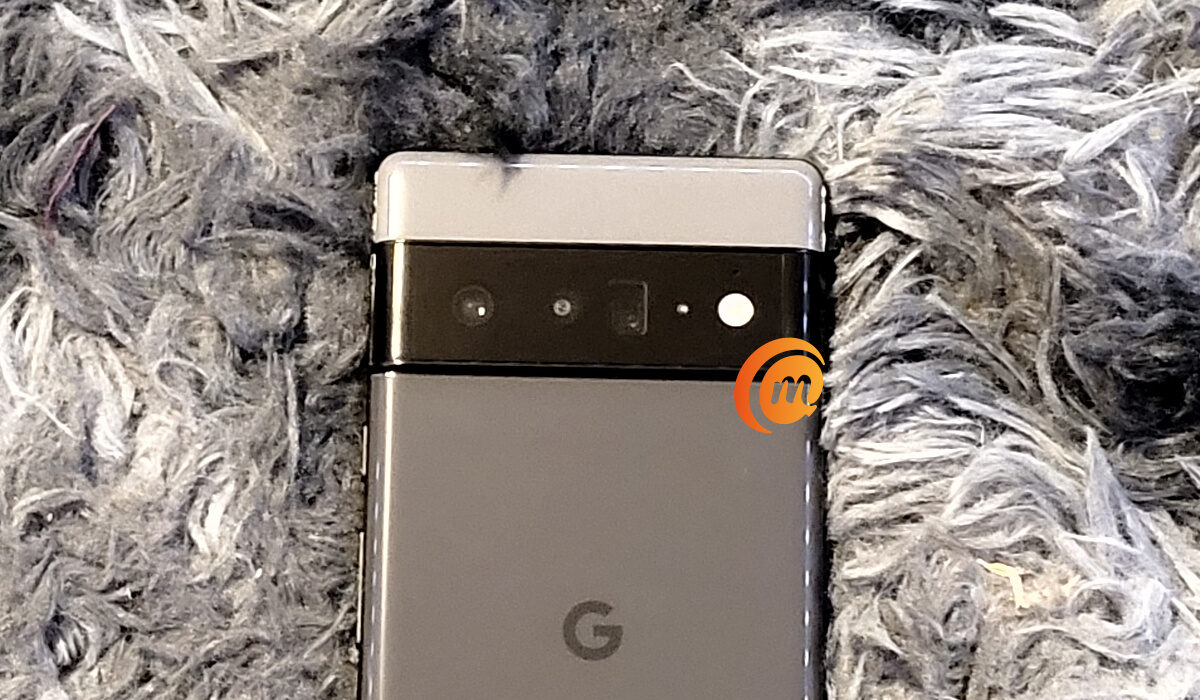
That 50MP rear camera that has everyone excited
Google Pixel 6 Pro Unboxing: First Impressions
The Pixel 6 Pro looks great. You can’t mistake the design for a phone by a y other brand. It stands out and so is great for making a statement. But it doesn’t just look good; it feels great in the hand too.
If you love your phones compact and have been a fan of Google’s Pixels, I don’t know how you are going to respond to this. It is not business as usual. It looks like Google has made a new beginning with this model.
If you want one, the price starts from $630 for the 8 GB RAM and 128 GB storage base variant.
I love the Pixel 6 Pro, and I am excited that Google has gone down this new path with it. What do you think – yay or nay? Are you getting this or the Pixel 6?
If you own a Pixel 6 or any other Pixel device, here are some best Android 12 Pixel tweaks .
Author:MobileChic
That motivated, gadget-loving geeky chic who tries to stay on top of things. Unapologetic iFan.
