Add MobilityArena as a preferred source on Google
I have experienced random situations in which my Android smartphone won’t connect to WiFi. It happens more often then I like. As a matter of fact, I am writing this article because it has happened again today. So, I thought to share with MobilityArena readers the ways I solve the problem whenever it happens.
This afternoon, I toggled the WifFi button in the drop-down menu of my Xiaomi Mi Note 10 Pro , so I could connect to the hotspot at home. I needed to get some work done. Alas, I found myself staring at the phone, waiting for the WiFi connection icon to come up. It didn’t, so I dived into the phone settings to attempt a manual connection.
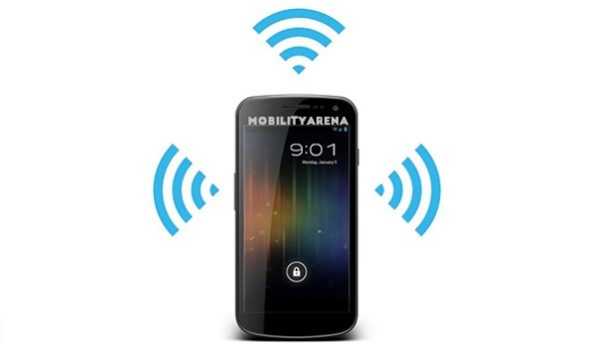
Step One: Check the WiFi Connection Settings
That is always the first step if your Android smartphone won’t connect to WiFi: open the Settings menu of your phone, scroll to the WiFi menu and attempt a manual connection. In my case this afternoon, that didn’t work. The phone kept asking me for the hotspot password, and entering it didn’t solve the problem either. There have been times in the past in which this was all I had to do and the connection happened. But today, I had no such luck.
When that hapenes, fear not, there are a few more steps you can take to solve the problem.
Step Two: Activate Airplane Mode
Airplane mode turns off all the radio components of the phone. This includes mobile network, WiFi, and Bluetooth. If your smartphone won’t connect to WiFi, the next thing you can do is enable Airplane mode for about 45 seconds and then turn it off again, then try to connect again.
Step Three: Restart Your Android Phone
When all else fails, I tell people, do a restart. A reboot of your smartphone is like a quick nap. It is a simple procedure, but many problems get solved by a restart. If your smartphone won’t connect to WiFi, try a restart, then attempt to connect again.
This was what fixed the problem for me this time. Once my phone restarted, it connected to the WiFi hotspot without any issues. However, sometimes, that does not solve the problem and you have to move on to step four.
Step Four: Restart The Router or MiFi
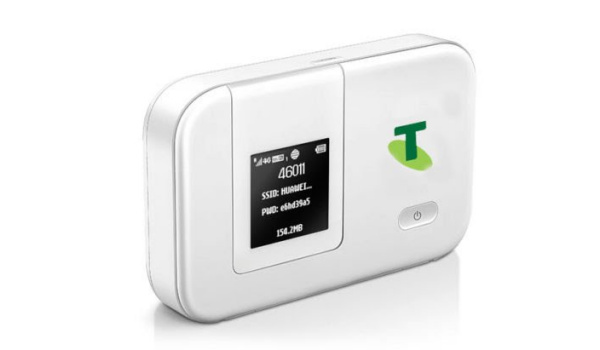
If a restart of your smartphone does not solve the problem and your Android phone still won’t connect to WiFi, it is time to try a restart of your router or mifi. Turn off your mifi or router for about 45 seconds, then turn it back on. After that, try to connect your phone to the WiFi again.
Step Five: Factory Reset Your Phone
If your Android phone won’t connect to WiFi at all any more, then something has seriously gone wrong. At this point, you have to be ready for some heavy measures. A factory reset is one such measure, because it wipes off everything on your phone – your files, contacts, accounts – everything.
So, do not try a factory reset unless things have become irredeemable. If you have tried everything and you smartphone isn’t connecting to Wifi any more, here is How to hard reset your Android smartphone .
Step Six: Re-install The Operating System/Send It To A Service Centre
If your Android phone still won’t connect to WiFi even after a factory reset, it is time to allow more capable hands have a look at it. It could be due to a software problem, in which case the operating system may need to be re-installed. That is outside of your scope.
It could also be due to a hardware fault; perhaps the Wifi radio needs to be replaced. Whether it is a software or a hardware issue, it is time to send your phone to an authorised service centre to get the problem fixed.

Why Do Android Phones Randomly Refuse To Connect To WiFi?
If you are asking why your Android phone randomly refuses to connect to WiFi, you are not alone. I have wondered about it too. I am still yet to find out, and I don’t know anyone who has. But it just happens at random. Perhaps it has to do with the technology itself.
I have also experienced it on different smartphone brands – Xiaomi phones, Nokia phones, itel phones, etc. It does not seem to be restricted to any one brand. As long as you use an Android phone, you are likely to experience it at one point in time or the other. Knowing what to do when it happens is the only surety you have.
Author:Mister Mobility
Digital Skills and Communication Coach | Mobile Phone Connoisseur since 2001 | Tech Blogging since 2004
Add MobilityArena as a preferred source on Google
Samsung Galaxy A50s users have reportedly begun to receive the One UI 2.5 update. This update has the November 2020 Android security patch together with a number of new features from the One UI 2.5 update.
This update brings features like an improved camera experience, SOS functionality for messages, Google’s navigational gestures for third-party apps, and much more. This update for the Samsung Galaxy A50s is currently available in Vietnam and has the firmware version A507FNXXU5CTK3 .
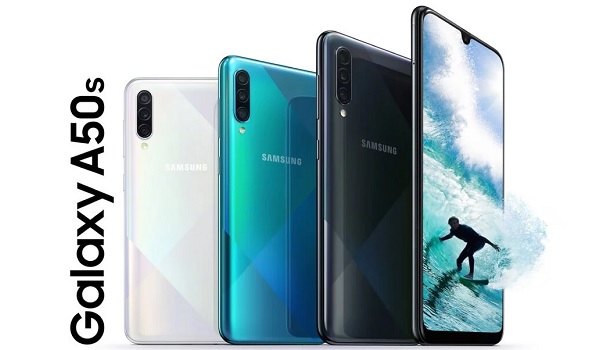
This firmware can be downloaded by clicking the update notification the moment it appears on your device. However, if you have not gotten a notification on your Samsung Galaxy A50s, you can check Settings > Software Update > Download and Install .
This update was introduced to the Samsung Galaxy A51 about a month ago, although this update had the October security patch with it.
Reports suggest the South Korean company has started testing the One UI 3.0 with Android 11, with some quarters saying that the company may release this software version this month or in December.
The Samsung Galaxy A50s launched in September 2019, with the Android 9 Pie taking care of its software needs. It has the Exynos 9611 SoC under the hood and packs a 4,000mAh battery.
References
- Source ;
- Source .
Author:Alfa Baye
Staff Writer
